
1. Introduzione
Welcome to the Valerion StreamMaster Plus 4K Projector user manual. This guide provides essential information for setting up, operating, and maintaining your new projector. Please read it thoroughly before use to ensure safe and optimal performance of your device.
2. Informazioni sulla sicurezza
Quando si utilizza il proiettore, seguire sempre queste precauzioni di sicurezza di base:
- Non ostruire le aperture di ventilazione. Assicurarsi che vi sia spazio sufficiente attorno al proiettore per un corretto flusso d'aria.
- Non esporre il proiettore alla pioggia o all'umidità per evitare incendi o scosse elettriche.
- Evitare di guardare direttamente nell'obiettivo del proiettore quando lamp è acceso, poiché può causare danni agli occhi.
- Utilizzare solo l'adattatore di alimentazione fornito con il proiettore.
- Tenere il proiettore lontano da fonti di calore e dalla luce solare diretta.
- Non tentare di smontare o modificare il proiettore. Per qualsiasi intervento di assistenza, rivolgersi a personale qualificato.
3. Contenuto della confezione
Verifica che tutti gli articoli siano presenti nel tuo pacco:
- Valerion StreamMaster Plus 4K Projector
- Cavo di alimentazione
- Telecomando
- Manuale dell'utente (questo documento)
4. Prodotto finitoview
The Valerion StreamMaster Plus is a high-performance 4K projector designed for versatile indoor and outdoor use. It features a native 3840 x 2160 resolution, 3D-ready capabilities, built-in speakers, and extensive connectivity options.
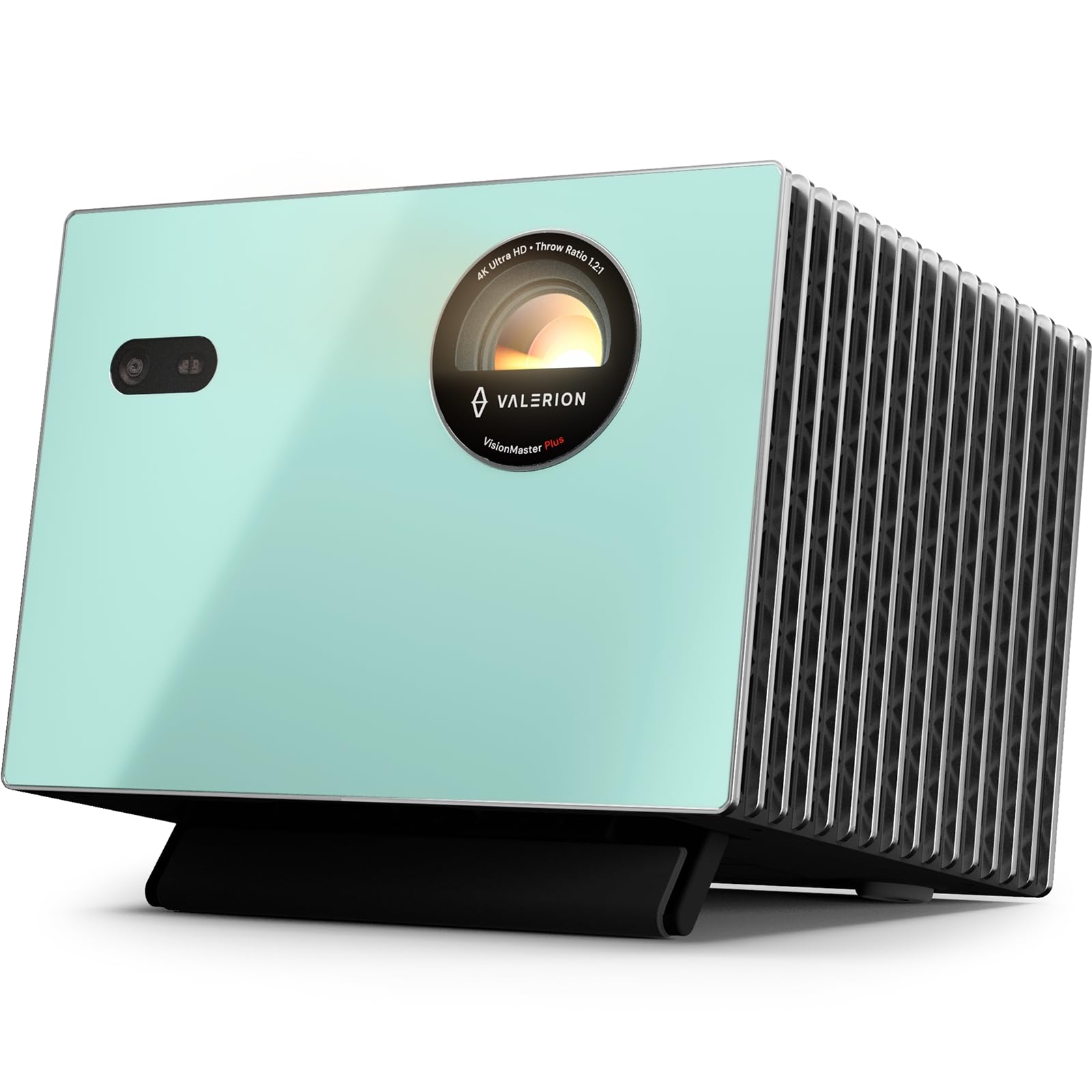
Figura 4.1: Fronte view of the Valerion StreamMaster Plus 4K Projector. This image highlights the projector's lens and compact design, showcasinil suo aspetto elegante.
Caratteristiche principali:
- Risoluzione dello schermo: Risoluzione 3840 x 2160 (4K UHD)
- Tipo di visualizzazione: DLP
- Caratteristiche speciali: 3D-Ready, Built-In 3D, Internet Ready, Integrated Speakers
- Connettività: HDMI, S/PDIF, USB 3.0, Ethernet
- Utilizzi consigliati: Interno/Esterno
5. Impostazione
5.1 Posizionamento
The StreamMaster Plus is suitable for both indoor and outdoor environments. For optimal viewing, considera quanto segue:
- Dimensioni dell'immagine: The projector can produce an image size ranging from 40 inches to a maximum of 300 inches diagonally. Adjust the distance from the projection surface to achieve your desired screen size.
- Montaggio: The projector supports wall mounting. Ensure the mounting surface is sturdy and capable of supporting the projector's weight (7 Kilograms).
- Ambiente: Place the projector on a stable, level surface or mount it securely. Ensure proper ventilation and avoid placing it near heat sources or in direct sunlight.
5.2 Collegamento di alimentazione
- Collegare il cavo di alimentazione alla porta di ingresso dell'alimentazione del proiettore.
- Collegare l'altra estremità del cavo di alimentazione a una presa elettrica dotata di messa a terra.
5.3 Collegamento dei dispositivi
The StreamMaster Plus offers multiple connectivity options:
- HDMI: Connect your video sources (e.g., Blu-ray player, gaming console, laptop) using an HDMI cable to the HDMI input ports.
- Porta USB 3.0: Use the USB 3.0 port for connecting external storage devices to play media directly.
- S/PDIF: For digital audio output to an external sound system.
- Collegamento Ethernet: Connect an Ethernet cable for wired internet access, enabling smart features and streaming.
6. Operativo
6.1 Accensione/spegnimento
- Accensione: Press the power button on the projector or the remote control. The indicator light will illuminate.
- Spegni: Premere nuovamente il pulsante di accensione. Confermare lo spegnimento se richiesto. Lasciare raffreddare il proiettore prima di scollegarlo.
6.2 Selezione della sorgente di input
Use the 'Source' button on the remote control or projector to cycle through available input sources (HDMI 1, HDMI 2, USB, etc.) until your desired source is displayed.
6.3 Regolazione delle impostazioni di visualizzazione
Access the projector's on-screen menu to adjust settings such as:
- Risoluzione: The native resolution is 3840 x 2160. Ensure your source device is set to output at this resolution for the best picture quality.
- Proporzioni: Adjust to match your content (e.g., 16:9, 4:3).
- Modalità Immagine: Select from various presets (e.g., Standard, Dynamic, Cinema) or customize brightness, contrast, and color settings.
6.4 Funzionalità 3D
The StreamMaster Plus is 3D-ready and features built-in 3D capabilities. To enjoy 3D content:
- Ensure your 3D source content and player are compatible.
- Wear compatible active 3D glasses (sold separately).
- Activate 3D mode through the projector's menu if it doesn't automatically detect 3D content.
6.5 Uscita audio
The projector includes integrated speakers for direct audio playback. For enhanced audio, connect external speakers or a sound system via the S/PDIF port.
6.6 Connettività Internet
With its Internet Ready feature and Ethernet connectivity, you can access online streaming services and updates directly through the projector. Navigate the smart interface using the remote control.
7. Manutenzione
7.1 Pulizia della lente
Pulire delicatamente la lente del proiettore con un panno morbido e privo di lanugine, specificamente progettato per superfici ottiche. Non utilizzare detergenti abrasivi o esercitare una forza eccessiva.
7.2 Pulizia del corpo del proiettore
Utilizzare un panno morbido e asciutto per pulire l'esterno del proiettore. Per macchie ostinate, utilizzare un panno leggermenteamp Si può usare un panno, seguito da un panno asciutto. Evitare l'uso di prodotti chimici aggressivi.
7.3 Ventilazione
Regularly check that the ventilation openings are clear of dust and debris to prevent overheating. Use a soft brush or compressed air to gently clean the vents.
7.4 Conservazione
When not in use for extended periods, store the projector in a cool, dry place, protected from dust and extreme temperatures. Use the original packaging if available.
8. Risoluzione Dei Problemi
Se riscontri problemi con il proiettore, fai riferimento ai seguenti problemi comuni e alle relative soluzioni:
| Problema | Possibile causa | Soluzione |
|---|---|---|
| Nessuna immagine visualizzata | Sorgente di input selezionata non corretta; Collegamento del cavo allentato; Proiettore non acceso. | Select the correct input source. Check all cable connections. Ensure the projector is powered on. |
| L'immagine è sfocata | Ghiera di messa a fuoco non regolata; proiettore troppo vicino/lontano dallo schermo. | Regolare la ghiera di messa a fuoco sull'obiettivo. Riposizionare il proiettore per ottenere dimensioni e nitidezza dell'immagine ottimali. |
| Nessun suono | Volume troppo basso; Disattivato; Uscita audio selezionata non corretta. | Increase volume. Unmute the projector. Check audio settings and external speaker connections. |
| Il telecomando non funziona | Batterie scariche; ostruzione tra telecomando e proiettore. | Replace batteries. Ensure a clear line of sight to the projector's IR receiver. |
If the problem persists after trying these solutions, please contact Valerion customer support.
9. Specifiche
| Caratteristica | Specificazione |
|---|---|
| Marca | Valerion |
| Numero di modello | StreamMaster Plus |
| Risoluzione dello schermo | Risoluzione 3840 x 2160 (4K UHD) |
| Risoluzione nativa | 3840x2160 |
| Tipo di visualizzazione | DLP |
| Tecnologia di connettività | Etereo |
| Connettività Hardware | HDMI, S/PDIF, USB 3.0 |
| Caratteristiche speciali | 3D-Ready, Built-In 3D, Internet Ready, Speakers |
| Usi consigliati | Interno/Esterno |
| Tipo di montaggio | Montaggio a parete |
| Dimensione minima dell'immagine | 40 pollici |
| Dimensione massima dell'immagine | 300 pollici |
| Dimensioni articolo (L x P x A) | 18 cm L x 23 cm P x 26 cm A |
| Peso dell'articolo | 7 chilogrammi |
| Produttore | VALERION TECHNOLOGY USA CO., LTD |
| Codice UPC | 850067089872 |
10. Garanzia e supporto
Valerion products are manufactured to the highest quality standards. For warranty information, please refer to the warranty card included with your purchase or visit the official Valerion website. For technical support or service inquiries, please contact Valerion customer service through the contact information provided on our websito.
Supporto online: Valerion Official Store


