
1. Introduzione
The Wanbo T2 Ultra is a compact and versatile projector designed for home entertainment. It features Android TV 11.0, offering access to a wide range of streaming applications. With 500 ANSI lumens brightness and native 1080P Full HD resolution, it delivers clear and vibrant images. Advanced features like auto-focus, automatic keystone correction, and integrated HiFi speakers enhance the user experience. This manual provides detailed instructions for setup, operation, and maintenance of your Wanbo T2 Ultra projector.
2. Contenuto della confezione
Si prega di selezionare la casella per i seguenti elementi:
- Wanbo T2 Ultra Projector Unit
- Telecomando
- Cavo di alimentazione
- Cavo HDMI
- Manuale dell'utente (questo documento)
- Cleaning Tools (if included)

Image: Projector and accessories in packaging. Actual contents may vary slightly.
3. Prodotto finitoview
3.1 Projector Unit

Immagine: Frontale view of the Wanbo T2 Ultra Projector.
3.2 Porte e connessioni

Immagine: Posteriore view of the Wanbo T2 Ultra Projector showing various input/output ports.
- Porta HDMI (ARC): Connect to external devices such as laptops, gaming consoles, or TV boxes. Supports Audio Return Channel.
- Porta USB: Collegare dispositivi di archiviazione USB per la riproduzione di contenuti multimediali.
- Porta audio (3.5 mm): Collegare cuffie o altoparlanti esterni.
- Potenza in ingresso: Connect the power cable to supply power to the projector.
4. Impostazione
4.1 Collegamento di alimentazione
- Collegare il cavo di alimentazione alla porta di ingresso alimentazione del proiettore.
- Collegare l'altra estremità del cavo di alimentazione a una presa di corrente.
- Premere il pulsante di accensione sul proiettore o sul telecomando per accendere il dispositivo.
4.2 Configurazione iniziale
Upon first use, follow the on-screen prompts to complete the initial setup, including language selection and Wi-Fi connection.
4.2.1 Connessione Wi-Fi
- Vai a Impostazioni dalla schermata iniziale.
- Selezionare Rete e Internet.
- Attiva il Wi-Fi e seleziona la rete desiderata dall'elenco.
- Inserisci la password Wi-Fi utilizzando la tastiera sullo schermo e conferma.
Video: Illustrates Wi-Fi and Bluetooth connection steps. Note: This video may feature a different projector model but demonstrates the general process.
4.3 Correzione della messa a fuoco e della distorsione trapezoidale
The Wanbo T2 Ultra features automatic focus and keystone correction for optimal image clarity and shape.
4.3.1 Regolazione automatica
- The projector automatically adjusts focus and keystone when powered on or moved.
- Obstacle avoidance and automatic screen adjustment features ensure the image fits perfectly on your projection surface.

Image: The projector automatically adjusting focus and keystone correction for a clear, rectangular image.
4.3.2 Manual Adjustment (if needed)
- Vai a Impostazioni > Correzione dell'immagine.
- Selezionare Correzione manuale trapezoidale to adjust the four corners of the image.
- Selezionare Messa a fuoco > Messa a fuoco manuale to fine-tune the image sharpness using the F+ and F- buttons on the remote.
4.4 Regolazione dello schermo
The projector supports digital zoom to adjust the screen size without moving the unit.
- Vai a Impostazioni > Correzione dell'immagine.
- Selezionare Screen Zoom and Position.
- Use the directional buttons to adjust the position and the volume buttons to adjust the zoom (50% to 100%).
4.5 Modalità di proiezione
The projector can be used in various orientations:
- Proiezione frontale: Proiettore posizionato davanti allo schermo.
- Proiezione posteriore: Proiettore posizionato dietro uno schermo traslucido.
- Proiezione del soffitto: Projector mounted upside down on the ceiling. The integrated stand allows for easy adjustment for ceiling or wall projection.
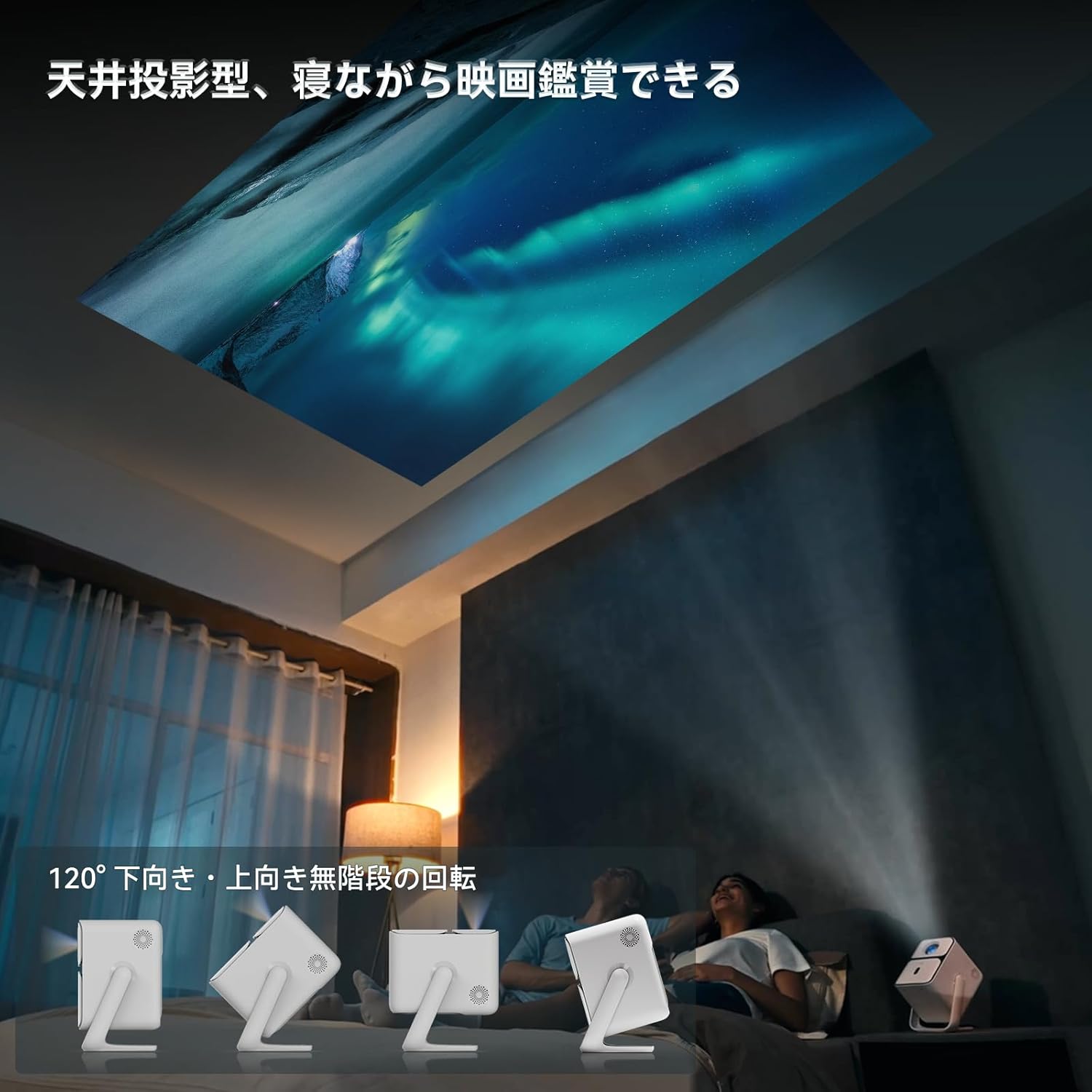
Image: Projector positioned for ceiling projection, allowing viewmentre si è sdraiati.
Video: Demonstrates ceiling projection mode. Note: This video may feature a different projector model but demonstrates the general process.
5. Istruzioni per l'uso
5.1 Funzioni del telecomando

Image: Remote control for the projector, showing buttons for power, navigation, volume, focus, and direct access to streaming apps like Netflix, YouTube, and Prime Video.
- Pulsante di accensione: Accende/spegne il proiettore.
- Ricerca vocale: Attiva Google Assistant per i comandi vocali.
- One-Touch Focus: Avvia la regolazione automatica della messa a fuoco.
- Tasti direzionali (su/giù/sinistra/destra): Navigare nei menu e nelle selezioni.
- Pulsante OK: Conferma le selezioni.
- Pulsante Indietro: Ritorna alla schermata precedente.
- Pulsante Home: Torna alla schermata principale.
- Volume +/-: Regola il livello del volume.
- Focus +/- (F+/F-): Regola manualmente la messa a fuoco.
- Tasto muto: Disattiva/attiva l'audio.
- Input Signal Switch: Changes input source.
- Impostazioni dell'app: Accesses application settings.
- Impostazioni di proiezione: Accesses projection-related settings.
- Direct App Buttons: Dedicated buttons for Netflix, YouTube, Prime Video, and Disney+.
5.2 App Management (Android TV 11.0)
The Wanbo T2 Ultra runs on Android TV 11.0, providing access to the Google Play Store.
- Accesso alle app: From the home screen, you can directly launch pre-installed apps or navigate to the Google Play Store to download more.
- Servizi di streaming: Enjoy popular services like Netflix, Prime Video, YouTube, Disney+, Hulu, U-NEXT, and more. The projector supports Google Widevine DRM L1 for high-quality content playback.
- Assistente Google: Press the Voice Search button on the remote to use voice commands for searching content, controlling playback, and more.

Image: The projector displaying the Android TV 11.0 home screen, featuring various streaming applications.
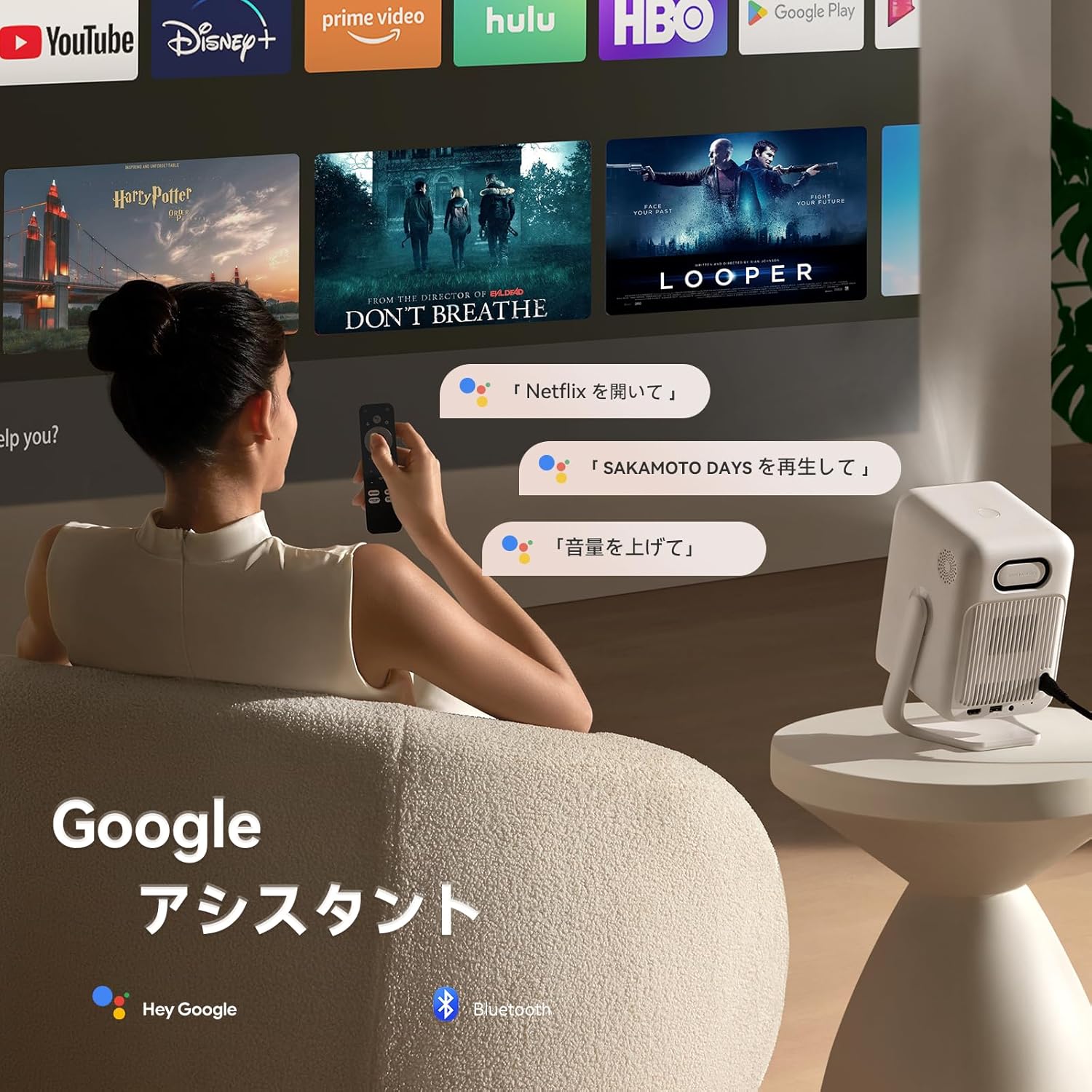
Image: A user utilizing the Google Assistant feature with the remote control to search for content.
5.3 Connettività
The Wanbo T2 Ultra offers multiple connectivity options for various devices.
5.3.1 Collegamento HDMI
- Connect an HDMI cable from your external device (e.g., laptop, game console) to the HDMI port on the projector.
- The projector will automatically detect the HDMI input. If not, navigate to Sorgente del segnale and select the corresponding HDMI input.
Video: Demonstrates HDMI connection. Note: This video may feature a different projector model but demonstrates the general process.
5.3.2 Connessione USB
- Inserire un dispositivo di archiviazione USB nella porta USB del proiettore.
- A notification will appear on the screen. Select to open the file manager and browse your media.
Video: Demonstrates USB connection. Note: This video may feature a different projector model but demonstrates the general process.
5.3.3 Connessione Bluetooth
- Vai a Impostazioni > Bluetooth & Accessories.
- Assicurati che il Bluetooth sia abilitato.
- Selezionare Aggiungi dispositivo and choose your Bluetooth device (e.g., headphones, speakers) from the list to pair.
Video: Illustrates Bluetooth connection steps. Note: This video may feature a different projector model but demonstrates the general process.
5.3.4 Wireless Screen Mirroring (Chromecast/AirPlay)
The projector has built-in Chromecast for seamless screen mirroring from iOS and Android devices.
- Assicurati che il tuo dispositivo mobile e il proiettore siano connessi alla stessa rete Wi-Fi.
- On your mobile device, open a compatible app (e.g., YouTube, Netflix) and tap the Cast icon to select the projector.
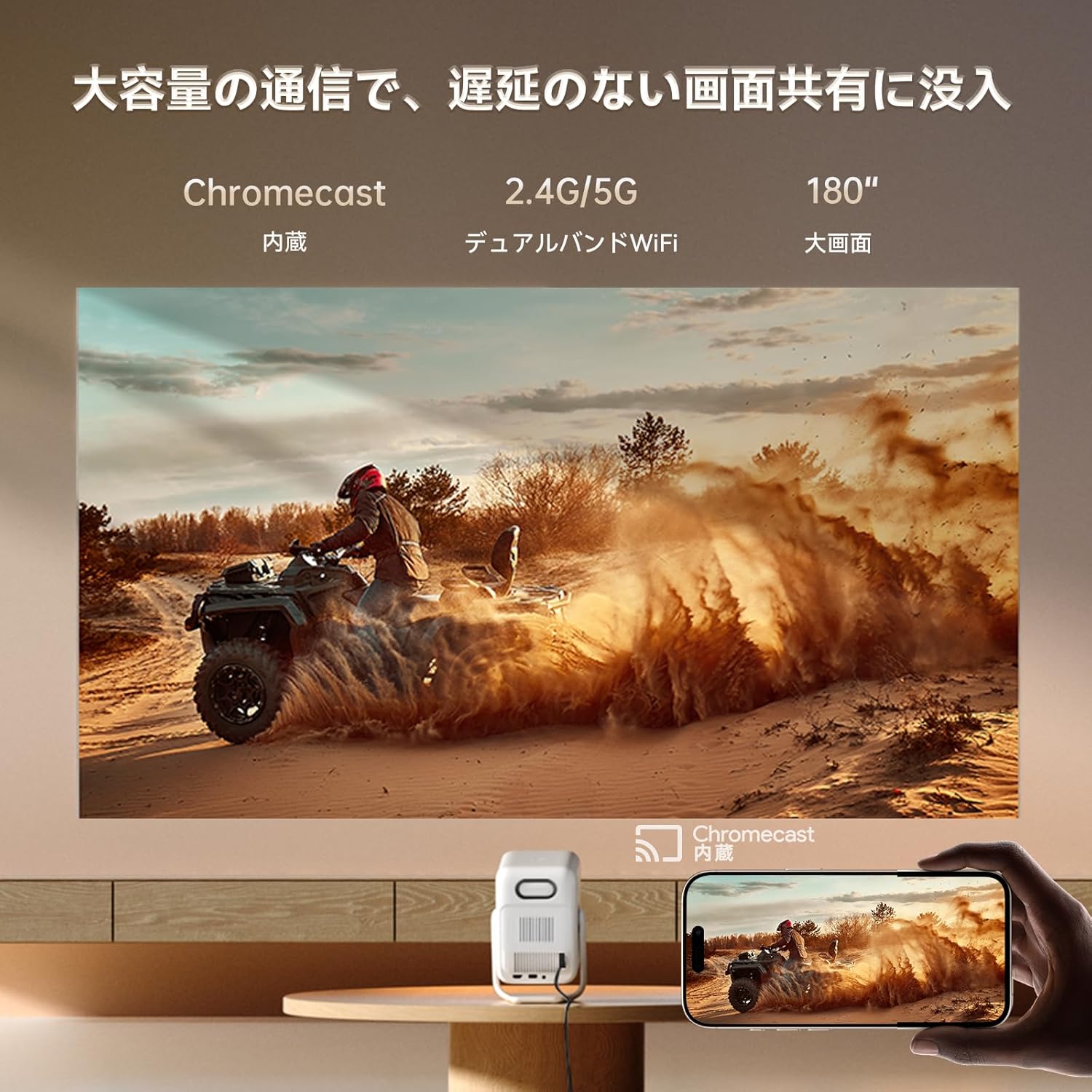
Image: A smartphone wirelessly casting content to the projector, demonstrating Chromecast functionality.
5.4 Impostazioni audio
The projector features dual 5W HiFi speakers (10W total) with an independent DSP amplifier for rich sound. You can also connect external audio devices.
5.4.1 Regolazione delle modalità audio
- Vai a Impostazioni > Schermo e suono > Effetti sonori.
- Choose from various sound modes like Standard, Movie, Music, News, or Sports to optimize audio for your content.
5.4.2 Modalità altoparlante Bluetooth
You can use the projector as a standalone Bluetooth speaker.
- Dalla schermata iniziale, seleziona Musica Bluetooth.
- On your mobile device, enable Bluetooth and connect to the projector (device name: ISINBOX_AC311 or similar).
Video: Demonstrates Bluetooth speaker mode. Note: This video may feature a different projector model but demonstrates the general process.
6. Manutenzione
6.1 Pulizia
- Lente: Use a soft, lint-free cloth or lens cleaning paper to gently wipe the lens. Avoid abrasive materials or excessive pressure.
- Esterno: Pulire l'esterno del proiettore con un panno morbido e asciutto. Non utilizzare detergenti liquidi o solventi.
- Vents: Regularly clean the ventilation grilles to prevent dust buildup, which can affect performance and lifespan. Use a soft brush or compressed air.
6.2 Conservazione
- Conservare il proiettore in un luogo fresco e asciutto, lontano dalla luce solare diretta e da temperature estreme.
- Se si intende conservare il proiettore per un periodo prolungato, riporlo nella confezione originale o in una custodia protettiva per evitare l'accumulo di polvere e danni.
7. Risoluzione Dei Problemi
If you encounter issues with your Wanbo T2 Ultra projector, refer to the following common solutions:
| Problema | Possibile causa | Soluzione |
|---|---|---|
| Nessuna immagine/Spegnimento | Power cable disconnected; Projector off | Check power connections; Press power button |
| Immagine sfocata | Sfocato; Trapezio errato | Use auto-focus or manual focus; Adjust keystone correction |
| Nessun suono | Volume too low; Muted; Incorrect audio output | Increase volume; Unmute; Check audio settings |
| Problemi di connessione Wi-Fi/Bluetooth | Incorrect password; Device out of range; Interference | Verify password; Move closer to router/device; Reduce interference |
| Il telecomando non funziona | Low battery; Obstruction; Not paired | Replace batteries; Remove obstructions; Re-pair remote |
8. Specifiche
| Caratteristica | Specificazione |
|---|---|
| Marca | WANBO |
| Modello | T2 Ultra |
| Sistema operativo | TV Android 11.0 |
| Luminosità | 500 ANSI Lumen |
| Risoluzione nativa | 1920 x 1080 pixel (Full HD) |
| Rapporto di lancio | 1.2:1 |
| Oratore | 10W HiFi Stereo (Dual 5W) |
| Connettività | HDMI (ARC), USB, 3.5mm Audio Jack, 5G Wi-Fi, Bluetooth |
| Caratteristiche speciali | Auto-Focus, Auto Keystone Correction, Auto Screen Adjustment, Obstacle Avoidance, Digital Zoom (50-100%), Chromecast Built-in |
| Dimensioni (L x P x A) | Dimensioni: 14.48 x 14.22 x 21.84 cm |
| Peso | 2.2 kg |
9. Garanzia e supporto
9.1 Garanzia del prodotto
The Wanbo T2 Ultra projector comes with a 12-month warranty covering quality-related issues. For customers who follow the official Wanbo social media accounts (@wanboglobal), the product warranty is automatically extended to 18 months.
9.2 Assistenza clienti
For any questions or support needs, please contact us:
- E-mail: support@szwanbo.net
We aim to respond to all inquiries within 24 hours. Lifetime support is provided for product usage.