
1. Introduzione
This manual provides detailed instructions for the installation, operation, and maintenance of your Olvy 10.26-inch Wireless CarPlay & Android Auto Display. Please read this manual thoroughly before using the device to ensure proper functionality and safety. This device is designed to enhance your driving experience with seamless smartphone integration, navigation, and entertainment features.
2. Caratteristiche del prodotto
- Connettività wireless: Supports Wireless Apple CarPlay and Android Auto for hands-free operation.
- Large Touchscreen: 10.26-inch Full HD display for clear visibility and responsive interaction.
- Posteriore View Supporto per fotocamera: Integrates with a rear view telecamera per una maggiore sicurezza durante il parcheggio.
- Funzionalità Mirror Link: Allows mirroring of smartphone content (Android Cast & AirPlay iOS) to the display.
- Controllo vocale: Compatible with Siri and Google Assistant for voice-activated commands.
- Molteplici opzioni di uscita audio: Connects via Bluetooth, AUX, FM Transmitter, or built-in speakers.
- Navigazione GPS: GPS integrato per una navigazione affidabile.
- Riproduzione multimediale: Supports online and offline music/video playback.
- Ricarica USB: Extra USB port for phone charging during CarPlay use.
- Ampia compatibilità: Works with various car brands.
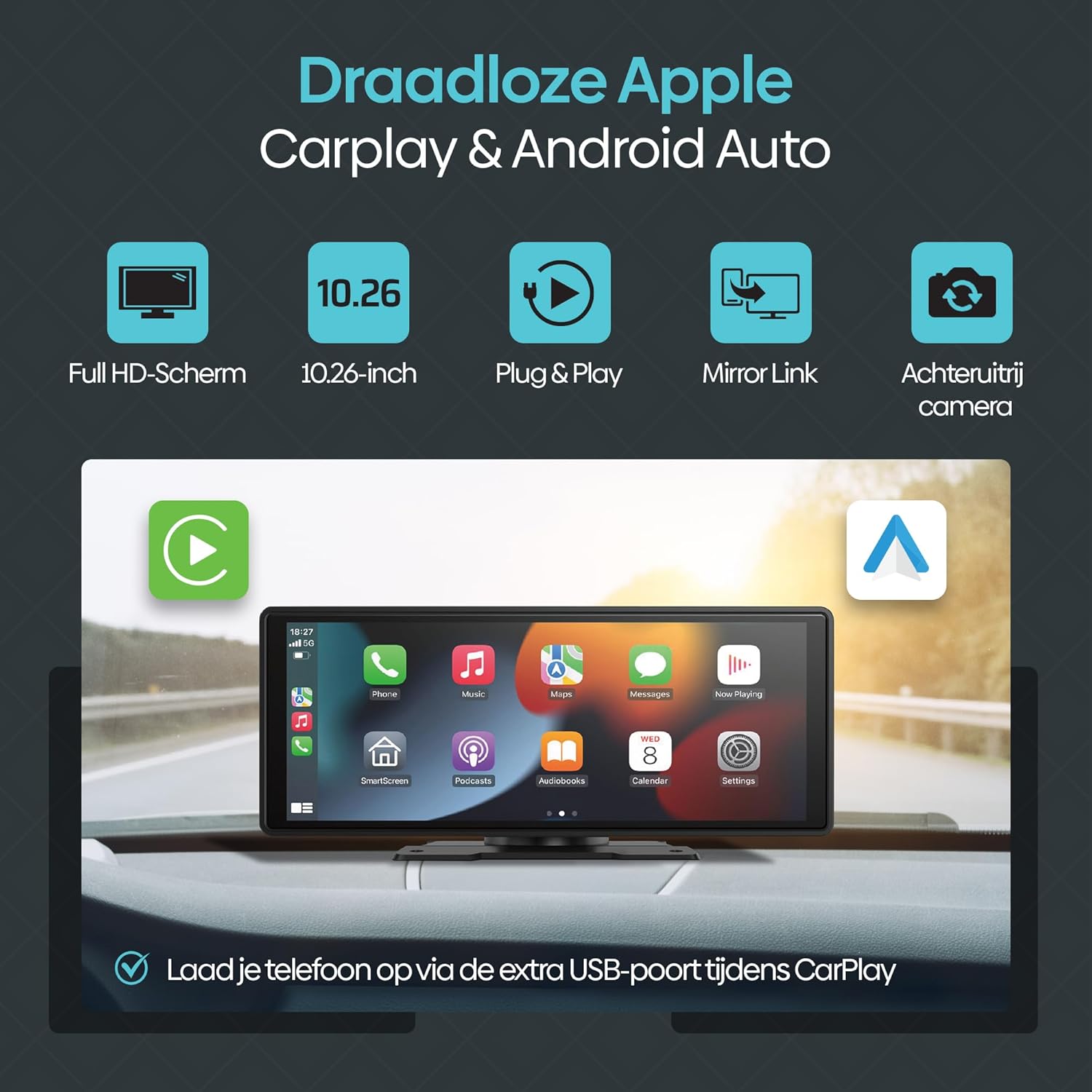
Figura 2.1: Oltreview of Olvy CarPlay Display key features including Full HD screen, 10.26-inch size, plug & play functionality, mirror link, rear view camera support, and USB charging.

Figure 2.2: The display supports voice control and GPS navigation, showing common app icons for a safer driving experience.

Figure 2.3: Key benefits of the Olvy CarPlay Display, highlighting its full touchscreen, screen projection capabilities, easy installation, media playback, integrated navigation and entertainment, included 64GB SD card and rear camera, and combined CarPlay with charging functionality.
3. Cosa c'è nella scatola
The Olvy CarPlay Display package includes the following components:
- Olvy 10.26-inch Touchscreen Display
- Posteriore View Telecamera
- Cavo di alimentazione (per il collegamento all'accendisigari)
- Supporto a ventosa
- Scheda SD da 64 GB
- Cavo AUX da 3 m
- Self-adhesive Mount
- Manuale d'uso
- Luxe Packaging Box

Figure 3.1: All components included in the Olvy CarPlay Display package.
4. Configurazione e installazione
The Olvy CarPlay Display offers flexible installation options to suit your vehicle's interior.
4.1 Montaggio del display
You can choose between a suction cup mount or a self-adhesive mount. Ensure the mounting surface is clean and dry for optimal adhesion. Position the display to ensure clear visibility without obstructing your view della strada.

Figure 4.1: Various ways to install the Olvy CarPlay Display in a vehicle.
4.2 Collegamento di alimentazione
Connect the provided power cord to the display and plug the other end into your vehicle's cigarette lighter socket. The device is designed for easy plug-and-play operation.
4.3 Posteriore View Installazione della telecamera (facoltativa)
Se si utilizza la parte posteriore view camera, connect it to the designated input on the display. For automatic activation, the camera typically needs to be wired to your vehicle's reverse lights. Refer to the camera's specific instructions for detailed wiring.
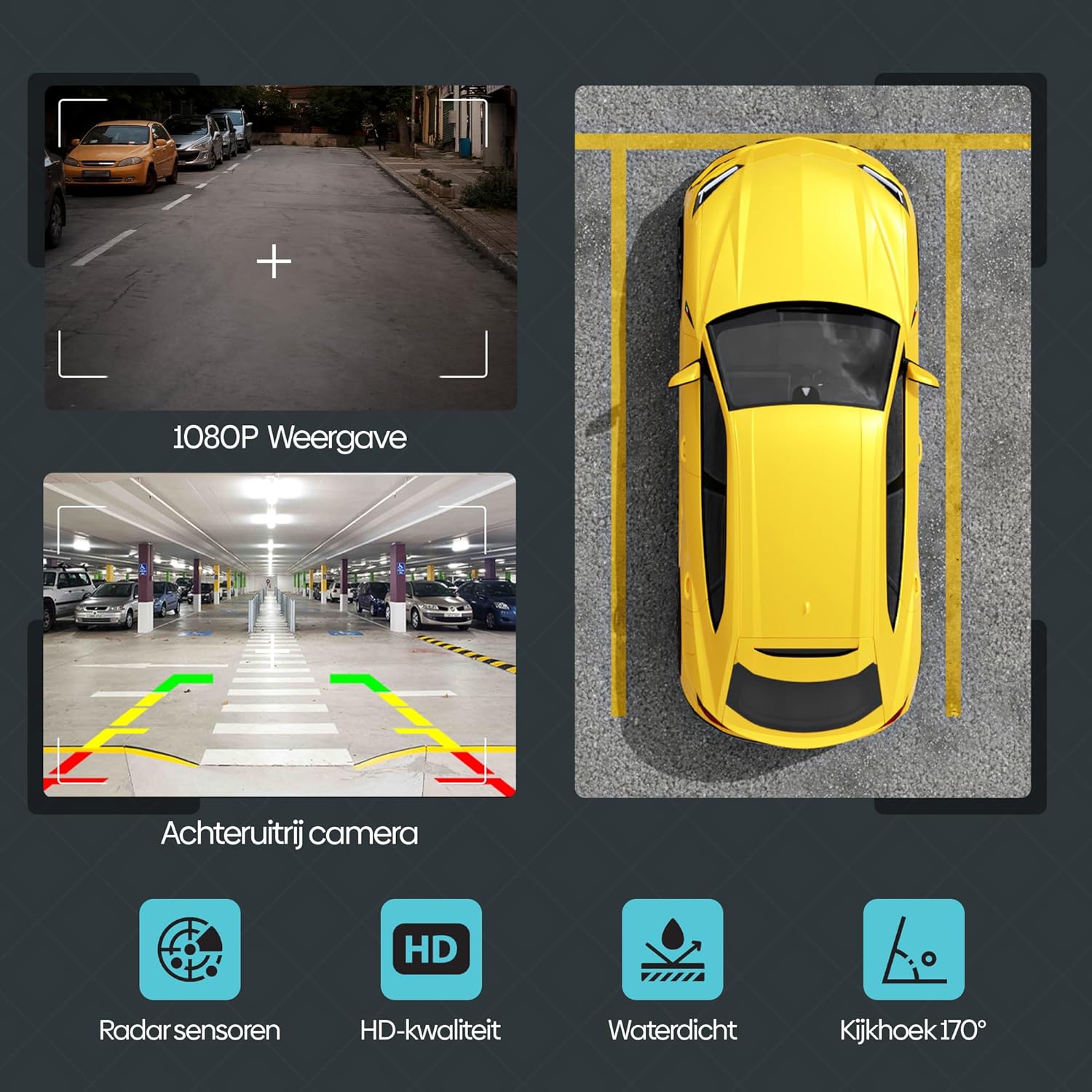
Figura 4.2: Posteriore view camera features, including 1080P display, radar sensors, HD quality, waterproofing, and a 170-degree viewangolo di ing.
5. Istruzioni per l'uso
5.1 CarPlay wireless e Android Auto
Per connettere il tuo smartphone in modalità wireless:
- Assicurati che Bluetooth e Wi-Fi siano abilitati sul tuo smartphone.
- On the Olvy display, navigate to the CarPlay or Android Auto option.
- Cercare the display's Bluetooth name (e.g., "SML-BT") on your phone and pair.
- Confirm the pairing on both devices. The display will automatically connect to CarPlay or Android Auto.
5.2 Controllo vocale intelligente
Utilize voice commands for navigation, calls, and music playback. Activate your phone's voice assistant (Siri for iOS, Google Assistant for Android) and speak your commands. This feature promotes hands-free and safe driving.
5.3 Wireless Mirror Link (Android Cast & AirPlay iOS)
This feature allows you to mirror your smartphone's screen directly onto the Olvy display. This is ideal for passengers to view videos or other content from a connected phone.

Figure 5.1: Streaming content from a smartphone to the Olvy display using Android Cast or AirPlay iOS.
5.4 Opzioni di uscita audio
The display supports four methods for audio output:
- Altoparlanti incorporati: Audio plays directly from the display's integrated speakers.
- Bluetooth: Connect to your car's Bluetooth system for audio output.
- Trasmettitore FM: Trasmetti l'audio alla radio FM della tua auto sintonizzando entrambi i dispositivi sulla stessa frequenza.
- Connessione AUX: Use the provided 3m AUX cable to connect the display to your car's AUX input.
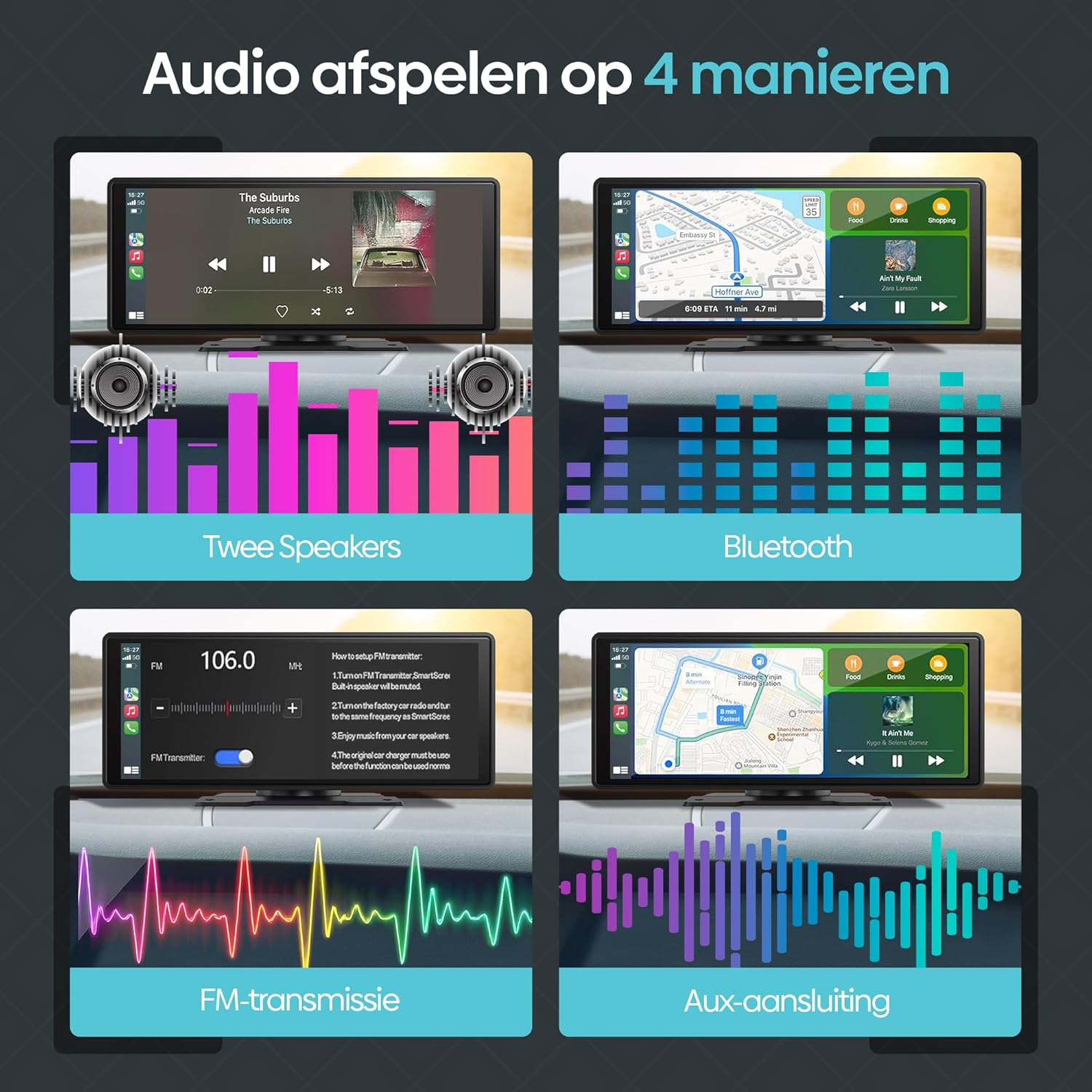
Figure 5.2: Illustration of the four available audio output methods.
5.5 Impostazioni e personalizzazione
The settings menu allows you to personalize your display experience:
- Suono: Adjust equalizer settings (Jazz, Classic, Rock, Pop, Flat) and loudness.
- Impostazioni di visualizzazione: Control brightness, contrast, and saturation.
- Carta da parati: Choose from various pre-installed wallpapers.
- Salvaschermo: Configure screen saver parameters.
- Configurazione di base: Access options like built-in speaker control, reverse mute, touch calibration, and factory reset.
- Orologio: Regola le impostazioni di ora e data.
- Lingua: Seleziona la lingua preferita.
6. Risoluzione Dei Problemi
If you encounter issues with your Olvy CarPlay Display, refer to the following common solutions:
- Nessun potere: Ensure the power cord is securely connected to both the display and the car's cigarette lighter. Check the car's fuse for the cigarette lighter socket.
- Problemi di connessione Bluetooth/Wi-Fi: Restart both the display and your smartphone. Ensure no other devices are interfering with the connection. Forget and re-pair the device in your phone's Bluetooth settings.
- Nessun audio: Verify your selected audio output method (Bluetooth, AUX, FM Transmitter, or built-in speakers) is correctly configured. If using FM Transmitter, ensure the frequency matches your car radio. Check volume levels on both the display and your car stereo.
- Touchscreen che non risponde: Try restarting the device. If the issue persists, perform a touch calibration from the 'Basic Setup' menu.
- Posteriore View La fotocamera non visualizza: Check all camera connections. Ensure the camera is receiving power and is correctly wired to the reverse lights if automatic activation is desired.
- CarPlay/Android Auto non si avvia: Ensure your smartphone's operating system is up to date and compatible. Try connecting with a different USB cable if using a wired connection (though this device primarily supports wireless).
If problems persist, contact Olvy customer support for further assistance.
7. Specifiche
- Dimensioni del prodotto (L x P x A): 24 x 9 x 9 cm; 1.19 chilogrammi
- Produttore: Olvy
- Nome modello: CarPlay Scherm Draadloze (Wireless CarPlay Screen)
- Tipo di servizio del veicolo: Auto
- Dimensioni dello schermo: 10.26 pollici
- Caratteristiche speciali: Smart Multimedia, GPS Navigation, Multi-brand Compatibility, Android Auto, Apple CarPlay, Wireless Connectivity, Integrated Bluetooth and Wi-Fi
- Tecnologia di connettività: Bluetooth
- Tipo di mappa: Europa
- Componenti inclusi: CarPlay (main unit)
- Modalità di uscita audio: Stereo
- Tipo di touchscreen: Capacitivo
- Tipo di veicolo compatibile: Auto
- Human Input: Schermo tattile
- Dispositivi compatibili: Smartphone, Television, Game Consoles, Personal Computer
- Metodo di controllo: Tocco
- Batterie incluse: NO
- Supported Satellite Navigation System: GPS
- Conteggio unità: 1 Totale
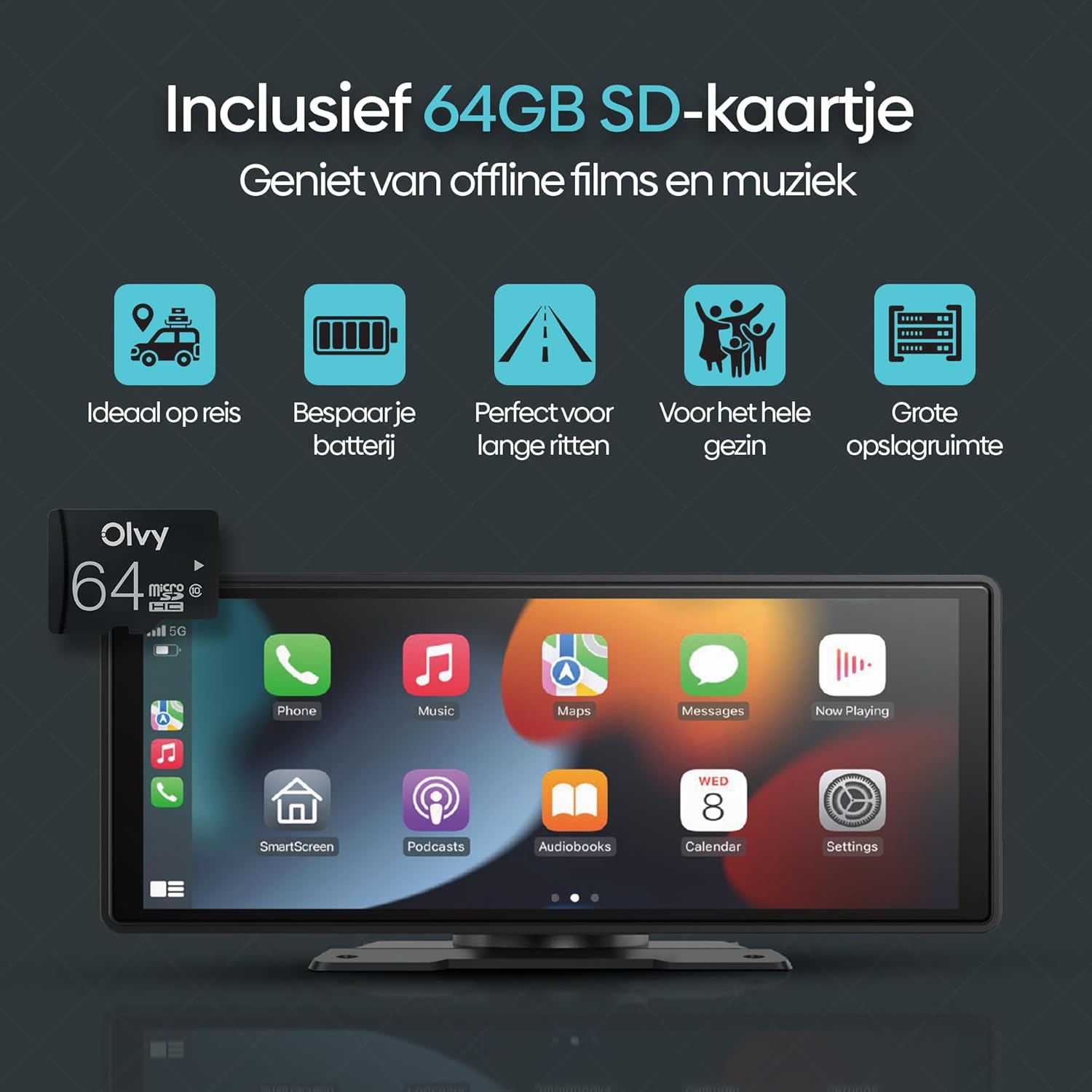
Figure 7.1: Screen size comparison, illustrating the optimal 10.26-inch format for an improved driving experience.
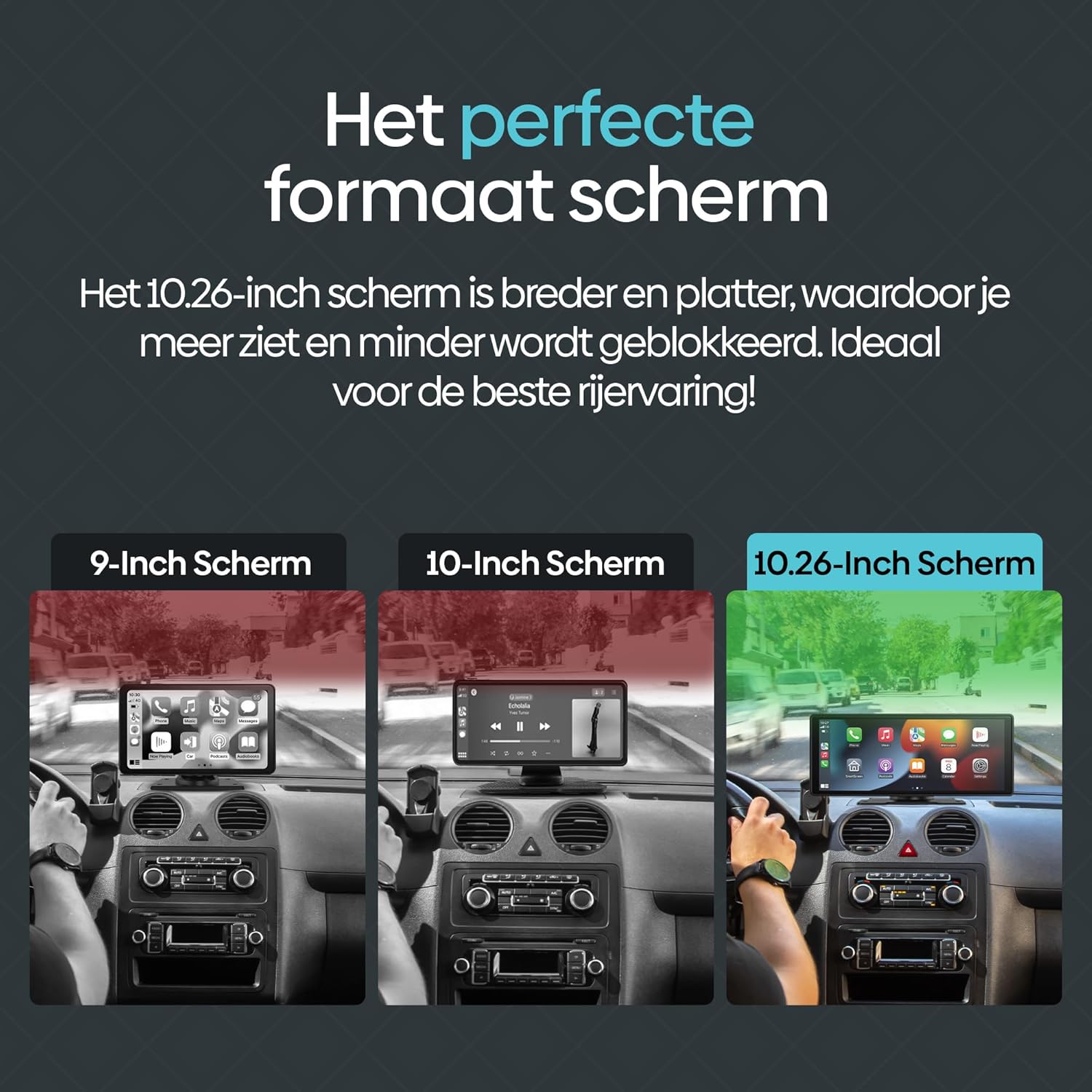
Figure 7.2: The included 64GB SD card allows for offline media playback, enhancing convenience during travel.
8. Manutenzione
To ensure the longevity and optimal performance of your Olvy CarPlay Display, follow these maintenance guidelines:
- Pulizia: Use a soft, dry cloth to clean the screen and exterior. Avoid abrasive cleaners or solvents that could damage the display.
- Temperatura: Evitare di esporre il dispositivo a temperature estreme, sia calde che fredde, poiché ciò potrebbe comprometterne le prestazioni e la durata.
- Gestione dei cavi: Ensure all cables are neatly routed and secured to prevent damage or interference with driving controls.
- Aggiornamenti software: Periodically check for any available software updates from Olvy to ensure you have the latest features and bug fixes.
9. Garanzia e supporto
The Olvy CarPlay Display comes with a manufacturer's warranty. Please refer to the warranty information provided in your product packaging for details on coverage and duration. For technical support, troubleshooting assistance, or warranty claims, please contact Olvy customer service through their official websito o le informazioni di contatto fornite nella documentazione del prodotto.
Descrizione della garanzia: 1 (This typically refers to a 1-year warranty, but please confirm with the manufacturer's official documentation).