
1. Introduzione
Thank you for choosing the MageGee V500 Wireless Gaming Keyboard. This manual provides detailed instructions for setting up, operating, maintaining, and troubleshooting your new keyboard. Please read this manual thoroughly to ensure proper use and to maximize your experience with the product.
2. Istruzioni per l'installazione
2.1 Contenuto della confezione
- MageGee V500 Wireless Gaming Keyboard
- Ricevitore USB 2.4G
- Cavo di ricarica USB
- Manuale d'uso
2.2 Collegamento della tastiera
- Locate the 2.4G USB receiver, typically stored in a compartment on the keyboard or included separately in the packaging.
- Plug the 2.4G USB receiver into an available USB port on your computer (PC, laptop, Mac, or desktop).
- Ensure the keyboard's power switch (usually located on the back or side) is in the 'ON' position.
- The keyboard should automatically connect to your computer. If not, press any key to wake it up or re-insert the USB receiver.

3. Istruzioni per l'uso
3.1 Gestione dell'alimentazione e ricarica
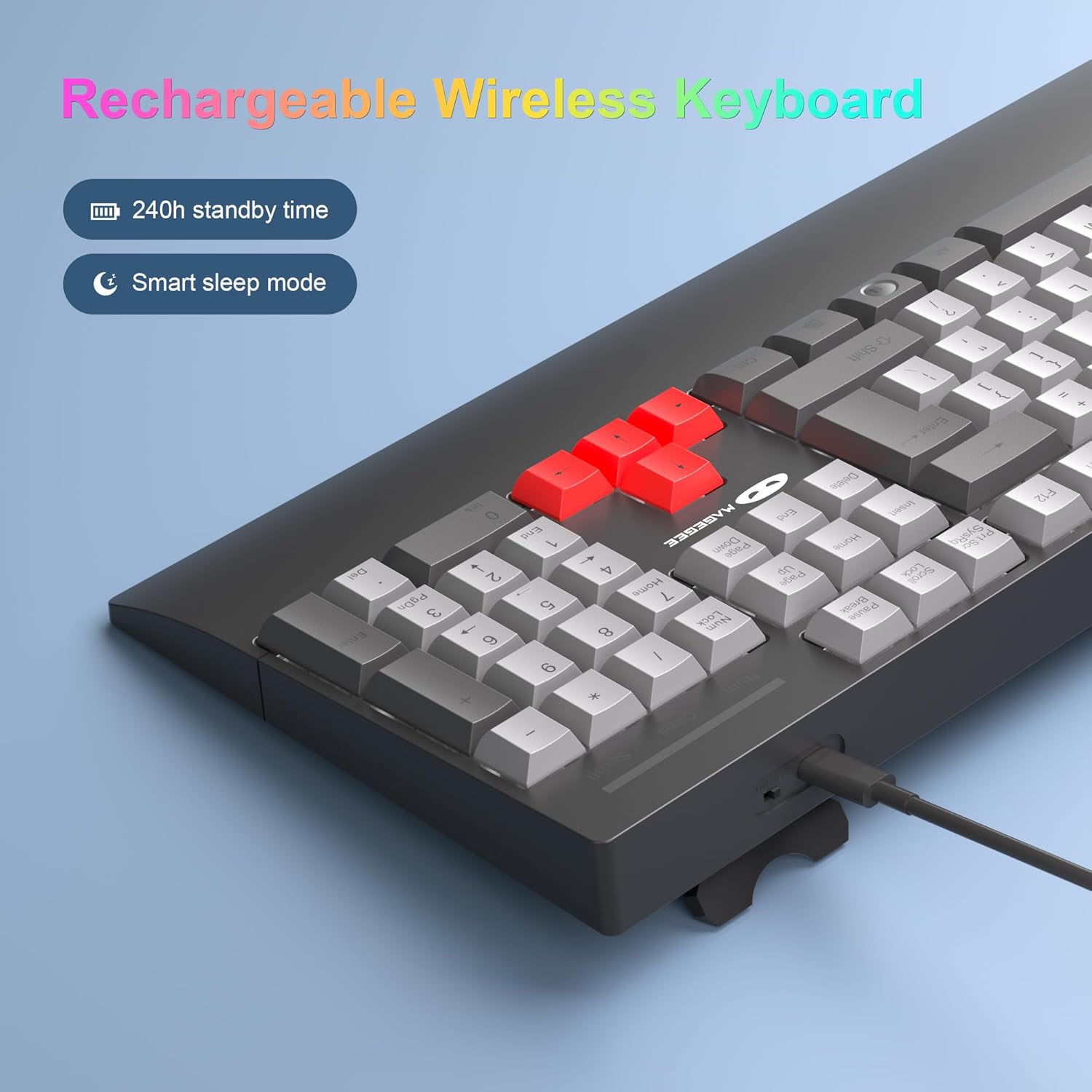
- The keyboard features a rechargeable battery with up to 240 hours of standby time.
- It includes a smart sleep mode: If there is no operation within 5 minutes, the keyboard will automatically enter sleep mode to conserve power. Press any key to wake it up.
- To charge the keyboard, connect the provided USB charging cable to the keyboard's charging port and a USB power source.
3.2 Controllo della retroilluminazione RGB
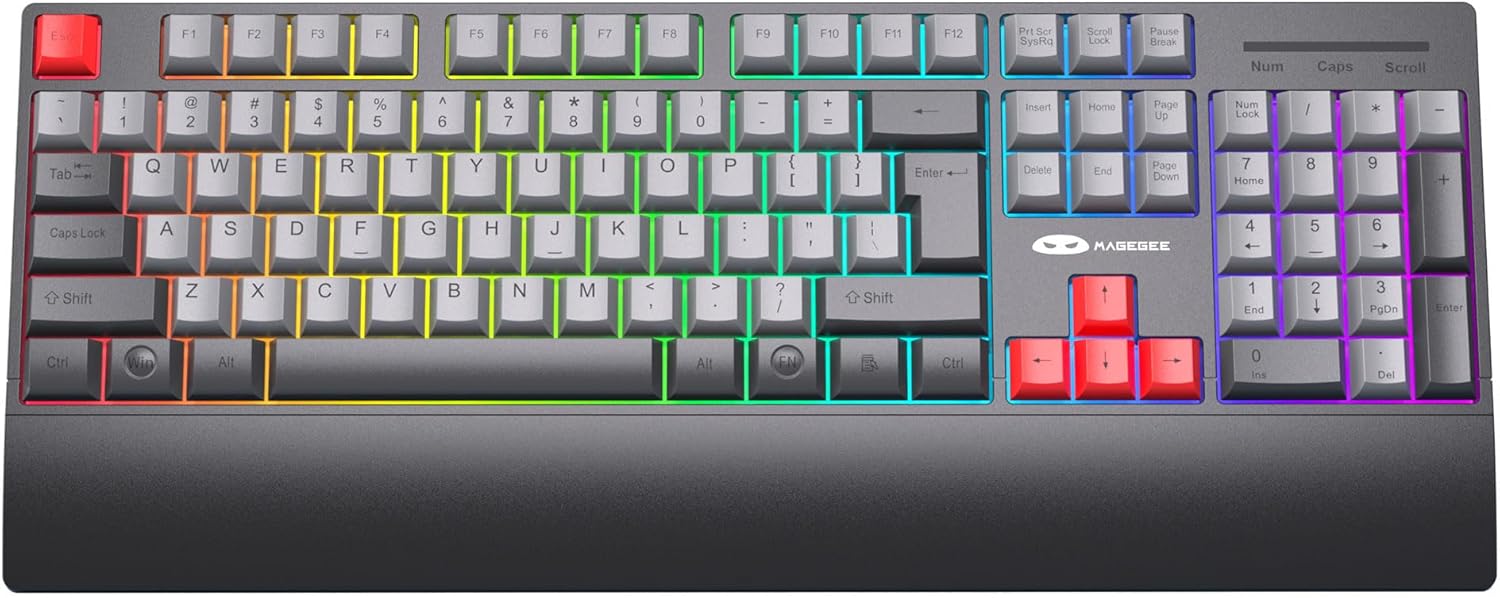
The keyboard features customizable RGB LED backlighting with multiple modes.
- Regola luminosità: Premere Fn+↑ (Up Arrow) to increase brightness, or Fn + ↓ (Freccia giù) per diminuire la luminosità.
- Adjust Flowing Speed: Premere Fn+← (Freccia sinistra) o F + → (Right Arrow) to adjust the speed of dynamic backlight modes.
- Disattiva retroilluminazione: Premere Fn + PGDN per disattivare la retroilluminazione.
3.3 tasti di scelta rapida multimediali
The keyboard includes 12 multimedia key combinations for quick access to various functions:
| Combinazione di tasti | Funzione |
|---|---|
| Tasto F1 | Lettore multimediale |
| Tasto F2 | Abbassa il volume |
| Tasto F3 | Alza il volume |
| Tasto F4 | Muto |
| Tasto F5 | Fermare |
| Tasto F6 | Traccia precedente |
| Tasto F7 | Riproduci/Pausa |
| Tasto F8 | Traccia successiva |
| Tasto F9 | |
| Tasto F10 | Web Browser/Homepage |
| Tasto F12 | Calcolatrice |

3.4 N-Key Rollover (Anti-Ghosting)
The MageGee V500 keyboard features N-Key Rollover, also known as anti-ghosting. This technology ensures that every key press is registered accurately, even when multiple keys are pressed simultaneously. This is particularly beneficial for fast-paced gaming and efficient typing, preventing missed inputs.
3.5 Design ergonomico
The keyboard is designed with user comfort in mind, featuring an extended wrist rest and adjustable stands. These elements help maintain a natural hand and wrist posture, reducing fatigue during prolonged use for both gaming and office tasks.

3.6 Compatibilità multi-dispositivo
The MageGee V500 keyboard is compatible with a wide range of operating systems, including Windows, Mac, and Linux. This versatility makes it suitable for various computing environments and devices such as PCs, laptops, and desktops.

4. Manutenzione
4.1 Pulizia della tastiera
- Scollegare la tastiera dal computer prima di pulirla.
- Utilizzare un panno morbido e privo di lanugine leggermente dampPulire i tasti e la superficie con acqua o una soluzione detergente delicata.
- Evitare di utilizzare prodotti chimici aggressivi, detergenti abrasivi o di spruzzare liquidi direttamente sulla tastiera.
- Utilizzare aria compressa per rimuovere polvere e detriti dagli spazi tra i tasti.
4.2 Cura della batteria
- Caricare regolarmente la tastiera per preservare la salute della batteria.
- Evitare di scaricare completamente la batteria frequentemente.
- Se si conserva la tastiera per un periodo prolungato, caricarla a circa il 50% prima di riporla.
5. Risoluzione Dei Problemi
If you encounter issues with your MageGee V500 keyboard, please refer to the following troubleshooting steps:
5.1 La tastiera non si connette/non risponde
- Ensure the 2.4G USB receiver is securely plugged into a working USB port on your computer.
- Verify that the keyboard's power switch is in the 'ON' position.
- Check the keyboard's battery level and charge it if necessary.
- Prova a collegare il ricevitore USB a un'altra porta USB.
- Riavvia il computer.
5.2 Retroilluminazione non funzionante o errata
- Ensure the backlight has not been turned off (press Fn + PGDN per alternare).
- Regola la luminosità utilizzando Fn + ↑/↓.
- If the backlight is dim, charge the keyboard.
5.3 Keys Not Responding or Sticky
- Clean the keyboard to remove any debris or dust that might be obstructing the keys.
- Assicurarsi che la tastiera sia completamente carica.
- If specific keys are consistently problematic, contact customer support.
5.4 Wireless Lag or Disconnection
- Ensure the keyboard is within the effective wireless range (up to 33 feet or 10 meters) of the USB receiver.
- Ridurre al minimo le interferenze da altri dispositivi wireless allontanandoli.
- Try moving the USB receiver to a front USB port or using a USB extension cable to bring it closer to the keyboard.
6. Specifiche
| Caratteristica | Dettaglio |
|---|---|
| Modello | V500 |
| Marca | MageGee |
| Tecnologia di connettività | 2.4G Wireless (via USB dongle) |
| Conteggio delle chiavi | 104 Chiavi |
| Retroilluminazione | Retroilluminazione a LED RGB |
| Caratteristica speciale | Ergonomic design with wrist rest, N-Key Rollover |
| Dispositivi compatibili | PC, Laptop, Mac, Desktop (Windows, macOS, Linux) |
| Colore | Nero Grigio |
| Peso dell'articolo | 1.9 libbre |
| Dimensioni del pacco | 17.92 x 8.19 x 1.53 pollici |
| Produttore | MAGGEE |
7. Garanzia e supporto
MageGee products are designed for reliability and performance. For warranty information or technical support, please refer to the contact details provided with your product packaging or visit the official MageGee websito. Conservare la prova d'acquisto per eventuali reclami in garanzia.