
1. Introduzione
Thank you for choosing the Playtastic M9 Gaming Keyboard and Mouse Converter. This device is designed to enhance your mobile gaming experience by allowing you to connect a gaming keyboard and mouse to your smartphone or tablet. This manual provides essential information for the proper setup, operation, and maintenance of your M9 converter.
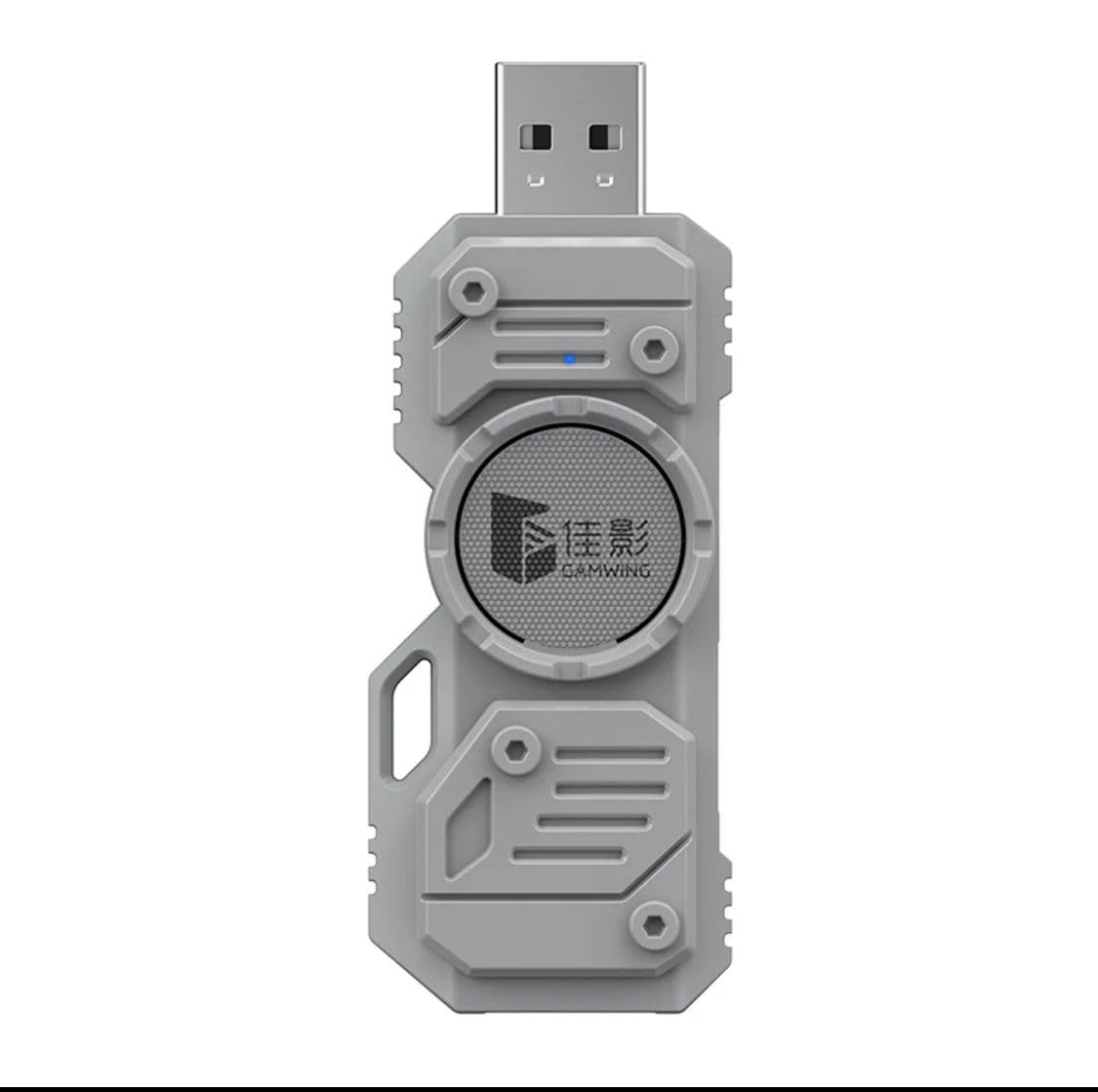
Image: The Playtastic M9 Gaming Keyboard and Mouse Converter unit, a compact grey device with a USB-A connector.
2. Contenuto della confezione
Si prega di verificare che tutti gli articoli siano presenti nel pacco:
- 1 x Playtastic M9 Converter Unit
- 1 x Gaming Keyboard (Bluetooth-enabled)
- 1 x Manuale utente
3. Specifiche
| Caratteristica | Descrizione |
|---|---|
| Marca | Giocabile |
| Modello | M9 |
| Dimensioni del prodotto | Dimensioni: 8 x 8 x 4 cm |
| Peso dell'articolo | 1.14 kg |
| Sistema operativo compatibile | Windows (for setup/configuration, mobile for gaming) |
| Interfaccia Hardware | Bluetooth, USB |
| Dispositivi compatibili | Laptop, Mobile Phones (Android 8+, iOS 10+) |
| Caratteristiche speciali | Backlit Keyboard, Adjustable Stand |
| Fonte di alimentazione | USB alimentato |
| Protocollo di collegamento dati | Bluetooth |
| Descrizione della tastiera | One Hand Non Mechanical Gaming Keyboard |
| Tecnologia di rilevamento del movimento | Optical (for mouse, not included) |
4. Istruzioni per l'installazione
Follow these steps to set up your Playtastic M9 Gaming Keyboard and Mouse Converter:
- Collegare il convertitore: Plug the M9 converter into a USB power source (e.g., a wall adapter, power bank, or computer USB port).
- Collegare tastiera e mouse: Connect your gaming keyboard and mouse to the USB ports on the M9 converter. Ensure they are securely plugged in.
- Accensione: The converter will power on automatically when connected to a power source.
- Accoppiamento Bluetooth: Activate Bluetooth on your mobile device (Android 8+ or iOS 10+). Cercare available devices and select the M9 converter to pair.
- Collega e usa: The M9 converter is designed for plug-and-play functionality, eliminating the need for complex mapping applications. Once paired, your keyboard and mouse inputs will be recognized by compatible mobile games.

Image: A mobile phone connected to the M9 converter, which in turn is connected to a gaming keyboard and mouse. The image highlights that no mapping app is required for Android 8+ and iOS 10+ versions.
5. Istruzioni per l'uso
Once set up, the M9 converter provides a seamless gaming experience:
- Gaming Control: Use your connected gaming keyboard and mouse to control compatible games on your mobile device. The converter ensures a no-delay response time for precise and instantaneous input registration.
- Keyboard Stand Adjustment: The included gaming keyboard features an adjustable stand. To adjust, locate the stand tabs on the underside of the keyboard and extend them to your desired angle for optimal comfort during extended gaming sessions.
- Prestazione: The M9 converter operates at a high polling rate, typically 1000Hz, ensuring that every command is registered quickly and accurately.

Image: A gaming setup featuring the M9 converter, a gaming keyboard, a gaming mouse, and a mobile device displaying a game. This illustrates the complete operational setup.

Image: A close-up of the M9 converter with a graphic overlay indicating a 1000Hz polling rate, emphasizing its high-performance capability.
6. Manutenzione
To ensure the longevity and optimal performance of your M9 converter and keyboard:
- Pulizia: Use a soft, dry cloth to clean the surfaces of the converter and keyboard. Avoid using harsh chemicals or abrasive materials.
- Magazzinaggio: Quando non in uso, conservare il dispositivo in un luogo fresco e asciutto, lontano dalla luce solare diretta e da temperature estreme.
- Gestione: Handle the converter and keyboard with care. Avoid dropping them or exposing them to excessive force.
7. Risoluzione Dei Problemi
If you encounter issues with your M9 converter, refer to the following common problems and solutions:
- Dispositivo non connesso tramite Bluetooth:
- Assicurarsi che il convertitore sia acceso.
- Verifica che il Bluetooth sia abilitato sul tuo dispositivo mobile.
- Try restarting both the converter (by unplugging and replugging) and your mobile device.
- Forget the device in your mobile's Bluetooth settings and attempt to pair again.
- Keyboard/Mouse Input Not Registering:
- Check if the keyboard and mouse are securely plugged into the converter's USB ports.
- Assicurati che il convertitore sia correttamente associato al tuo dispositivo mobile tramite Bluetooth.
- Provare la tastiera e il mouse direttamente su un computer per confermare che funzionino.
- Verify that the game you are playing supports external keyboard and mouse input.
- Ritardo o ritardo di input:
- Assicurati che il sistema operativo del tuo dispositivo mobile sia aggiornato.
- Close any unnecessary background applications on your mobile device to free up resources.
- Ensure there are no significant obstructions between the converter and your mobile device that could interfere with the Bluetooth signal.
8. Garanzia e supporto
The Playtastic M9 Gaming Keyboard and Mouse Converter comes with a standard manufacturer's warranty. For specific warranty terms and conditions, please refer to the product packaging or contact Playtastic customer support.
If you require further assistance or have questions not covered in this manual, please contact Playtastic customer support through their official website or the retailer where you purchased the product. Please have your product model (M9) and purchase details ready when contacting support.
Informazioni sui contatti:
- Marca: Giocabile
- Produttore: Playtastic New Delhi
- Importatore: Playtastic New Delhi
- Websito: Visit the Playtastic Store on Amazon