
1. Introduzione
This manual provides detailed instructions for the setup, operation, and maintenance of your WAVLINK 13-in-1 USB-C Triple Display Docking Station. Please read this manual thoroughly before using the product to ensure proper functionality and to prevent damage.
2. Prodotto finitoview
The WAVLINK 13-in-1 USB-C Triple Display Docking Station expands your laptop's connectivity, offering multiple ports for displays, peripherals, network, and power delivery. It is designed to enhance productivity by supporting various display configurations.
Contenuto della confezione
- WAVLINK 13-in-1 USB-C Triple Display Docking Station
- Cavo da USB-C a C
- 130W Adattatore di alimentazione
- Cavo di alimentazione CA.
- Guida rapida

Image: Contents of the WAVLINK 13-in-1 USB-C Triple Display Docking Station package, including the docking station, cables, power adapter, and quick start guide.
Layout delle porte
The docking station features a comprehensive array of ports to connect various devices:

Image: Diagram showing the front and rear ports of the WAVLINK 13-in-1 USB-C Triple Display Docking Station, with each port clearly labeled.
- Porta di alimentazione (CC 20 V): Si collega all'adattatore di alimentazione da 130 W incluso.
- Upstream USB-C Port: Connects to your host laptop for data, video, and power delivery.
- Porta HDMI: Si collega a un display HDMI.
- 2 DisplayPort: Connects to DisplayPort displays.
- Porta Gigabit Ethernet (RJ45): Fornisce una connessione di rete cablata stabile.
- 4 porte USB 3.0: For connecting USB peripherals, with one supporting BC 1.2 fast charging.
- Lettore di schede SD: Per la lettura di schede SD standard.
- Lettore di schede Micro SD: For reading Micro SD cards.
- 4-Pole Phone Jack (3.5mm Audio): Per collegare cuffie o altoparlanti.
- Pulsante di accensione: Per accendere/spegnere la docking station.
3. Istruzioni per l'installazione
Per configurare la docking station WAVLINK, segui questi passaggi:
- Connetti alimentazione: Connect the included 130W power adapter to the DC 20V power port on the docking station, then plug the AC power cable into a wall outlet.
- Connetti al laptop host: Use the provided USB-C to C cable to connect the upstream USB-C port on the docking station to a compatible USB-C port on your laptop. Ensure your laptop's USB-C port supports DisplayPort Alternate Mode and Power Delivery.
- Connetti i display: Connect your external monitors to the HDMI and DisplayPort outputs on the docking station using appropriate cables.
- Connetti le periferiche: Collega i tuoi dispositivi USB (tastiera, mouse, unità esterne), il cavo Ethernet e i dispositivi audio alle porte corrispondenti sulla docking station.
- Accensione: Press the power button on the docking station. Your laptop should detect the connected devices and displays automatically.
4. Istruzioni per l'uso
Modalità di visualizzazione
La docking station supporta diverse configurazioni di visualizzazione a seconda del sistema operativo.
Sistemi Windows
Windows systems support both Mirror and Extend modes for multiple displays.

Image: Illustration of Windows multi-display modes, showing a laptop connected to three external monitors in both Extend Mode (each monitor displays unique content) and Mirror Mode (all monitors display the same content).
- Modalità estesa: Ogni monitor esterno può visualizzare contenuti diversi, ampliando lo spazio di lavoro del desktop.
- Modalità specchio: All external monitors will display the same content as your primary display.
macOS Systems
macOS systems support Mirror mode and a non-mirror mode. They do not support Multi-Stream Transport (MST) for extended displays with unique content on each external monitor.
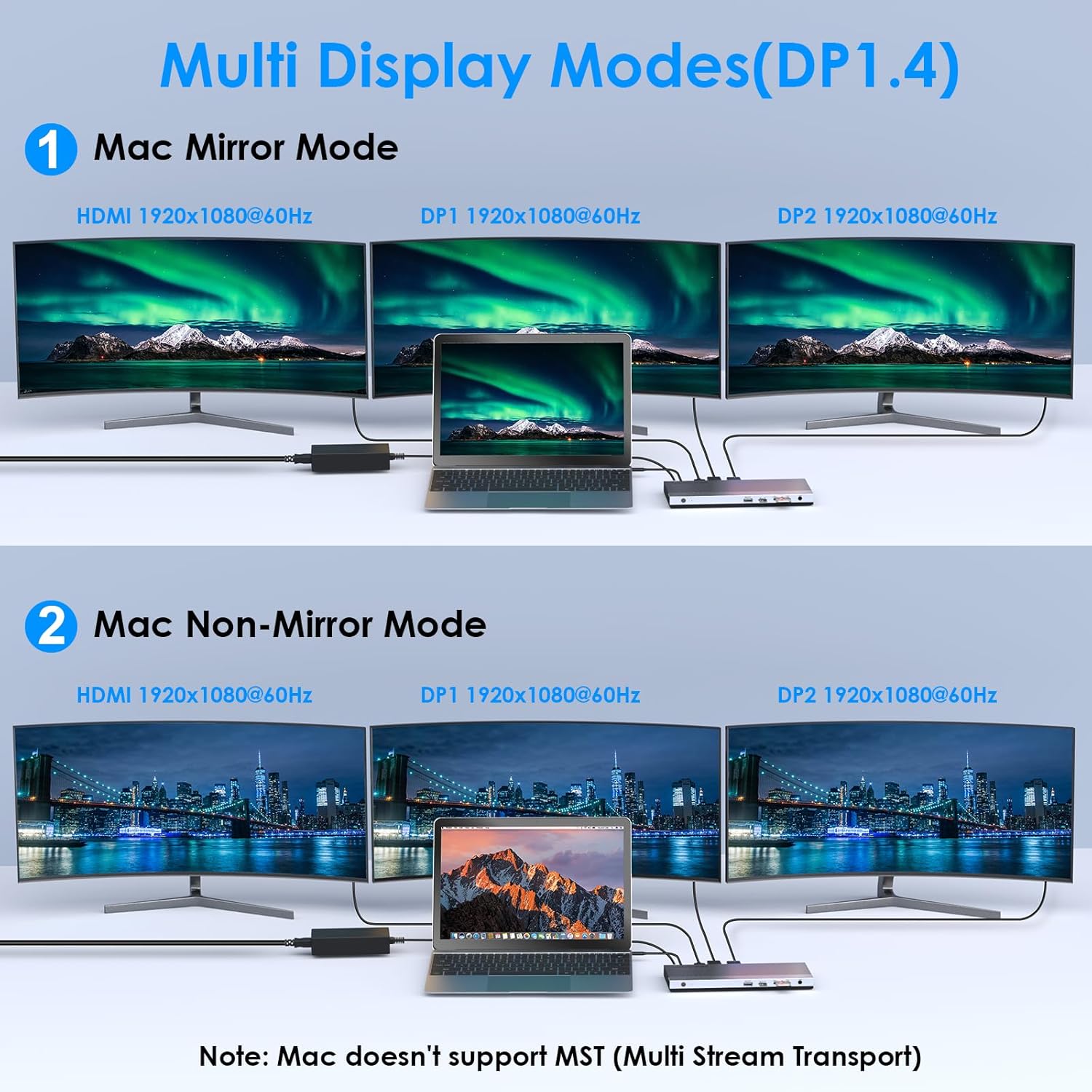
Image: Illustration of Mac multi-display modes, showing a laptop connected to three external monitors in both Mirror Mode (all monitors display the same content) and Non-Mirror Mode (all external monitors display the same content, but different from the laptop screen).
- Modalità specchio: All external monitors will display the same content as your primary display.
- Modalità non speculare: The three external monitors (HDMI+DP+DP) will display the same content, which is different from the laptop's built-in screen.
Resolution Capabilities
- Single HDMI/DP display: Up to 4K@60Hz (with DP1.3/DP1.4 source).
- Dual displays simultaneously: Up to 2K@60Hz.
- Triple displays (HDMI + DP + DP) simultaneously: Up to 1920x1080@60Hz.
Ricarica Power Delivery (PD)
The upstream USB-C port provides up to 100W Power Delivery 3.0 to charge your connected laptop. Additionally, one USB 3.0 port supports BC 1.2 fast charging, delivering up to 7.5W for mobile devices.

Image: A laptop and a smartphone connected to the docking station, illustrating 100W Power Delivery to the laptop and BC 1.2 fast charging to the smartphone.
Trasferimento dati
The docking station features four USB 3.0 ports, offering data transfer speeds up to 5Gbps. The built-in SD and Micro SD card readers support speeds up to 104MBps and can operate simultaneously.

Image: A laptop connected to the docking station, with USB flash drives and an SD card inserted, highlighting 5Gbps USB 3.0 speeds and 104MB/s SD/TF card reader speeds.
Ethernet Gigabit
The RJ45 Ethernet port provides a stable and high-speed wired network connection up to 1000Mbps, ideal for reliable internet access.
5. Compatibilità
This docking station is compatible with most Type-C and Thunderbolt 3/4 devices running Windows, macOS, Chrome OS, Linux, and Android.

Image: Visual representation of the docking station's compatibility with various devices like smartphones, tablets, laptops, desktops, and cameras, as well as operating systems including Windows, Chrome OS, Mac OS, Linux, and Android.
Note importanti sulla compatibilità
Prima dell'acquistoasing or using, ensure your host system's USB-C interface supports:
- DisplayPort Alternate Mode (Alt Mode): Essential for video output.
- USB Power Delivery (PD) Protocol: Required for laptop charging via the docking station.
- Trasferimento dati: For USB peripheral functionality.
If your USB-C port only supports data transfer or charging without DisplayPort Alt Mode, video output will not function.

Image: A visual guide showing various types of USB-C ports (Thunderbolt 3, Data+DisplayPort+Power Delivery, Data Transfer only, Data+Power Delivery only, Data+DisplayPort only, Charging only) and indicating which are compatible with the docking station for full functionality.
6. Specifiche
| Caratteristica | Dettaglio |
|---|---|
| Modello | B0DXF92DL1 |
| Marca | WAVLINK |
| Interfaccia Hardware | Ethernet, HDMI, USB 3.0, DisplayPort, USB-C, SD/TF Card Reader, 3.5mm Audio Jack |
| Numero di porte | 13 |
| Porte USB totali | 4 (USB 3.0) |
| Velocità di trasferimento dati | 5 Gbps (USB 3.0), 104 MBps (SD/TF Card Reader) |
| Erogazione di potenza | Up to 100W (Host Charging), 7.5W (BC 1.2 USB 3.0 Port) |
| Uscita video | 1x HDMI (4K a 60 Hz), 2x DisplayPort (4K a 60 Hz) |
| Etereo | Gigabit (10/100/1000 Mbps) |
| Compatibilità del sistema operativo | Windows, macOS, Chrome OS, Linux, Android |
| Materiale di recinzione | Plastica |
Dimensioni

Image: Technical drawing showing the dimensions of the WAVLINK 13-in-1 USB-C Triple Display Docking Station: 8.15 inches (207mm) length, 3.27 inches (83mm) width, and 0.71 inches (18mm) height.
7. Risoluzione Dei Problemi
Se riscontri problemi con la docking station, fai riferimento ai seguenti problemi comuni e alle relative soluzioni:
- Nessuna uscita di visualizzazione:
- Assicurati che la porta USB-C del tuo laptop supporti la modalità alternativa DisplayPort.
- Verify all display cables are securely connected to both the docking station and monitors.
- Check monitor input settings to ensure the correct input source (HDMI/DisplayPort) is selected.
- Riavvia il tuo laptop e la docking station.
- For triple display, ensure your graphics card supports at least 4 displays (including your laptop's screen).
- Il portatile non si carica:
- Confirm the 130W power adapter is correctly connected to the docking station and a working power outlet.
- Ensure your laptop's USB-C port supports USB Power Delivery (PD) protocol.
- Verify the USB-C cable connecting the laptop to the docking station is capable of PD.
- Dispositivi USB non riconosciuti:
- Assicurati che la docking station sia accesa e collegata al tuo laptop.
- Try connecting the USB device to a different USB 3.0 port on the docking station.
- Collega il dispositivo USB direttamente al tuo laptop per verificare che funzioni.
- Nessuna connessione Ethernet:
- Verificare che il cavo Ethernet sia collegato saldamente sia alla docking station sia al router/modem.
- Verifica le impostazioni di rete sul tuo laptop.
- Assicurati che il tuo router/modem funzioni correttamente.
- Connettività intermittente:
- Assicurarsi che tutti i cavi siano collegati saldamente.
- Evitare di posizionare la docking station vicino a forti fonti di interferenza elettromagnetica.
- Update your laptop's USB-C port drivers if available.
8. Manutenzione
Per garantire la longevità e le prestazioni ottimali della docking station WAVLINK, seguire queste linee guida per la manutenzione:
- Pulizia: Utilizzare un panno morbido e asciutto per pulire l'esterno della docking station. Non utilizzare detergenti liquidi o spray.
- Magazzinaggio: Conservare la docking station in un luogo fresco e asciutto, lontano dalla luce solare diretta e da temperature estreme.
- Gestione: Evitare di far cadere o sottoporre il dispositivo a forti impatti.
- Ventilazione: Assicurarsi che la docking station abbia una ventilazione adeguata per evitare il surriscaldamento, soprattutto durante l'uso prolungato con più dispositivi collegati.
9. Garanzia e supporto
Informazioni sulla garanzia
This WAVLINK product comes with an 18-month warranty from the date of purchase. An additional 6 months of warranty may be available for registered members. Please retain your proof of purchase for warranty claims.
Assistenza clienti
For technical assistance or support, please contact WAVLINK customer service:
- Telefono: +1 8889730883 (UTC -5) Monday - Friday, 9 AM - 6 PM
- E-mail: Contact@wavlink.com