
1. Introduzione
This manual provides essential information for setting up, operating, maintaining, and troubleshooting your new CyberPowerPC Gamer Xtreme GXiVR8060A47 Gaming PC. This system is designed for high-performance gaming and demanding multimedia tasks, featuring an Intel Core i5-14400F processor and NVIDIA GeForce RTX 5060 graphics.
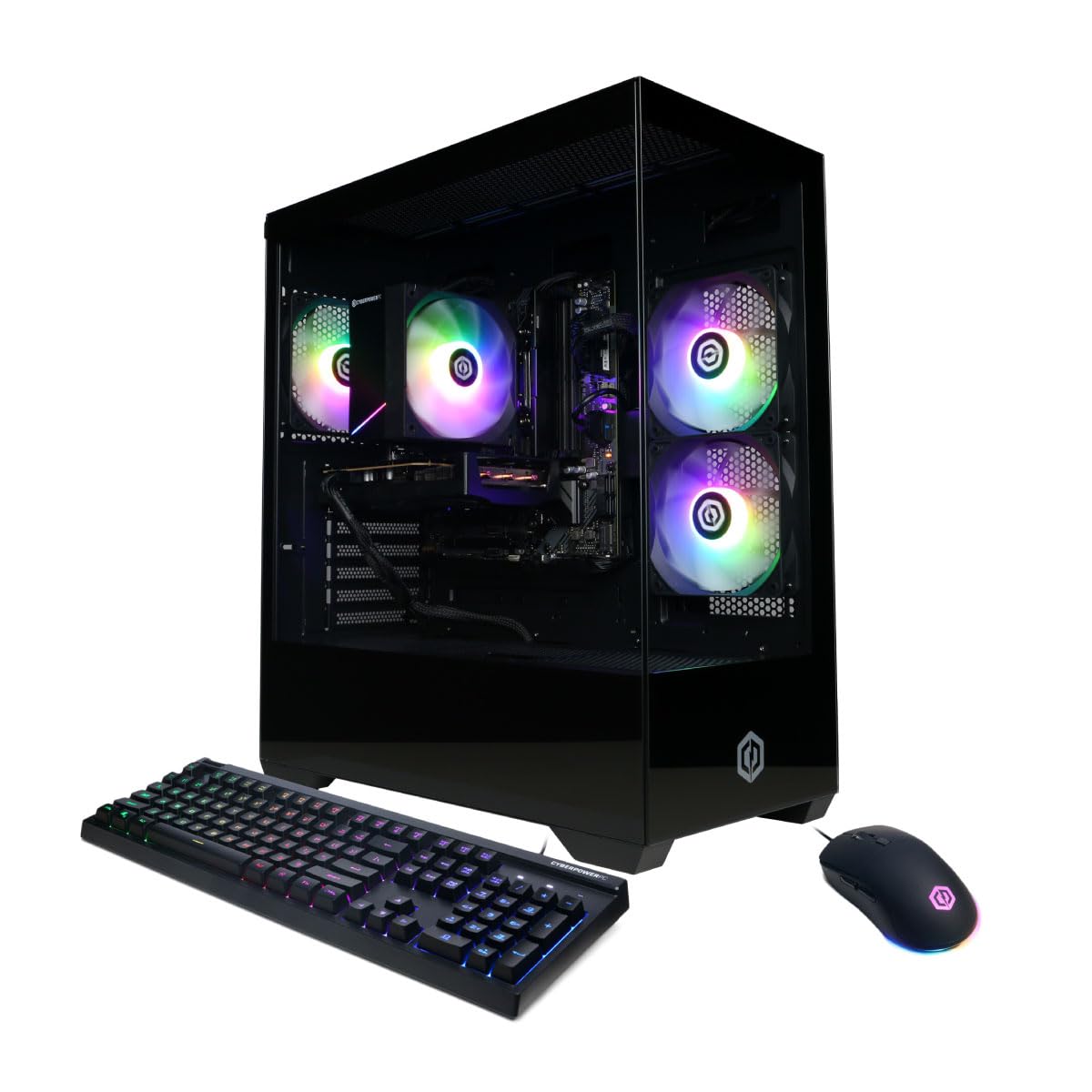
Immagine: Frontale view of the CyberPowerPC Gamer Xtreme GXiVR8060A47 Gaming PC with RGB lighting.
2. Contenuto della confezione
Verificare che tutti gli articoli siano presenti nel pacco:
- CyberPowerPC Gamer Xtreme GXiVR8060A47 Gaming PC
- Cavo di alimentazione
- Tastiera da gioco
- Mouse da gioco
- Documentazione (incluso questo manuale)

Image: The CyberPowerPC gaming desktop tower, keyboard, and mouse.
3. Guida all'installazione
3.1 Disimballaggio e posizionamento
- Carefully remove the PC and all accessories from the packaging. Retain packaging for future transport or warranty claims.
- Posizionare il PC su una superficie stabile e piana, con un'adeguata ventilazione. Assicurarsi che vi sia spazio libero attorno alle prese d'aria di aspirazione e di scarico.
- Remove any internal packing foam or protective films from the PC components.
3.2 Collegamento delle periferiche
Collegare il monitor, la tastiera, il mouse e le altre periferiche alle porte appropriate sul retro del PC.
- Monitorare: Connect your monitor to the graphics card (NVIDIA GeForce RTX 5060) ports (HDMI or DisplayPort). Do not connect to the motherboard's video outputs if a dedicated graphics card is installed.
- Tastiera e mouse: Collegarsi a una qualsiasi porta USB disponibile.
- Energia: Collegare il cavo di alimentazione all'alimentatore (PSU) del PC e quindi a una presa elettrica dotata di messa a terra.
- Rete: For wired internet, connect an Ethernet cable to the LAN port. For wireless internet, the system is WiFi 6 ready.

Immagine: Posteriore view of the PC showing various connectivity ports for peripherals.
3.3 Avvio iniziale
- Premere il pulsante di accensione situato nella parte anteriore o superiore del PC.
- The system will boot into Windows 11 Home. Follow the on-screen instructions to complete the initial Windows setup, including language, region, and user account creation.
- It is recommended to check that the graphics card is securely seated in its slot after shipping. Gently press down on the graphics card near the PCIe slot to ensure it is fully engaged.
4. Istruzioni per l'uso
4.1 Accensione/spegnimento
- Accensione: Premere una volta il pulsante di accensione.
- Fermare: Click the Start button in Windows, then select Power > Shut down. Avoid directly holding the power button to turn off the PC, as this can lead to data loss or system corruption.
- Ricomincia: Fare clic sul pulsante Start in Windows, quindi selezionare Arresta > Riavvia.
4.2 Windows 11 Home
Your PC comes pre-installed with Windows 11 Home. Familiarize yourself with its interface and features. Regular updates are crucial for security and performance.
4.3 Gioco e prestazioni
The CyberPowerPC Gamer Xtreme GXiVR8060A47 is optimized for gaming. For optimal performance:
- Ensure graphics drivers are up to date. Visit the NVIDIA websito per i driver più recenti.
- Close unnecessary background applications when gaming.
- Regola le impostazioni grafiche del gioco per bilanciare la qualità visiva e il frame rate in base alle tue preferenze.
4.4 Controllo dell'illuminazione RGB
Your PC features custom RGB lighting. Control options may include:
- Pulsante della cassa: A dedicated button on the PC case allows cycling through various lighting modes and colors.
- Controllo software: For advanced customization, connect the RGB fan cables to the motherboard's RGB headers and use compatible motherboard software (if available) to synchronize and control lighting effects. Refer to your motherboard manual for specific instructions.

Immagine: Interna view of the PC showcasing the RGB fans and components.
5. Manutenzione
5.1 Cleaning Your PC
- Esterno: Utilizzare un morbido, damp cloth to wipe down the exterior of the case. Avoid harsh chemicals.
- Interno: Periodically clean dust from inside the PC using compressed air. Focus on fans (CPU cooler, case fans, GPU fans) and heatsinks. Ensure the PC is powered off and unplugged before opening the case.
- Filtri antipolvere: If your case has removable dust filters, clean them regularly to maintain optimal airflow.
5.2 Aggiornamenti software
Regularly update your operating system, drivers (especially graphics drivers), and antivirus software to ensure system stability, security, and performance.
5.3 Flusso d'aria e raffreddamento
Proper airflow is critical for component longevity. Ensure the PC is placed in an open area, not confined in a cabinet, to allow for unrestricted air circulation.
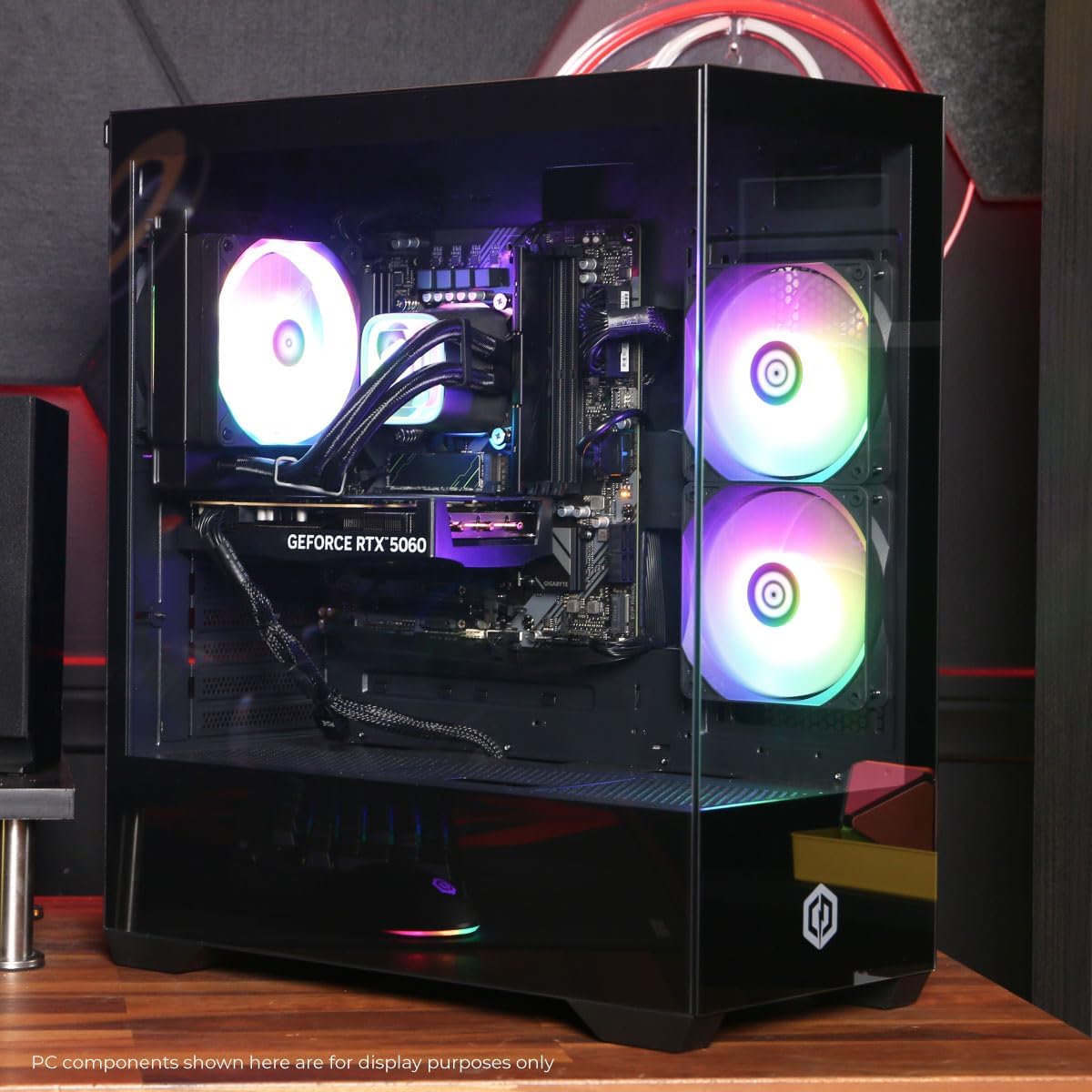
Immagine: in alto view of the PC, highlighting the mesh panel for ventilation.
6. Risoluzione Dei Problemi
In caso di problemi, fare riferimento ai seguenti passaggi comuni per la risoluzione dei problemi:
- Nessuna visualizzazione: Ensure your monitor is connected to the graphics card's output, not the motherboard's. Check all cable connections (power, video). Try a different video cable or monitor if possible.
- Il PC non si accende: Verify the power cord is securely connected to both the PC and the wall outlet. Check the power switch on the PSU (if present) is in the 'On' position. Try a different power outlet.
- Rumore eccessivo della ventola: This can indicate dust buildup or a fan issue. Clean the interior of the PC as described in the Maintenance section. If the noise persists, contact support.
- System Instability/Blue Screen Errors (BSOD): Ensure all drivers are updated. Check for Windows updates. Run a memory diagnostic tool (Windows Memory Diagnostic) to check RAM integrity. Ensure components are properly seated.
- Periferiche non funzionanti: Try connecting the keyboard or mouse to different USB ports. Ensure drivers are installed for specialized peripherals.
Per problemi persistenti, fare riferimento alla sezione Garanzia e supporto per le informazioni di contatto.
7. Specifiche
| Componente | Dettaglio |
|---|---|
| Nome del modello | Gamer Xtreme GXiVR8060A47 |
| Processore | Intel Core i5-14400F 2.5GHz (10 Cores) |
| Chipset | Intel B760 |
| Scheda grafica | NVIDIA GeForce RTX 5060 8 GB GDDR7 |
| Memoria RAM | 16 GB DDR5 (4800 MT/s) |
| Magazzinaggio | SSD PCIe 4.0 NVMe da 1 TB |
| Sistema operativo | Windows 11 Casa |
| Connettività | WiFi 6, Bluetooth 5.3, 1x LAN |
| Porte USB | 2 x USB-A 3.2, 6 x USB-A 2.0 (Total 8) |
| Uscita video | 1x HDMI, 2x DisplayPort |
| Audio | Audio a 7.1 canali |
| Dimensioni (L x P x A) | Circa. 19.09 x 8.27 x 18.90 pollici (54.5 x 52.5 x 29.5 cm) |
| Peso | Circa 13.96 kg |

Immagine: Interno dettagliato view of the PC showing the CPU cooler, RAM, and graphics card.
8. Garanzia e supporto
8.1 Informazioni sulla garanzia
Your CyberPowerPC Gamer Xtreme GXiVR8060A47 Gaming PC comes with a Garanzia limitata di 1 anno copertura di ricambi e manodopera. Si prega di conservare la prova d'acquisto per eventuali reclami in garanzia.
8.2 Supporto tecnico
CyberPowerPC offers Supporto tecnico gratuito a vita for your product. For assistance with setup, troubleshooting, or any other technical inquiries, please contact CyberPowerPC customer service.
Contact information can typically be found on the CyberPowerPC official website or in the documentation included with your PC.