
Headwolf FPad5-JW
Headwolf FPad5 Pro Android 14 Tablet
Manuale d'uso
Model: FPad5-JW | Brand: Headwolf
1. Introduzione
This user manual provides comprehensive instructions for the Headwolf FPad5 Pro Android 14 Tablet. It covers essential information regarding product features, setup, operation, maintenance, and troubleshooting. Please read this manual carefully before using your device to ensure optimal performance and longevity.

Immagine: Fronte e retro view of the Headwolf FPad5 Pro Tablet, showcasinil suo design elegante.
2. Prodotto finitoview
Caratteristiche principali:
- Helio G99 CPU & Android 14: Equipped with an MTK G99 processor for enhanced performance and power efficiency, supporting smooth multitasking and graphic-intensive applications. Runs on Android 14 with improved privacy protection and GMS certification for full Google Play Store access.
- Widevine L1 & FHD IPS Display: Features an 8.4-inch FHD (1920x1200) IPS display with in-cell technology for clear, vibrant visuals from any angle. Widevine L1 certification enables 1080P HD video playback on major streaming platforms like Netflix, Amazon Prime Video, and Disney+.
- 16GB RAM (8+8GB Expansion) + 256GB ROM + UFS: Offers 8GB physical RAM expandable by up to 8GB from storage, boosting execution speed by 30%. Comes with 256GB internal storage, expandable up to 2TB via SD card. UFS 2.1 storage technology provides 40% faster transfer speeds and lower power consumption compared to EMMC.
- 5500mAh Battery + 8MP/16MP Camera + GPS: Long-lasting 5500mAh cobalt acid lithium battery with low self-discharge. Features an 8MP front camera and a 16MP rear camera for capturing moments. Integrated GPS, BDS, and Galileo support for accurate navigation.
- 4G LTE + 2.4G/5G WiFi + Face Recognition: Dual SIM card slots for 4G LTE communication, allowing calls and SMS without Wi-Fi. Supports strong 2.4GHz and high-speed 5GHz Wi-Fi bands. Face recognition feature enhances device security and convenience.

Image: Visual summary of the tablet's main features including CPU, memory, display, battery, and connectivity.
3. Impostazione
3.1 Contenuto della confezione:
Prima di iniziare, assicurati che tutti gli articoli siano presenti nella confezione:
- Headwolf FPad5 Pro Tablet
- Manuale di istruzioni giapponese
- PIN della scheda SIM
- Adattatore di ricarica
- Cavo di tipo C

Image: Illustration of all items included in the Headwolf FPad5 Pro Tablet package.
3.2 Ricarica iniziale:
It is recommended to fully charge the tablet before first use. Connect the provided Type-C cable to the tablet's charging port and the charging adapter, then plug the adapter into a power outlet.

Image: The Headwolf FPad5 Pro Tablet connected to a Type-C charger, illustrating the charging process.
3.3 SIM Card and SD Card Installation:
Locate the card slot on the side of the tablet. Use the provided SIM card pin to eject the tray. Insert your SIM card(s) and/or microSD card into the designated slots. Ensure the cards are correctly oriented before reinserting the tray.
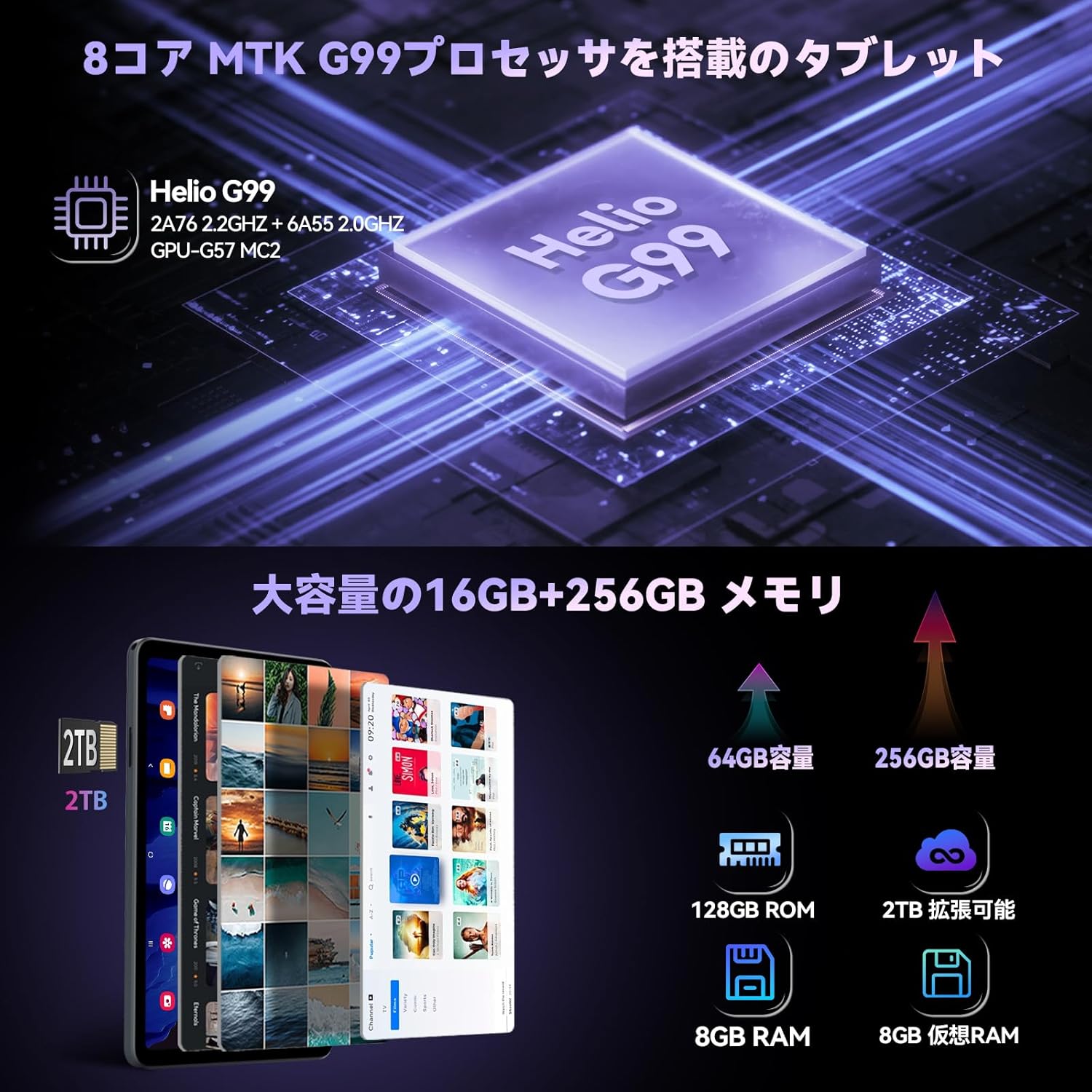
Image: Close-up of the Headwolf FPad5 Pro Tablet's SIM and SD card slot, showing how to insert cards.
3.4 Power On and Initial Setup:
Press and hold the power button until the Headwolf logo appears. Follow the on-screen prompts to select your language, connect to a Wi-Fi network, and complete the initial Android 14 setup process.
4. Istruzioni per l'uso
4.1 Navigazione di base:
The tablet features a responsive touch screen. Use gestures such as tap, swipe, pinch-to-zoom, and long-press to navigate the interface and interact with applications.
4.2 Face Recognition:
To set up face recognition, go to Impostazioni > Sicurezza e privacy > Sblocco facciale. Follow the instructions to register your face. Once set up, you can unlock your device by simply looking at the front camera.

Image: Depicts the tablet's 4G LTE connectivity, dual-band Wi-Fi, and face recognition capabilities.
4.3 Connectivity (Wi-Fi, Bluetooth, 4G LTE):
- Wifi: Access Wi-Fi settings from the quick settings panel or Impostazioni > Rete e Internet > InternetSeleziona la rete desiderata e inserisci la password.
- Bluetooth: Enable Bluetooth from quick settings or Impostazioni > Dispositivi connessi > Preferenze di connessione > Bluetooth. Pair with compatible devices.
- 4G LTE: With a valid SIM card inserted, the tablet will automatically connect to 4G LTE networks for mobile data, calls, and SMS.
4.4 Camera Usage:
The tablet is equipped with an 8MP front camera and a 16MP rear camera. Open the Camera app to capture photos and videos. Various modes and settings are available for different shooting scenarios.

Image: Highlights the tablet's 8MP front and 16MP rear AI cameras, showing exampnumero di foto scattate.
4.5 Navigazione GPS:
The tablet supports GPS, BDS, and Galileo satellite positioning systems, providing accurate location services. Use navigation apps for directions, route planning, and location tracking.

Image: Demonstrates the tablet's GPS capabilities, showing it mounted in a car for navigation, and its GMS certification.
4.6 Split Screen and Screenshots:
- Schermo diviso: To use split screen, open a recent app, tap its icon at the top of the preview, and select "Split screen". Choose another app to open in the second pane.
- Schermate: Take a screenshot by pressing the Power button and Volume Down button simultaneously. Alternatively, use the three-finger swipe gesture if enabled in settings.

Image: Shows the tablet's split-screen multitasking, Android 14 interface, lift-to-wake function, and the three-finger screenshot gesture.
5. Manutenzione
5.1 Cura della batteria:
- Evitare temperature estreme (calde o fredde) perché possono ridurre la durata della batteria.
- Non lasciare che la batteria si scarichi completamente frequentemente.
- Utilizzare solo il caricabatterie fornito o un caricabatterie compatibile certificato.
5.2 Pulizia:
Utilizzare un panno morbido e privo di lanugine per pulire lo schermo e il corpo del tablet. Evitare l'uso di prodotti chimici aggressivi o materiali abrasivi che potrebbero danneggiare la superficie.
5.3 Aggiornamenti software:
Controlla regolarmente gli aggiornamenti di sistema per assicurarti che il tuo tablet abbia le ultime funzionalità, patch di sicurezza e miglioramenti delle prestazioni. Vai a Impostazioni > Sistema > Aggiornamento di sistema per verificare la presenza di aggiornamenti.
6. Risoluzione Dei Problemi
Problemi comuni e soluzioni:
| Problema | Possibile soluzione |
|---|---|
| Il dispositivo non si accende | Assicurati che la batteria sia carica. Tieni premuto il pulsante di accensione per 10-15 secondi per forzare il riavvio. |
| Le app si bloccano o si bloccano | Clear the app's cache (Settings > Apps > [App Name] > Storage & cache > Clear cache). Restart the tablet. Ensure apps are updated. |
| Problemi di connettività Wi-Fi | Riavvia il router Wi-Fi. Elimina la rete dal tablet e riconnettiti. Assicurati che il Wi-Fi sia abilitato. |
| Prestazioni lente | Chiudi le app non utilizzate. Cancella la cache e i dati temporanei files. Considerare il ripristino delle impostazioni di fabbrica come ultima risorsa (eseguire prima il backup dei dati). |
| Lo schermo non risponde | Riavvia il dispositivo. Se il problema persiste, contatta l'assistenza clienti. |
If you encounter issues not listed here or if the suggested solutions do not resolve the problem, please contact Headwolf customer support.
7. Specifiche
| Caratteristica | Dettaglio |
|---|---|
| Marca | Testa di lupo |
| Nome del modello | FPad5-JW |
| Numero di modello del prodotto | F5A |
| Sistema operativo | Androide 14 |
| Dimensioni dello schermo | 8.4 pollici |
| Risoluzione dello schermo | 1920x1200 pixel (FHD IPS) |
| Marca della CPU | MediaTek |
| Velocità della CPU | 2.2 GHz |
| Graphics Accelerator | Mali-G57 MC2 |
| Memoria RAM | 16 GB (espansione 8 GB + 8 GB) |
| Capacità di archiviazione della memoria | 256 GB (espandibile fino a 2 TB tramite scheda SD) |
| Tipo senza fili | 802.11ac (2.4G/5G WiFi), Bluetooth |
| Risoluzione della fotocamera frontale | 8 MP |
| Risoluzione della telecamera posteriore | 16 MP |
| Capacità della batteria | 5500mAh |
| Peso dell'articolo | 600 grammi |
| Dimensioni | Dimensioni: 21.5 x 13.9 x 4.6 cm |
8. Garanzia e supporto
8.1 Garanzia del prodotto:
Your Headwolf FPad5 Pro Tablet comes with a Garanzia di qualità di 1 anni from the date of purchase. In case of product defects, free repair or replacement services will be provided. Headwolf is committed to providing comprehensive support to ensure long-term customer satisfaction.
8.2 Dedicated Repair Center:
Headwolf operates a dedicated repair center in Tokyo, Japan, ensuring prompt and high-quality after-sales service. This center handles repairs and exchanges as needed to address customer issues and inquiries efficiently.
8.3 Contattare l'assistenza:
For any questions, issues, or support requests, please use one of the following methods:
- Through the Product Page: Go to the product page, click on the store name, then click "Ask a question".
- Tramite l'account Amazon: Go to your Amazon account > Order history > Select the relevant order > Contact seller.
Our support team is ready to assist you with any concerns.
Ask a question about this manual
Ask about setup, troubleshooting, compatibility, parts, safety, or missing instructions. Manuals+ will review the question and use this page’s manual context to help answer it.