
EMEET E3141
EMEET Piko 4K WebManuale di istruzioni della camma
Model: E3141 | Brand: EMEET
1. Introduzione
The EMEET Piko 4K Webcam is an advanced dual-camera AI-powered device designed for high-quality video streaming, conferencing, and content creation. It features a 4K main camera for ultra-clear visuals and an AI-assisted camera for rapid autofocus and precise face lighting, even in challenging low-light conditions. Equipped with a 3-microphone array and multiple sound modes, it ensures clear audio capture. This manual provides essential information for setting up, operating, and maintaining your EMEET Piko 4K WebCamera.
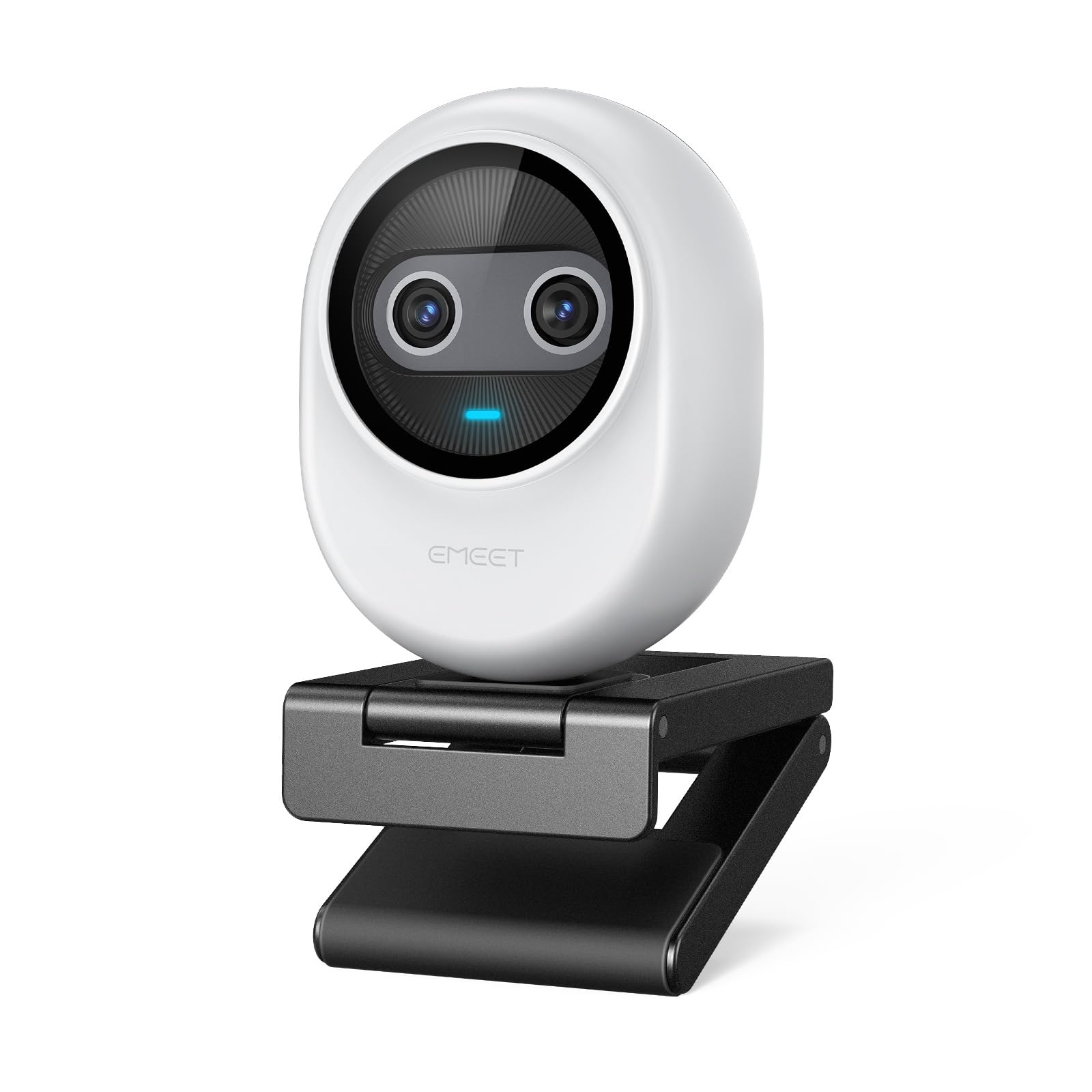
Figure 1: EMEET Piko 4K Webcam, White model.
2. Cosa c'è nella scatola
Verificare che tutti gli articoli siano presenti nel pacco:
- EMEET Piko 4K Webcamma
- Cavo USB CC
- Webcam Clip
- Manuale dell'utente (questo documento)

Figure 2: EMEET Piko Webcam e accessori inclusi.
3. Impostazione
3.1 Allegare il Webcam Clip
- Allinea il webcam with the clip's mounting point.
- Premere delicatamente il webcam onto the clip until it securely snaps into place.
3.2 Montaggio del Webcamma
- Su un monitor/laptop: Posizionare il webcam clip over the top edge of your monitor or laptop screen. Adjust the clip to ensure stability.
- Su un treppiede: IL webcam features a standard 1/4-inch screw thread at its base. Attach it to a compatible tripod (not included) for flexible positioning.

Figura 3: Webcam mounted on a monitor for professional calls.
3.3 Connessione al computer
- Connect one end of the provided USB C-C cable to the USB-C port on the back of the EMEET Piko WebCamera.
- Connect the other end of the USB C-C cable to an available USB-C port on your computer. If your computer only has USB-A ports, a USB-C to USB-A adapter (not included) may be required.
- IL webcam is plug-and-play and should be automatically recognized by your Windows or macOS operating system.

Figure 4: USB-C connectivity and broad compatibility with various platforms.
4. Caratteristiche principali
4.1 Dual-Camera AI-Powered Video
The EMEET Piko features a revolutionary dual-camera system:
- Telecamera principale 4K: Equipped with a 1/2.8'' sensor, it captures video in Ultra HD 4K resolution, providing exceptional detail and clarity.
- AI-Assisted Camera: This secondary camera enhances the main camera's performance by providing rapid autofocus and precise face lighting adjustments, ensuring you are always well-lit and in focus. It excels in low-light environments.

Figure 5: Explanation of the 4K Imaging Camera and AI-Assisted Camera.
4.2 3 Mics Array & 3 Sound Modes
Experience clear audio with the integrated 3-microphone array and selectable sound modes:
- Modalità di cancellazione del rumore: Combines gain control with steady and sudden noise blocking, ideal for busy environments.
- Modalità audio originale: Captures authentic sounds and preserves ambient audio, recommended for quiet spaces.
- Modalità dal vivo: Adjusts gain and reduces background noise like air conditioning, ensuring clear audio for live streaming.

Figure 6: Visual representation of the 3-microphone array and sound mode selection.
4.3 Design e portabilità
The EMEET Piko features a rounded, sleek design with fine matte textured materials. Its compact size makes it highly portable, smaller and lighter than a typical smartphone.

Figure 7: The sleek and compact design of the EMEET Piko WebCamera.
4.4 Ampia compatibilità
IL webcam is compatible with Windows and MacOS operating systems and integrates seamlessly with popular platforms such as OBS, Twitch, YouTube, Xsplit, and ManyCam.
5. Istruzioni per l'uso
5.1 Utilizzo di base
Once connected, the EMEET Piko Webcam will function as a standard webcam. Select it as your preferred camera and microphone input in your video conferencing or streaming application.
5.2 EMEET Studio Software
For advanced control and customization, download and install the EMEET Studio software from the official EMEET websito. Questo software ti consente di:
- Adjust video settings (brightness, contrast, sharpness, saturation, tone).
- Select different sound modes (Noise Canceling, Original Sound, Live Mode).
- Control AI features like autofocus and face tracking.
- Switch between landscape and portrait mode (requires compatible tripod).
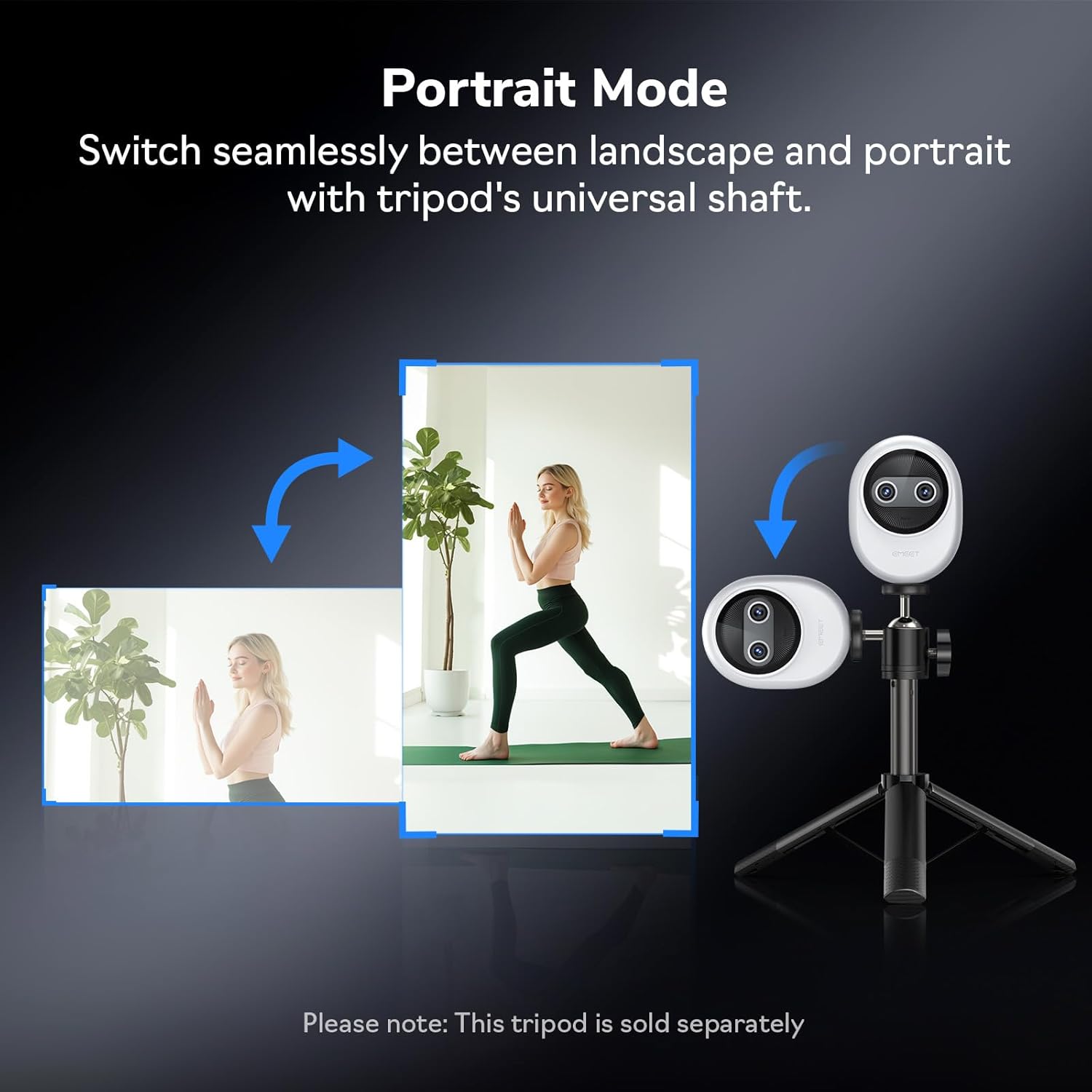
Figura 8: Webcam demonstrating seamless switching to portrait mode.
5.3 Telecomando opzionale
An optional remote control (ASIN: B0FP281Z19) is available for wireless control of the webcam's functions, offering convenience during presentations or streaming sessions.

Figure 9: Optional remote control for the EMEET Piko WebCamera.
6. Manutenzione
- Pulizia: Utilizzare un panno morbido e asciutto per pulire il weblente e corpo della camma. Evitare detergenti o solventi abrasivi.
- Magazzinaggio: Quando non è in uso, conservare il webcam in a cool, dry place. Consider using a privacy cover (optional accessory) to protect the lens.
- Aggiornamenti del firmware: Regularly check the EMEET websito per gli aggiornamenti del firmware per garantire prestazioni ottimali e accesso a nuove funzionalità.

Figure 10: Optional magnetic privacy cover for lens protection.
7. Risoluzione Dei Problemi
- Nessun video/audio:
- Assicurarsi che il cavo USB sia collegato saldamente a entrambi i dispositivi webcam e il tuo computer.
- Prova una porta USB diversa sul tuo computer.
- Verificare che il webcam is selected as the primary video and audio device in your application settings.
- Riavvia il computer.
- Scarsa qualità video:
- Ensure adequate lighting in your environment. The AI-assisted camera performs best with some ambient light.
- Pulisci il weblente della camma con un panno morbido.
- Check your application settings to ensure the correct resolution (e.g., 4K) is selected.
- Aggiornamento webcam drivers or EMEET Studio software to the latest version.
- Problemi di messa a fuoco automatica:
- Assicurarsi che non vi siano ostacoli davanti all'obiettivo.
- In EMEET Studio, verify that AI autofocus is enabled.
- Avoid rapid, excessive movement directly in front of the camera if focus hunting occurs.
8. Specifiche
| Caratteristica | Dettaglio |
|---|---|
| Marca | EMETTARE |
| Numero di modello | E3141 |
| Peso dell'articolo | 1.44 once |
| Dimensioni del prodotto | 2.2 x 1.7 x 0.87 pollici |
| Colore | Bianco |
| Tecnologia del sensore fotografico | CMOS |
| Risoluzione di acquisizione video | 4K |
| Formato di acquisizione video | YUY2/MJPEG |
| Formato audio supportato | AAC, MP3 |
| Tecnologia di connettività | USB |
| Caratteristiche speciali | 1/2.8'' Sensor, 3 Mic Array & 3 Sound Modes, Instant AI Autofocus & Adaptive Face Lighting, USB Webcam with Clip, World's 1st Dual-Camera AI-Powered 4K Webcamma |
9. Garanzia e supporto
EMEET products are designed for reliability and performance. For warranty information, technical support, or to register your product, please visit the official EMEET websito o contattare il servizio clienti. Conservare la ricevuta d'acquisto per eventuali reclami in garanzia.
10. Prodotto finitoview Video
Video 1: Official EMEET Piko 4K Webcam sopraview. This video highlights the key features and design of the webCamera.
Ask a question about this manual
Ask about setup, troubleshooting, compatibility, parts, safety, or missing instructions. Manuals+ will review the question and use this page’s manual context to help answer it.