
1. Introduzione
Thank you for choosing the VYVIYON CH-13 Wireless Camera Remote. This device is designed to enhance your smartphone photography, videography, and digital content consumption experience by providing convenient remote control. It is compatible with both iOS and Android smartphones, offering functions such as camera control, video scrolling for social media, and page turning for e-books.

Image 1.1: VYVIYON CH-13 Wireless Camera Remote and included USB-C charging cable and wrist strap.
2. Prodotto finitoview
2.1 Caratteristiche principali
- Hands-Free Camera Control: Capture photos and videos, switch between front/rear cameras, and zoom in/out on your smartphone.
- TikTok Scrolling: Play/pause videos, swipe between clips, adjust volume, and "like" content without touching your screen.
- E-Book Navigation: Effortlessly turn pages in e-book applications on your smartphone.
- Batteria ricaricabile: Built-in battery with USB-C charging for extended use and environmental friendliness.
- Compatibilità universale: Pairs with iOS and Android smartphones via Bluetooth 5.0.
2.2 Components and Button Descriptions
Familiarizza con i pulsanti del telecomando e le loro funzioni:

Immagine 2.1: Dettagliata view of the remote control with numbered button descriptions.
- Pulsante SU: Previous video (short press).
- Pulsante GI: Next video (short press).
- Pulsante SINISTRO: Screen swipe left (short press), Volume decrease (long press).
- Pulsante DESTRO: Screen swipe right (short press), Volume increase (long press).
- MIDDLE Button: Play/Pause (short press for short video scrolling), Double click to "like", Long press continuously for continuous action.
- SIDE Button: Camera switch (switches between front and rear cameras).
- SLIDE Switch: Accensione/spegnimento.
- SHOOTING Button: Scatta una foto.
- ZOOM - Key: Riduci lo zoom.
- ZOOM + Key: Ingrandire.
- Porta di ricarica di tipo C: Per caricare il dispositivo.
3. Impostazione
3.1 Ricarica del telecomando
Before first use, ensure the remote is fully charged. Connect the included USB-C cable to the charging port (11) on the remote and to a USB power source (e.g., wall adapter, power bank, computer USB port).

Image 3.1: The remote connected to a USB-C charging cable, illustrating various charging methods.
3.2 Associazione Bluetooth
To connect the remote to your smartphone:
- Assicurarsi che il telecomando sia carico.
- Slide the power switch (7) on the side of the remote to the "ON" position. The indicator light will flash, indicating it is in pairing mode.
- Sul tuo smartphone, vai su Impostazioni > Bluetooth.
- Turn on Bluetooth. Your phone will search for available devices.
- Select "BLE-M9" from the list of available devices to pair. Once connected, the indicator light on the remote will stop flashing.

Image 3.2: Visual guide for Bluetooth pairing on both iOS and Android devices.
3.3 iOS Specific Settings for Zoom Functionality
For the zoom function to work correctly on iOS devices, you may need to enable specific accessibility settings:
- Vai a Impostazioni > Accessibilità.
- Selezionare Ingrandire.
- Attiva/disattiva Ingrandire nella posizione "ON".
- After enabling, if the screen appears magnified, tap the screen twice with three fingers to restore the normal view.
Nota: The zoom function is only available for the smartphone's original rear camera and does not work with the front camera or iPad/tablet devices.
4. Istruzioni per l'uso
4.1 Controllo della telecamera
- Scattare foto/video: Open your smartphone's native camera app. Press the SHOOTING Button (8) per scattare una foto o avviare/interrompere la registrazione di un video.
- Cambio telecamera: Premere il tasto SIDE Button (6) to switch between your phone's front and rear cameras. This function is only for the original phone camera app.
- Zoom avanti/indietro: Utilizzare il ZOOM + Key (10) to zoom in and the ZOOM - Key (9) to zoom out. This feature is exclusively for the original rear camera of your smartphone.

Image 4.1: Demonstrating the camera switch function between front and rear cameras.
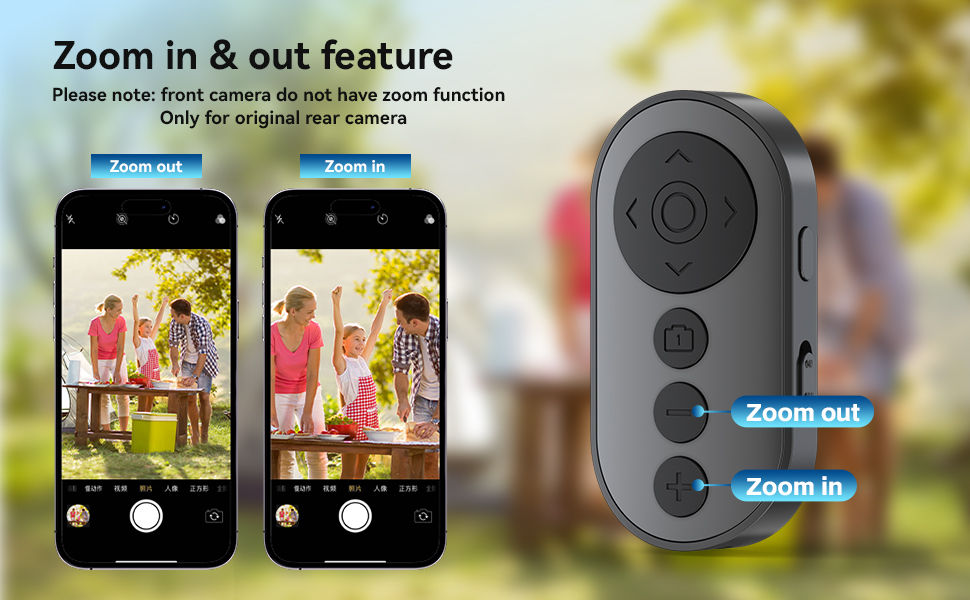
Image 4.2: Illustrating the zoom in and zoom out functionality with the remote.
4.2 TikTok Scrolling and Interaction
When using the TikTok application:
- Scorri su/giù: Utilizzare il UP Button (1) for previous videos and the DOWN Button (2) for next videos.
- Scorri verso sinistra/destra: Utilizzare il LEFT Button (3) to swipe left and the RIGHT Button (4) to swipe right.
- Riproduci/Pausa: Premere il tasto MIDDLE Button (5) to play or pause a video.
- Come: Fare doppio clic su MIDDLE Button (5) to "like" a video.
- Regolazione del volume: Premere a lungo il tasto LEFT Button (3) to decrease volume and the RIGHT Button (4) per aumentare il volume.
Nota: These functions are optimized for TikTok and may not work consistently with other short video applications.

Image 4.3: The remote being used for TikTok scrolling and interaction.
4.3 E-Book Page Turning
For e-book applications on your smartphone:
- Utilizzare il UP Button (1) or LEFT Button (3) to turn to the previous page.
- Utilizzare il DOWN Button (2) or RIGHT Button (4) to turn to the next page.
Nota: This function is compatible with e-reading apps on smartphones only and is not compatible with Kindle devices or other dedicated e-readers.

Image 4.4: The remote used for turning pages in a smartphone e-book application.
5. Manutenzione
- Mantenere pulito il telecomando pulendolo con un panno morbido e asciutto.
- Evitare di esporre il dispositivo a temperature estreme, alla luce solare diretta o all'umidità.
- Do not attempt to disassemble or repair the remote yourself, as this will void the warranty.
- Conservare il telecomando in un luogo fresco e asciutto quando non viene utilizzato.
6. Risoluzione Dei Problemi
| Problema | Possibile soluzione |
|---|---|
| Il telecomando non si accende. | Ensure the power switch is in the "ON" position. Charge the remote fully using the provided USB-C cable. |
| Impossibile effettuare l'associazione con lo smartphone. | Make sure Bluetooth is enabled on your phone. Ensure the remote is in pairing mode (flashing indicator light). Forget "BLE-M9" from your phone's Bluetooth settings and try pairing again. Restart both the remote and your smartphone. |
| Camera functions (zoom/switch) not working. | Ensure you are using the smartphone's original camera application. For iOS, verify that Accessibility > Zoom is enabled (refer to Section 3.3). Zoom is only for the rear camera. |
| TikTok scrolling not working. | Ensure the remote is successfully paired. These functions are optimized for TikTok and may not work with other apps. |
| E-book page turning not working. | Confirm you are using an e-reading application on a smartphone, not a dedicated e-reader like Kindle. |
| Volume control is too sensitive on iOS. | This can be a characteristic of iOS volume control with external devices. There is no direct setting on the remote to adjust sensitivity. |
7. Specifiche
| Caratteristica | Dettaglio |
|---|---|
| Numero di modello | CH-13 |
| Connettività | Bluetooth 5.0 |
| Compatibilità | iOS & Android Smartphones |
| Fonte di alimentazione | Batteria ricaricabile (batteria da 1 A inclusa) |
| Porta di ricarica | USB di tipo C |
| Dimensioni | 4.76 x 2.01 x 0.87 pollici |
| Peso dell'articolo | 1.76 once |
| Produttore | VYVIYON |
8. Garanzia e supporto
VYVIYON products are designed for reliability and performance. For warranty information, technical support, or customer service inquiries, please refer to the contact information provided with your purchase or visit the official VYVIYON websito. Conservare la prova d'acquisto per eventuali reclami in garanzia.