
1. Introduzione
The MEETION DirectorD-KB is a wireless ergonomic keyboard designed for comfortable and natural typing. It features a scientific wave key design and a built-in firm wrist rest to support your hands during extended use. This keyboard offers broad compatibility with Windows and macOS devices through a 2.4GHz wireless connection.

Image: The MEETION DirectorD-KB Wireless Ergonomic Keyboard positioned on a wooden desk, showcasing its wave-curved design and integrated wrist rest.
2. Contenuto della confezione
Assicurarsi che tutti gli articoli siano presenti nel pacco:
- 1 x MEETION DirectorD-KB Wireless Ergonomic Keyboard
- 1 x Manuale utente
- 1 x USB-A 2.4GHz Wireless Receiver
- 1 adattatore USB-C
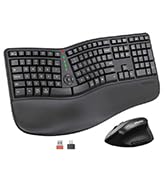
Image: Contents of the MEETION DirectorD-KB package, including the keyboard, user manual, USB-A receiver, and USB-C adapter.
3. Istruzioni per l'installazione
3.1. Installazione della batteria
- Individuare il vano batteria sul lato inferiore della tastiera.
- Aprire il coperchio del vano batterie.
- Inserire due batterie AAA (non incluse) nel vano, assicurandosi della corretta polarità.
- Chiudere saldamente il coperchio del vano batterie.

Image: The underside of the keyboard showing the battery compartment for two AAA batteries and details on power saving features.
3.2. Collegamento del ricevitore
- Locate the USB-A 2.4GHz wireless receiver, typically found in the slot inside the keyboard's battery compartment or in the accessory pouch.
- For devices with a USB-A port: Plug the USB-A receiver directly into an available USB-A port on your computer.
- For devices with a USB-C port: Attach the provided USB-C adapter to the USB-A receiver, then plug the combined unit into an available USB-C port on your computer.
- The keyboard is plug-and-play and should connect automatically.
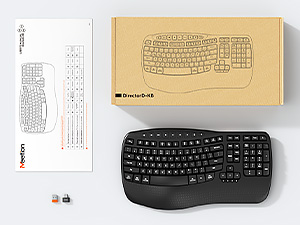
Image: Step-by-step guide on connecting the USB-A receiver with the USB-C adapter to a computer's USB-C port.
3.3. Accensione
After installing batteries and connecting the receiver, slide the power switch on the keyboard to the 'ON' position. The keyboard is now ready for use.
4. Istruzioni per l'uso
4.1. Ergonomic Design and Wrist Rest
The keyboard features a wave-shaped key layout and a firm, integrated wrist rest. This design guides your hands and wrists into a natural, relaxed typing position, reducing strain during long typing sessions.

Image: A user's hands resting comfortably on the integrated wrist rest while typing on the ergonomic keyboard.
4.2. Adjustable Tilt
Utilize the adjustable tilt legs on the underside of the keyboard to find your preferred typing angle. Different angles can further enhance comfort and reduce wrist fatigue.

Immagine: Pro lateralefiles of the keyboard demonstrating three different adjustable tilt angles for personalized comfort.
4.3. Dual System Layout (Windows/macOS)
The keyboard supports both Windows and macOS layouts. To switch between operating systems:
- Premere FN+Q per il layout di Windows.
- Premere FN+W per il layout macOS.
4.4. Tasti multimediali
The keyboard includes dedicated and combined multimedia keys for quick access to functions like volume control, media playback, and more.
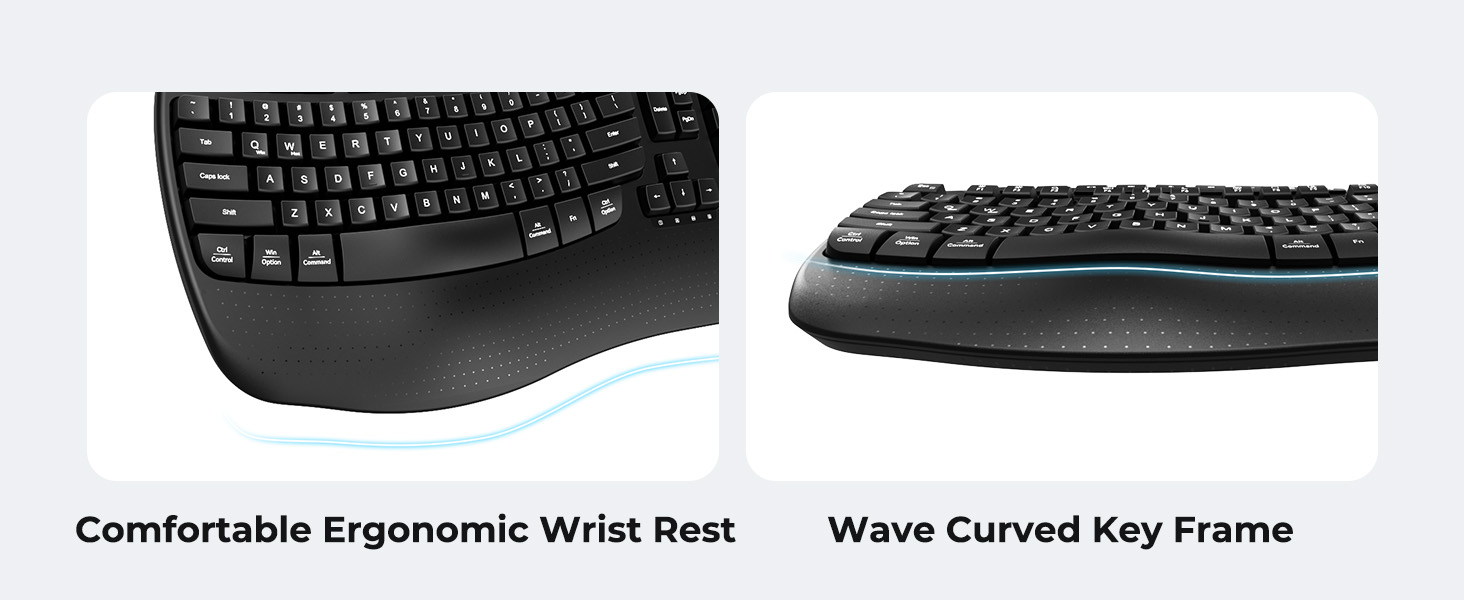
Image: A visual representation of the independent and combined multimedia keys available on the keyboard.
4.5. Risparmio energetico intelligente
The keyboard features an auto-sleep mode to conserve battery life. After 20 minutes of inactivity, it will enter hibernation. To wake it up, simply press any key.

Image: Close-up of the keyboard's indicator lights, showing status for Num Lock, Caps Lock, FN Lock, and low battery warning.
5. Manutenzione
Per garantire la longevità e le prestazioni ottimali della tastiera, seguire queste linee guida per la manutenzione:
- Pulizia: Utilizzare un panno morbido e asciutto per pulire la superficie della tastiera. Per una pulizia più profonda, utilizzare un panno leggermenteamp cloth with mild soap can be used, ensuring no liquid enters the keycaps or internal components.
- Evitare i liquidi: Non esporre la tastiera a umidità eccessiva e non versarvi sopra liquidi.
- Magazzinaggio: Conservare la tastiera in un luogo fresco e asciutto, lontano dalla luce solare diretta e da temperature estreme.
- Sostituzione della batteria: Replace batteries promptly when the low battery indicator appears to maintain consistent performance.
6. Risoluzione Dei Problemi
If you encounter issues with your MEETION DirectorD-KB keyboard, refer to the following common solutions:
- La tastiera non risponde:
- Controllare che la tastiera sia accesa.
- Assicurarsi che le batterie siano installate correttamente e non siano scariche. Sostituirle se necessario.
- Verify that the USB receiver is securely plugged into your computer's USB port (or via the USB-C adapter).
- Prova a collegare il ricevitore a una porta USB diversa.
- Riavvia il computer.
- Connessione lenta o intermittente:
- Ensure the keyboard is within the effective range of the receiver (typically up to 10 meters).
- Ridurre al minimo le interferenze da altri dispositivi wireless allontanandoli.
- Evitare di posizionare il ricevitore vicino a grandi oggetti metallici.
- I tasti non funzionano correttamente:
- Controllare che non vi siano ostacoli fisici sotto i tasti.
- Ensure the correct operating system layout (Windows/macOS) is selected using FN+Q or FN+W.
7. Specifiche
| Caratteristica | Dettaglio |
|---|---|
| Marca | INCONTRO |
| Numero di modello | DirectorD-KB |
| Tecnologia di connettività | 2.4G Wireless (USB-A, USB-C Adapter) |
| Dispositivi compatibili | Laptop, PC (Windows XP/7/8/10/11 & macOS X 10.6 or later) |
| Disposizione della tastiera | Tastiera QWERTY |
| Numero di chiavi | 113 |
| Caratteristiche speciali | Ergonomic, Hotkeys and Media Keys, Integrated Stand, Wave Keys, Wrist Rest |
| Dimensioni del prodotto (L x P x A) | 17.39" x 9.43" x 1.81" |
| Materiale | Plastica |
| Fonte di alimentazione | Alimentato a batteria (2 x AAA, non incluse) |
8. Video ufficiale del prodotto
Video: Un video ufficiale del prodotto mostraasing the features and ergonomic design of the MEETION DirectorD-KB Wave Ergonomic Wireless Keyboard. (Duration: 0:39)
9. Garanzia e supporto
This MEETION DirectorD-KB Wireless Ergonomic Keyboard comes with a 1-year manufacturer's warranty.
For further assistance, troubleshooting, or warranty claims, please visit the official MEETION store or contact customer support.
Official MEETION Store: Negozio MEETION su Amazon