
1. Introduzione
This manual provides essential information for the safe and efficient operation of your ZDSSY ZD-L018AQ Smart Projector. This device offers 1080P native resolution with 4K support, 600 ANSI lumens brightness, electric focus, and auto keystone correction. It features integrated WiFi 6 and Bluetooth 5.2 for seamless connectivity and a built-in Smart TV OS with access to various applications.

Image 1.1: ZDSSY ZD-L018AQ Smart Projector, a compact device with a lens on the front and a stand for adjustable positioning.
2. Cosa c'è nella scatola
Verificare che tutti gli articoli siano presenti al momento dell'apertura della confezione:
- Mini proiettore
- Telecomando
- Cavo di alimentazione
- Manuale dell'utente (questo documento)
3. Prodotto finitoview
Familiarizzare con i componenti e le porte del proiettore.
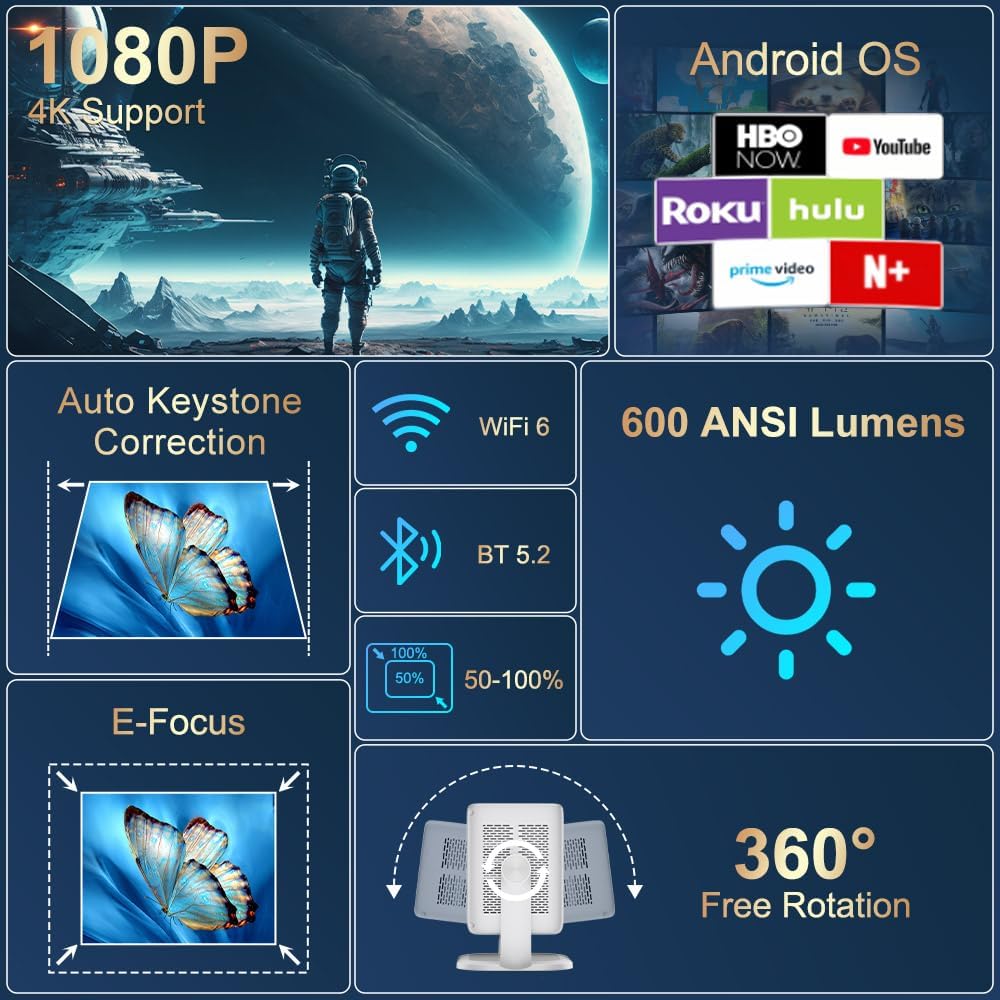
Immagine 3.1: Passoview of the projector's key features including 1080P 4K support, Auto Keystone, WiFi 6, Bluetooth 5.2, E-Focus, 600 ANSI Lumens, and 360° Free Rotation.
3.1 Pannello frontale
- Lente di proiezione: Emette l'immagine sullo schermo o sulla superficie.
- Anello di messa a fuoco: Manual adjustment for image sharpness (though electric focus is primary).
3.2 Pannello posteriore
- Porta di alimentazione: Si collega al cavo di alimentazione incluso.
- Porta HDMI: Connects to external devices like laptops, gaming consoles, or DVD players.
- Porta USB: Per collegare dispositivi di archiviazione USB o altre periferiche.
- Uscita audio (jack da 3.5 mm): Per collegare cuffie o altoparlanti esterni.
- Pulsante di accensione: Accende/spegne il proiettore.
4. Impostazione
4.1 Collegamento di alimentazione
- Connect the included power cord to the projector's power port.
- Collegare l'altra estremità del cavo di alimentazione a una presa elettrica standard.
4.2 Posizionamento e regolazione
Position the projector on a stable, flat surface. The integrated 360° rotatable and adjustable stand allows for flexible projection angles, including ceilings and walls.
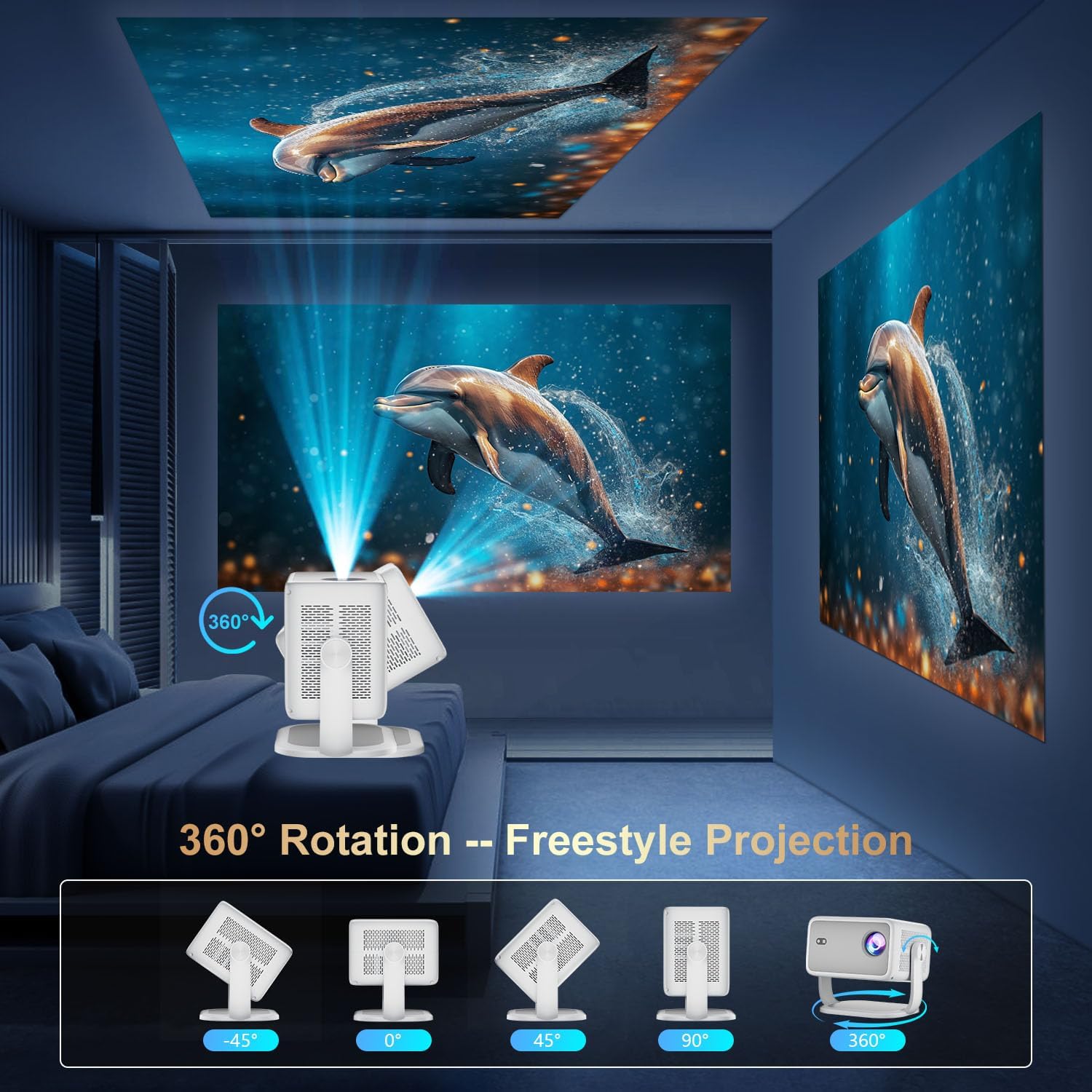
Image 4.1: The projector demonstrating its 360-degree rotation capability for versatile projection angles.
4.3 Correzione della messa a fuoco e della distorsione trapezoidale
The projector features automatic keystone correction and electric focus for quick image alignment and sharpness. Digital zoom (50%-100%) allows for image resizing without moving the unit.

Image 4.2: The projector automatically adjusting focus and keystone correction for a perfectly aligned and sharp image.
4.4 Configurazione iniziale della rete
- Power on the projector using the power button on the rear panel or the remote control.
- Navigate to 'Networking Setting' on the home screen using the remote.
- Select your WiFi network and enter the password to connect.
5. Operativo
5.1 Utilizzo del telecomando
The included remote control is the primary interface for navigating the projector's Smart TV OS. It requires two AAA batteries (not included).
- Pulsante di accensione: Accende/spegne il proiettore.
- Pulsanti di navigazione: Use the directional arrows to move between menu options.
- Pulsante OK: Conferma le selezioni.
- Pulsante Indietro: Ritorna alla schermata precedente.
- Pulsanti del volume: Regola l'uscita audio.
5.2 Sistema operativo e applicazioni Smart TV
The projector runs on a Smart TV OS, providing access to various streaming applications.

Image 5.1: The projector's home screen displaying various built-in applications such as Netflix, YouTube, Prime Video, and Hulu.
- From the home screen, select the desired application (e.g., Netflix, YouTube, Hulu, Prime Video).
- Se richiesto, accedi con le credenziali del tuo account.
- Esplora e goditi i contenuti.
- Additional apps can be downloaded from the App Store.
5.3 Connettività dei dispositivi esterni
Connect external devices via HDMI or USB:
- HDMI: Connect an HDMI cable from your external device to the projector's HDMI port. Select 'HDMI' input from the projector's home screen.
- USB: Insert a USB drive into the USB port. Navigate to 'Files' on the home screen to access content.
5.4 Mirroring dello schermo wireless (Miracast/AirPlay)
The projector supports Miracast and AirPlay for wireless screen mirroring from compatible devices (Windows, iOS, Android).

Image 5.2: A smartphone wirelessly mirroring its screen content to the ZDSSY ZD-L018AQ Smart Projector via WiFi.
- Assicurati che il dispositivo e il proiettore siano connessi alla stessa rete Wi-Fi.
- On the projector, select the 'AirPin' or 'ScreenCast' option (may vary by firmware version).
- Sul tuo dispositivo mobile, attiva il mirroring/casting dello schermo e seleziona il proiettore dall'elenco dei dispositivi disponibili.
5.5 Audio Bluetooth
Collega altoparlanti Bluetooth esterni o cuffie per un audio migliore.

Image 5.3: The projector wirelessly connected to a soundbar via Bluetooth 5.2, enhancing the audio experience.
- Navigate to 'Bluetooth Setting' on the projector's home screen.
- Abilita il Bluetooth e cerca i dispositivi disponibili.
- Seleziona il dispositivo audio Bluetooth da associare.
6. Manutenzione
Una manutenzione regolare garantisce prestazioni ottimali e longevità del proiettore.
- Pulizia delle lenti: Use a soft, lint-free cloth specifically designed for optical lenses to gently wipe the projection lens. Avoid abrasive materials or harsh chemicals.
- Ventilazione: Ensure the projector's ventilation openings are clear of dust and obstructions to prevent overheating. Do not block the vents during operation.
- Magazzinaggio: Quando non in uso, conservare il proiettore in un luogo fresco e asciutto, lontano dalla luce solare diretta e da temperature estreme. Utilizzare l'imballaggio originale o una custodia protettiva, se disponibile.
- Spegni: Always power off the projector properly before unplugging it.
7. Risoluzione Dei Problemi
Fare riferimento a questa sezione per trovare soluzioni ai problemi più comuni.
| Problema | Possibile causa | Soluzione |
|---|---|---|
| Nessun potere | Cavo di alimentazione non collegato; problema con la presa di corrente. | Controllare il collegamento del cavo di alimentazione; provare una presa diversa. |
| Nessuna immagine | Input source not selected; external device not connected. | Select correct input source (HDMI, USB); ensure external device is on and connected. |
| Immagine sfocata | Messa a fuoco non regolata; proiettore troppo vicino/lontano. | Use electric focus or manual focus ring; adjust projector distance. |
| Nessun suono | Volume troppo basso; dispositivo audio esterno non connesso/associato. | Increase volume; check Bluetooth pairing or 3.5mm audio cable connection. |
| Problemi di connettività WiFi/Bluetooth | Password errata; dispositivo fuori portata; interferenza. | Re-enter password; move closer to router/device; reduce interference. |
8. Specifiche
| Caratteristica | Dettaglio |
|---|---|
| Marca | ZDSSY |
| Numero di modello | ZD-L018AQ |
| Risoluzione dello schermo | 1920 x 1080 (nativo) |
| Supporto 4K | SÌ |
| Luminosità | 600 ANSI Lumen |
| Tecnologia di connettività | Bluetooth 5.2, HDMI, USB, Wi-Fi 6 |
| Caratteristiche speciali | Auto Screen Alignment, Built-In Speaker, Built-In Wi-Fi, Portable, Electric Focus |
| Usi consigliati | Interno/Esterno |
| Dimensioni del prodotto | 6.69 x 5.9 x 9.05 pollici |
| Peso dell'articolo | 2.97 libbre |
9. Garanzia e supporto
ZDSSY is committed to providing high-quality products and customer satisfaction.
- Assistenza clienti: 24/7 Professional Service is available for any inquiries or assistance.
- Resi/Cambi: A 30-day return or exchange policy is offered.
- Supporto tecnico: Per il tuo prodotto è previsto supporto tecnico a vita.
For further assistance, please refer to the contact information provided with your purchase or visit the official ZDSSY websito.