
1. Introduzione
This manual provides essential information for setting up, operating, and maintaining your Philips 24B2U3301 24-inch Full HD monitor. This monitor is designed for business efficiency, offering a 120 Hz refresh rate, SoftBlue technology, Flicker-Free viewing, and a versatile VESA mount compatible stand. Please read this manual thoroughly before using your monitor to ensure proper installation and operation.
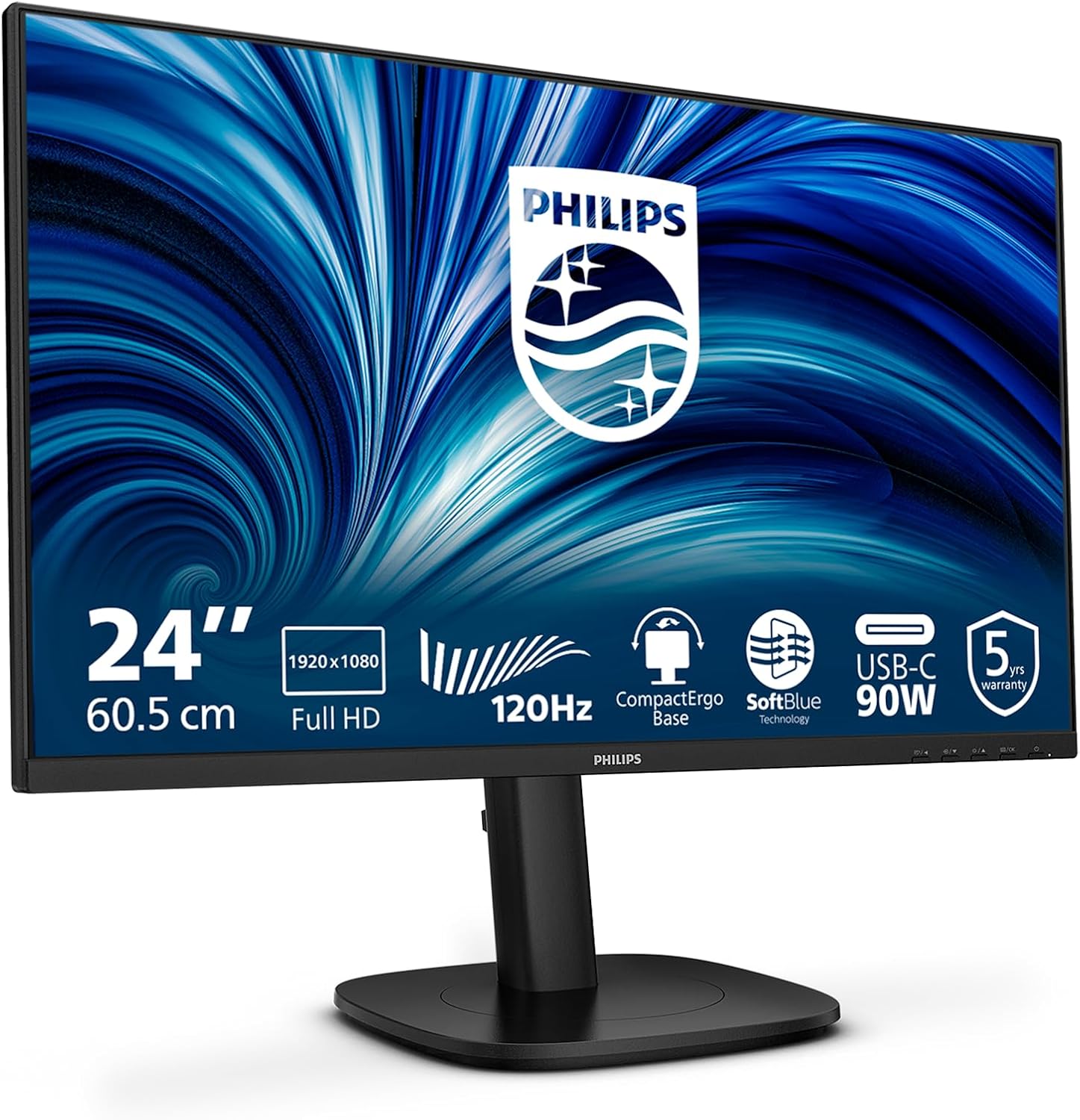
Immagine 1.1: anteriore view of the Philips 24B2U3301 monitor, showcasinil suo design elegante e le cornici strette.
2. Informazioni sulla sicurezza
Observe the following safety precautions to prevent damage to the monitor and ensure your personal safety:
- Posizionare sempre il monitor su una superficie stabile e piana.
- Non ostruire le aperture di ventilazione.
- Utilizzare solo l'adattatore di alimentazione e i cavi forniti dal produttore.
- Tenere il monitor lontano da acqua, umidità e temperature estreme.
- Do not attempt to open or service the monitor yourself. Refer all servicing to qualified personnel.
- Scollegare il monitor dalla presa di corrente prima della pulizia.
3. Contenuto della confezione
Verifica che tutti gli articoli siano presenti nel tuo pacco:
- Philips 24B2U3301 Monitor
- Supporto per monitor (base e collo)
- Cavo di alimentazione
- Cavo HDMI
- Cavo DisplayPort (DP)
- Cavo da USB-C a USB-C
- Guida rapida
4. Impostazione
4.1 Montaggio del supporto
- Estrarre con cautela il monitor e i componenti del supporto dalla confezione.
- Fissare il collo del supporto al pannello del monitor. Assicurarsi che scatti saldamente in posizione o che sia fissato con le viti, se fornite.
- Attach the stand base to the stand neck and tighten the thumb screw at the bottom of the base.

Immagine 4.1: Illustrazione del processo di assemblaggio del supporto del monitor.
4.2 Collegamento del monitor
Connect the necessary cables to the monitor and your computer. Refer to the port diagram below for connection points.
- Collegamento elettrico: Collegare il cavo di alimentazione all'ingresso CA del monitor e quindi a una presa di corrente.
- Collegamento video: Scegli una delle seguenti opzioni:
- HDMI: Connect one end of the HDMI cable to the monitor's HDMI input and the other end to your computer's HDMI output.
- Porta Display (DP): Connect one end of the DP cable to the monitor's DP input and the other end to your computer's DP output.
- USB-C: Connect the USB-C cable to the monitor's USB-C input and your computer's USB-C port. This single cable can provide video, data, and power delivery (up to 90W).
- Connessione hub USB: If using HDMI or DP for video, connect a USB-A to USB-B cable (not always included, check package contents) from your computer to the monitor's USB upstream port to enable the monitor's USB hub. If using USB-C, this connection is automatic.
- Ethernet RJ45: Connect an Ethernet cable from your router/modem to the monitor's RJ45 port to provide network connectivity to your connected laptop via USB-C.
- Uscita audio: Connect external speakers or headphones to the Audio Out jack if desired.

Immagine 4.2: posteriore view del monitor, evidenziando le varie porte di ingresso e di uscita.

Image 4.3: Close-up diagram illustrating the HDMI, DisplayPort, USB-C, RJ45, USB Hub, and Audio Out ports.
5. Istruzioni per l'uso
5.1 Accensione/spegnimento
Premere il pulsante di accensione situato sulla cornice del monitor per accenderlo o spegnerlo.
5.2 Menu di visualizzazione su schermo (OSD)
The OSD menu allows you to adjust various monitor settings. Use the control buttons (usually located on the bottom right or rear of the monitor) to navigate the menu.
- Pulsante Menu: Apre il menu OSD.
- Pulsanti di navigazione: Utilizzato per spostarsi su/giù o sinistra/destra tra le opzioni del menu.
- Pulsante OK/Seleziona: Conferma una selezione.
- Pulsante di uscita: Esce dal menu o dall'OSD corrente.
5.3 Impostazioni OSD comuni
- Immagine: Regola luminosità, contrasto, nitidezza e temperatura del colore.
- Audio: Control volume and mute settings for built-in speakers or audio output.
- Ingresso: Manually select the video input source (HDMI, DP, USB-C).
- Impostazioni OSD: Regola la lingua OSD, la trasparenza e il timeout.
- Impostare: Access factory reset options and information about the monitor.
5.4 Regolazioni ergonomiche
The monitor stand offers multiple adjustments for optimal viewcomfort:
- Regolazione dell'altezza: Sollevare o abbassare il monitor fino a 130 mm.
- Inclinazione: Adjust the screen's vertical angle (-5° to 30°).
- Girevole: Rotate the monitor horizontally (-/+ 180°).
- Perno: Ruota lo schermo di 90° per la modalità verticale viewing (-/+ 90°).
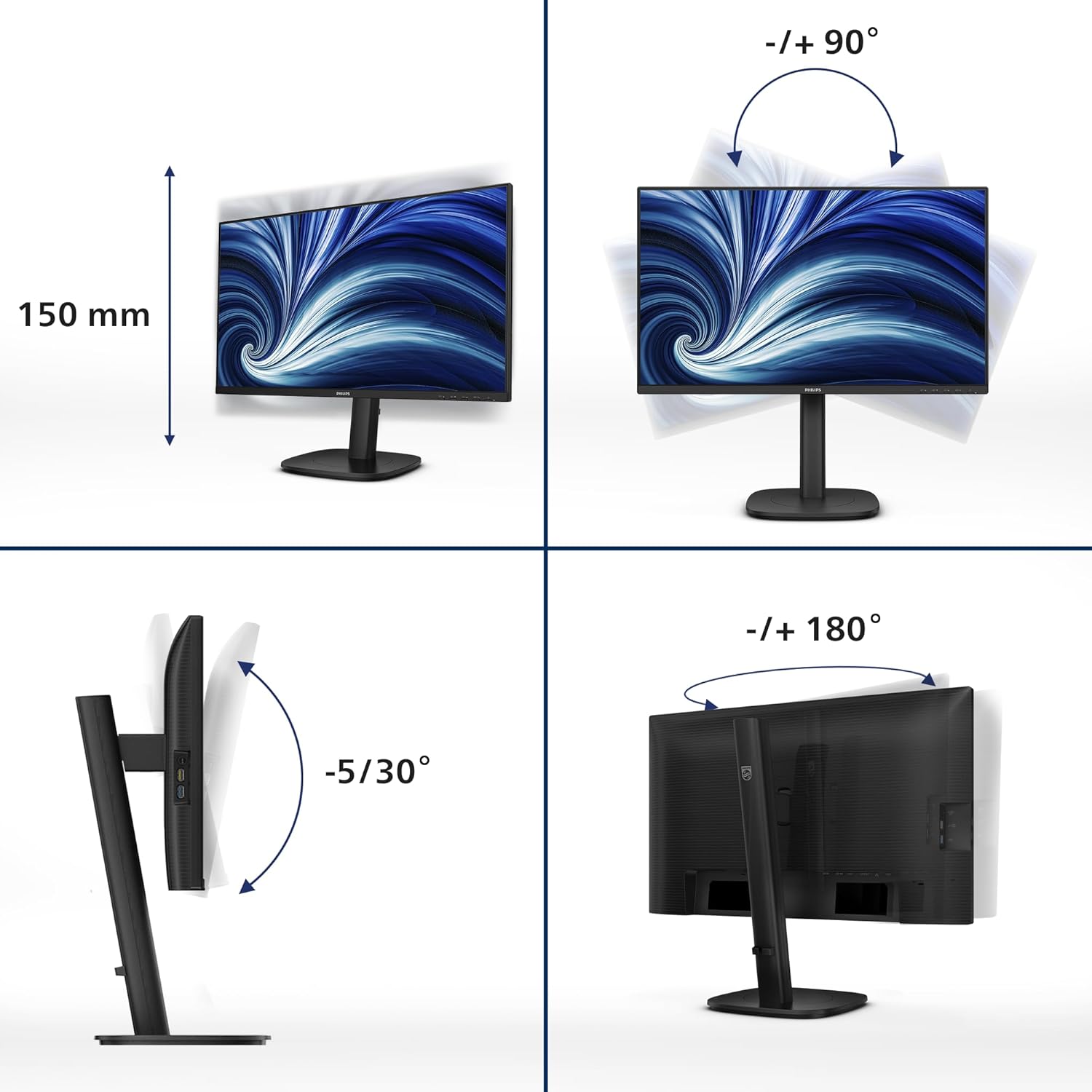
Image 5.1: Demonstrates the monitor's height, tilt, swivel, and pivot adjustments for ergonomic positioning.
6. Caratteristiche principali
- Frequenza di aggiornamento 120Hz: Provides ultra-smooth and brilliant images, reducing motion blur for a more fluid visual experience.
- 1ms MPRT Fast Response: Delivers crisp images and smooth gameplay, minimizing ghosting and blurring in fast-paced scenes.
- SoftBlue Technology: Reduces harmful blue light emissions without compromising color accuracy, helping to minimize eye strain during extended use.
- Tecnologia senza sfarfallio: Regulates brightness and reduces screen flickering, further enhancing eye comfort.
- USB-C con Power Delivery da 90 W: A single USB-C cable provides video, data transfer, and powers/charges your compatible laptop (up to 90W).
- Hub USB: Integrated USB hub with multiple ports allows for easy connection of peripherals like keyboards, mice, and external drives.
- Porta Ethernet RJ45: Provides a stable wired network connection to your connected laptop via the USB-C cable, eliminating the need for additional adapters.
- Uscita DisplayPort: Allows for daisy-chaining multiple monitors from a single DisplayPort connection on your computer.
7. Manutenzione
7.1 Pulizia dello schermo
To clean the monitor screen:
- Spegnere il monitor e scollegare il cavo di alimentazione.
- Pulisci delicatamente lo schermo con un panno morbido e privo di lanugine.
- Per segni ostinati, dampen the cloth lightly with a mild, non-abrasive screen cleaner. Do not spray cleaner directly onto the screen.
7.2 Pulizia del Casing
Pulisci il monitor casincon un panno morbido e asciutto. Evitare l'uso di detergenti aggressivi o abrasivi.
8. Risoluzione Dei Problemi
Se riscontri problemi con il monitor, fai riferimento ai seguenti problemi comuni e alle relative soluzioni:
| Problema | Possibile soluzione |
|---|---|
| Nessuna immagine sullo schermo |
|
| L'immagine è sfocata o distorta |
|
| Nessun suono dagli altoparlanti/uscita audio |
|
| Il monitor sfarfalla |
|
9. Specifiche
| Caratteristica | Dettaglio |
|---|---|
| Numero di modello | 24B2U3301 |
| Dimensioni dello schermo | 23.8 pollici |
| Tipo di pannello | Informazione pubblica |
| Risoluzione | 1920 x 1080 (Full HD) |
| Frequenza di aggiornamento | Frequenza 120 Hz |
| Tempo di risposta | 1 ms (MPRT) |
| Proporzioni | 16:9 |
| Connettività | 1x HDMI 1.4, 1x DisplayPort 1.4, 1x USB-C (90W PD), 1x DisplayPort Out, 1x USB Hub (USB 3.2 Gen 1), 1x RJ45 Ethernet, 1x Audio Out |
| Regolazioni ergonomiche | Height (130mm), Tilt (-5°/30°), Swivel (-/+ 180°), Pivot (-/+ 90°) |
| Altoparlanti incorporati | SÌ |
| Consumo energetico | Refer to product label for specific values |
| Dimensioni (con supporto) | 8.98 x 21.34 x 19.65 pollici (LxPxA) |
| Peso (con supporto) | 12.58 libbre |
10. Garanzia e supporto
10.1 Informazioni sulla garanzia
This Philips monitor comes with a Garanzia di 5 anno, ensuring peace of mind regarding its quality and performance. Please retain your proof of purchase for warranty claims.

Image 10.1: The TCO Certified Edge 5 Year Warranty logo, indicating extended product assurance.
10.2 Assistenza clienti
For technical assistance, warranty service, or further inquiries, please visit the official Philips support website or contact their customer service. You can typically find contact information and support resources on the Philips website or in the documentation included with your monitor.
Supporto online: www.philips.com/support