
1. Introduzione
This manual provides instructions for the setup, operation, and maintenance of your Cuifati WiFi Digital Weather Clock. This device offers a versatile display for weather, time, and humidity, along with additional features like an animation display and photo gallery, all controlled via a simple touch interface and WiFi connectivity.
2. Contenuto della confezione
Si prega di verificare che tutti gli articoli siano presenti nel pacco:
- 1 x WIFI Time Weather Display Unit
- 1 x USB Supply Cord
3. Prodotto finitoview
The Cuifati WiFi Digital Weather Clock is designed for desktop use, providing essential information and entertainment features. It integrates seamlessly with various applications and offers intuitive touch controls.
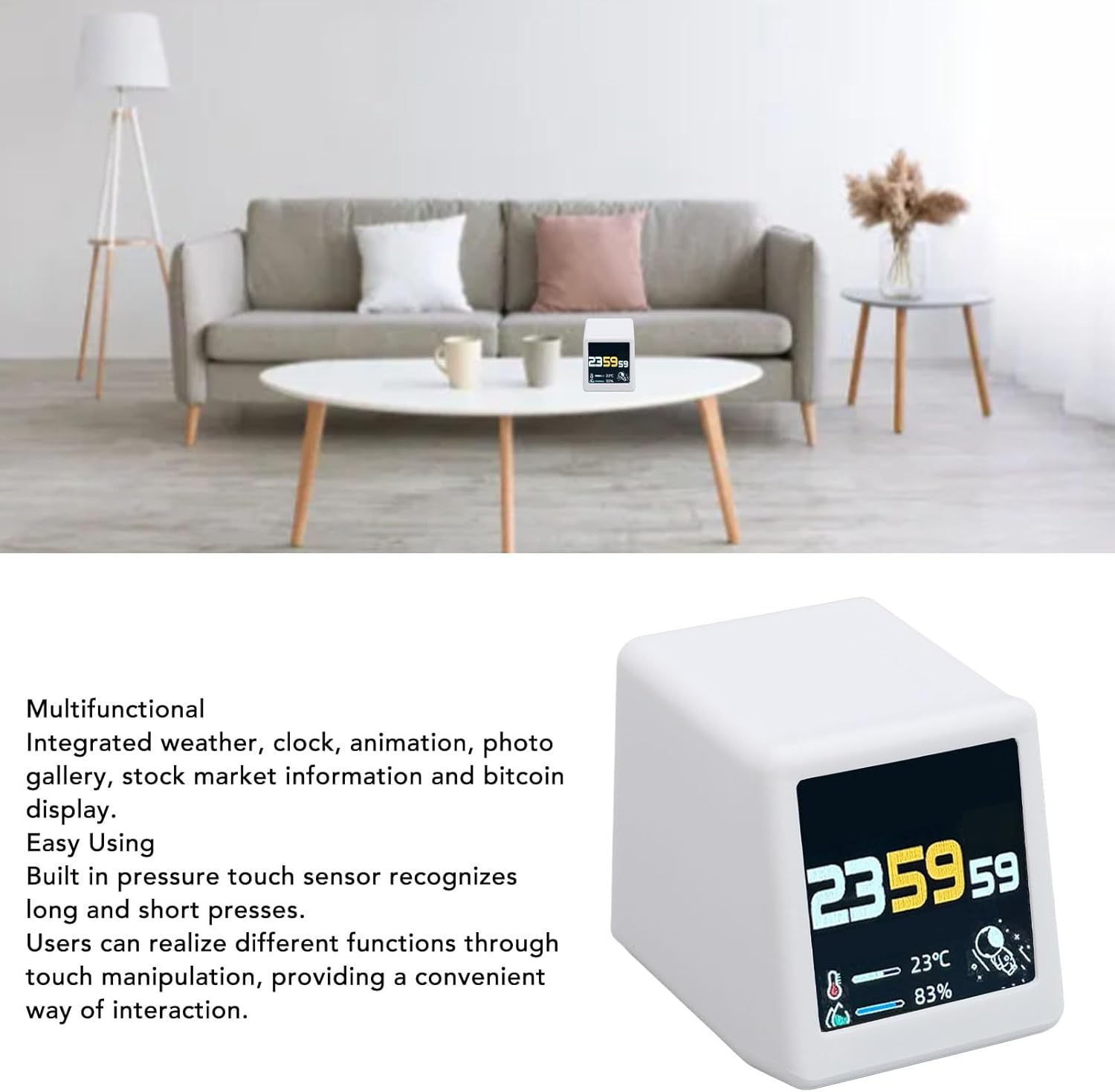
Image: The Cuifati WiFi Digital Weather Clock positioned on a dining table, showcasing its display with time, temperature, and humidity information.
Caratteristiche principali:
- Versatile App Integration: Supports switching between weather, clock, animation, and photo gallery applications.
- Easy Touch Manipulation: Built-in pressure touch sensor recognizes both long and short presses for convenient interaction.
- Rich Photo Gallery Features: Supports full-screen GIF animation loops and automatic JPG image slideshows.
- Semplice Web Controllare: Connects via 2.4GHz WiFi and can be controlled through any web browser on the same network using its internal IP address.
- Wireless Firmware Upgrades: Ensures the device stays updated with the latest features and optimizations.
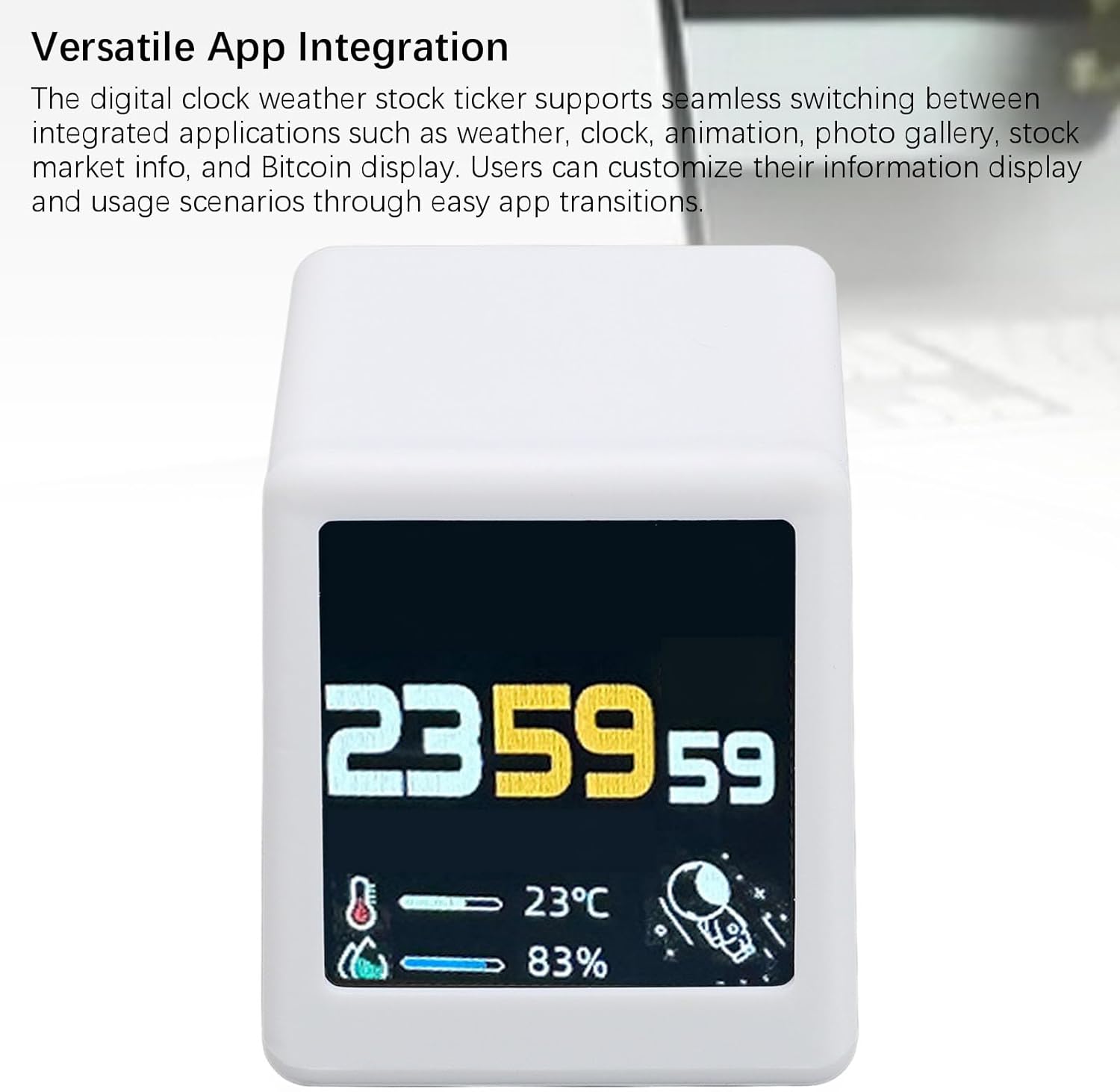
Immagine: Un dettaglio view of the clock's display, illustrating the time, temperature, humidity, and a small astronaut graphic, highlighting the clear digital interface.
4. Impostazione
Follow these steps to set up your Cuifati WiFi Digital Weather Clock:
- Collegamento elettrico: Connect the provided USB supply cord to the USB-C port on the back of the device and plug the other end into a compatible USB power adapter (not included) or a powered USB port. The device will power on automatically.
- Connessione wifi: For initial setup and detailed instructions on connecting to your 2.4GHz WiFi network, please scan the QR code provided on the product packaging box. This QR code links to a comprehensive manipulation tutorial that guides you through the WiFi configuration process.

Image: The Cuifati WiFi Digital Weather Clock displayed alongside its USB-C power cable, illustrating the connection method.
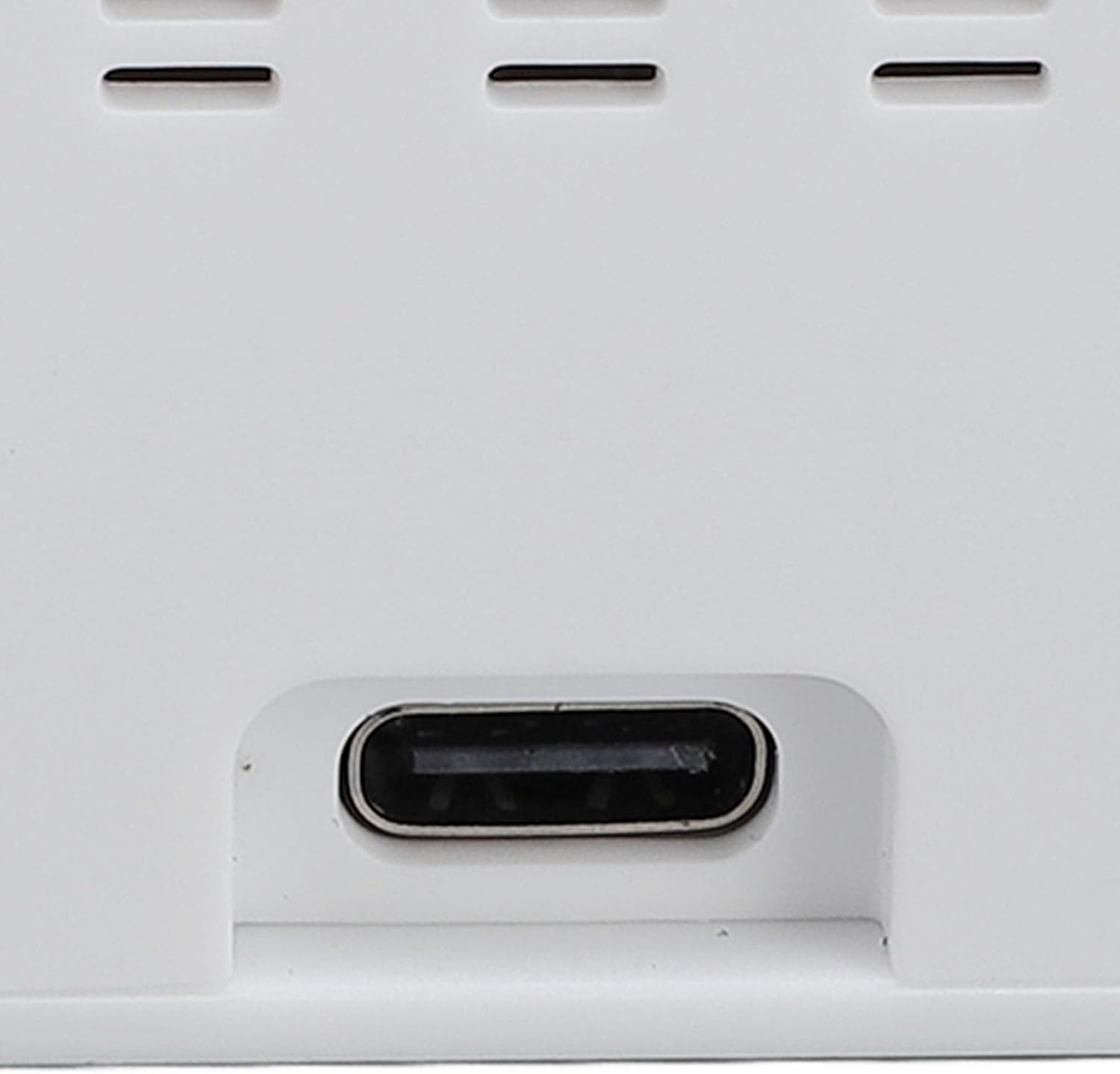
Immagine: un primo piano view of the USB-C port located on the rear of the device, indicating where the power cable should be connected.
5. Istruzioni per l'uso
The Cuifati WiFi Digital Weather Clock features an intuitive touch interface and web-based controls.
5.1 Comandi touch
The device is equipped with a pressure touch sensor for interaction:
- Pressione breve: Typically used to switch between different applications (e.g., weather, clock, animation, photo gallery).
- Premere a lungo: May be used for accessing settings or specific functions within an application. Refer to the online tutorial for precise long-press functionalities.
5.2 Application Switching
The device supports seamless transitions between various integrated applications:
- Visualizzazione meteo: Shows current weather conditions, temperature, and humidity.
- Display dell'orologio: Presents the current time.
- Animation Display: Shows various animated graphics.
- Galleria fotografica: Displays personal photos.
Use a short press on the touch sensor to cycle through these applications.
5.3 Photo Gallery Features
When in Photo Gallery mode, the device can:
- Display full-screen GIF animation loops.
- Run automatic slideshows of JPG images.
Instructions for uploading and managing photos are available in the online tutorial.
5.4 Web- Controllo basato
Once connected to your 2.4GHz WiFi network, the device can be controlled via any web browser on a device connected to the same network. Simply enter the internal IP address of the weather clock into your browser's address bar. This provides an accessible and user-friendly control method without the need for a dedicated app.
5.5 Wireless Firmware Upgrades
The device supports wireless firmware upgrades. Ensure your device is connected to WiFi to receive the latest updates, which provide continued optimization and reliability improvements.

Image: A close-up of the device's screen, clearly showing the digital time, temperature, and humidity readings, along with a small graphic.
6. Manutenzione
To ensure the longevity and optimal performance of your Cuifati WiFi Digital Weather Clock:
- Pulizia: Use a soft, dry cloth to gently wipe the display and exterior surfaces. Avoid abrasive cleaners, solvents, or spray directly onto the device.
- Posizionamento: Posizionare il dispositivo su una superficie piana e stabile, lontano dalla luce solare diretta, da temperature estreme e da elevata umidità.
- Energia: Always use the provided USB supply cord. Disconnect power during extended periods of non-use.

Immagine: dall'alto verso il basso view of the Cuifati WiFi Digital Weather Clock, showing the smooth white casing and two small screws on the top surface.

Immagine: La parte posteriore view of the device, highlighting the ventilation slots and the USB-C power input port at the bottom.
7. Risoluzione Dei Problemi
If you encounter issues with your device, consider the following:
- Il dispositivo non si accende: Ensure the USB supply cord is securely connected to both the device and a working power source. Try a different USB power adapter.
- Nessuna connessione WiFi: Verify that your router is broadcasting a 2.4GHz WiFi signal. Ensure the device is within range of your router. Re-enter WiFi credentials if necessary via the web interface or setup process.
- Incorrect Time/Weather: Ensure the device is successfully connected to the internet. Time and weather data are synchronized online.
- Problemi di visualizzazione: If the display is unresponsive or frozen, try disconnecting and reconnecting the power supply to restart the device.
8. Specifiche
| Specificazione | Dettaglio |
|---|---|
| Tipo di articolo | WIFI Time Weather Display |
| Materiale | PC, ABS |
| Numero di modello | CUIFATI2k4xus0gav |
| Connettività | 2.4GHz WiFi |
| Metodo di controllo | Touch Sensor, Web Browser (via internal IP) |
9. Garanzia e supporto
For warranty information and technical support, please refer to the documentation included with your purchase or contact Cuifati customer service through their official channels. Keep your proof of purchase for warranty claims.