
1. Introduzione
Questo manuale fornisce informazioni essenziali per l'installazione, il funzionamento, la manutenzione e la risoluzione dei problemi del tuo ViewSonic IFP55G1 55-inch 4K UHD ViewBoard Interactive Display. Please read this manual thoroughly before using the product to ensure proper and safe operation.
IL ViewSonic IFP55G1 is a 55-inch 4K Ultra HD (3840x2160p) interactive display designed for educational and business environments. It features multi-point touch recognition, an OPS slot for external PCs, 10W dual speakers, and versatile connectivity options including HDMI, VGA, USB Hub, and USB-C inputs. Its OS-free design allows flexibility with various computing solutions.
Caratteristiche principali:
- Risoluzione Ultra HD: 55 Inch 4K Ultra HD (3840x2160p) interactive display for crisp visuals.
- Advanced Multi-Touch: Allows multiple users to write and interact simultaneously with fingers and passive pens.
- Connettività flessibile: Equipped with a powerful quad-core processor and versatile ports including HDMI, VGA, RJ45, and USB.
- OS-Free Design: Provides enhanced security and flexibility to integrate with your preferred operating system via external PC or OPS device.
- Write-Away Technology: Enables instant writing with the stylus without extended setup.
2. Cosa c'è nella scatola
Verificare che tutti gli articoli elencati di seguito siano inclusi nella confezione. Se alcuni articoli risultano mancanti o danneggiati, contattare immediatamente il rivenditore.
- ViewSonic IFP55G1 Interactive Display
- 3m USB 2.0 touch cable x 1
- Touch pen (Passive pen) x 2 (VB-PEN-002)
- Cavo di alimentazione da 3 m
- HDMI 2.0 cable 3m x 1
- Guida rapida + Dichiarazione di conformità
- Adattatore RS232
- Screw (wall mount 4)
- Piastra della fotocamera
- Remote control with AAA battery (Optional)
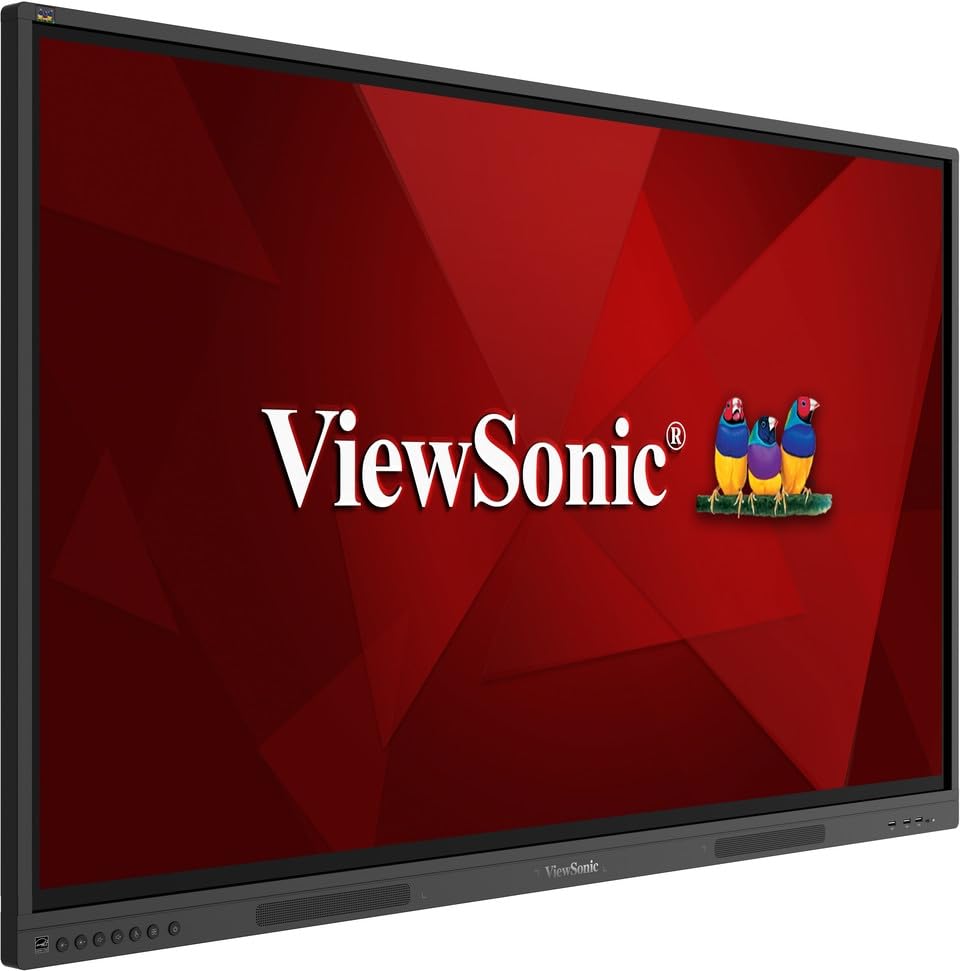
Immagine: ViewSonic IFP55G1 55-inch ViewBoard Interactive Display, front view.
3. Istruzioni per l'installazione
3.1 Montaggio del display
The IFP55G1 can be wall-mounted or installed on a compatible mobile cart (sold separately). Ensure the mounting solution supports the display's weight (approximately 59.3 lbs / 26.9 kg) and dimensions (3.37 x 49.7 x 30.3 inches).
- For wall mounting, use the provided wall mount screws and ensure the wall structure is robust enough.
- Follow the instructions provided with your specific wall mount or mobile cart.
3.2 Collegamento delle periferiche
The display offers various ports for connecting external devices. Refer to the image below for port locations.

Immagine: Lato view del ViewSonic IFP55G1 interactive display showing various input ports including HDMI, VGA, and USB.
- Collegamento elettrico: Connect the 3m power cable to the display and a grounded power outlet.
- Ingresso video: Connect your external PC or media player to the display using an HDMI 2.0 cable (provided), VGA cable, or USB-C cable. The display has 3 HDMI ports, 1 VGA port, and USB-C connectivity.
- Funzionalità touch: For interactive touch features with an external PC, connect the 3m USB 2.0 touch cable from the display's USB-B (Touch) port to a USB-A port on your PC.
- Slot OPS: If using an optional ViewSonic Slot-in PC (OPS device), insert it into the dedicated OPS slot on the rear of the display. This provides an integrated computing solution.
- Rete: Collegare un cavo Ethernet alla porta RJ45 per l'accesso alla rete cablata.
- Dispositivi USB: Use the available USB-A ports to connect USB drives, keyboards, mice, or other peripherals.

Immagine: Il ViewSonic IFP55G1 display demonstrating connectivity with various external devices, including laptops and mini PCs, highlighting its 'Bring Your Own Devices' capability.
4. Istruzioni per l'uso
4.1 Accensione/Spegnimento
- Accensione: Press the power button located on the display's front or side panel, or use the remote control. The display will power on and show the input source.
- Spegni: Press the power button again. A confirmation message may appear; select 'Power Off'. For complete power disconnection, unplug the power cable.
4.2 Selezione della sorgente di input
Use the 'Source' button on the display or remote control to cycle through available input sources (HDMI 1, HDMI 2, HDMI 3, VGA, USB-C, OPS).
4.3 Utilizzo della funzionalità touch
Once the USB touch cable is connected to your external PC, the display will function as a multi-touch input device. You can use your fingers or the provided passive pens for interaction.
- Tocco delle dita: Use gestures similar to a tablet or smartphone for navigation, zooming, and drawing.
- Passive Pens: The two included passive pens (VB-PEN-002) allow for precise writing and drawing on the screen. The display's Write-Away technology enables instant use of the pens.

Image: A group of individuals collaborating around a ViewSonic IFP55G1 interactive display in a modern meeting room, demonstrating its multi-touch capabilities for instantaneous collaboration.
4.4 Controllo audio
The display features integrated 10W dual speakers. Adjust volume using the remote control or the buttons on the display panel.
5. Manutenzione
5.1 Pulizia del display
- Schermo: Pulire delicatamente lo schermo con un panno morbido e privo di lanugine. Per i segni ostinati, strofinare leggermenteampen the cloth with water or a non-abrasive, ammonia-free screen cleaner. Do not spray cleaner directly onto the screen.
- Casing: Pulisci il casincon un panno morbido e asciutto. Evitare l'uso di prodotti chimici aggressivi o materiali abrasivi.
5.2 Cura generale
- Evitare di posizionare oggetti pesanti sul display.
- Do not block ventilation openings on the rear of the display.
- Keep the display away from direct sunlight, heat sources, and excessive moisture.
6. Risoluzione Dei Problemi
Se riscontri problemi con il tuo ViewSonic IFP55G1, refer to the following common problems and solutions.
6.1 Nessuna visualizzazione / Schermo nero
- Ensure the power cable is securely connected to both the display and a working power outlet.
- Verify that the display is powered on (power indicator light should be active).
- Check that the video cable (HDMI, VGA, USB-C) is securely connected to both the display and the source device (PC, OPS).
- Select the correct input source using the 'Source' button on the display or remote control.
- Ensure the source device (PC, OPS) is powered on and outputting a video signal.
6.2 La funzionalità touch non funziona
- Confirm the USB touch cable is securely connected from the display's USB-B (Touch) port to a USB-A port on your external PC.
- Ensure your external PC's operating system has the necessary drivers installed for touch input.
- Restart both the display and the connected PC.
6.3 Nessun suono
- Check the volume level on the display and the connected source device.
- Ensure the audio output from your source device is routed correctly to the display (e.g., via HDMI).
- If using an external audio system, ensure it is properly connected and powered on.
7. Specifiche
Below are the technical specifications for the ViewSonic IFP55G1 interactive display.
| Caratteristica | Specificazione |
|---|---|
| Marca | ViewSonico |
| Nome del modello | IFP55G1 |
| Dimensioni dello schermo | 55 pollici |
| Risoluzione massima dello schermo | 3840x2160 pixel (4K UHD) |
| Risoluzione nativa | 3840x2160 |
| Tipo di visualizzazione | LCD |
| Proporzioni | 16:9 |
| Input dell'interfaccia umana | Schermo tattile |
| Tecnologia di connettività | Ethernet, HDMI, USB Type C, VGA |
| Numero totale di porte HDMI | 3 |
| Porte USB totali | 9 |
| Interfaccia di uscita video | Porta Display |
| Uscita audio | Integrated 10W Dual Speakers |
| Dimensioni articolo (LxPxA) | 3.37 x 49.7 x 30.3 pollici |
| Peso dell'articolo | 59.3 libbre |
| Colore | Nero |
| Caratteristiche speciali | All-in-one USB port, Anti Glare Display, Light Sensor, Speakers, Touchscreen |
| Dispositivi compatibili | Desktop, portatile |
| Codice UPC | 766907024654 |
8. Garanzia e supporto
8.1 Informazioni sulla garanzia
IL ViewSonic IFP55G1 interactive display comes with an industry-leading Garanzia limitata di 3 anno on parts, labor, and backlight. Onsite warranty service may also be available. Please refer to the warranty card included in your package or visit the official ViewSonico website for detailed terms and conditions, and information on optional warranty extensions.
8.2 Assistenza clienti
Per assistenza tecnica, richieste di informazioni sui prodotti o reclami in garanzia, contattare ViewSonic's award-winning customer service team. Contact information can be found on the official ViewSonico websito o nella Guida rapida fornita con il prodotto.