
Introduzione
Welcome to your Synido Live Dock A20 Portable Audio Interface user manual. This guide provides essential information for setting up, operating, and maintaining your device. The Live Dock A20 is designed to offer high-fidelity audio recording and streaming capabilities for musicians, DJs, and content creators using various devices like smartphones, tablets, and computers.
Caratteristiche principali
- Registrazione audio portatile: Offers ultra-clear loopback and monitor functions, ideal for music enthusiasts.
- Unique Instrument Gain Control: Adapts output levels for different instruments to ensure optimal recording quality.
- Audio ad alta fedeltà: Features studio-grade 24-bit/96kHz resolution for capturing every detail.
- Elaborazione avanzata del suono: Dual-core chip and sound processing system minimize delays and noise.
- Design sofisticato: Integrated design with built-in wire storage, pocket-sized, compact, and portable.
- Accompagnamento wireless: One-touch wireless switch to connect a second mobile phone for backing tracks.
- Connettività USB-C: Direct connection to cell phones, tablets, and computers.
- Supporto di ricarica: Functions as a docking station to charge your phone during mobile live broadcasts.
- Wider Instrument Compatibility: Adaptive gain control optimizes sound for electric guitars, MIDI keyboards, digital pianos, electric bass, and electric drum sets.
- Direct Audio Embedding: Records audio directly into video files, eliminating the need for post-production synchronization.
Contenuto della confezione
- Synido Live Dock A20 Audio Interface
- Cavo audio (da 3.5 mm a 3.5 mm)
- 1/4" Adapter
- Guida rapida alla connessione
Dispositivo suview
Familiarize yourself with the ports and controls of your Live Dock A20.

Image Description: A diagram of the Synido Live Dock A20 highlighting its various ports and controls. These include a Type-C Charging Port, 1/8" Headphone Output, 1/4" Instrument Input, 1/8" Mic Input, Bluetooth button, Loopback button, Mono/Stereo switch, Mic Gain Adjustment, Monitor Volume Control Dial, Instrument Gain Adjustment, and 5V 2A Power Supply port.
Guida all'installazione
Connecting to a Smartphone/Tablet
- Connect the built-in USB-C cable from the Live Dock A20 to your smartphone or tablet's USB-C port.
- Plug your instrument into the 1/4" Instrument Input.
- Connect your microphone to the 1/8" Mic Input (if applicable).
- Plug in headphones to the 1/8" Headphone Output for monitoring.
- Ensure your device supports USB-C audio input.
Connecting to a Computer/Laptop
- Connect the built-in USB-C cable from the Live Dock A20 to your computer or laptop's USB-C port.
- The device should be recognized automatically as an audio interface (plug-and-play).
- Plug your instrument into the 1/4" Instrument Input.
- Connect your microphone to the 1/8" Mic Input (if applicable).
- Plug in headphones to the 1/8" Headphone Output for monitoring.
Accensione del dispositivo
The Live Dock A20 is bus-powered via the USB-C connection. For extended use or to charge your connected mobile device, use the dedicated 5V 2A Power Supply port with a charging cable.

Image Description: The Synido Live Dock A20 connected to a smartphone via its built-in USB-C cable, with an additional charging cable plugged into the 5V 2A Power Supply port, indicating simultaneous use and charging.
Istruzioni per l'uso
Regolazione dei livelli di guadagno
Use the dedicated gain controls on the side of the device to adjust input levels for your microphone and instrument. This helps prevent distortion and signal overload, ensuring optimal audio quality.

Image Description: A close-up of the Synido Live Dock A20 showing the microphone gain and instrument gain adjustment sliders on the side of the device.
Monitoraggio audio
Connect headphones to the 1/8" Headphone Output. Use the Monitor Volume Control Dial to adjust your monitoring level.
Funzione di loopback
Press the "LOOPBACK" button to activate the loopback function. This allows you to record or stream your instrument and microphone audio along with any audio playing on your connected device (e.g., backing tracks, system sounds).
Interruttore mono/stereo
Use the "M/S" switch to select between Mono (M) and Stereo (S) input modes.
- Mono (Red Light): Select this mode when connecting a single mono audio source. If a stereo source is connected in mono mode, you may only hear sound in one ear during monitoring and recording.
- Stereo (Green Light): Select this mode when connecting a stereo audio source. If a mono source is connected in stereo mode, sounds in the left and right channels may cancel each other out.

Image Description: A diagram illustrating the Mono/Stereo switch on the Synido Live Dock A20, showing the red light for Mono input and green light for Stereo input, with explanations for each mode.
Wireless Accompaniment (Bluetooth)
Activate the "BT" (Bluetooth) button to enable wireless accompaniment. This feature allows you to connect a second mobile phone via Bluetooth to play backing tracks or other audio, which can then be mixed with your live performance for streaming or recording.

Image Description: The Synido Live Dock A20 connected to one smartphone for live streaming/recording, and wirelessly connected via Bluetooth to a second smartphone providing accompaniment music.
Galleria multimediale
Immagini del prodotto
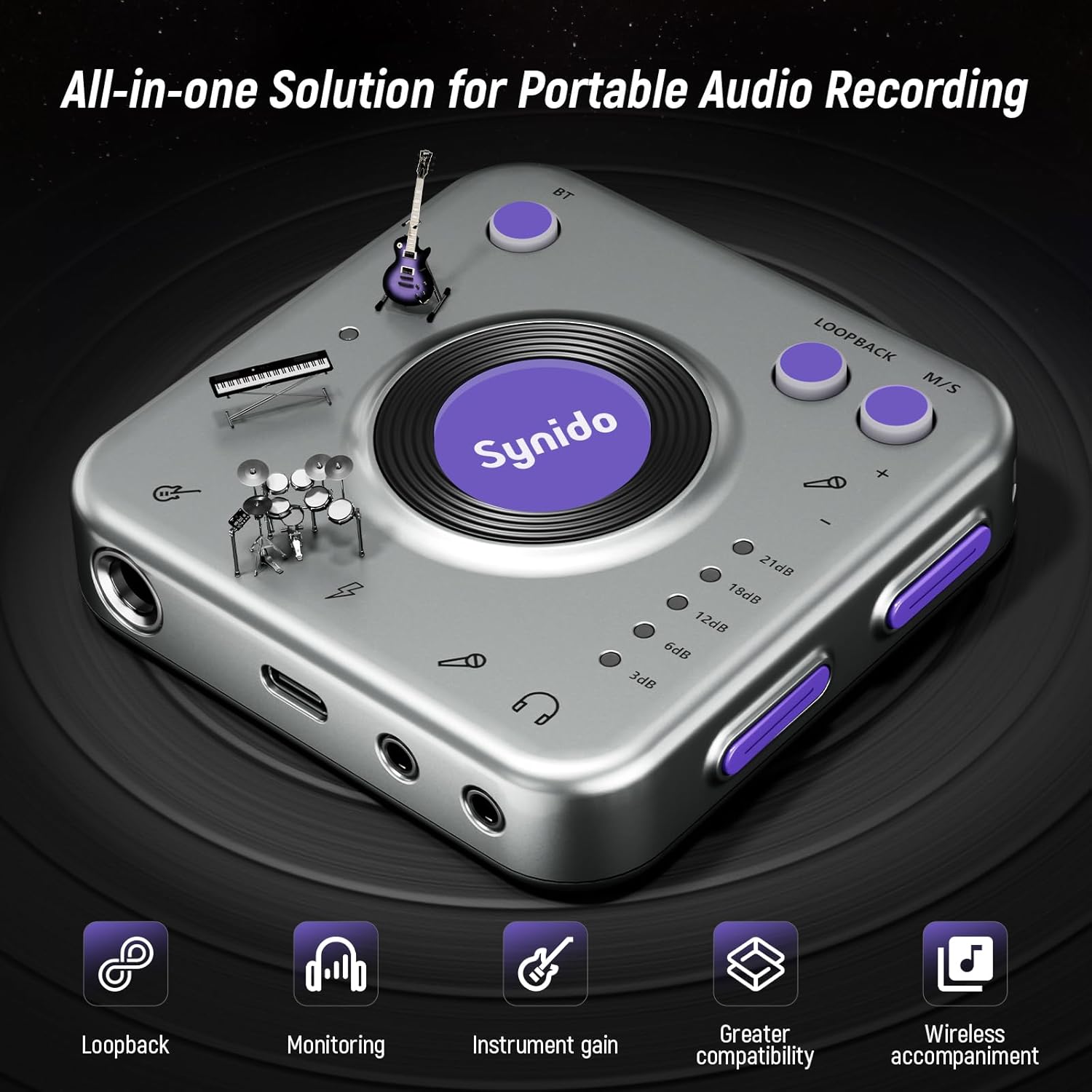
Image Description: The Synido Live Dock A20, a compact silver square device with purple accents, showcasing its various inputs and controls. Text overlay highlights features like Loopback, Monitoring, Instrument Gain, Greater Compatibility, and Wireless Accompaniment.

Image Description: A close-up of the Synido Live Dock A20 emphasizing its Hi-Fi 3D Audio capabilities, with text indicating 24-Bit Sampling Depth and 96 kHz Sampling Rate, and a graph comparing 44.1kHz to 96kHz audio quality.

Image Description: The Synido Live Dock A20 with its built-in USB-C cable extended, demonstrating its ultra-portable design and reinforced slot for cable storage. Text highlights "Plug and play, streaming even while charging."

Image Description: A collage of images showing various instruments (Electric Guitars, Electronic Wind Instruments, Digital Pianos, Midi Keyboards, Electric Bass, Electric Drums, Guitars) that are compatible with the Live Dock A20's adaptive gain control.
Video ufficiali dei prodotti
Video Description: An official Synido video demonstrating the Live Dock A20 audio interface for recording music with instrument gain control. It highlights its portability and use for live streaming.
Video Description: An official Synido video showcasing the portable recording capabilities of the Live Dock A20 audio interface.
Video Description: An official Synido video demonstrating how to record DJ set audio directly into a camera using the Live Dock A20, eliminating the need for post-production syncing.
Risoluzione dei problemi
No Sound Output/Input
- Controllare tutti i collegamenti dei cavi per assicurarsi che siano sicuri.
- Verify that the correct input and output devices are selected in your recording software or device settings.
- Adjust the gain controls for your instrument and microphone to appropriate levels.
- Ensure the monitor volume is turned up.
Audio distorto
- Reduce the input gain for the instrument or microphone.
- Check the audio levels in your recording software to ensure they are not clipping.
Problemi di compatibilità
- Ensure your smartphone or action camera supports USB-C audio input.
- For iOS devices, ensure you are using a compatible adapter if needed.
Specifiche
| Caratteristica | Dettaglio |
|---|---|
| Marca | Sinido |
| Numero di modello | Live Dock A20 |
| Tecnologia di connettività | USB |
| Numero di canali | 2 |
| S . massimoampla tariffa | 96KHz |
| Profondità del bit | 24 bit |
| Guadagno dello strumento | 0-21 dB |
| Guadagno del microfono | 32 dB |
| Gamma dinamica | >90 dB |
| Dispositivi compatibili | Guitar, Headphone, Personal Computer, Smartphone, Tablet |
| Sistema operativo | Androide, iOS |
| Peso dell'articolo | 0.01 chilogrammi |
Garanzia e supporto
The Synido Live Dock A20 comes with service support. For any inquiries or assistance, please refer to the official Synido websito o contattare il servizio clienti tramite la piattaforma di acquisto.
Puoi anche visitare il Synido Store on Amazon for more information and to ask questions directly to the seller.