
Introduzione
The Logitech K250 Bluetooth® Keyboard offers effortless wireless connectivity, allowing for quick setup without a dongle and contributing to a clutter-free workspace. Designed for durability, it features a spill-resistant build and is constructed with a minimum of 64% recycled plastic. The keyboard provides a comfortable typing experience with its deep-profile keys and includes a numpad and essential function keys within a compact design, making it suitable for various environments and on-the-go use.
Prodotto finitoview
The Logitech K250 is a compact wireless keyboard designed for efficiency and comfort. Key features include:
- Connettività Bluetooth: Connects quickly and easily without a USB dongle.
- Design durevole: Built with long-lasting keys and a spill-resistant construction.
- Digitazione confortevole: Features deep-profile keys and adjustable tilt legs for an ergonomic experience.
- Disposizione salvaspazio: Compact design includes a full numpad and essential F-key shortcuts.
- Materiali sostenibili: Plastic parts are made with a minimum of 64% recycled plastic.
- Batteria a lunga durata: Up to 12 months of daily use on a single set of batteries.

Figura 1: Dall'alto verso il basso view of the Logitech K250 Bluetooth Keyboard, showcasing its compact layout and full numpad.

Figure 2: Diagram illustrating key features of the K250 keyboard, including the Bluetooth pair button, power/connect LED, and adjustable tilt legs on the underside.

Figura 3: primo piano view of the K250 keyboard alongside recycled plastic pellets, emphasizing its construction from sustainable materials.
Impostare
1. Installazione della batteria
The Logitech K250 keyboard requires two AAA batteries, which are included in the package. To install the batteries:
- Individuare il vano batteria sul lato inferiore della tastiera.
- Aprire il coperchio del vano batterie.
- Inserire due batterie AAA, assicurandosi della corretta polarità (+/-).
- Chiudere saldamente il coperchio del vano batterie.
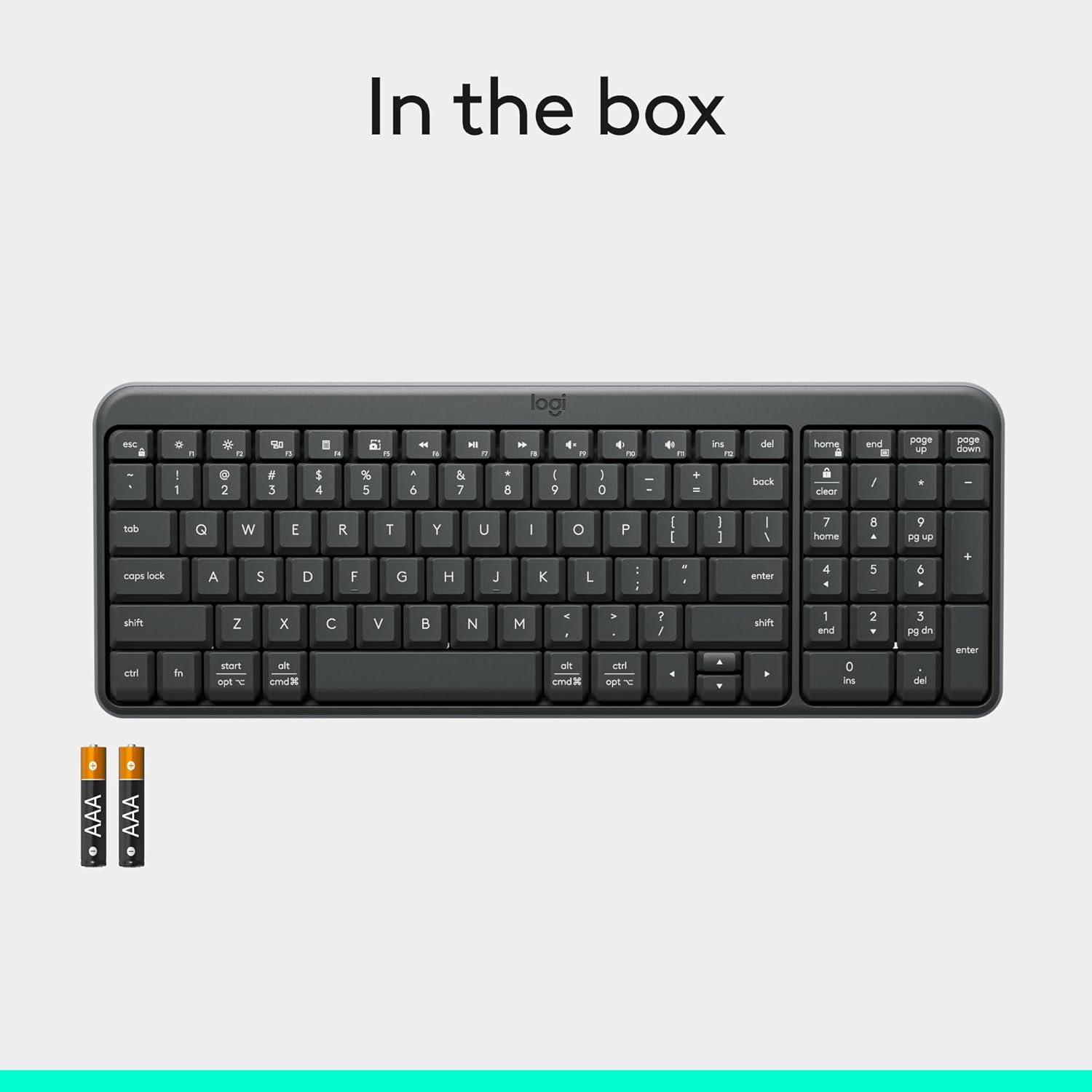
Figure 4: Contents of the K250 package, showing the keyboard and two AAA batteries.
2. Accoppiamento Bluetooth
The K250 keyboard connects wirelessly via Bluetooth, eliminating the need for a USB dongle. Follow these steps to pair your keyboard with your device:
- Ensure the keyboard is powered on. The power/connect LED (refer to Figure 2) should be active.
- Press and hold the Bluetooth pair button on the underside of the keyboard (refer to Figure 2) until the LED starts blinking, indicating it's in pairing mode.
- On your computer, tablet, or smartphone (Windows, macOS, etc.), navigate to your Bluetooth settings.
- Cercare available Bluetooth devices. The Logitech K250 should appear in the list.
- Select "Logitech K250" and follow any on-screen prompts to complete the pairing process. You may be asked to enter a code displayed on your screen using the keyboard.
- Once successfully paired, the power/connect LED on the keyboard will stop blinking and remain solid for a few seconds, then turn off to conserve power.

Figure 5: The Logitech K250 keyboard in a workspace, demonstrating easy Bluetooth pairing with a computer.
Istruzioni per l'uso
Utilizzo di base
The Logitech K250 keyboard provides a familiar typing experience with its standard QWERTY layout and integrated numpad. The deep-profile keys are designed for comfortable and accurate keystrokes.
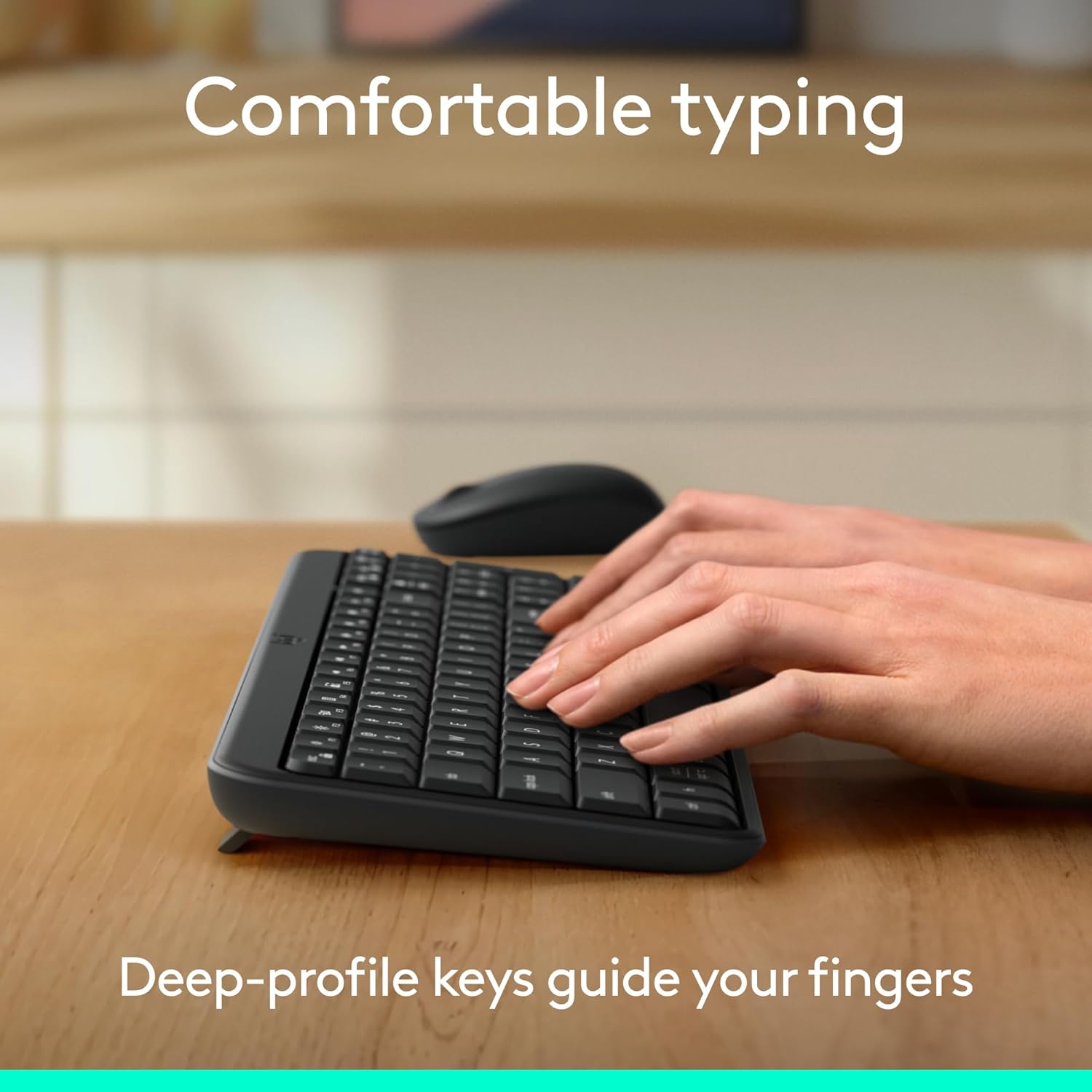
Figure 6: Hands demonstrating comfortable typing on the K250 keyboard, emphasizing the deep-profile chiavi.
Function Keys (F-keys) and Shortcuts
The K250 includes a row of F-keys (F1-F12) that can perform various functions, often in combination with the 'Fn' key. These shortcuts provide quick access to media controls, volume adjustments, and other system functions. Refer to your operating system's documentation for specific F-key functionalities.
Despite its compact size, the keyboard retains full functionality, including a dedicated numpad and arrow keys, making it versatile for both data entry and navigation.

Figure 7: The K250 keyboard integrated into a space-saving desk setup, demonstrating its compact yet functional design.
Manutenzione
Pulizia della tastiera
To maintain the performance and appearance of your Logitech K250 keyboard, regular cleaning is recommended:
- Scollegare la tastiera dal dispositivo prima di pulirla.
- Utilizzare leggermente un panno morbido e privo di lanugine damplucidato con acqua o una soluzione detergente delicata.
- Wipe down the keys and surface of the keyboard. Avoid excessive moisture.
- Per rimuovere i detriti tra i tasti, utilizzare aria compressa.
- Non immergere la tastiera in acqua né utilizzare prodotti chimici aggressivi.
Resistenza alle fuoriuscite
The K250 keyboard features a spill-resistant design, meaning it can withstand minor liquid spills. In case of a spill:
- Immediately disconnect the keyboard from your device.
- Capovolgere la tastiera per far scolare eventuali liquidi.
- Asciugare la superficie con un panno pulito.
- Lasciare asciugare completamente la tastiera all'aria prima di ricollegarla.
Note: Spill resistance is tested under limited conditions. Do not intentionally submerge the keyboard in liquid.

Figure 8: Illustration of the K250 keyboard's spill-resistant design, showing liquid on the keys.

Figure 9: The K250 keyboard and a Logitech mouse on a desk, representing the product's durable construction.
Risoluzione dei problemi
Problemi di connettività
- La tastiera non si connette:
- Ensure the keyboard batteries are not depleted. Replace them if necessary.
- Verifica che il Bluetooth sia abilitato sul tuo dispositivo.
- Try re-pairing the keyboard by putting it into pairing mode and searching for it on your device's Bluetooth settings.
- Move the keyboard closer to your device to rule out range issues.
- Riavvia il dispositivo e riprova ad associarlo.
- Connessione intermittente:
- Controllare se altri dispositivi wireless potrebbero causare interferenze.
- Ensure the keyboard is within optimal Bluetooth range.
- Aggiorna i driver Bluetooth del tuo dispositivo.
Key Functionality Issues
- Keys sticking or not responding:
- Clean around and under the affected keys using compressed air to remove debris.
- If a key feels physically stuck, gently press it multiple times to dislodge any obstruction.
- Ensure the keyboard is dry if it has recently been exposed to liquids.
- Incorrect character output:
- Controlla le impostazioni della lingua e del layout della tastiera del tuo dispositivo.
- Riavvia la tastiera e il dispositivo.
Specifiche
| Caratteristica | Dettaglio |
|---|---|
| Marca | Logitech |
| Nome del modello | K250 |
| Numero modello articolo | 920-013442 |
| Tecnologia di connettività | Bluetooth |
| Colore | Grafite |
| Dimensioni del prodotto (L x P x A) | Dimensioni: 36.98 x 13.69 x 2.29 cm |
| Peso dell'articolo | 380 grammi |
| Fonte di alimentazione | Alimentato a batteria |
| Batterie richieste | 2 batterie AAA (incluse) |
| Descrizione della tastiera | Membrana |
| Dispositivi compatibili | Laptop, personal computer, tablet |
| Caratteristiche speciali | Lightweight, Portable, Spill-Resistant, Made with Recycled Plastic |
Garanzia e supporto
For warranty information, technical support, or further assistance with your Logitech K250 keyboard, please visit the official Logitech support website or contact their customer service. You can also find additional resources and product information on the Logitech store page on Amazon.


