
Introduzione
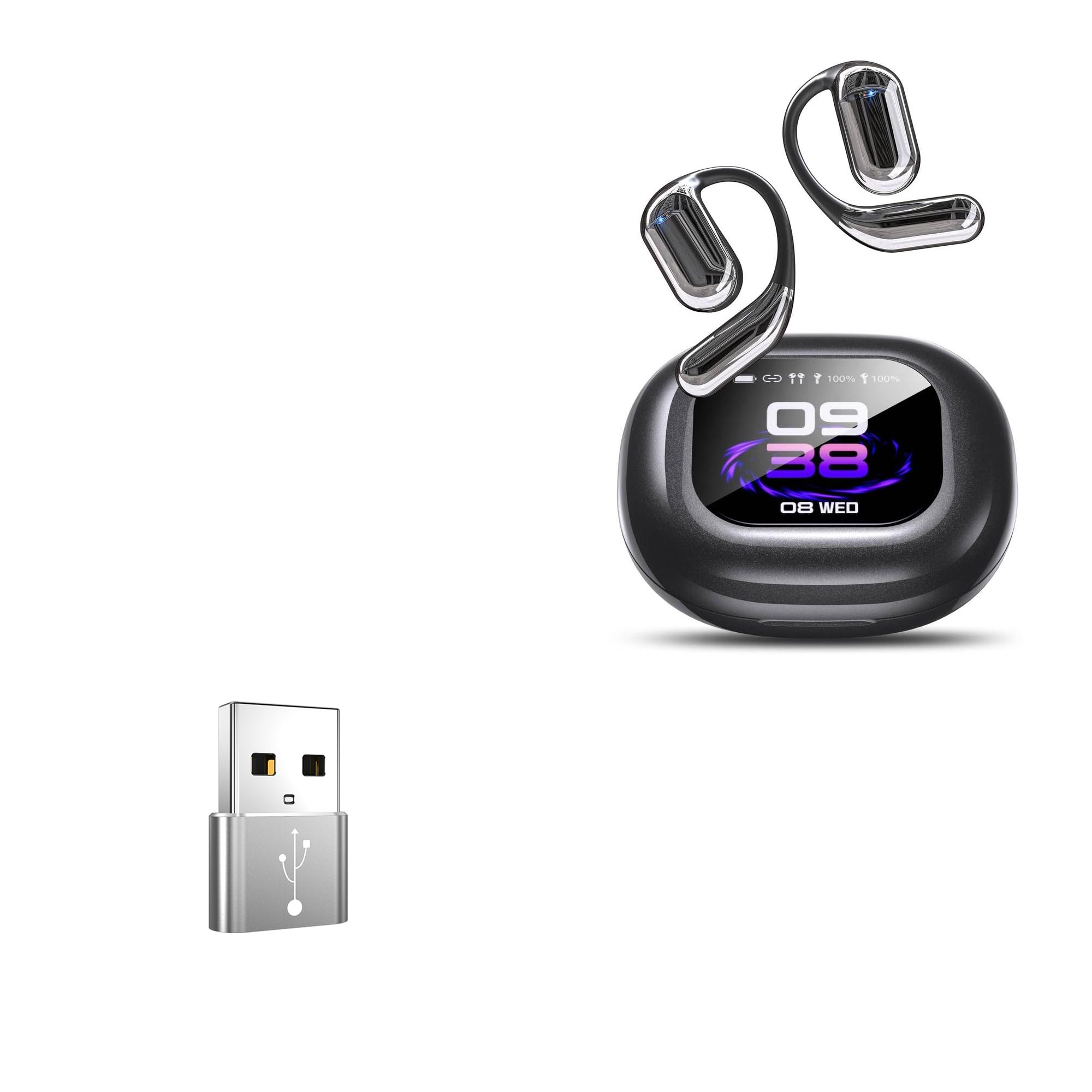
The BoxWave USB-A to C PortChanger adapter is designed to convert a traditional USB Type-A port into a modern USB Type-C port. This allows you to connect USB Type-C devices and cables to older USB Type-A ports for both charging and data transfer. This product comes in a convenient 5-pack, offering versatility for multiple devices or sharing.
Constructed from high-grade aluminum alloy, these adapters are built for durability and feature a compact design, making them easy to carry and use wherever needed.
Impostare
Setting up your BoxWave USB-A to C PortChanger adapter is a straightforward process:
- Identify USB-A Port: Locate an available USB Type-A port on your computer, wall charger, power bank, or other host device.
- Inserisci adattatore: Plug the USB Type-A male end of the BoxWave PortChanger adapter into the identified USB Type-A port. Ensure it is securely seated.
- Connect USB-C Device/Cable: Insert your USB Type-C cable or device (e.g., smartphone, tablet, USB-C flash drive, USB-C headphones) into the USB Type-C female port of the adapter.
The adapter is designed for plug-and-play functionality, requiring no additional drivers for most operating systems.

Istruzioni per l'uso
The BoxWave USB-A to C PortChanger adapter supports both charging and data transfer functionalities.
Ricarica
To charge a USB Type-C device using a USB Type-A power source:
- Connect your USB Type-C charging cable to your device.
- Plug the USB Type-C end of the cable into the BoxWave PortChanger adapter.
- Insert the USB Type-A male end of the adapter into a USB Type-A wall charger, computer port, or power bank.
- Assicurati che la fonte di alimentazione sia attiva. Il dispositivo dovrebbe iniziare a caricarsi.

Data Transfer (OTG Functionality)
The adapter supports On-The-Go (OTG) functionality, allowing data transmission between your USB Type-C accessories and a USB Type-A host device.
- Connect your USB Type-C data device (e.g., flash drive, external hard drive, smartphone) to the USB Type-C female port of the adapter.
- Plug the USB Type-A male end of the adapter into an available USB Type-A port on your computer or other compatible host device.
- Your host device should recognize the connected USB Type-C device, allowing you to transfer files or access its contents.
Manutenzione
To ensure the longevity and optimal performance of your BoxWave USB-A to C PortChanger adapters, follow these simple maintenance guidelines:
- Pulizia: Use a soft, dry, lint-free cloth to gently wipe the adapter. Avoid using liquid cleaners, solvents, or abrasive materials, as these can damage the finish or internal components.
- Magazzinaggio: Store the adapters in a cool, dry place away from direct sunlight and extreme temperatures. Keep them free from dust and moisture.
- Gestione: Avoid applying excessive force when plugging or unplugging the adapter. Do not bend or twist the adapter, as this can damage the connectors.
Risoluzione dei problemi
If you encounter issues with your BoxWave USB-A to C PortChanger adapter, consider the following troubleshooting steps:
- Adattatore non riconosciuto:
- Ensure the adapter is fully and securely plugged into both the USB-A port and the USB-C device/cable.
- Try plugging the adapter into a different USB-A port on your host device.
- Test the adapter with a different USB-C cable or device to rule out issues with the connected accessory.
- Restart your host device (computer, phone, etc.).
- Dispositivo non in carica:
- Verify that the USB-A power source (wall charger, computer port) is functional and providing power.
- Ensure your USB-C charging cable is not damaged and is compatible with your device.
- Confirm that your device is designed to charge via USB-C.
- Problemi di trasferimento dati:
- Check if your USB-C device supports OTG functionality for data transfer.
- Ensure the USB-C cable used is a data transfer cable, not just a charging cable.
- For smartphones, check if OTG mode needs to be enabled in the device settings.
Specifiche
| Caratteristica | Dettaglio |
|---|---|
| Tipo USB | USB 2.0 Male to TYPE-C Female Adapter |
| Nome del prodotto | Adattatore di tipo C. |
| Colore | Silver (also available in Red, Gold, Black) |
| Materiale | Lega di alluminio |
| Tipo di prodotto | OTG Adapter, Charge |
| Applicazione | Computer portatile, Smartphone |
| Caratteristica | Collega e usa |
| Funzione | Trasferimento dati e ricarica |
| Connettore | Da USB-A a USB-C |
| Peso dell'articolo | 0.3 once |

Informazioni sulla garanzia
BoxWave products are manufactured with quality and reliability in mind. This product is covered by the standard manufacturer's warranty against defects in materials and workmanship. Please refer to the product packaging or the official BoxWave website for specific warranty terms and conditions, including duration and claim procedures.
Assistenza clienti
For technical assistance, troubleshooting, or any questions regarding your BoxWave USB-A to C PortChanger adapter, please contact BoxWave customer support. Contact information can typically be found on the product packaging or on the official BoxWave website. When contacting support, please have your product model and purchase details available.