
Genius Ergo 8250S
Genius Ergo 8250S Mouse silenzioso ergonomico verticale senza fili
Manuale d'uso
1. Introduzione
The Genius Ergo 8250S Wireless Vertical Ergonomic Silent Mouse is designed to provide a natural and comfortable posture for your right hand, reducing fatigue and muscle strain in the forearm and shoulder. This advanced mouse features 6 buttons, selectable DPI settings, silent click technology, a concealed receiver slot, and a stable wireless connection up to 10 meters.

Figura 1.1: Top-down view of the Genius Ergo 8250S mouse, showcasing its ergonomic design and Champagne Gold accent.
2 Caratteristiche
- Natural Ergonomic Posture: Designed with a comfortable thumb rest to promote a natural hand position.
- Connessione wireless stabile: Utilizes 2.4G wireless technology for a reliable connection up to 10 meters.
- Funzionalità multi-pulsante: Equipped with 6 buttons: left click, right click, scroll wheel (center click), forward, reverse, and DPI switch.
- DPI regolabile: Easily switch between 800, 1200 (standard), and 1600 DPI for customized cursor sensitivity.
- Clic silenzioso: Riduce il rumore dei clic per un ambiente di lavoro più silenzioso.
- Receiver Card Slot: Conveniently store the USB receiver within the mouse when not in use.
- Plug and Play USB: Configurazione semplice senza bisogno di driver aggiuntivi.
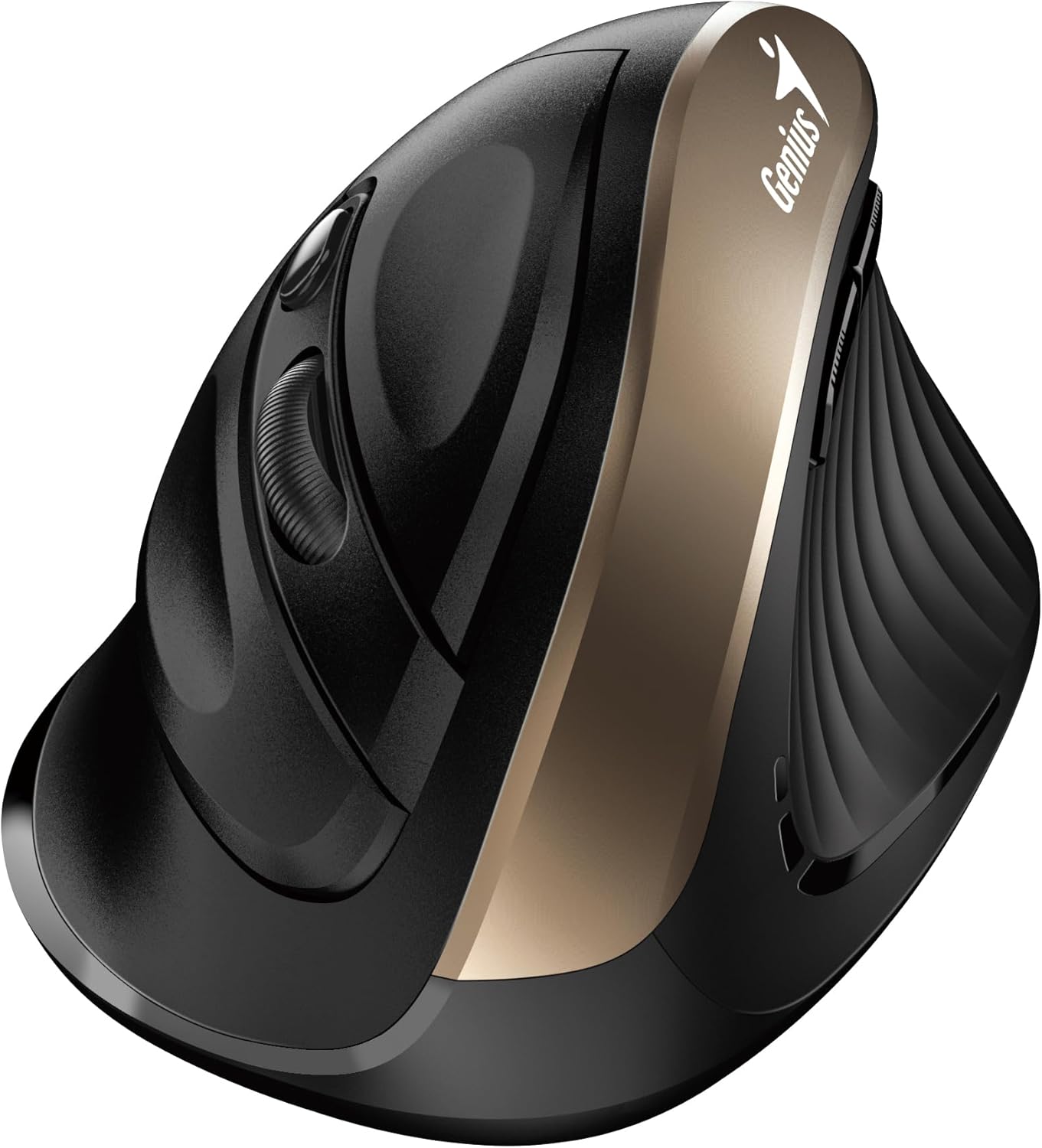
Figura 2.1: Lato view highlighting the vertical ergonomic design and thumb rest of the mouse.
3. Contenuto della confezione
Si prega di controllare attentamente il pacco per assicurarsi che siano presenti tutti gli articoli:
- Genius Ergo 8250S Mouse silenzioso ergonomico verticale senza fili
- Ricevitore USB
- AA Alkaline Battery (1 included)
- Guida veloce

Figura 3.1: Product packaging displaying the mouse, its features, and package contents.
4. Requisiti di sistema
To ensure proper functionality, your computer system must meet the following requirements:
- Sistema operativo: Windows® 8, 10, 11 o successivo
- Sistema operativo: Mac OS X 10.8 o successivo
- Porta: Porta USB disponibile
5. Impostazione
- Installa la batteria: Open the battery compartment cover on the bottom of the mouse. Insert the provided AA alkaline battery, ensuring correct polarity (+/-). Close the cover securely.
- Collegare il ricevitore USB: Locate the USB receiver stored in its slot on the bottom of the mouse. Remove it and plug it into an available USB port on your computer.
- Accensione: Turn on the mouse using the power switch located on the bottom. The mouse should automatically connect to your computer.
- Installazione del driver (automatica): Il sistema operativo rileverà e installerà automaticamente i driver necessari. Questo processo potrebbe richiedere alcuni istanti.
6. Istruzioni per l'uso
The Ergo 8250S mouse features multiple buttons for enhanced productivity:

Figura 6.1: Superiore view of the mouse, indicating the positions of the various buttons.
- Pulsante sinistro del mouse: Funzione standard di clic primario.
- Pulsante destro del mouse: Standard secondary click function, typically opening context menus.
- Scroll Wheel / Middle Click: Scorrere i documenti e web pages. Pressing the wheel acts as a middle click.
- Pulsante Avanti: Naviga in avanti in web browser o file explorers. (Located on the side, near the thumb rest)
- Pulsante inverso: Naviga indietro in web browser o file explorers. (Located on the side, near the thumb rest)
- Pulsante di commutazione DPI: Press this button to cycle through DPI settings (800/1200/1600). The default setting is 1200 DPI.
7. Manutenzione
- Pulizia: Utilizzare un panno morbido e asciutto per pulire il mouse. Per lo sporco ostinato, leggermente dampPulire il panno con acqua o una soluzione detergente delicata. Evitare prodotti chimici aggressivi o materiali abrasivi.
- Sostituzione della batteria: Quando le prestazioni del mouse peggiorano o la spia luminosa (se presente) segnala che la batteria è scarica, sostituire la batteria AA. Assicurarsi che il mouse sia spento prima di sostituire la batteria.
- Magazzinaggio: Quando non lo si utilizza per lunghi periodi, spegnere il mouse per preservare la durata della batteria. Riporre il ricevitore USB nell'apposito slot sul mouse per evitare di perderlo.
8. Risoluzione Dei Problemi
| Problema | Possibile causa | Soluzione |
|---|---|---|
| Il mouse non risponde |
|
|
| Cursore irregolare o salta |
|
|
| Pulsanti non funzionanti |
|
|
9. Specifiche
| Caratteristica | Dettaglio |
|---|---|
| Modello | Ergo8250S |
| Marca | Genio |
| Connettività | Senza fili 2.4G |
| Distanza operativa | Fino a 10 metri |
| Pulsanti | 6 (Left, Right, Middle/Scroll, Forward, Reverse, DPI Switch) |
| Impostazioni DPI | 800 / 1200 (Standard) / 1600 |
| Fare clic su Tipo | Clic silenzioso |
| Fonte di alimentazione | Batteria 1 x AA (inclusa) |
| Colore | Champagne oro |
| Prima data disponibile | 12 giugno 2025 |
10. Garanzia e supporto
Per informazioni sulla garanzia e supporto tecnico, fare riferimento al sito ufficiale Genius webo contattare il servizio clienti. Conservare la ricevuta d'acquisto come prova d'acquisto per eventuali reclami in garanzia.
Produttore: Genio
Websito: www.geniusnet.com (Please note: This is a general link and may not be the exact support page for your region or product. Refer to your product packaging or quick guide for specific support contacts.)
Ask a question about this manual
Ask about setup, troubleshooting, compatibility, parts, safety, or missing instructions. Manuals+ will review the question and use this page’s manual context to help answer it.