
1. Introduzione
This manual provides essential information for the safe and efficient use of your BOOX Go 7 ePaper Tablet. Please read it thoroughly before operating the device and retain it for future reference.

Figure 1.1: BOOX Go 7 ePaper Tablet
2. Informazioni sulla sicurezza
- Non esporre il dispositivo a temperature estreme, alla luce solare diretta o a elevata umidità.
- Evitare di far cadere o sottoporre il dispositivo a forti impatti.
- Utilizzare solo il cavo USB in dotazione per la ricarica.
- Keep the device away from water and liquids, despite its water-repellent features.
- Non tentare di smontare o riparare il dispositivo da soli. Contattare il personale di assistenza autorizzato.
3. Contenuto della confezione
Verificare che tutti gli articoli siano presenti nel pacco:
- BOOX Go 7 ePaper Tablet
- Cavo USB
- Guida rapida (può variare in base alla regione)

Figure 3.1: BOOX Go 7 Package Contents
4. Dispositivo suview
4.1 Componenti fisici
Familiarize yourself with the main components of your BOOX Go 7 tablet:
- E Ink Screen: 7-inch monochrome display with 300 ppi resolution.
- Luce anteriore: Adjustable illumination for reading in various lighting conditions.
- Page-Turn Buttons: Ergonomically designed buttons for easy navigation.
- Porta USB-C: Per la ricarica e il trasferimento dei dati.
- Pulsante di accensione: Situato sul bordo superiore.
- Microfono incorporato: Per l'ingresso audio.
- Doppi altoparlanti integrati: Per l'uscita audio.

Figure 4.1: Page-Turn Buttons and Water-Repellent Protection
5. Impostazione
5.1 Carica iniziale
Before first use, fully charge your BOOX Go 7 tablet. Connect the provided USB-C cable to the device and a compatible power adapter (not included) or a computer's USB port. The charging indicator will show the charging status.
5.2 Accensione/spegnimento
- Per accendere: Press and hold the Power button until the BOOX logo appears.
- Per spegnere: Tenere premuto il pulsante di accensione, quindi selezionare "Spegni" dalle opzioni sullo schermo.
- Per dormire/svegliarsi: Premi brevemente il pulsante di accensione.
5.3 Connessione di rete (Wi-Fi)
- Dalla schermata iniziale, scorri dall'alto verso il basso per accedere al pannello Impostazioni rapide.
- Tocca l'icona Wi-Fi per abilitare il Wi-Fi.
- Tocca e tieni premuta l'icona Wi-Fi per aprire le impostazioni Wi-Fi.
- Seleziona la rete desiderata dall'elenco e inserisci la password se richiesta.
- Una volta effettuata la connessione, l'icona Wi-Fi indicherà l'avvenuta connessione.
6. Istruzioni per l'uso
6.1 Navigazione di base
- Schermo tattile: Tap, swipe, and pinch to navigate menus, open applications, and interact with content.
- Page-Turn Buttons: Use the physical buttons on the side to turn pages in documents and books.
6.2 Reading Documents and Books
The BOOX Go 7 supports various document formats. Open your desired file from the library. Use the page-turn buttons or swipe gestures to navigate through pages. Adjust font size, contrast, and frontlight settings for optimal reading comfort.
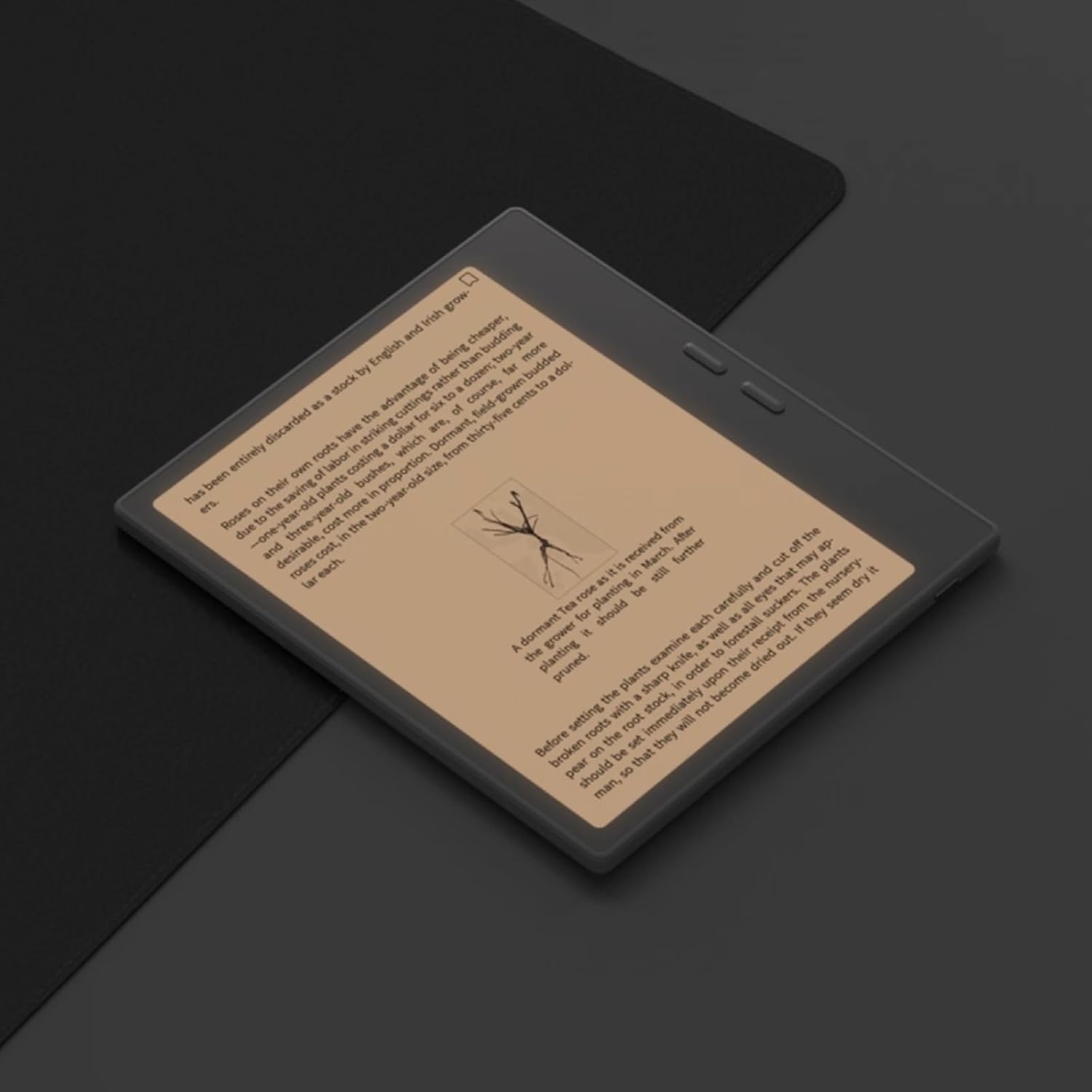
Figure 6.1: Reading with Frontlight
6.3 Using Android Applications
As an Android 13 device, the BOOX Go 7 allows installation of various applications from the Google Play Store. Navigate to the App Store, search for your desired application, and install it. Note that some applications may not be fully optimized for ePaper displays.

Figure 6.2: Various Android Applications on BOOX Go 7
6.4 Prendere appunti e disegnare
Utilize the stylus (if included or purchased separately) for note-taking, sketching, and annotating documents. The device offers various templates and tools for creative and organizational tasks.

Figure 6.3: Stylus Use for Note-Taking

Figure 6.4: Handwriting to Text Conversion
7. Manutenzione
7.1 Pulizia del dispositivo
Use a soft, lint-free cloth to gently wipe the screen and body of the device. Do not use harsh chemicals, abrasive cleaners, or excessive moisture.
7.2 Aggiornamenti software
Regularly check for and install software updates to ensure optimal performance and access to new features. Connect to Wi-Fi and navigate to Impostazioni > Sistema > Aggiornamento di sistema per verificare la disponibilità di aggiornamenti.
8. Risoluzione Dei Problemi
- Il dispositivo non si accende: Assicurati che il dispositivo sia carico. Collegalo a una fonte di alimentazione e riprova.
- Lo schermo non risponde: Perform a soft reset by holding the Power button for 10-15 seconds.
- Problemi di connessione Wi-Fi: Verify your Wi-Fi password and router settings. Try restarting your router and the device.
- Applicazioni che si bloccano: Ensure applications are updated to their latest versions. Clear the app's cache or reinstall if issues persist.
9. Specifiche
| Marca | SCATOLA |
| Nome del modello | Vai 7 |
| Capacità di archiviazione | 64 GB |
| Dimensioni dello schermo | 7 pollici |
| Risoluzione massima dello schermo | 300 Pixels per inch |
| Sistema operativo | Androide 13 |
| Colore | Nero (Nero) |
| Dimensione RAM installata | 4 GB |
| Caratteristiche speciali | USB OTG support, Expandable storage, Stylus support |
| Anno del modello | 2025 |
| Tipo di batteria | Agli ioni di litio |
| Contenuto energetico della batteria | 8.8 Wattora |
| Marca del processore | Qualcomm |
| Descrizione del processore | Qualcomm Snapdragon |
| Telecamera | Nessuna telecamera |
| Tipo di sensore | Giroscopio |
| Item Dimensions (LxWxT) | 15.6L x 0.6W x 13.7T centimeters |
| Metodo di input | Touchscreen with stylus |
| Descrizione della scheda grafica | Integrato |
| Dispositivi compatibili | Stilo |
| Tipo di visualizzazione | Inchiostro elettronico |
| Risoluzione dello schermo | 1280 x 800 pixel |
| Proporzioni | 16:10 |
| Connettività Hardware | USB |
| Tecnologia senza fili | Bluetooth, Wi-Fi (802.11ax) |
| Porte USB totali | 1 |

Figure 9.1: BOOX Go 7 Energy Label (Collegamento EPREL)
10. Informazioni sulla garanzia
The BOOX Go 7 ePaper Tablet comes with a Garanzia limitata di 2 anno. This warranty covers manufacturing defects under normal use. For specific terms and conditions, please refer to the warranty card included in your package or contact customer support.
La politica di reso standard consente la restituzione entro 30 giorni dall'acquisto per ottenere un rimborso o una sostituzione.
11. Supporto
For technical assistance, troubleshooting, or warranty claims, please contact BOOX customer service. You can find support resources and submit inquiries through the official BOOX help center.
- Aggiornamenti del firmware: BOOX commits to at least 3 years of firmware updates for each product.
- Archiviazione cloud: 10 GB of free cloud storage is provided for each user.
- Tempo di risposta: Solitamente le richieste dei clienti ricevono risposta entro 24 ore.
Per maggiori informazioni, visita il BOOX Brand Store on Amazon.