
1. Introduzione
This manual provides detailed instructions for the setup, operation, maintenance, and troubleshooting of your OMOTON Bluetooth Keyboard. Please read this manual thoroughly before using the product to ensure proper functionality and longevity.
2. Contenuto della confezione
Verificare che tutti gli articoli siano presenti nel pacco:
- 1 tastiera Bluetooth OMOTON
- 1 cavo di ricarica di tipo C
- 1 x Manuale utente (questo documento)
3. Caratteristiche del prodotto
- Compatibilità multi-sistema: Supports iOS, Windows, and Android operating systems.
- Compatto e portatile: Ultra-thin design (6.6mm thickness) and lightweight (0.42 pounds) for easy transport. Dimensions: 9.7"L x 5.9"W x 0.2"H.
- Esperienza di digitazione migliorata: Features large keycaps for comfortable and precise typing.
- Batteria ricaricabile: Built-in 500mAh lithium battery provides up to 200 hours of working time on a 2-3 hour charge.
- Retroilluminazione a 7 colori: Adjustable backlight with 7 color options and 3 brightness levels for typing in various lighting conditions.
- Modalità di sospensione automatica: Conserves battery by entering sleep mode after 30 minutes of inactivity.
4. Istruzioni per l'installazione
4.1 Ricarica della tastiera
Before initial use, fully charge the keyboard. Connect the provided Type-C charge cable to the keyboard's charging port and to a USB power source. The charge indicator light will illuminate during charging and turn off when fully charged.
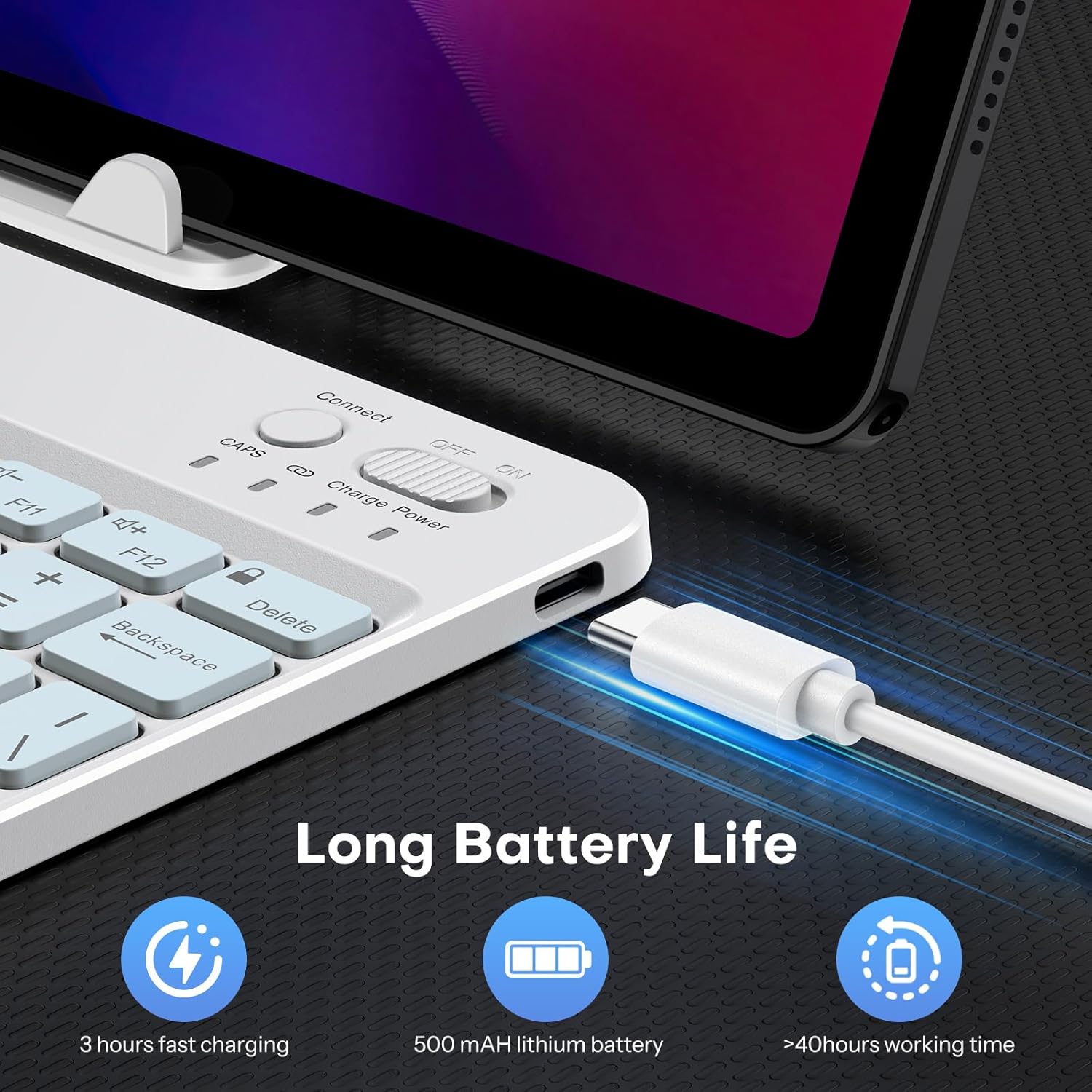
Image: Close-up of the keyboard showing the Type-C charging port and cable connected. The image highlights the charging process and the port location.
4.2 Associazione Bluetooth
- Turn on the keyboard by sliding the power switch to the 'ON' position. The power indicator light will briefly illuminate.
- Press the 'Connect' button (usually located near the power switch) to enter pairing mode. The Bluetooth indicator light will flash, indicating it is ready to pair.
- On your device (tablet, phone, computer), enable Bluetooth and search for available devices.
- Select 'OMOTON Keyboard' (or similar name) from the list of found devices.
- If prompted, enter the pairing code displayed on your device using the OMOTON keyboard and press Enter.
- Once paired, the Bluetooth indicator light on the keyboard will stop flashing and remain solid for a few seconds, then turn off. The keyboard is now connected.

Immagine: una vista dall'alto view of the OMOTON Bluetooth Keyboard, highlighting the power switch and the 'Connect' button, which are essential for initiating Bluetooth pairing.
4.3 Cambio di sistema operativo
The keyboard is compatible with multiple operating systems. It is crucial to switch to the correct system mode for optimal functionality. Press the following key combinations:
- FN+A: For iOS / iPadOS / macOS devices
- FN+S: Per dispositivi Windows
- FN+D: Per dispositivi Android

Image: A visual guide on the keyboard showing the FN key combined with A, S, or D keys to switch between iOS, Windows, and Android operating system modes.
5. Istruzioni per l'uso
5.1 Controllo della retroilluminazione
The keyboard features a 7-color adjustable backlight with 3 brightness levels.
- To turn the backlight on/off or adjust brightness, press the Fn tasto contemporaneamente al lightbulb icon key (usually located near the right Ctrl key). Repeated presses will cycle through brightness levels or turn off the backlight.
- To change backlight colors, press the Fn tasto contemporaneamente al color palette icon key (usually located next to the lightbulb icon key). Repeated presses will cycle through the 7 available colors.

Image: The OMOTON Bluetooth Keyboard displaying various backlight colors, illustrating the 7-color and 3-brightness level adjustment feature.
5.2 Modalità di sospensione automatica
To conserve battery life, the keyboard will automatically enter sleep mode after 30 minutes of inactivity. To wake the keyboard, press any key. There may be a slight delay as the keyboard reconnects to your device.
5.3 tasti funzione
The top row of keys (F1-F12) can be used as standard function keys or as multimedia/shortcut keys. To access the secondary function (e.g., volume control, media playback), press the Fn tasto contemporaneamente al tasto funzione desiderato.
6. Manutenzione
Per garantire la longevità e le prestazioni ottimali della tastiera Bluetooth OMOTON, seguire queste linee guida per la manutenzione:
- Pulizia: Utilizzare un panno morbido, asciutto e privo di lanugine per pulire la superficie della tastiera. Per lo sporco ostinato, leggermente dampPulire il panno con acqua o una soluzione detergente delicata. Evitare l'eccessiva umidità.
- Magazzinaggio: Quando non viene utilizzata, conservare la tastiera in un luogo fresco e asciutto, lontano dalla luce solare diretta e da temperature estreme.
- Evitare i liquidi: Non esporre la tastiera a liquidi. Eventuali versamenti possono causare danni permanenti.
- Maneggiare con cura: Evitare di far cadere la tastiera o di sottoporla a forti urti, poiché ciò potrebbe danneggiare i componenti interni.
7. Risoluzione Dei Problemi
7.1 Keyboard Keys Not Working or Responding
- Confirm Device's Operating System: Ensure you have selected the correct operating system mode on the keyboard. Press FN+LA per iOS, FN+S for Windows, or FN+D per Android.
- Controlla la connessione Bluetooth: Verify that the keyboard is properly paired and connected to your device. If not, re-initiate the pairing process (Section 4.2).
- Livello della batteria: Assicurarsi che la batteria della tastiera sia sufficientemente carica. Ricaricarla se necessario.
- Riavvia i dispositivi: Try turning off and on both the keyboard and your device, then attempt to reconnect.

Image: A troubleshooting graphic explaining how to fix issues with keyboard keys not working, emphasizing confirming the device's operating system and switching modes.
7.2 Problemi di connessione Bluetooth
- Distanza: Ensure the keyboard is within the effective range of your device's Bluetooth signal (typically up to 10 meters).
- Interferenza: Allontanarsi da altri dispositivi wireless che potrebbero causare interferenze.
- Dimentica dispositivo: On your device, 'forget' or 'remove' the keyboard from your Bluetooth device list, then attempt to pair again.
8. Specifiche
| Marca | OMOTON |
| Modello | B0F65RJ45J |
| Tecnologia di connettività | Bluetooth |
| Dispositivi compatibili | Tablet, Android, Windows, iOS |
| Disposizione della tastiera | Tastiera QWERTY |
| Caratteristiche speciali | Backlit (7 colors, 3 brightness levels), Ergonomic, Lightweight |
| Capacità della batteria | Batteria al litio da 500 mAh |
| Tempo di ricarica | 2-3 ore |
| Orario di lavoro | Fino a 200 ore |
| Dimensioni del prodotto (L x P x A) | 9.7" x 5.9" x 0.2" (247 mm x 150 mm x 6.6 mm) |
| Peso | 0.42 libbre |
| Materiale | Plastica |

Image: A visual comparison of the OMOTON Bluetooth Keyboard's dimensions against a smartphone and a tablet, illustrating its compact and portable size.
9. Informazioni sulla garanzia
La tastiera Bluetooth OMOTON è dotata di un Garanzia di 12 mesi from the date of purchase. This warranty covers manufacturing defects and malfunctions under normal use. It does not cover damage caused by misuse, accidents, unauthorized modifications, or external factors.
Conservare la prova d'acquisto per eventuali richieste di garanzia.
10. Assistenza clienti
If you encounter any issues or have questions regarding your OMOTON Bluetooth Keyboard that are not addressed in this manual, please contact OMOTON customer support through the retailer's platform or the official OMOTON websito. Il nostro team di supporto è a tua disposizione per assisterti.
Per maggiori informazioni, visita il Negozio OMOTON su Amazon.