
1. Introduzione
This manual provides detailed instructions for the setup, operation, and maintenance of your FREEWOLF M75 Wireless Dual-Mode Keyboard. Please read this manual thoroughly before using the product to ensure proper functionality and longevity.

Image 1.1: The FREEWOLF M75 Wireless Dual-Mode Keyboard, showcasing its compact layout and gradient keycaps.
2. Contenuto della confezione
Prima di procedere con la configurazione, verificare che tutti gli elementi siano presenti nella confezione:
- FREEWOLF M75 Keyboard x 1
- Cavo USB-C x 1
- 2.4GHz Wireless Receiver x 1
- Manuale utente x 1

Image 2.1: Contents of the FREEWOLF M75 keyboard package, including the keyboard, USB-C cable, 2.4GHz receiver, and user manual.
3. Istruzioni per l'installazione
3.1 Ricarica della tastiera
The M75 keyboard is equipped with a 2000mAh rechargeable battery. For optimal performance, fully charge the keyboard before first use.
- Connect the supplied USB-C cable to the keyboard's charging port.
- Collegare l'altra estremità del cavo USB-C a una fonte di alimentazione USB (ad esempio, una porta USB del computer, un adattatore da parete).
- The OLED display will indicate charging status. A full charge provides approximately 150 hours of use with the backlight off, or 24 hours with the backlight on.

Image 3.1: Visual representation of the M75 keyboard's 2000mAh battery, highlighting its estimated usage duration with and without backlighting.
3.2 Collegamento della tastiera
The M75 keyboard supports dual-mode connectivity: 2.4GHz wireless and Bluetooth 5.1/5.2.

Image 3.2: The M75 keyboard demonstrating its dual-mode connection capabilities, supporting 2.4GHz wireless and Bluetooth for various devices.
3.2.1 Connessione wireless a 2.4 GHz
- Locate the 2.4GHz wireless receiver in the package.
- Plug the 2.4GHz receiver into an available USB port on your computer or compatible device.
- Turn on the keyboard using the switch located on the right side.
- The keyboard will automatically connect to the receiver. The OLED display will show the 2.4G connection status.
3.2.2 Connessione Bluetooth
The M75 keyboard supports up to two Bluetooth devices (BT1 and BT2).
- Turn on the keyboard using the switch on the right side.
- Premere e tenere premuto il tasto Fn chiave e la Modello BT1 or Modello BT2 key (usually located on the right side near the OLED display) for 3-5 seconds until the indicator light flashes, indicating pairing mode.
- On your device (Windows PC, MacBook, Linux system, tablet, or smartphone), navigate to Bluetooth settings and search for new devices.
- Select "FREEWOLF M75" from the list of available devices to pair.
- Once connected, the OLED display will show the corresponding Bluetooth connection status (BT1 or BT2).
- Per passare da un dispositivo Bluetooth connesso all'altro, premere brevemente Fn + BT1 or Fn + BT2.
4. Istruzioni per l'uso
4.1 Multi-functional Knob and OLED Display
The M75 keyboard features a multi-functional knob and an OLED display for enhanced control and information.

Immagine 4.1: Primo piano view of the M75 keyboard's multi-functional knob and OLED display, detailing their functions and indicators.
- Funzionalità della manopola:
- Rotate left/right: Adjusts system volume.
- Press down: Play/Pause media.
- Press down for 5 seconds: Adjusts backlight brightness.
- Display OLED: Shows real-time information including battery level, current connection mode (2.4G, BT1, BT2), charging status, and low battery warnings.
4.2 Controllo della retroilluminazione
The M75 keyboard features rainbow backlighting.
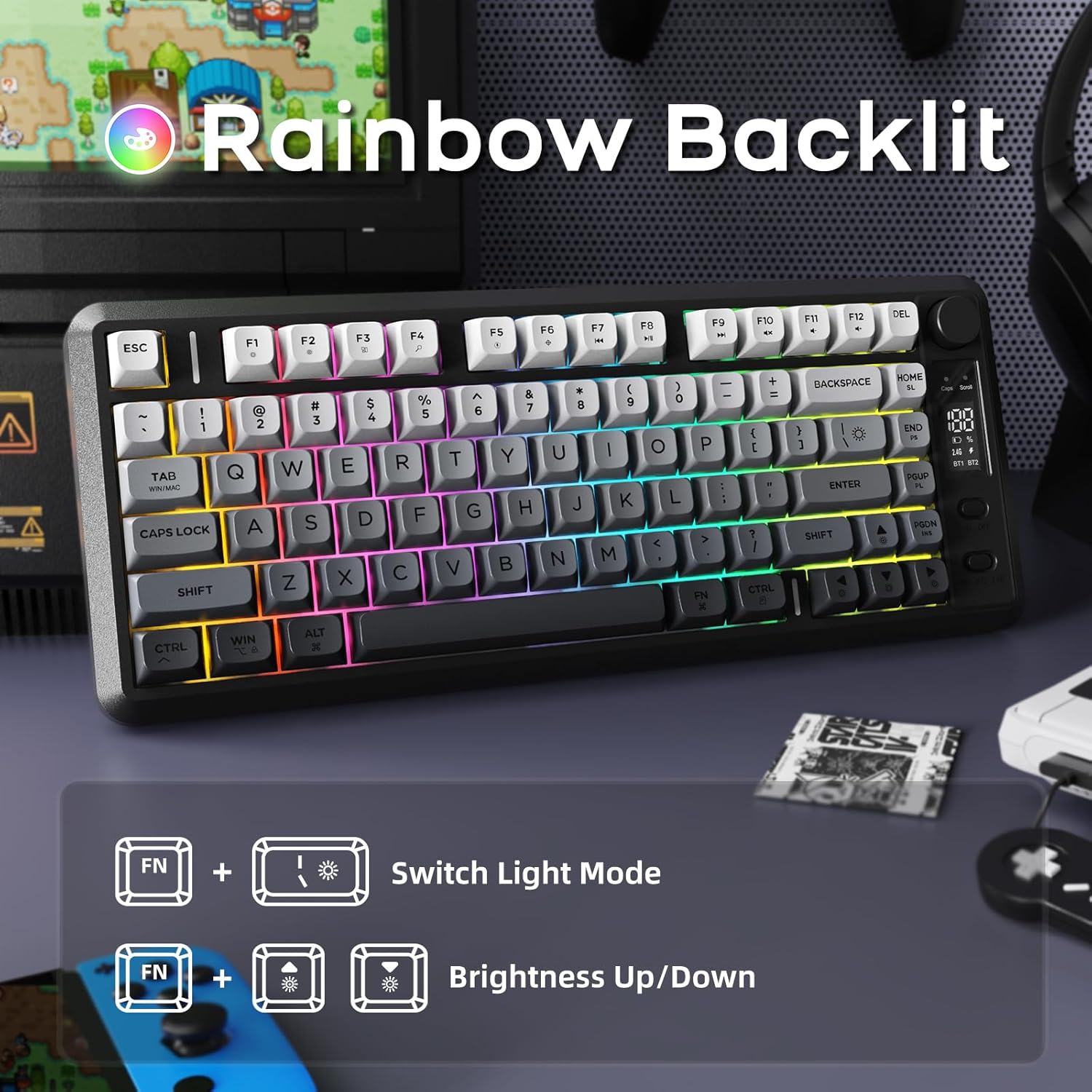
Image 4.2: Instructions for controlling the M75 keyboard's rainbow backlight, showing key combinations for mode switching and brightness adjustment.
- Premere Fn + I: Switches between different backlight modes.
- Premere Fn+↑ (Up Arrow): Increases backlight brightness.
- Premere Fn + ↓ (Down Arrow): Decreases backlight brightness.
Note: The keycaps are opaque, meaning the light illuminates around the keys, not through the legends.
4.3 Anti-ghosting
The M75 keyboard features 26-key rollover technology, ensuring that multiple simultaneous key presses are registered accurately without conflicts. This is particularly beneficial for gaming and fast typing.

Image 4.3: Illustration of the M75 keyboard's 26-key anti-ghosting feature, highlighting its compact 75% layout.
5. Manutenzione
5.1 Pulizia della tastiera
Per mantenere l'aspetto e la funzionalità della tastiera:
- Prima di procedere alla pulizia, scollegare la tastiera da tutte le fonti di alimentazione e da tutti i dispositivi.
- Utilizzare un panno morbido e privo di lanugine leggermente dampPulire i tasti e la superficie con acqua o una soluzione detergente delicata.
- Evitare l'uso di prodotti chimici aggressivi, materiali abrasivi o umidità eccessiva.
- Per rimuovere polvere e detriti tra i tasti, utilizzare aria compressa.
5.2 Cura della batteria
Per prolungare la durata della batteria:
- Evitare di scaricare completamente la batteria frequentemente.
- Quando non si utilizza la tastiera per lunghi periodi, conservarla in un luogo fresco e asciutto.
- If the keyboard will not be used for a long time, charge it to about 50% before storage.
6. Risoluzione Dei Problemi
If you encounter issues with your FREEWOLF M75 keyboard, refer to the following common solutions:
| Problema | Possibile causa | Soluzione |
|---|---|---|
| Keyboard not connecting via 2.4GHz | Receiver not plugged in, keyboard off, low battery, interference. | Ensure receiver is securely plugged in. Turn keyboard on. Charge keyboard. Try a different USB port. |
| La tastiera non si connette tramite Bluetooth | Keyboard not in pairing mode, device Bluetooth off, already connected to another device, low battery. | Ensure keyboard is in pairing mode (Fn+BT1/BT2 long press). Enable Bluetooth on your device. Disconnect from other devices. Charge keyboard. |
| La retroilluminazione non funziona o è fioca | Backlight turned off, brightness set to minimum, low battery. | Press Fn+I to cycle modes. Press Fn+↑ to increase brightness. Charge keyboard. |
| Keys not responding or ghosting | Low battery, software issue, physical obstruction. | Charge keyboard. Restart your computer. Clean under keycaps. |
| OLED display not showing information | Keyboard off, low battery, display issue. | Ensure keyboard is on and charged. If issue persists, contact support. |
| Rapido consumo della batteria | Backlight constantly on at high brightness, frequent use. | Reduce backlight brightness or turn it off when not needed. Ensure keyboard is fully charged. |
7. Specifiche
| Caratteristica | Dettaglio |
|---|---|
| Marca | FREEWOLF |
| Modello | Numero di modello: M75 |
| Tecnologia di connettività | Wireless 2.4G, Bluetooth 5.1/5.2 |
| Descrizione della tastiera | Membrane, Wireless |
| Materiale dei tasti | Polibutilentereftalato (PBT) |
| Caratteristiche speciali | Backlit, Ergonomic, Rechargeable, Silent, Volume Roller, OLED Display, Anti-Ghosting |
| Capacità della batteria | 2000mAh |
| Durata stimata della batteria | 150 ore (retroilluminazione spenta), 24 ore (retroilluminazione accesa) |
| Dispositivi compatibili | Laptop, PC, Tablet (Windows, MacBook, Linux) |
| Peso dell'articolo | 1.65 libbre |
| Dimensioni del pacco | 15.75 x 6.02 x 1.89 pollici |
8. Garanzia e supporto
Per informazioni sulla garanzia e assistenza tecnica, consultare la documentazione inclusa con l'acquisto o contattare direttamente il produttore. Conservare la prova d'acquisto per eventuali reclami in garanzia.
Manufacturer: FREEWOLF