
1. Introduzione
The FREEWOLF M75 is a versatile 75% layout wireless gaming keyboard designed for various operating systems and devices. It features dual-mode connectivity (Bluetooth and 2.4GHz wireless), a multi-functional knob, an OLED display, and gradient PBT keycaps. This manual provides detailed instructions for setting up, operating, and maintaining your M75 keyboard.
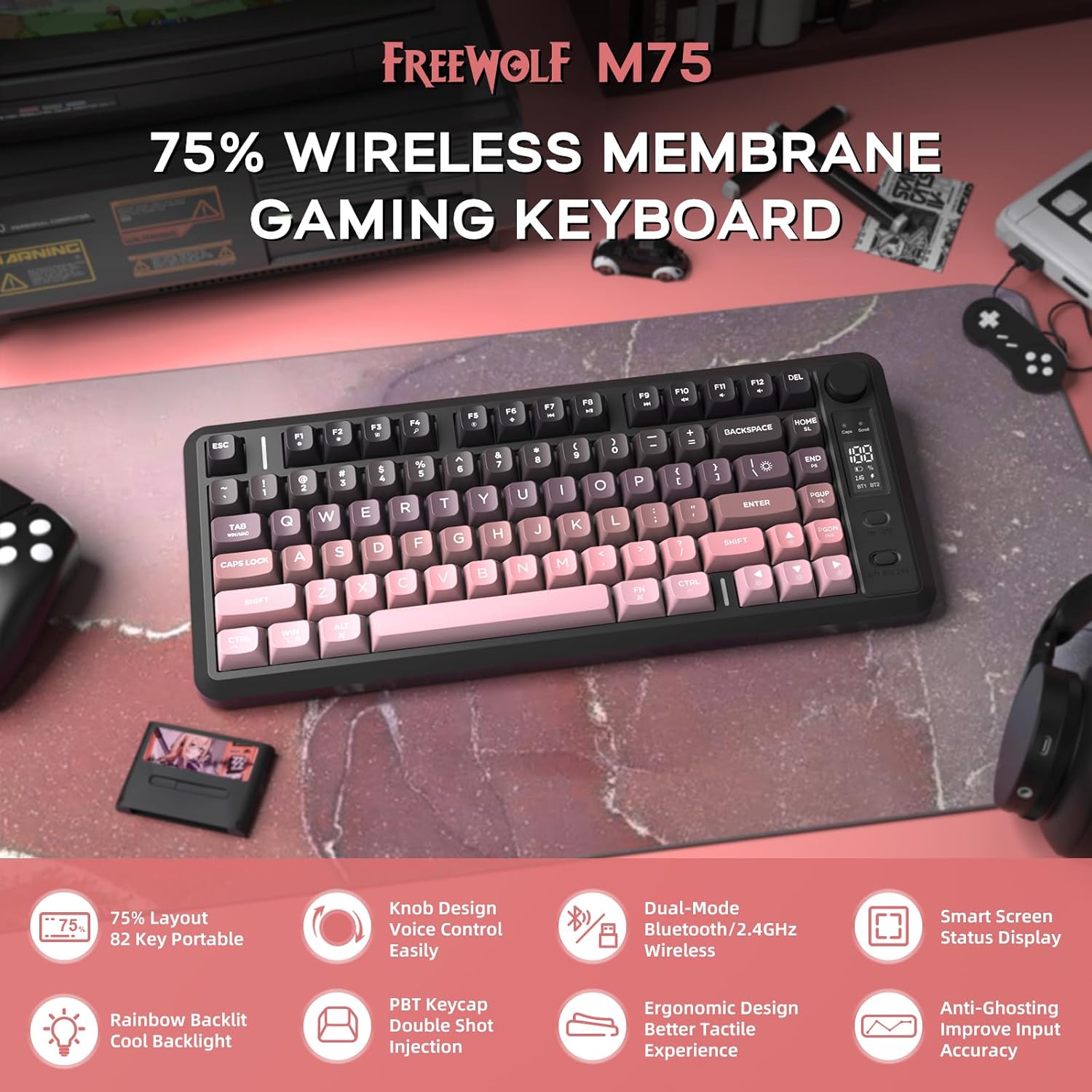
Immagine 1: Passoview of the FREEWOLF M75 Wireless Gaming Keyboard.
2. Contenuto della confezione
Si prega di controllare la confezione per verificare la presenza dei seguenti elementi:
- M75 Keyboard x 1
- Cavo USB-C x 1
- 2.4GHz Receiver x 1
- Manuale utente x 1
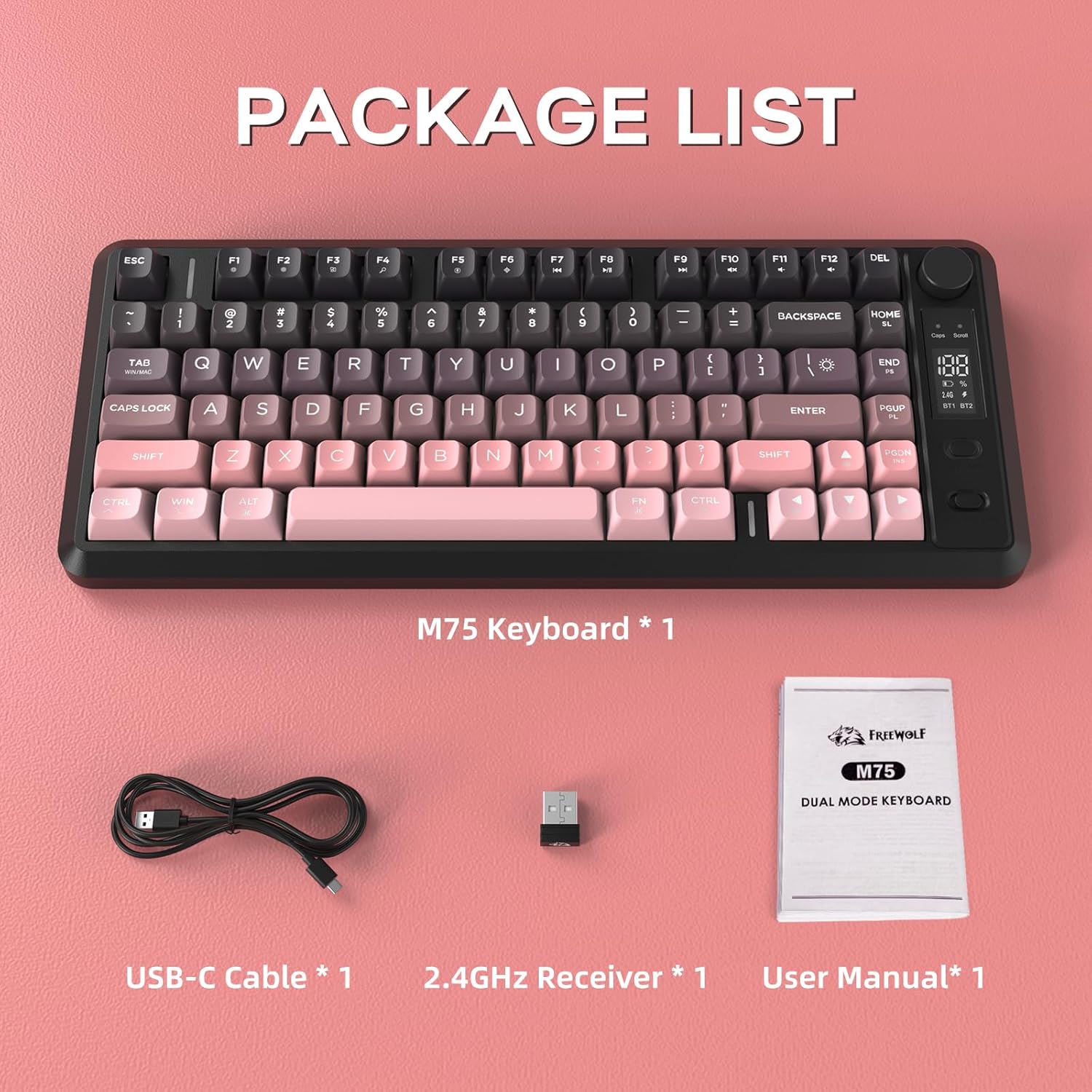
Image 2: Contents included in the FREEWOLF M75 keyboard package.
3. Specifiche
| Modello | Numero di modello: M75 |
| Disposizione | 75% (82-Key Compact Layout) |
| Connettività | Bluetooth 5.1/5.2, wireless a 2.4 GHz |
| keycaps | Gradient PBT Double-Shot |
| Retroilluminazione | Rainbow Backlit |
| Capacità della batteria | 2000mAh |
| Anti-ghosting | Rollover a 26 tasti |
| Dispositivi compatibili | Laptop, PC, Tablet (Windows, macOS, Linux) |
| Caratteristiche speciali | OLED Display, Multi-functional Knob, Ergonomic Design |

Image 3: The 75% compact layout and 26-key anti-ghosting feature of the M75 keyboard.
4. Impostazione
4.1 Ricarica della tastiera
Before first use, or when the OLED display indicates low battery, connect the keyboard to a power source using the provided USB-C cable. The OLED display will show the charging status.

Image 4: The M75 keyboard features a 2000mAh rechargeable battery.
4.2 Collegamento della tastiera
The M75 keyboard supports two wireless connection modes:
- Modalità wireless a 2.4 GHz:
- Insert the 2.4GHz USB receiver into an available USB port on your computer or device.
- Turn on the keyboard. The keyboard should automatically connect. The OLED display will indicate the 2.4G connection status.
- Modalità Bluetooth (BT1/BT2):
- Accendi la tastiera.
- Press the dedicated Bluetooth button (usually marked BT1 or BT2) to select a Bluetooth channel.
- Sul tuo dispositivo (PC, laptop, tablet), attiva il Bluetooth e cerca nuovi dispositivi.
- Select "FREEWOLF M75" from the list of available devices to pair. The OLED display will show the Bluetooth connection status.
- To switch between paired Bluetooth devices, press the corresponding BT1 or BT2 button.
The keyboard is compatible with Windows PC, MacBook, and Linux systems. For gaming consoles like Switch, Xbox, or PlayStation, an adapter may be required for connectivity.

Image 5: The M75 keyboard supports both 2.4GHz wireless and Bluetooth modes for multi-device compatibility.
5. Istruzioni per l'uso
5.1 Multi-functional Knob and OLED Display
The M75 keyboard features a multi-functional knob and an OLED display for enhanced control and information.
- Funzioni della manopola:
- Press the knob: Play/Pause media.
- Ruota a destra: aumenta il volume.
- Ruota a sinistra: diminuisce il volume.
- Press and hold the knob for 5 seconds: Adjust backlight settings.
- Display OLED: Shows real-time information including battery level, current connection mode (2.4G, BT1, BT2), charging status, and low battery warnings.
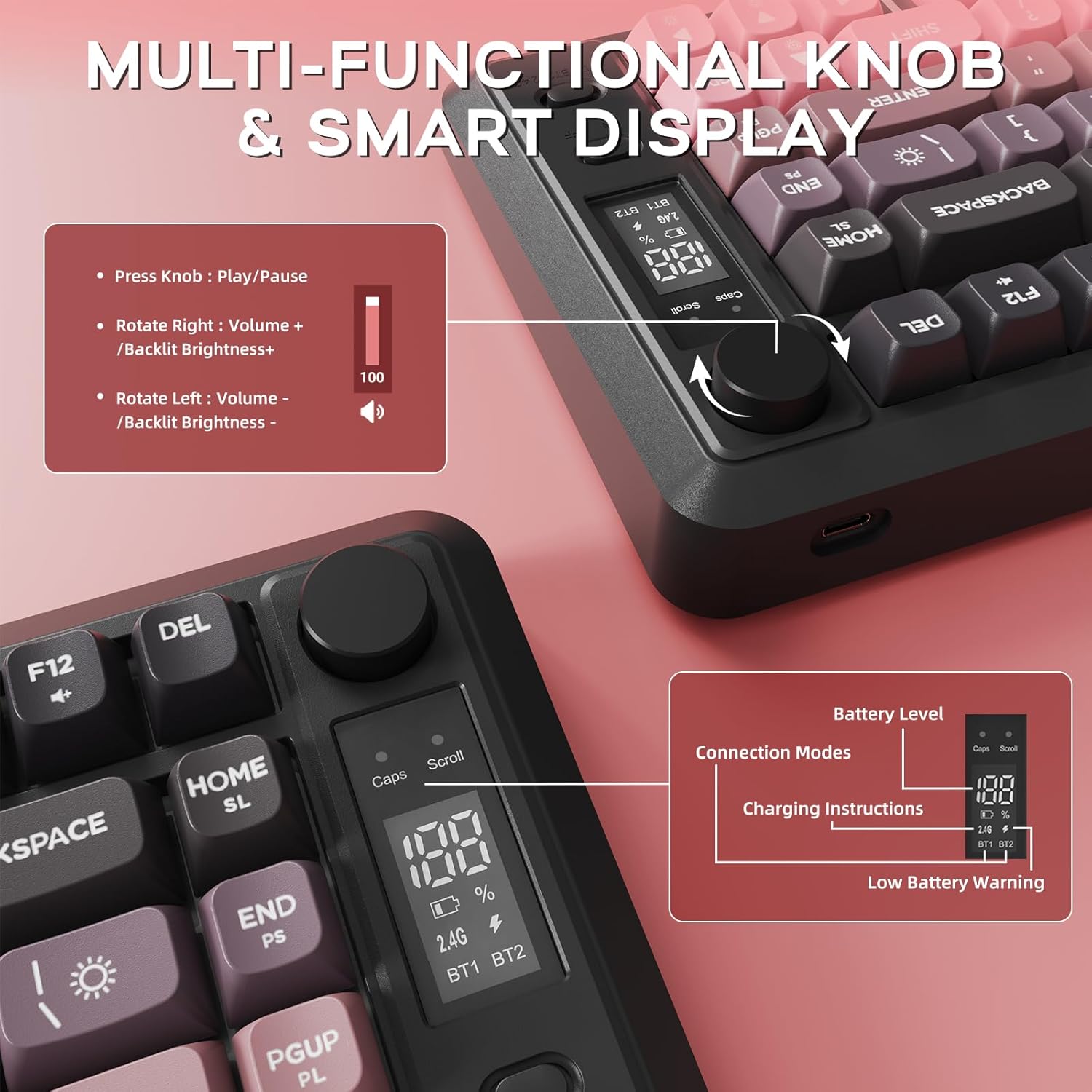
Immagine 6: Dettagliata view of the multi-functional knob and OLED display on the M75 keyboard.
5.2 Controllo della retroilluminazione
The M75 keyboard features a rainbow backlight. Note that the keycaps themselves are opaque, meaning the light illuminates around and beneath the keys, not through the legends.
- Cambia modalità di illuminazione: Premere Fn + I per scorrere le diverse modalità di retroilluminazione.
- Regola luminosità: Premere Fn+↑ (Freccia su) per aumentare la luminosità e Fn + ↓ (Freccia giù) per diminuire la luminosità.
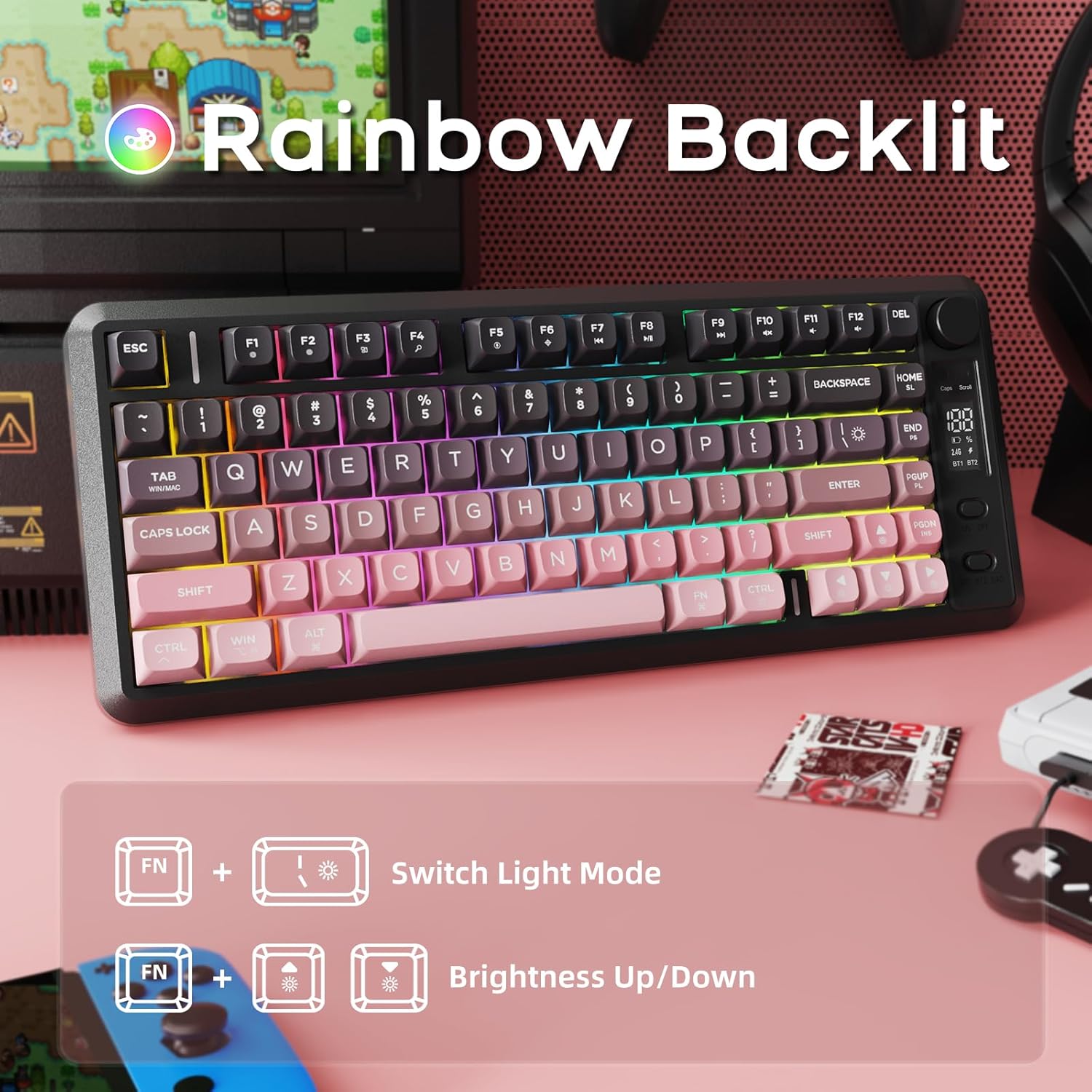
Image 7: The M75 keyboard features a vibrant rainbow backlight.
5.3 Anti-ghosting
The keyboard is equipped with 26-key rollover technology, ensuring that multiple key presses are registered accurately and simultaneously. This prevents 'ghosting' or missed inputs during fast typing or complex gaming commands.
6. Manutenzione
6.1 Pulizia della tastiera
- Prima di pulirla, scollegare la tastiera da tutti i dispositivi.
- Utilizzare un panno morbido e asciutto per pulire la superficie della tastiera.
- Per sporco ostinato, leggermente dampPulire il panno con acqua o una soluzione detergente delicata. Evitare l'eccessiva umidità.
- Utilizzare aria compressa per rimuovere polvere e detriti dagli spazi tra i tasti.
6.2 PBT Keycaps Care
The M75 keyboard features durable double-shot PBT keycaps, which are resistant to oils, fading, and yellowing. Regular cleaning as described above will help maintain their appearance and longevity.

Image 8: The M75 keyboard is equipped with durable double-shot PBT keycaps.
6.3 Cura della batteria
- Evitare di esporre la tastiera a temperature estreme.
- Charge the keyboard regularly to maintain battery health, especially if it will not be used for an extended period.
7. Risoluzione Dei Problemi
- La tastiera non si connette:
- Assicurati che la tastiera sia accesa.
- Controllare il livello della batteria sul display OLED e, se necessario, caricarla.
- Per la modalità a 2.4 GHz, assicurarsi che il ricevitore USB sia collegato saldamente.
- For Bluetooth mode, ensure Bluetooth is enabled on your device and the correct channel (BT1/BT2) is selected on the keyboard. Try re-pairing the device.
- Try connecting the keyboard via USB-C cable to check if it functions in wired mode.
- I tasti non rispondono:
- Check for debris under the keycaps.
- Assicurarsi che la tastiera sia collegata correttamente.
- Riavvia il computer/dispositivo.
- Retroilluminazione non funzionante o scarsa:
- Regola la luminosità utilizzando Fn + ↑/↓.
- Assicurarsi che la batteria abbia una carica sufficiente.
- Il display OLED non mostra informazioni:
- Assicurati che la tastiera sia accesa.
- Controllare il livello della batteria.
8. Garanzia e supporto
For warranty information and technical support, please refer to the documentation provided with your purchase or contact FREEWOLF customer service through their official websito o rivenditore presso cui è stato acquistato il prodotto.