
FIREBAT AR1
FIREBAT AR1 Android Tablet User Manual
Model: AR1 | Brand: FIREBAT
1. Introduzione
This manual provides detailed instructions for the setup, operation, and maintenance of your FIREBAT AR1 Android Tablet. Please read this manual thoroughly to ensure proper use and to maximize the performance and longevity of your device.

The FIREBAT AR1 Android Tablet, shown with its included protective case and screen protector, is designed for versatile use.
2. Contenuto della confezione
Dopo aver aperto la confezione, verificare che siano presenti tutti i seguenti elementi:
- 1 x FIREBAT AR1 Tablet
- 1 x Protective Film (Installed)
- 1 x Protective Case (Installed)
- 1 x 9V/2A 18W US Power Charger
- 1 x Manuale utente
The complete package contents of the FIREBAT AR1 Tablet.
3. Prodotto finitoview
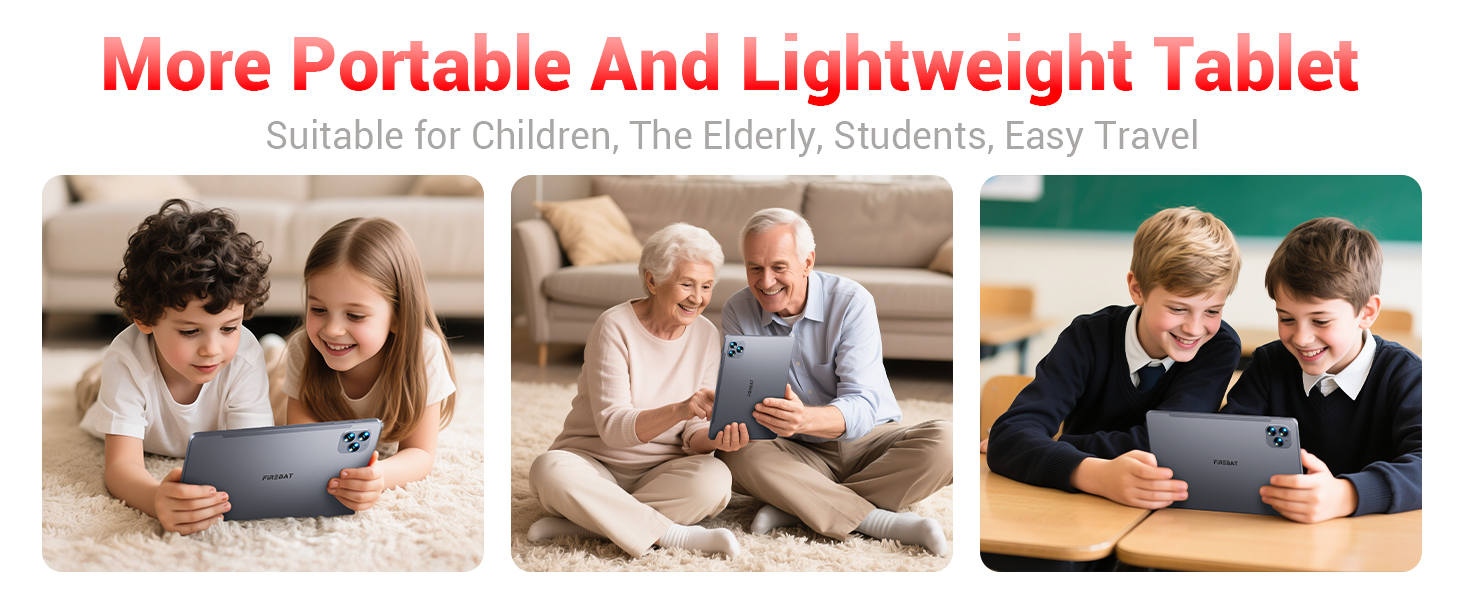
The FIREBAT AR1 Tablet is equipped with advanced features for a smooth user experience. Its design focuses on portability and performance, making it suitable for various applications from entertainment to productivity.
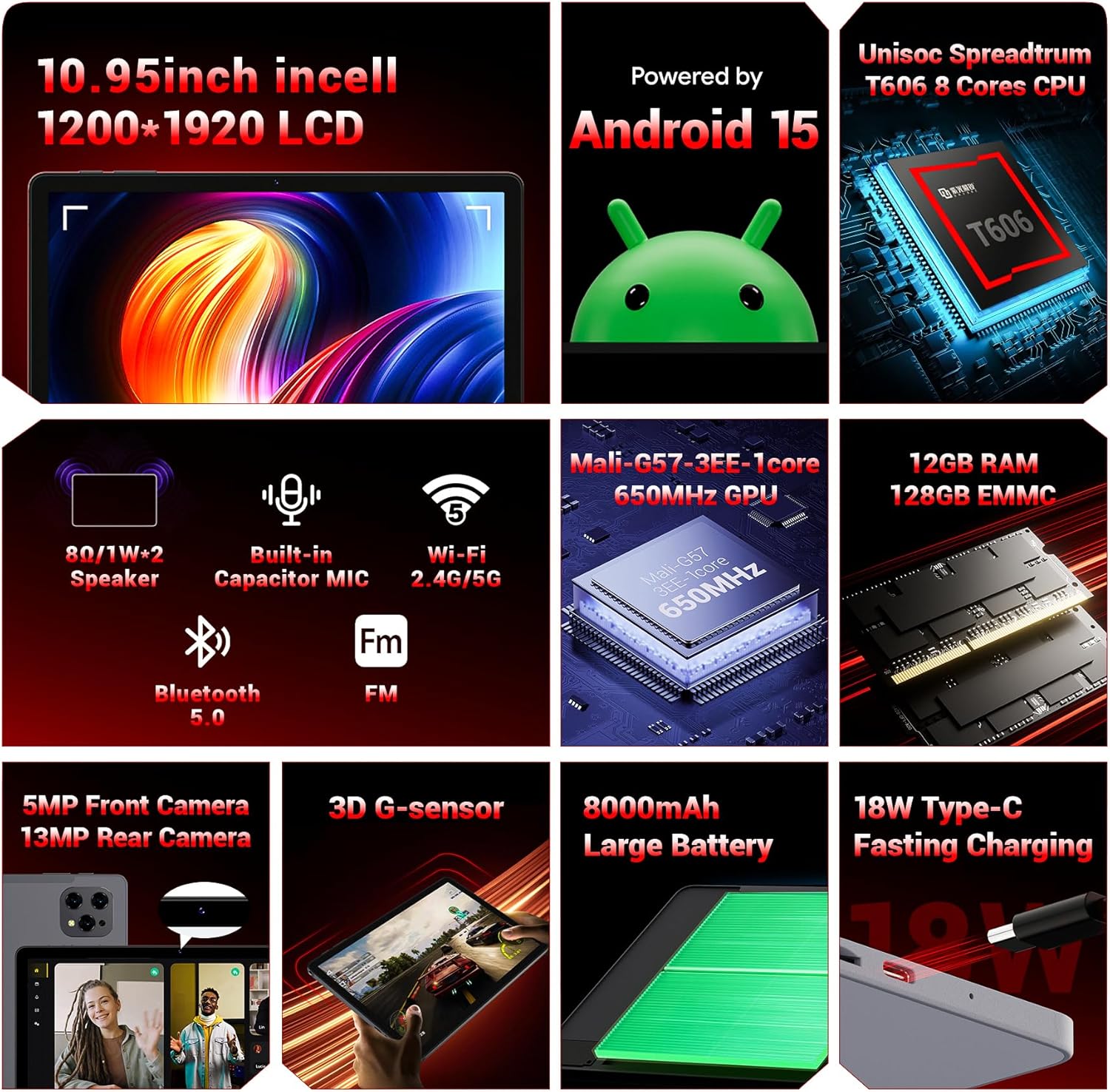
Un oltreview of the key technical specifications and features of the FIREBAT AR1 Tablet.
Caratteristiche principali:
- Display: 10.95-inch In-Cell 1920x1200 Touchscreen
- Processore: Unisoc Spreadtrum T606 Octa-Core CPU
- Memoria: 12GB RAM, 128GB ROM (Expandable via SD card)
- Batteria: 8000mAh Large Capacity Battery with 18W Fast Charging
- Telecamere: Fotocamera frontale da 5 MP, fotocamera posteriore da 13 MP
- Connettività: Wi-Fi 5 (2.4G/5G), Bluetooth 5.0, FM
- Sistema operativo: Androide 15
- Sicurezza: Widevine L1 Support for high-definition streaming
- Progetto: Upgraded Thinner In-Cell Technology, Narrow Bezel, Delicate Texture Metal Shell

The powerful Unisoc Spreadtrum T606 Octa-Core Processor ensures smooth operation.

Experience vibrant visuals with the 10.95-inch In-Cell 1920x1200 LCD.

The narrow bezel design maximizes screen space for an immersive viewesperienza di acquisizione.

Designed to be lighter and less hand-consuming, ideal for convenient travel.

The newly upgraded delicate texture metal shell enhances heat dissipation and improves protection.
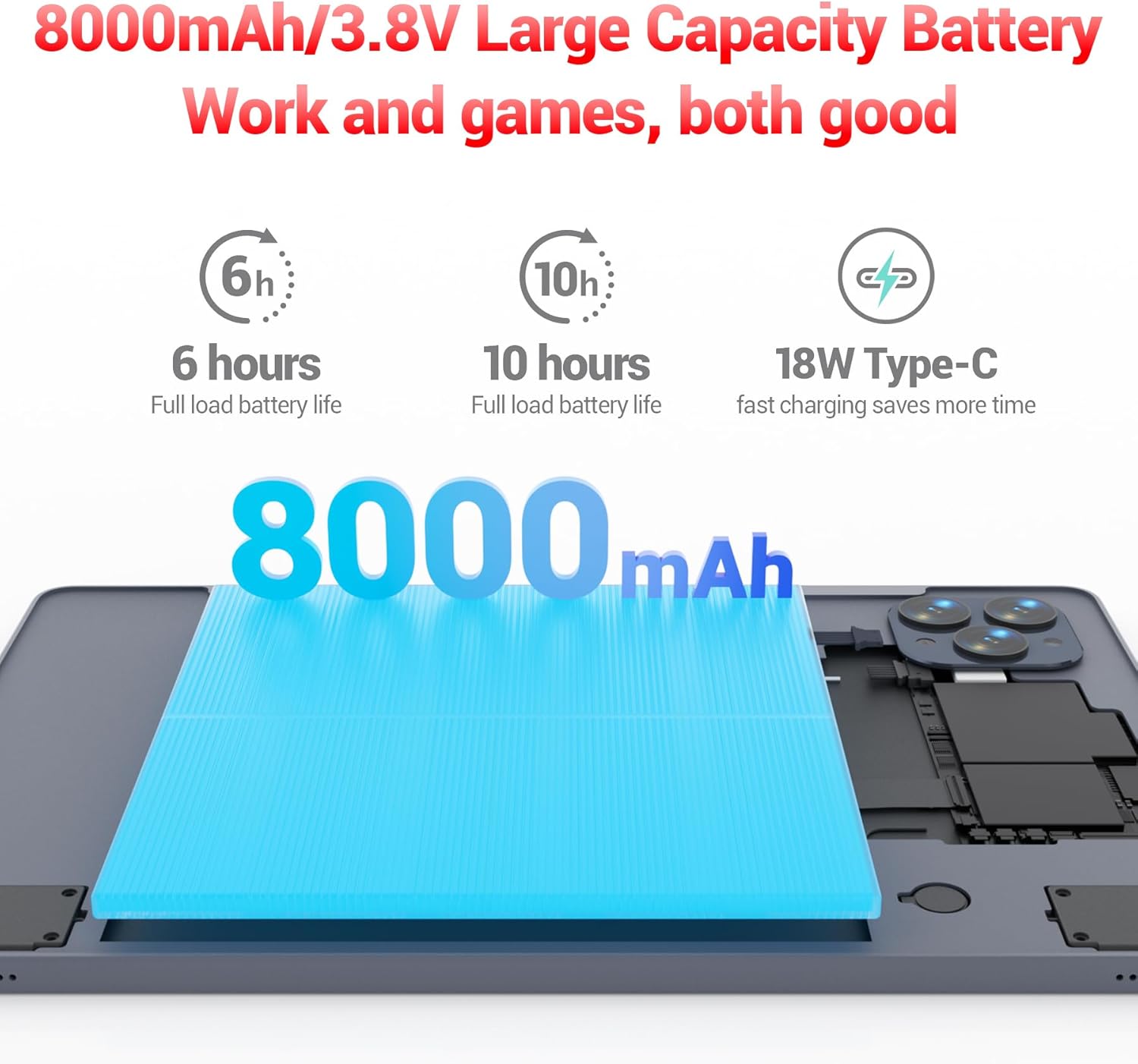
The 8000mAh large capacity battery provides extended usage time.

Capture moments and make video calls with the 5MP front and 13MP rear cameras.
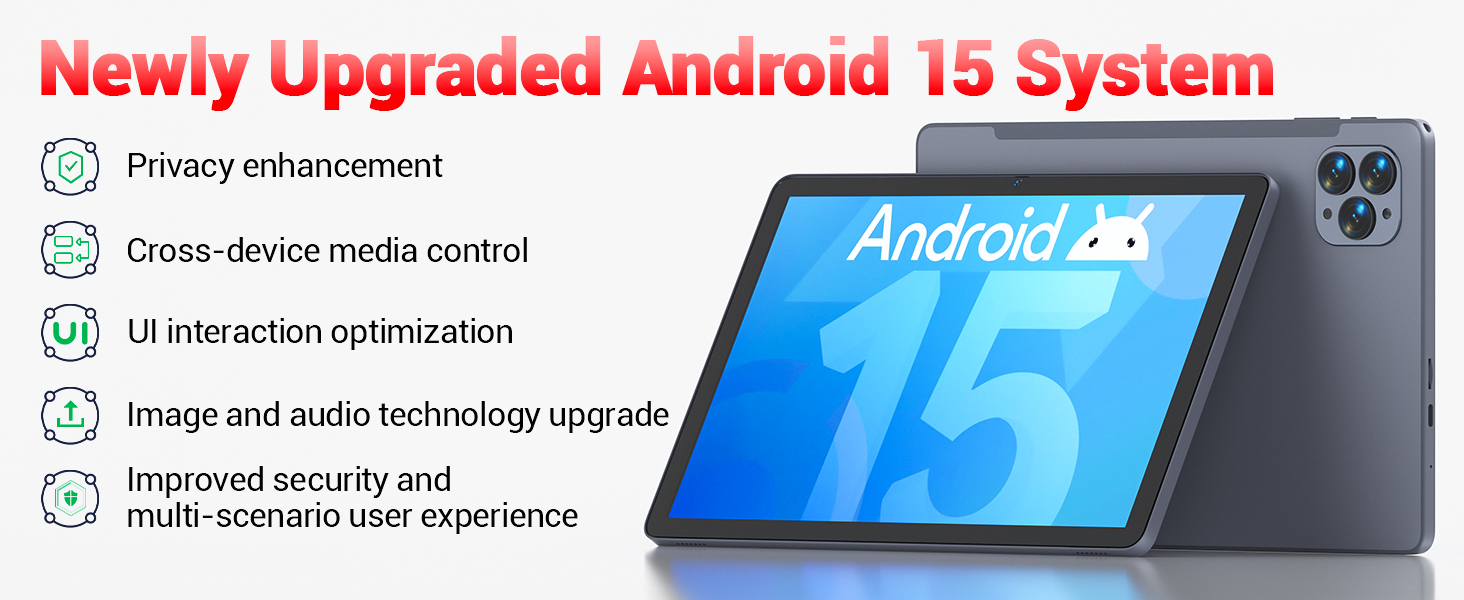
Powered by the newly upgraded Android 15 system for enhanced performance and user experience.
4. Impostazione
4.1 Accensione iniziale
- Press and hold the Power button located on the side of the tablet until the FIREBAT logo appears.
- Segui le istruzioni sullo schermo per selezionare la lingua, connetterti a una rete Wi-Fi e configurare il tuo account Google.
4.2 Ricarica del tablet
Before first use, fully charge the tablet using the provided 9V/2A 18W US Power Charger and USB-C cable.
- Collegare il cavo USB-C alla porta USB-C del tablet.
- Collegare l'adattatore di corrente a una presa a muro.
- L'indicatore della batteria sullo schermo mostrerà lo stato di carica.
4.3 Inserimento di una scheda SD (facoltativo)
The tablet supports SD card expansion up to 1TB for additional storage.
- Locate the TF Card Slot on the side of the tablet.
- Inserire delicatamente la scheda SD nello slot finché non scatta in posizione.
- The tablet will prompt you to format the SD card for use, if necessary.
5. Istruzioni per l'uso
5.1 Navigazione di base
- Schermo tattile: Tocca per selezionare, scorri per scorrere, pizzica per ingrandire.
- Schermata iniziale: Accedi alle tue app e ai tuoi widget.
- Pannello notifiche: Scorri verso il basso dalla parte superiore dello schermo a view notifiche e impostazioni rapide.
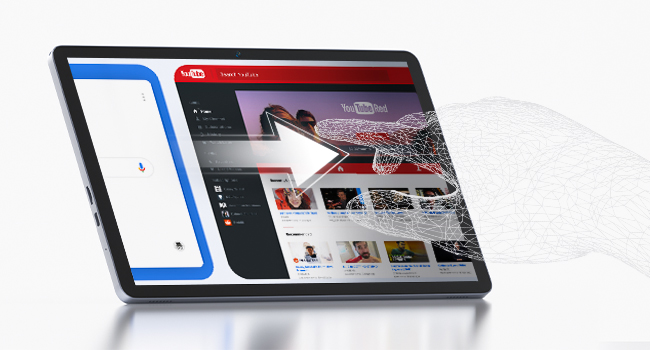
The responsive touchscreen allows for intuitive interaction.
5.2 Connessione al Wi-Fi
- Vai a Impostazioni > Rete e Internet > Wifi.
- Attiva il Wi-Fi.
- Seleziona la rete desiderata dall'elenco e inserisci la password se richiesta.
5.3 Associazione Bluetooth
- Vai a Impostazioni > Dispositivi connessi > Bluetooth.
- Attiva il Bluetooth.
- Select the device you wish to pair from the list of available devices.
5.4 Utilizzo delle telecamere
Il tablet è dotato di una fotocamera frontale da 5 MP e di una posteriore da 13 MP.
- Aprire il Telecamera app dalla schermata iniziale o dal cassetto delle applicazioni.
- Tap the shutter button to take photos or switch to video mode.
- Use the front camera for video calls and selfies, and the rear camera for higher-quality photos.
5.5 Media Playback and Productivity
The tablet supports multiple video and audio formats, and is compatible with various e-book and office software applications.
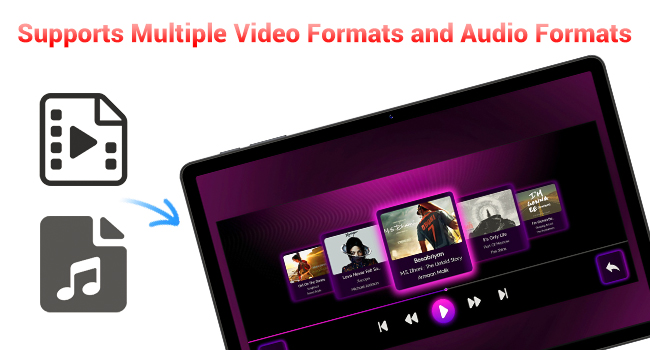
Enjoy your favorite videos and music with broad format support.
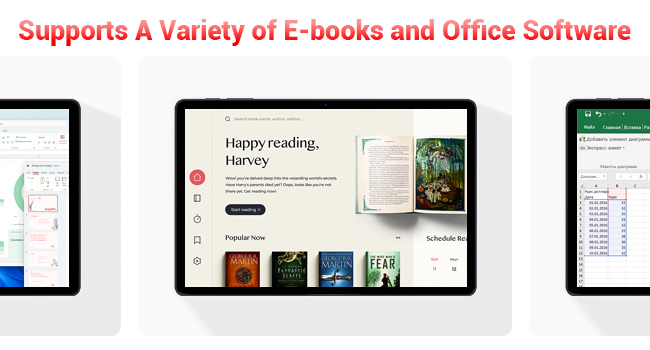
The tablet supports a variety of e-books and office software for productivity.
5.6 Using the Protective Case
The included protective case not only safeguards your tablet but also functions as a stand for hands-free viewing.
- To use as a stand, fold the front cover into a triangular shape and position the tablet securely.
- Ensure the tablet is fully encased to protect against scratches and minor impacts.

The included protective case can be folded to serve as a convenient stand.
6. Manutenzione
6.1 Pulizia del tablet
- Utilizzare un panno morbido e privo di lanugine per pulire lo schermo e il corpo del tablet.
- Evitare l'uso di prodotti chimici aggressivi o materiali abrasivi.
6.2 Cura della batteria
- Evitare di esporre il tablet a temperature estreme.
- Non lasciare che la batteria si scarichi completamente frequentemente.
- Utilizzare solo il caricabatterie fornito o un caricabatterie compatibile certificato.
6.3 Aggiornamenti software
- Controllare regolarmente gli aggiornamenti del sistema in Impostazioni > Sistema > Aggiornamento del sistema.
- Gli aggiornamenti possono migliorare le prestazioni, aggiungere nuove funzionalità e aumentare la sicurezza.
7. Risoluzione Dei Problemi
If you encounter any issues with your FIREBAT AR1 Tablet, please refer to the following common solutions:
| Problema | Possibile soluzione |
|---|---|
| Il tablet non si accende | Assicurarsi che la batteria sia carica. Collegare il caricabatterie e attendere qualche minuto prima di riprovare ad accendere il dispositivo. Se il dispositivo non risponde, eseguire un riavvio forzato tenendo premuto il pulsante di accensione per 10-15 secondi. |
| Problemi di connettività Wi-Fi | Riavvia il router Wi-Fi. Elimina la rete dal tablet e riconnettiti. Assicurati di essere nel raggio d'azione del segnale Wi-Fi. |
| Prestazioni lente | Close unused applications. Clear cache from apps in Settings > Apps. Restart the tablet. Consider freeing up storage space. |
| La batteria si scarica rapidamente | Reduce screen brightness. Close background apps. Disable Wi-Fi/Bluetooth when not in use. Limit location services. |
8. Specifiche
| Caratteristica | Dettaglio |
|---|---|
| Marca | PIPISTRELLO |
| Numero di modello | AR1 |
| Sistema operativo | Androide 15 |
| Dimensioni dello schermo | 10.95 Inches (In-Cell 1920x1200 Touchscreen) |
| Processore | T606 Octa-Core |
| Memoria RAM | 12 GB |
| Memoria Flash (ROM) | 128 GB |
| Fotocamera frontale | 5MP |
| Telecamera posteriore | 13MP |
| Capacità della batteria | 8000mAh |
| Ricarica | Ricarica rapida di tipo C da 18 W |
| Connettività | Wi-Fi 5, BT5.0, FM |
| Dimensioni del prodotto | 10 x 6.6 x 0.3 pollici |
| Peso dell'articolo | 2.49 libbre |
9. Garanzia e supporto
FIREBAT products are manufactured with high standards of quality and performance. For any warranty claims or technical support, please contact FIREBAT customer service.
Informazioni sui contatti:
- E-mail: supporto@firebatpc.com
- Websito: www.firebatpc.com
Si prega di conservare la prova d'acquisto ai fini della garanzia.
Ask a question about this manual
Ask about setup, troubleshooting, compatibility, parts, safety, or missing instructions. Manuals+ will review the question and use this page’s manual context to help answer it.