
Introduzione
This manual provides essential instructions for the installation, operation, maintenance, and troubleshooting of your ZOTAC Gaming GeForce RTX 5080 Solid Core graphics card. Designed for high-performance gaming, this card features the NVIDIA Blackwell architecture, DLSS 4, and advanced IceStorm 3.0 cooling. Please read this manual carefully before installation and use to ensure optimal performance and longevity of your product.
Configurazione e installazione
Proper installation is crucial for the functionality and stability of your graphics card. Follow these steps carefully:
- Prepara il tuo sistema: Power off your computer and unplug all power cables from the wall outlet. Open your computer case.
- Individuare lo slot PCIe: Identifica uno slot PCI Express x16 disponibile sulla scheda madre. Rimuovi eventuali coperchi degli slot di espansione che ne impediscono l'installazione.
- Installa la scheda grafica: Carefully align the graphics card with the PCIe x16 slot. Press down firmly and evenly until the card is fully seated in the slot. Ensure the retention clip on the PCIe slot locks into place.
- Proteggi la Carta: Utilizzare delle viti per fissare la scheda grafica alla staffa dello slot di espansione del case del PC.
- Collegare i cavi di alimentazione: Connect the necessary PCIe power cables from your power supply unit (PSU) to the graphics card's power connectors. This model requires sufficient power input for stable operation. Ensure all connectors are securely attached.
- Installare il supporto GPU: Utilize the bundled GPU support stand to prevent sag and provide additional stability for the graphics card. Adjust its height to properly support the card.
- Chiudi caso e collega periferiche: Close your computer case, reconnect all power cables, and connect your display cables (HDMI or DisplayPort) to the graphics card's output ports.
- Accensione e installazione dei driver: Power on your computer. Once the operating system loads, download and install the latest NVIDIA drivers for your GeForce RTX 5080 from the official NVIDIA websito.

Davanti view of the ZOTAC Gaming GeForce RTX 5080 Solid Core graphics card, showcasing its triple-fan IceStorm 3.0 Advanced Cooling system.

Lato view of the graphics card, illustrating the power connectors and the robust design.
Istruzioni per l'uso
Once installed and drivers are updated, your graphics card is ready for use. Here are some operational guidelines:
- Aggiornamenti driver: Regularly check for and install the latest NVIDIA GeForce drivers to ensure optimal performance, compatibility, and access to new features.
- Collegamenti display: The card supports up to four displays simultaneously via 3 x DisplayPort 2.1b and 1 x HDMI 2.1b outputs. Connect your monitors to these ports.
- Configurazione multi-display: Configure your display settings within your operating system or through the NVIDIA Control Panel for extended desktop, duplicate displays, or surround gaming.
- ZOTAC FireStorm Utility: Download and install the ZOTAC FireStorm utility from the ZOTAC website. This software allows you to monitor GPU performance, adjust fan speeds (Active Fan Control), and customize the Spectra RGB lighting.
- Giochi e applicazioni: Ensure your games and applications are configured to utilize the ZOTAC Gaming GeForce RTX 5080 for the best performance.
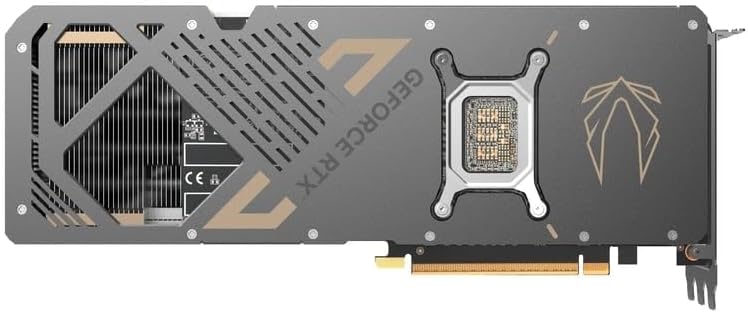
Indietro view of the graphics card, showing the metal backplate and structural reinforcement.
Manutenzione
Una manutenzione regolare aiuta a garantire prestazioni ottimali e prolunga la durata della scheda grafica:
- Rimozione della polvere: Periodically clean the fans and heatsink of the graphics card using compressed air. Ensure the PC is powered off and unplugged before cleaning. Hold the fan blades gently to prevent them from spinning rapidly during cleaning.
- Flusso d'aria: Maintain good airflow within your PC case. Ensure case fans are properly oriented and there are no obstructions to air intake or exhaust.
- Monitoraggio della temperatura: Use monitoring software (e.g., ZOTAC FireStorm) to keep an eye on GPU temperatures during heavy loads. Excessive temperatures can indicate poor airflow or dust buildup.
- Controllo della ventola: The IceStorm 3.0 cooling system features Freeze Fan Stop (fans stop at low temperatures for silent operation) and Active Fan Control (individual fan speed adjustment). Ensure these features are operating correctly or adjust them as needed via the FireStorm utility.
Risoluzione dei problemi
Se riscontri problemi con la scheda grafica, prendi in considerazione i seguenti passaggi per la risoluzione dei problemi:
- Nessuna uscita di visualizzazione:
- Assicurarsi che i cavi del display siano collegati saldamente sia alla scheda grafica sia al monitor.
- Verificare che la sorgente di ingresso del monitor sia impostata correttamente.
- Check that the graphics card is fully seated in the PCIe slot and all power connectors are firmly attached.
- Se possibile, effettuare una prova con un cavo di visualizzazione o un monitor diverso.
- Problemi con i driver:
- Eseguire un'installazione pulita dei driver NVIDIA più recenti. Utilizzare Display Driver Uninstaller (DDU) in modalità provvisoria per rimuovere i vecchi driver prima di installarne di nuovi.
- Assicurati che il tuo sistema operativo sia aggiornato.
- Surriscaldamento/Calo delle prestazioni:
- Check GPU temperatures using monitoring software.
- Pulisci la polvere dal dissipatore e dalle ventole della scheda grafica.
- Assicurare un adeguato flusso d'aria all'interno del case del PC.
- Verify that case fans are functioning correctly.
- Instabilità/arresti anomali del sistema:
- Assicurati che l'unità di alimentazione (PSU) soddisfi i requisiti di potenza consigliatitage per la scheda grafica e il sistema.
- Check for any loose connections inside the PC.
- In caso di overclocking, ripristinare le impostazioni predefinite per verificarne la stabilità.
Specifiche
Key technical specifications for the ZOTAC Gaming GeForce RTX 5080 Solid Core graphics card:
| Caratteristica | Dettaglio |
|---|---|
| Coprocessore grafico | Scheda grafica NVIDIA GeForce RTX 5080 |
| Marca | ZOTAC |
| Dimensione RAM grafica | 16 GB GDDR7 |
| Interfaccia di uscita video | 3 x DisplayPort 2.1b, 1 x HDMI 2.1b |
| Interfaccia della scheda grafica | PCI-Express x16 (PCIe 5.0) |
| Velocità di clock della memoria | 30 Gbps |
| Serie GPU | NVIDIA RTX 50 Series |
| Risoluzione massima | 7680x4320 (8K Ready) |
| Dimensioni (L x L) | 11.95"L x 2.19"W |
| Numero di modello | ZT-B50800D2-10P |
| Peso dell'articolo | 1480 grammi |
| Sistema di raffreddamento | IceStorm 3.0 Advanced Cooling (3 x 90mm BladeLink Fans, Steam Chamber, Composite Heatpipes, Pass-Thru Airflow) |
| Caratteristiche | DLSS 4, Freeze Fan Stop, Active Fan Control, Spectra RGB Lighting, Metal Backplate, Reinforced Frame Structure, Bundled GPU Support Stand |
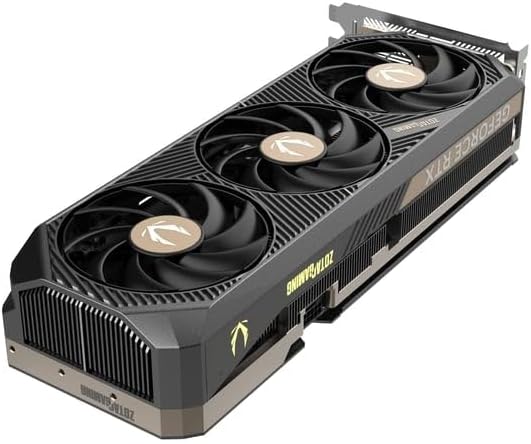
Angolato view of the graphics card, highlighting the fan design and side profile.
Informazioni sulla garanzia
ZOTAC offers an extended warranty for its products. Your ZOTAC Gaming GeForce RTX 5080 Solid Core graphics card may be eligible for a Garanzia estesa di 5 anni. Registration is required to activate this extended warranty. Please visit the official ZOTAC website for detailed terms, conditions, and the registration process.

Image indicating the availability of a 5-year extended warranty from ZOTAC. Registration is required.
Supporto e contatti
For further assistance, technical support, or warranty claims, please contact ZOTAC directly:
- Produttore: ZOTAC Technology Limited
- Indirizzo: 19/F, SHATIN GALLERIA, 18-24 Shan Mei St, Fo Tan, Hong Kong
- Websito: Visit the official ZOTAC website for support resources, driver downloads, FAQs, and contact information.