
1. Introduzione
This manual provides instructions for the setup, operation, maintenance, and troubleshooting of your CRUA 27-inch 240Hz QHD IPS Gaming Monitor. This monitor features a 2560x1440 QHD resolution, a 240Hz refresh rate, an IPS panel for wide viewing angles, AMD FreeSync support, a blue light filter for eye protection, and built-in speakers. Please read this manual thoroughly before using the product.
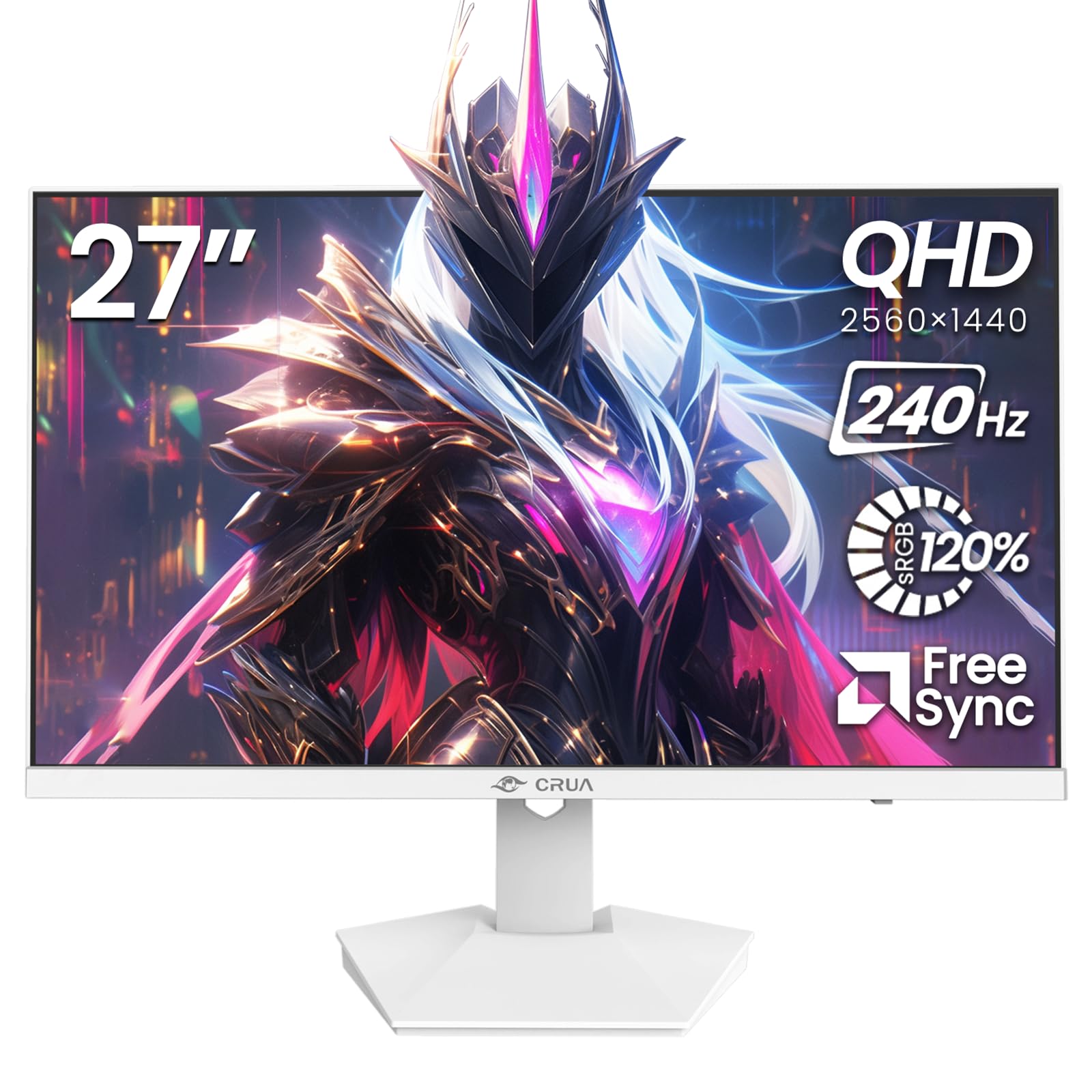
Immagine: Frontale view of the CRUA 27-inch 240Hz QHD IPS Gaming Monitor.
2. Contenuto della confezione
Verificare che tutti gli articoli siano presenti nel pacco:
- CRUA 27-inch 240Hz QHD IPS Gaming Monitor
- Supporto per monitor (base e collo)
- Adattatore di alimentazione e cavo
- Cavo HDMI
- Cavo DisplayPort (DP)
- Manuale dell'utente (questo documento)
3. Impostazione
3.1 Montaggio del supporto
- Estrarre con cautela il monitor dalla confezione, posizionandolo con lo schermo rivolto verso il basso su una superficie morbida e pulita per evitare graffi.
- Fissare il collo del supporto al pannello del monitor. Assicurarsi che scatti saldamente in posizione.
- Attach the stand base to the stand neck. Tighten any screws if provided.
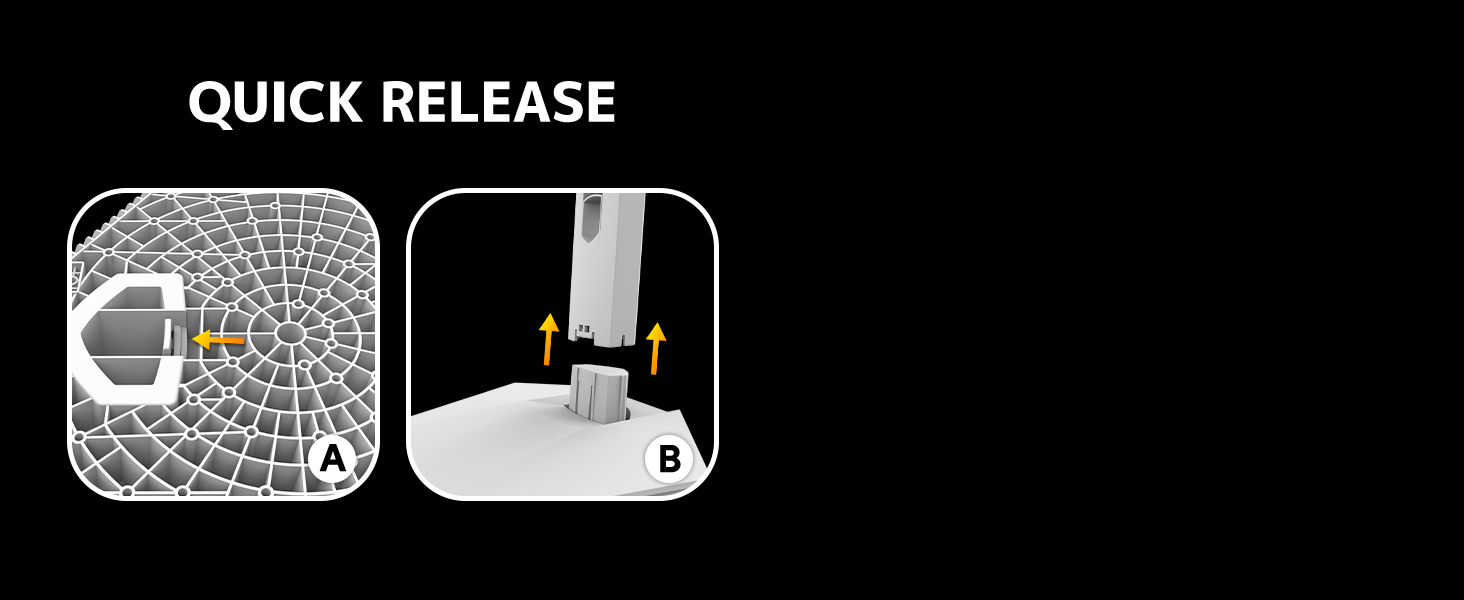
Image: Diagram illustrating the quick release stand assembly.
3.2 Montaggio a parete (opzionale)
The monitor supports VESA wall mounting (75mm x 75mm). To wall mount:
- Rimuovere il supporto dal monitor se è già fissato.
- Attach a VESA-compatible wall mount bracket (not included) to the monitor using appropriate screws.
- Per un'installazione sicura, seguire le istruzioni fornite con il supporto a parete.

Immagine: Posteriore view of the monitor showing VESA mount points (75x75mm) and built-in speakers.
3.3 Collegamento a un computer
Collegare il monitor al computer utilizzando uno dei seguenti metodi:
- DisplayPort (DP 1.4): For optimal performance, especially at 240Hz QHD resolution, use the included DisplayPort cable.
- HDMI (HDMI 2.0): Use an HDMI cable for QHD resolution at up to 144Hz.
Collegare l'adattatore di alimentazione all'ingresso di alimentazione del monitor e quindi collegarlo a una presa di corrente.

Immagine: Posteriore view of the monitor displaying the input ports, including HDMI and DisplayPort.
4. Istruzioni per l'uso
4.1 Accensione/spegnimento
Press the power button located on the back of the monitor to turn it on or off. The power button may resemble a joystick for OSD navigation.
4.2 Menu di visualizzazione su schermo (OSD)
The OSD menu allows you to adjust various monitor settings. Use the joystick-like button on the back of the monitor to navigate the menu:
- Premi il bottone: Apre il menu OSD.
- Sposta su/giù: Consente di navigare tra le opzioni del menu.
- Sposta a sinistra/destra: Adjusts selected settings or enters sub-menus.
- Premi di nuovo: Confirms selection or exits a sub-menu.
4.3 Impostazioni di visualizzazione
Nel menu OSD è possibile regolare:
- Luminosità/Contrasto: Regola la luminanza complessiva e il rapporto di contrasto.
- Impostazioni colore: Fine-tune color temperature, hue, and saturation. The monitor offers 120% sRGB color coverage for accurate and vibrant visuals.
- Sorgente di input: Selezionare manualmente tra gli ingressi HDMI e DisplayPort.

Image: Details on true color accuracy, including 120% sRGB, 8-bit color depth, and 16.7 million colors.
4.4 Caratteristiche di gioco
- Frequenza di aggiornamento: The monitor supports up to 240Hz refresh rate for smooth motion. Ensure your graphics card and cable support this rate.
- AMD FreeSync: Enable FreeSync in the OSD menu and on your AMD graphics card settings to eliminate screen tearing and stuttering.

Immagine: Confronto visivo che dimostra la fluidità della frequenza di aggiornamento di 240 Hz rispetto a quella di 60 Hz.

Image: Illustrates the effect of Adaptive Sync (FreeSync) on reducing screen tearing and stuttering.
4.5 Protezione degli occhi
The monitor includes a built-in blue light filter to reduce eye strain during extended use. This feature can be enabled or adjusted through the OSD menu.
5. Manutenzione
Per mantenere le prestazioni e l'aspetto del monitor:
- Pulizia dello schermo: Pulisci delicatamente lo schermo con un panno morbido e privo di lanugine. Per le macchie ostinate, utilizza una soluzione detergente specifica per monitor, applicata sul panno e non direttamente sullo schermo.
- Pulizia del Casing: Utilizzare un panno morbido e asciutto per pulire il monitor casing. Evitare detergenti abrasivi o solventi.
- Spegni: Always turn off the monitor and unplug it from the power outlet before cleaning.
6. Risoluzione Dei Problemi
| Problema | Possibile causa | Soluzione |
|---|---|---|
| Nessuna immagine sullo schermo | Il monitor è spento o non riceve il segnale. | Ensure power cable is connected and monitor is on. Check video cable connection (HDMI/DP) to both monitor and computer. Select correct input source via OSD. |
| Sfarfallio o strappo dell'immagine | FreeSync not enabled or incompatible settings. | Enable FreeSync in the monitor OSD and your graphics card control panel. Ensure your graphics card drivers are up to date. |
| Poor picture quality (blurry, incorrect colors) | Incorrect resolution, color settings, or faulty cable. | Set display resolution to 2560x1440. Adjust brightness, contrast, and color settings in the OSD. Try a different video cable. |
| Nessun suono dagli altoparlanti integrati | Volume too low, incorrect audio output selected. | Increase monitor volume via OSD. Ensure the monitor is selected as the audio output device in your computer's sound settings. |
| Pixel morti | Difetto di fabbricazione. | Refer to warranty information for pixel policy. Contact customer support if within warranty. |
7. Specifiche
| Caratteristica | Specificazione |
|---|---|
| Numero di modello | CR270I |
| Dimensioni dello schermo | 27 pollici |
| Tipo di pannello | Informazione pubblica |
| Risoluzione | Risoluzione 2560 x 1440 (QHD) |
| Frequenza di aggiornamento | 240 Hz |
| Proporzioni | 16:9 |
| Gamma di colori | 120% sRGB |
| Luminosità | 300 cd/m² |
| Rapporto di contrasto | 1000:1 |
| Viewangolo di ing | 178° (Orizzontale/Verticale) |
| Ingressi video | HDMI 2.0, DisplayPort 1.4 |
| Audio | Altoparlanti incorporati |
| Supporto VESA | 75 mm x 75 mm |
| Dimensioni del prodotto | 1.78 x 24 x 14 pollici |
| Peso dell'articolo | 12.62 libbre |
8. Garanzia e supporto
CRUA provides high-quality computer monitors and premium services. If you have any questions or require assistance, please contact CRUA customer support. Refer to your purchase documentation for specific warranty terms and contact information.