
1. Introduzione
This manual provides essential information and instructions for the proper use and maintenance of your DigiLand S10 10.1-inch Android 14 Tablet. Please read this manual thoroughly before using your device to ensure optimal performance and longevity. Keep this manual for future reference.
2. Cosa c'è nella scatola
Upon opening your DigiLand S10 tablet package, verify that all the following items are included:
- DigiLand S10 Android Tablet (1 unit)
- Cavo USB (1 unità)
- 5V/2A Power Adapter (US standard, 1 unit)
- Manuale dell'utente (1 unità)
- Scheda di garanzia (1 unità)
3. Prodotto finitoview
The DigiLand S10 tablet features a sleek design with essential ports and controls for user interaction.
Immagine 3.1: Sopraview of the DigiLand S10 tablet, highlighting the locations of the front camera, memory card slot, headset jack, back camera, power button, volume up/down buttons, and reset pinhole.
Componenti fisici:
- Fotocamera frontale: Located at the top center when held in landscape orientation, used for video calls and selfies.
- Slot per scheda di memoria: For inserting a Micro SD/TF card to expand storage.
- Jack per cuffie: 3.5mm port for connecting headphones or external speakers.
- Fotocamera posteriore: Located on the rear panel, used for taking photos and videos.
- Pulsante di accensione: Used to power the tablet on/off or put it to sleep/wake it up.
- Pulsanti del volume: Regola il volume dell'audio.
- Ripristina foro stenopeico: A small hole requiring a pin to force a restart if the tablet becomes unresponsive.
- Porta USB di tipo C: Per caricare il tablet e collegarlo al computer.
4. Impostazione
4.1 Carica iniziale
Before first use, fully charge your tablet. Connect the provided USB cable to the tablet's Type-C port and the power adapter, then plug the adapter into a wall outlet. The battery indicator on the screen will show charging status.
4.2 Accensione/Spegnimento
- Per accendere: Press and hold the Power button until the DigiLand logo appears on the screen.
- Per spegnere: Tenere premuto il pulsante di accensione finché non viene visualizzato un menu di spegnimento. Selezionare "Spegni" e confermare.
- Sonno-veglia: Premere brevemente il pulsante di accensione per mettere il tablet in modalità sospensione o riattivarlo.
4.3 Configurazione iniziale
Alla prima accensione, segui le istruzioni sullo schermo per configurare il tablet:
- Seleziona la lingua preferita.
- Connettersi a una rete Wi-Fi.
- Accedi con il tuo account Google o creane uno nuovo.
- Review e accettare i termini e le condizioni.
- Imposta il blocco schermo (PIN, sequenza o password).
4.4 Inserimento di una scheda Micro SD
To expand storage, you can insert a Micro SD (TF) card:
- Locate the memory card slot on the side of the tablet.
- Inserire delicatamente la scheda Micro SD nello slot con i contatti dorati rivolti verso il basso finché non scatta in posizione.
- Per rimuoverla, spingere delicatamente la scheda verso l'interno finché non fuoriesce.
5. Istruzioni per l'uso
5.1 Navigazione di base
The DigiLand S10 uses a multi-touch IPS display. Common gestures include:
- Rubinetto: Seleziona un elemento o apri un'app.
- Scorri: Scorrere le pagine o i menu.
- Pizzico: Ingrandisci o rimpicciolisci le immagini e web pagine.
- Premere a lungo: Accedi ai menu contestuali o sposta le icone.
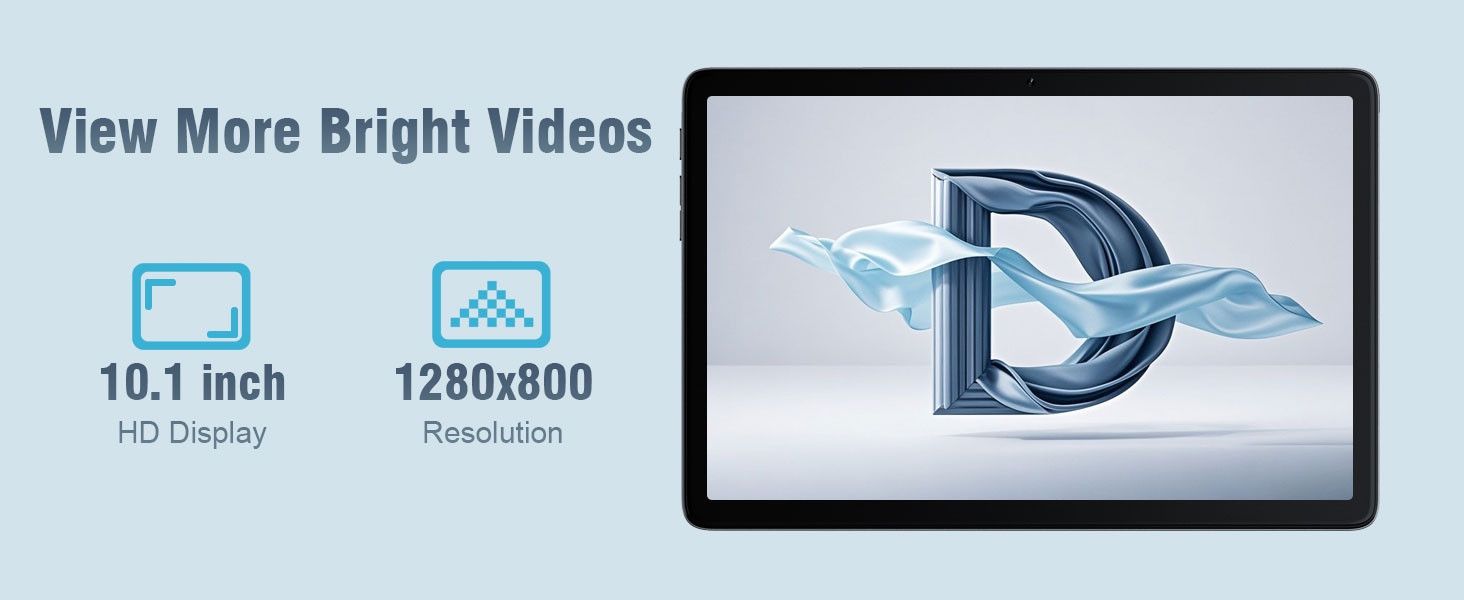
Immagine 5.1: The 10.1-inch HD display of the DigiLand S10 tablet, showcasing è largo viewing angles and clear resolution for media consumption.
5.2 Connessione al Wi-Fi
Per connettersi a una rete wireless:
- Vai a Impostazioni > Rete e Internet > Wifi.
- Attiva/disattiva Wi-Fi On.
- Seleziona la rete desiderata dall'elenco.
- Inserisci la password se richiesta, quindi tocca Collegare.
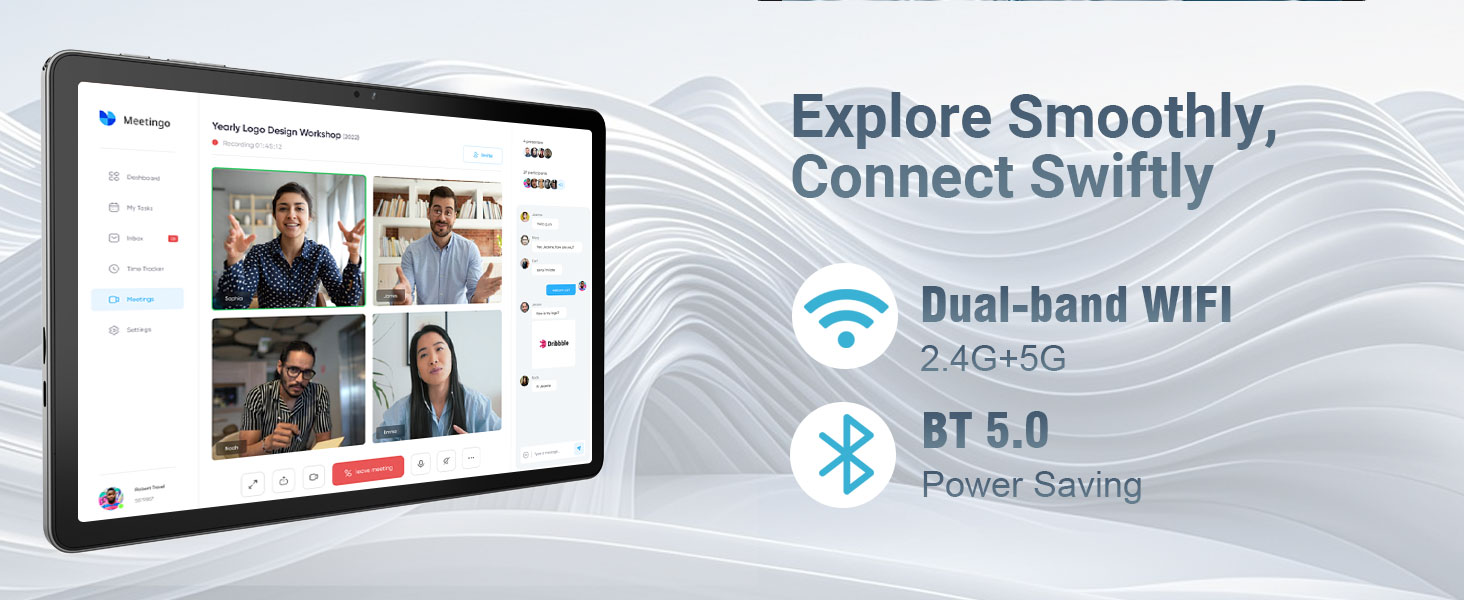
Immagine 5.2: The tablet's connectivity features, including dual-band Wi-Fi (2.4G+5G) and Bluetooth 5.0, enabling smooth online activities and device pairing.
5.3 Collegamento di dispositivi Bluetooth
To pair with Bluetooth accessories:
- Vai a Impostazioni > Dispositivi connessi > Preferenze di connessione > Bluetooth.
- Attiva Bluetooth On.
- Assicurati che il tuo dispositivo Bluetooth sia in modalità di associazione.
- Select the device from the list of available devices and follow any on-screen pairing instructions.
5.4 Utilizzo delle telecamere
Il tablet è dotato di una fotocamera frontale da 5 MP e di una posteriore da 8 MP.
- Aprire il Telecamera applicazione.
- Tocca l'icona di cambio della fotocamera per alternare tra la fotocamera anteriore e quella posteriore.
- Tocca il pulsante di scatto per scattare una foto o avviare/interrompere la registrazione video.
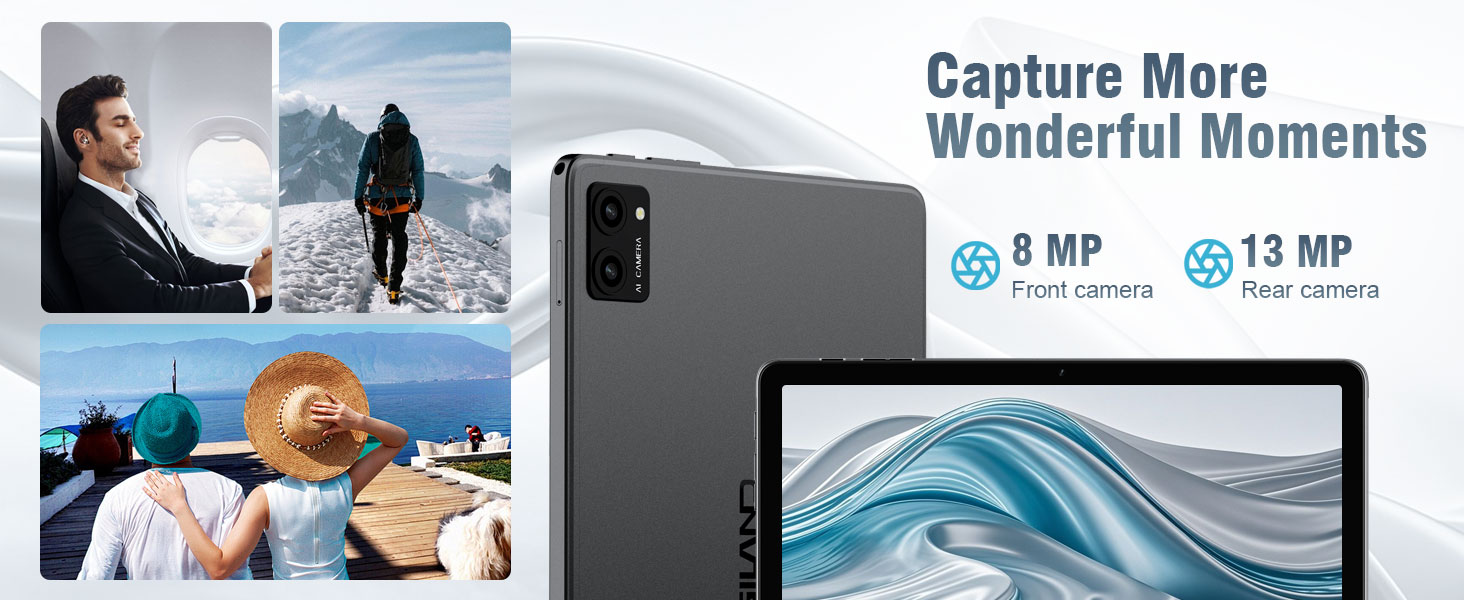
Immagine 5.3: The tablet's camera capabilities, featuring an 8MP front camera and a 13MP rear camera (note: product specs state 5MP front/8MP rear, this image may be for a different model or marketing exaggeration, refer to specifications for accurate details).
5.5 Funzionalità schermo diviso
Android 14 supports split-screen mode for multitasking:
- Apri la prima app che vuoi usare.
- Scorri verso l'alto dalla parte inferiore dello schermo e tieni premuto per accedere alle app recenti.
- Tocca l'icona dell'app nella parte superiore della prima scheda dell'app, quindi seleziona Split top.
- Scegli la seconda app dalle app recenti o dal cassetto delle app per riempire l'altra metà dello schermo.

Immagine 5.4: The split-screen feature on the DigiLand S10 tablet, allowing users to run two applications simultaneously for enhanced productivity.
5.6 Gestione della batteria
The tablet is equipped with a 6000 mAh battery. To optimize battery life:
- Regola la luminosità dello schermo.
- Chiudere le applicazioni non utilizzate in esecuzione in background.
- Disattivare il Wi-Fi e il Bluetooth quando non vengono utilizzati.
- Abilita la modalità di risparmio batteria in Impostazioni > Batteria.
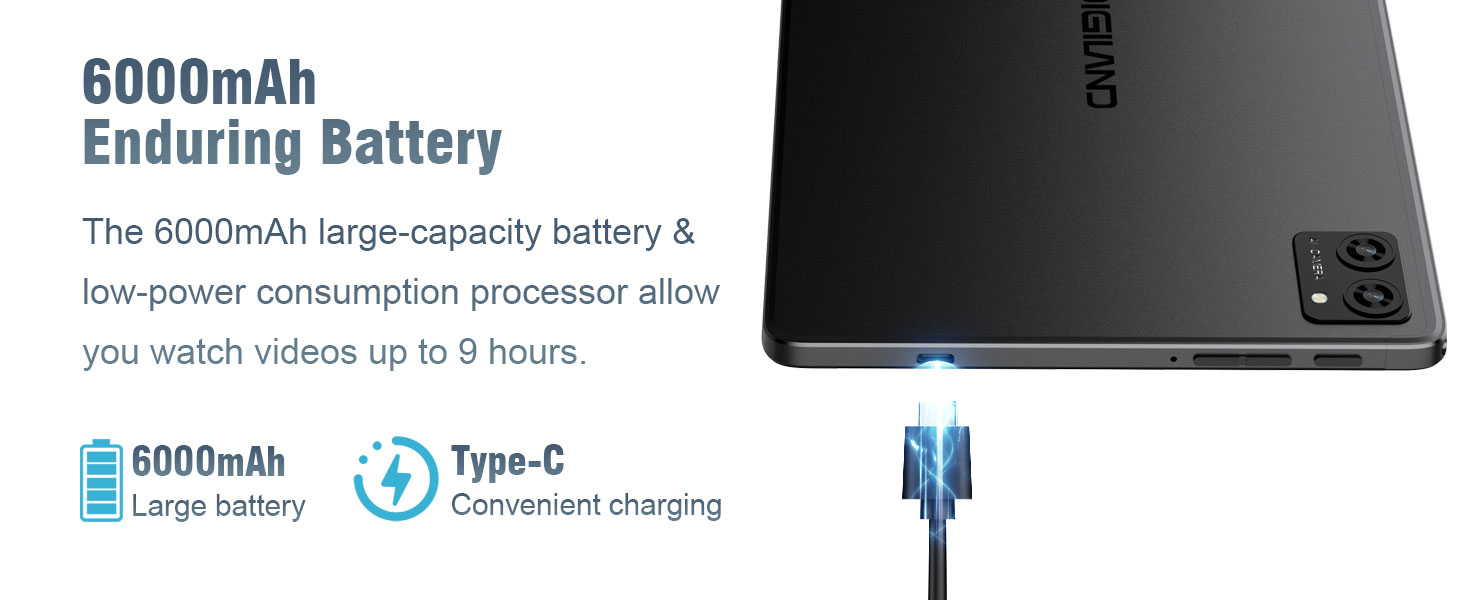
Immagine 5.5: The 6000mAh battery of the DigiLand S10 tablet, providing extended usage and convenient Type-C charging.
5.7 Gestione dell'archiviazione
The tablet has 64GB of internal storage, expandable up to 1TB with a Micro SD card. To manage storage:
- Vai a Impostazioni > Magazzinaggio A view utilizzo e liberare spazio.
- Disinstallare le app non utilizzate.
- Spostati in grande files (photos, videos) to the Micro SD card or cloud storage.
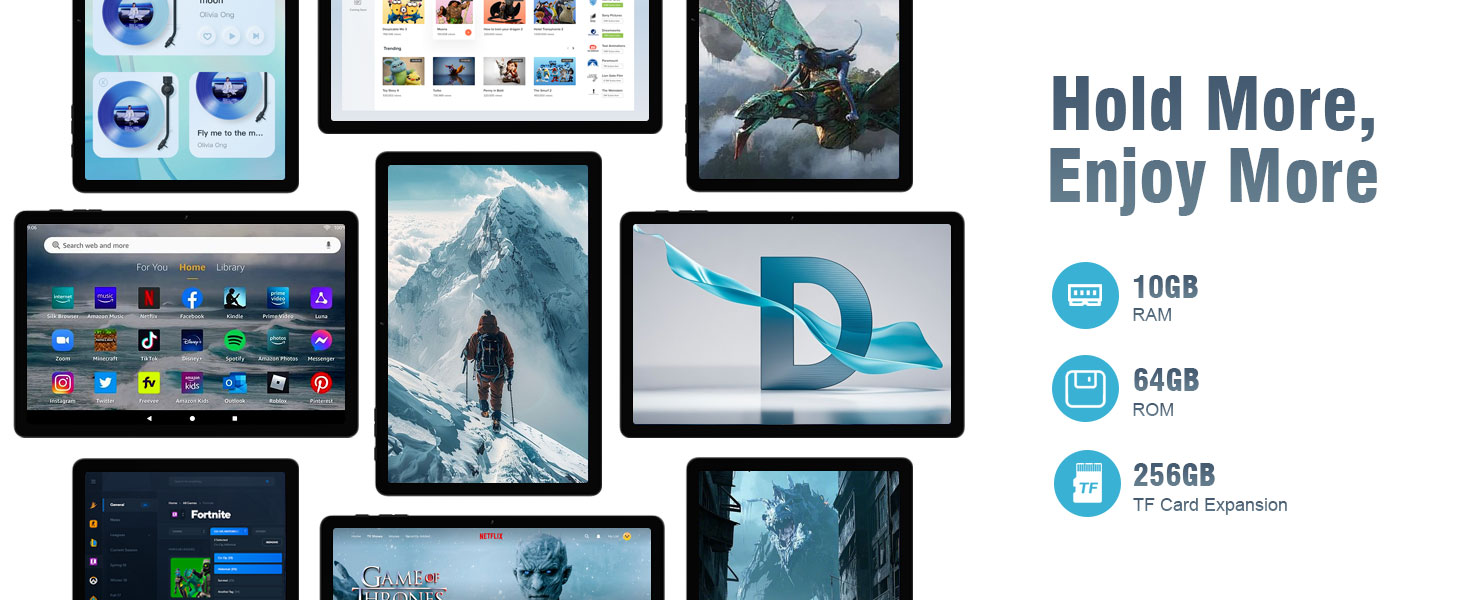
Immagine 5.6: The tablet's storage and memory capabilities, featuring 10GB RAM, 64GB ROM, and support for TF card expansion, allowing for ample app and data storage.
6. Manutenzione
6.1 Pulizia del tablet
Per pulire il tablet:
- Per pulire lo schermo e il corpo del dispositivo, utilizzare un panno morbido e privo di lanugine.
- Per macchie ostinate, leggermente dampPulire il panno con acqua o con un detergente per schermi specifico per dispositivi elettronici.
- Evitare l'uso di prodotti chimici aggressivi, materiali abrasivi o umidità eccessiva.
6.2 Aggiornamenti software
Controlla e installa regolarmente gli aggiornamenti software per assicurarti che il tuo tablet disponga delle funzionalità più recenti, delle patch di sicurezza e dei miglioramenti delle prestazioni.
- Collega il tuo tablet a una rete Wi-Fi.
- Vai a Impostazioni > Sistema > Aggiornamento del sistema.
- Seguire le istruzioni visualizzate sullo schermo per scaricare e installare gli aggiornamenti disponibili.
6.3 Ottimizzazione dell'archiviazione
To maintain optimal performance, periodically optimize your tablet's storage:
- Cancella i dati memorizzati nella cache per le app in Impostazioni > Applicazioni > [Nome dell'app] > Archiviazione e cache.
- Elimina non necessario files from the Downloads folder.
- Eseguire regolarmente il backup dei dati importanti su un archivio cloud o su un dispositivo esterno.
7. Risoluzione Dei Problemi
This section addresses common issues you might encounter with your DigiLand S10 tablet.
| Problema | Possibile soluzione |
|---|---|
| Il tablet non si accende. | Ensure the tablet is charged. Connect to the power adapter and wait a few minutes before attempting to power on again. If unresponsive, use a pin to press the Reset pinhole. |
| Lo schermo non risponde. | Restart the tablet by holding the Power button. If that fails, use the Reset pinhole. |
| Impossibile connettersi al Wi-Fi. | Check if Wi-Fi is enabled in Settings. Ensure the Wi-Fi password is correct. Restart your router and the tablet. Try connecting to a different Wi-Fi network if available. |
| Le app si bloccano o funzionano lentamente. | Close background apps. Clear app cache (Settings > Apps > [App Name] > Storage & cache). Ensure sufficient free storage space. Restart the tablet. |
| La batteria si scarica rapidamente. | Reduce screen brightness. Disable Wi-Fi/Bluetooth when not in use. Close unused apps. Check battery usage in Settings > Battery to identify power-hungry apps. |
| Scheda Micro SD non rilevata. | Ensure the card is inserted correctly and fully seated in the slot. Try reinserting the card. Test the card in another device if possible to rule out card malfunction. |
8. Specifiche
Below are the technical specifications for the DigiLand S10 Tablet:
| Caratteristica | Dettaglio |
|---|---|
| Marca | DigiLand |
| Nome del modello | 10.1-inch Tablet PC (DigiLand S10) |
| Sistema operativo | Androide 14 |
| Processore | MTK Octa-core (A523) |
| Memoria RAM | 10 GB |
| Memoria interna | 64 GB |
| Archiviazione espandibile | MicroSD/TF card support (up to 1TB) |
| Dimensioni dello schermo | 10.1 pollici |
| Tipo di visualizzazione | Informazione pubblica |
| Risoluzione dello schermo | 1280 x 800 pixel |
| Telecamera posteriore | 8 MP |
| Fotocamera frontale | 5 MP |
| Capacità della batteria | 6000 mAh |
| Connettività | Wi-Fi (802.11ax, 2.4G+5G dual-band), Bluetooth 5.0 |
| Porti | USB Type-C, 3.5mm Headset Jack |
| Dimensioni (L x P x P) | 9.49" x 6.3" x 0.34" (approx. 8.8mm thickness) |
| Peso | Circa 0.51 kg (510 g) |
9. Garanzia e supporto
9.1 Informazioni sulla garanzia
The DigiLand S10 tablet comes with a Garanzia limitata di 1 anni. Please refer to the included Warranty Card for detailed terms and conditions regarding coverage and claims.
9.2 Assistenza clienti
For any questions, technical assistance, or support needs, please contact DigiLand customer service. We offer comprehensive support to assist you with any issues.
You can typically find contact information on the DigiLand official website or through the seller's support channels where you purchased the product. For purchases made via Amazon, you can contact the seller, GuYi-USA, directly through the Amazon platform.

Immagine 9.1: DigiLand is committed to providing professional after-sales support.
10. Video del prodotto
Guarda il video ufficiale del prodotto per una panoramica visivaview of the DigiLand S10 tablet's features and design.
10.1 video: A product display video showcasing the DigiLand S10 10.1-inch Android tablet, its components, and key functionalities.