
1. Introduzione
This user manual provides detailed instructions for the KTC M27P6 27-inch MiniLED Gaming Monitor. Please read this manual thoroughly before operating the device to ensure proper usage and optimal performance. Keep this manual for future reference.
The KTC M27P6 is a high-performance gaming monitor featuring a 27-inch MiniLED panel with 1152 local dimming zones, offering exceptional contrast and brightness up to HDR1400. It supports dual display modes: 4K resolution at 160Hz and Full HD resolution at 320Hz, providing versatility for various gaming and professional needs. Key features include a 1ms GtG response time, Adaptive Sync technology, and comprehensive connectivity options including USB-C with 65W power delivery and KVM functionality.

Immagine: Oltreview of KTC M27P6 monitor's key features including MiniLED, 1152 local dimming zones, dual mode 4K@160Hz/FHD@320Hz, USB-C, KVM, HDR1400, 145% sRGB, Fast IPS, and Adaptive-Sync.
2. Informazioni sulla sicurezza
- Posizionare sempre il monitor su una superficie stabile e piana per evitare che cada.
- Non esporre il monitor alla pioggia o all'umidità per evitare scosse elettriche o incendi.
- Tenere il monitor lontano dalla luce solare diretta, da fonti di calore o da temperature estreme.
- Assicurare una ventilazione adeguata attorno al monitor. Non ostruire le aperture di ventilazione.
- Utilizzare solo l'adattatore di alimentazione e i cavi forniti o consigliati dal produttore.
- Unplug the power cord from the outlet if the monitor will not be used for a long period.
- Non tentare di riparare il monitor da soli. Per qualsiasi intervento di assistenza, rivolgersi a personale qualificato.
- Evitare di toccare lo schermo con oggetti appuntiti.
3. Contenuto della confezione
Verifica che tutti i componenti siano presenti nella confezione. Se qualche articolo risulta mancante o danneggiato, contatta il rivenditore.
- KTC M27P6 27-inch MiniLED Gaming Monitor
- Supporto per monitor (base e braccio)
- Adattatore di alimentazione
- Cavo di alimentazione
- Cavo HDMI
- Cavo DisplayPort
- Cavo USB-C
- USB-B to USB-A Cable (for KVM/USB Hub)
- Manuale dell'utente (questo documento)
- Scheda di garanzia
4. Monitorare oltreview
4.1 Front View
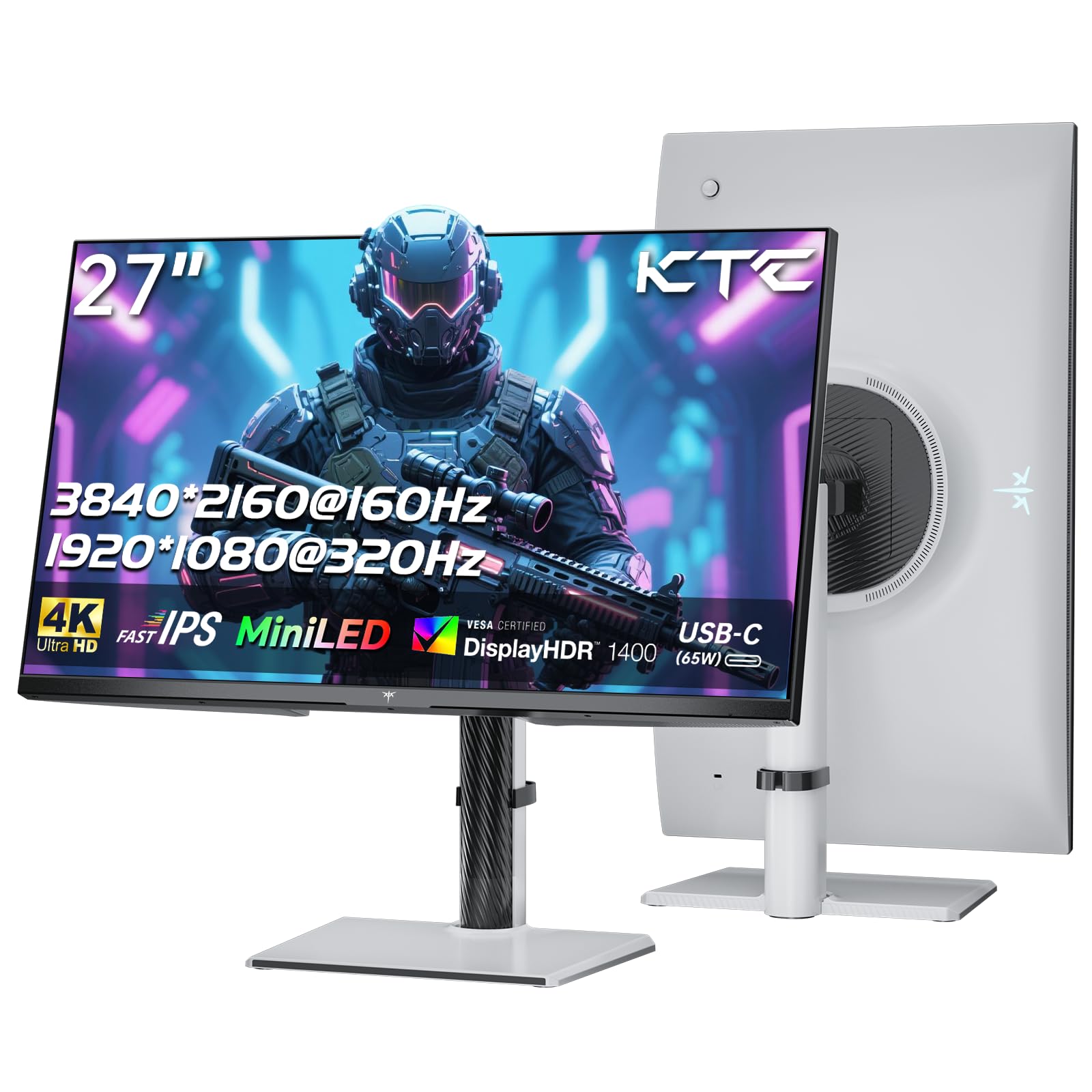
Immagine: Frontale view of the KTC M27P6 27-inch MiniLED Gaming Monitor.
The front of the monitor features the 27-inch MiniLED display panel. The KTC logo is typically located at the bottom center bezel.
4.2 Posteriore View e porti

Immagine: Posteriore view of the KTC M27P6 monitor, highlighting the various input/output ports and the adjustable stand.
The rear of the monitor houses the input/output ports and the stand attachment point. The ports include:
- Potenza in ingresso: Per collegare l'adattatore di alimentazione.
- Porte HDMI 2.1 (x2): For connecting to devices supporting HDMI 2.1 (4K@160Hz / FHD@320Hz).
- Porte DisplayPort 1.4 (x2): For connecting to devices supporting DisplayPort 1.4 (4K@160Hz / FHD@320Hz).
- Porta USB-C (x1): Full-function port supporting video input (4K@160Hz / FHD@320Hz) and 65W Power Delivery.
- USB-B Upstream Port (x1): For connecting the monitor's USB hub to your computer, enabling the downstream USB-A ports and KVM functionality.
- USB-A 3.0 Downstream Ports (x3): For connecting peripherals like keyboards, mice, or USB drives.
- Uscita audio da 3.5 mm: Per collegare cuffie o altoparlanti esterni.
Video: Un oltreview of the KTC M27P6 monitor's features and design, including its connectivity options and adjustable stand.
5. Impostazione
5.1 Montaggio del supporto
- Estrarre con cautela il monitor e i componenti del supporto dalla confezione.
- Attach the stand arm to the monitor panel by aligning the mounting points and securing with screws (if applicable).
- Attach the stand base to the stand arm, ensuring it is firmly connected.
- Posizionare il monitor assemblato su una superficie stabile e piana.
The monitor also supports VESA mounting (100x100mm) for use with compatible wall mounts or monitor arms. Ensure the VESA mount is rated for the monitor's weight.

Image: Diagram illustrating the multi-angle adjustment capabilities of the KTC M27P6 monitor stand, including height, tilt, swivel, and pivot.
5.2 Cavi di collegamento
- Collegamento elettrico: Collegare l'adattatore di alimentazione all'ingresso di alimentazione del monitor, quindi collegare il cavo di alimentazione a una presa di corrente.
- Collegamento video:
- For PC/Gaming Console: Connect one end of the HDMI or DisplayPort cable to your device's output and the other end to the corresponding port on the monitor.
- For USB-C Compatible Devices: Connect the USB-C cable from your device to the monitor's USB-C port for video, data, and power delivery.
- USB Hub/KVM Connection: To use the monitor's USB-A ports and KVM functionality, connect the USB-B to USB-A cable from the monitor's USB-B upstream port to a USB-A port on your computer.
- Connessione audio: If using external headphones or speakers, connect them to the 3.5mm audio out port on the monitor.
6. Istruzioni per l'uso
6.1 Accensione/spegnimento
Press the power button (usually located on the back or bottom of the monitor) to turn the monitor on or off. The power indicator light will illuminate when the monitor is on.
6.2 Navigazione nel menu OSD
The On-Screen Display (OSD) menu allows you to adjust various monitor settings. Use the joystick or buttons (refer to your monitor's physical layout) to navigate the OSD menu:
- Press Joystick/Button: Enter OSD menu or confirm selection.
- Sposta il joystick su/giù: Navigare attraverso le opzioni del menu.
- Muovi il joystick a sinistra/destra: Regola i valori o passa ai sottomenu.
- Pulsante di uscita: Esci dal menu o dall'OSD corrente.
6.3 Dual Mode Switching (4K@160Hz / FHD@320Hz)
The KTC M27P6 supports seamless switching between two display modes: 4K (3840x2160) at 160Hz and Full HD (1920x1080) at 320Hz. This allows you to optimize performance based on your content (e.g., high-resolution graphics for AAA games or ultra-high refresh rate for competitive FPS games).
To switch modes, access the OSD menu and navigate to the "Display" or "Gaming" settings. Select the desired resolution and refresh rate. Your connected device must also support these resolutions and refresh rates for optimal performance.

Image: Illustration of the KTC M27P6 monitor's seamless dual mode switching capability, showing a 4K@160Hz gaming scene and a FHD@320Hz gaming scene.
6.4 Sincronizzazione adattiva
The monitor supports Adaptive Sync (AMD FreeSync and NVIDIA G-Sync compatible) to eliminate screen tearing and stuttering, providing a smoother gaming experience. Ensure Adaptive Sync is enabled in the monitor's OSD settings and in your graphics card control panel.

Image: Visual representation of Adaptive Sync technology, showing how it prevents screen tearing by synchronizing the monitor's refresh rate with the GPU's frame rate.
6.5 Funzionalità KVM
The integrated KVM (Keyboard, Video, Mouse) switch allows you to control multiple computers or devices connected to the monitor using a single keyboard and mouse. To use KVM:
- Connect your primary computer to the monitor via DisplayPort/HDMI and the USB-B upstream cable.
- Connect your secondary device (e.g., laptop via USB-C) to the monitor.
- Connect your keyboard and mouse to the USB-A downstream ports on the monitor.
- Switch between connected devices using the KVM hotkey or OSD menu option.
6.6 Color Settings and HDR1400
The monitor features a MiniLED panel with 1152 local dimming zones and VESA DisplayHDR 1400 certification, providing high contrast and vibrant colors. You can adjust color settings (brightness, contrast, color temperature, gamma) through the OSD menu. For HDR content, ensure HDR is enabled in your operating system and the monitor's OSD. The monitor supports 10-bit color depth and a wide color gamut (145% sRGB / 99% DCI-P3).

Image: Visual comparison demonstrating the enhanced dynamic range and detail provided by HDR1400 on the KTC M27P6 monitor.
7. Manutenzione
- Pulizia dello schermo: Pulire delicatamente lo schermo con un panno morbido e privo di lanugine. Per macchie ostinate, dampen the cloth with a small amount of screen cleaner (non-ammonia based). Do not spray cleaner directly onto the screen.
- Pulizia del Casing: Utilizzare un panno morbido e asciutto per pulire il monitor casing. Evitare l'uso di detergenti abrasivi o solventi.
- Ventilazione: Ensure the ventilation openings on the monitor are clear of dust and debris to prevent overheating.
8. Risoluzione Dei Problemi
| Problema | Possibile causa | Soluzione |
|---|---|---|
| Nessuna immagine sullo schermo | Cavo di alimentazione scollegato; Cavo video scollegato; Sorgente di ingresso errata. | Controllare i collegamenti dei cavi di alimentazione e video. Selezionare la sorgente di ingresso corretta tramite il menu OSD. |
| L'immagine è sfocata o distorta | Risoluzione errata; cavo video difettoso. | Set the display resolution to the native 3840x2160 or 1920x1080. Try a different video cable. |
| Screen tearing o stuttering nei giochi | Sincronizzazione adattiva non abilitata; problemi con il driver della scheda grafica. | Enable Adaptive Sync in monitor OSD and graphics card settings. Update graphics drivers. |
| Le porte USB non funzionano | USB-B upstream cable not connected; Driver issues. | Ensure the USB-B upstream cable is connected from the monitor to your computer. Check computer's USB drivers. |
| Nessun suono dall'uscita audio | Incorrect audio output selected; Volume too low. | Check audio output settings on your computer. Adjust monitor and device volume. |
9. Specifiche
| Caratteristica | Dettaglio |
|---|---|
| Marca | KTC |
| Nome del modello | M27P6 |
| Dimensioni dello schermo | 27 Pollici (27 inches) |
| Tipo di pannello | MiniLED, Fast IPS |
| Resolution (Native) | Risoluzione 3840 x 2160 (4K UHD) |
| Max Refresh Rate (4K) | Frequenza 160 Hz |
| Max Refresh Rate (FHD) | Frequenza 320 Hz |
| Tempo di risposta | 1 ms GtG |
| Zone di attenuazione locali | 1152 Zone |
| Certificazione HDR | Supporto VESA DisplayHDR 1400 |
| Luminosità | 1400 cd / m² (picco) |
| Rapporto di contrasto | 1,000,000: 1 (dinamico) |
| Gamma di colori | Colore: 145% sRGB, 99% DCI-P3 |
| Profondità del colore | 10 bit |
| Sincronizzazione adattiva | AMD FreeSync, NVIDIA G-Sync Compatible |
| Viewangolo di ing | 178 gradi |
| Connettività | 2x HDMI 2.1, 2x DisplayPort 1.4, 1x USB-C (65W PD), 1x USB-B Upstream, 3x USB-A 3.0 Downstream, 1x 3.5mm Audio Out |
| Supporto KVM | SÌ |
| Regolazioni del supporto | Altezza, inclinazione, rotazione, rotazione |
| Supporto VESA | 100 x 100 millimetri |
| Dimensioni (PxWxH) | 21.1P x 61.7l x 54.7H cm |
10. Garanzia e supporto
KTC products are covered by a limited warranty. Please refer to the warranty card included in your package for specific terms and conditions. For technical support, troubleshooting assistance, or warranty claims, please contact KTC customer service or visit the official KTC websito.
You can find more information and contact details on the KTC official store page: Negozio KTC.