Introduzione
This manual provides essential information for setting up, operating, maintaining, and troubleshooting your Thunderobot Zero 18 Pro 5070 Ti Gaming Laptop. Please read this guide thoroughly to ensure optimal performance and longevity of your device.
Cosa c'è nella scatola
Dopo aver disimballato, verificare che siano presenti tutti gli elementi elencati di seguito:
- THUNDEROBOT Zero Laptop
- Adattatore di alimentazione
- Manuale dell'utente (questo documento)
- Scheda di garanzia
If any items are missing or damaged, contact your retailer or Thunderobot customer support immediately.
Impostare
Accensione iniziale
- Connect the power adapter to the laptop's power input port and then to a wall outlet.
- Apri il coperchio del portatile.
- Premere il pulsante di accensione per accendere il laptop.
- Seguire le istruzioni visualizzate sullo schermo per completare la configurazione di Windows 11 Home.
Collegamento delle periferiche
Utilize the available ports to connect external devices such as a mouse, keyboard, external display, or other accessories. Refer to the "Connectivity (Ports)" section for port details.
Istruzioni per l'uso
Accensione/spegnimento
- To power on: Press the power button located on the keyboard deck.
- To shut down: Click the Start button, then Power, and select "Shut down".
- To restart: Click the Start button, then Power, and select "Restart".
- To sleep: Close the laptop lid or click the Start button, then Power, and select "Sleep".
Keyboard and RGB Lighting
The laptop features a full-size keyboard with per-key customizable RGB backlighting and a dedicated numeric keypad.
- Per-Key RGB Backlight: Customize individual key lighting through the AI Intelligent Control Center software.
- Tasti funzione: Utilizzare il Fn key in combination with other keys for various functions (e.g., volume control, screen brightness, keyboard backlight adjustment).
- Performance Mode Switching: Dedicated keys (Fn+Space) allow for quick toggling between performance profiles.
- One-Click Cooling: A dedicated key (often near the numeric keypad) can activate maximum cooling. Ensure cooling mode is exited before using the first three keys to switch modes.
Caratteristiche dello schermo
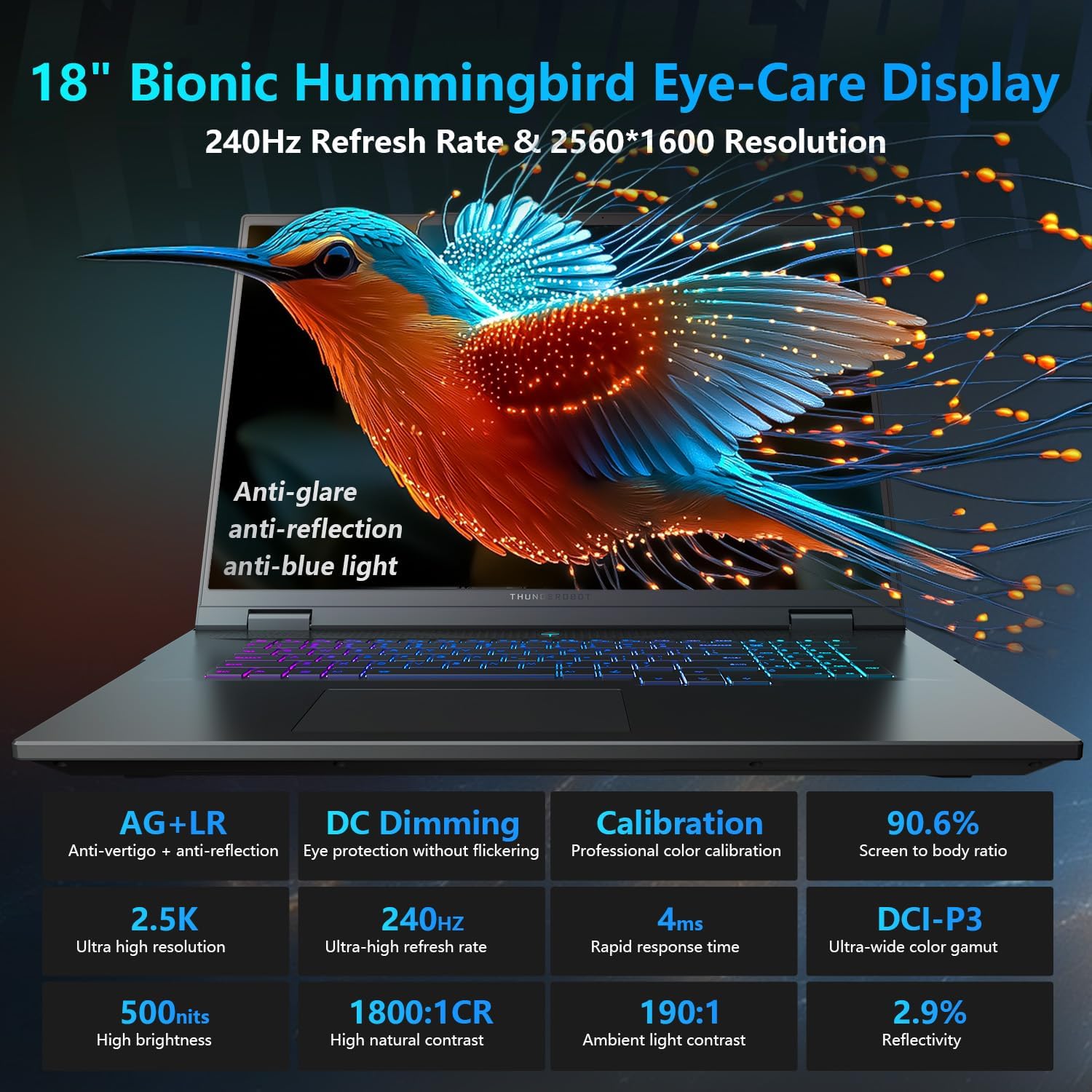
The 18-inch QHD+ (2560x1600) Bionic Hummingbird Eye-Care display offers a 240Hz refresh rate and 4ms response time for clear and fluid visuals. It includes anti-glare, anti-reflection, and anti-blue light technologies for eye comfort.

Connectivity (Ports)
The laptop is equipped with various ports for extensive connectivity:
- 3 x Superspeed USB Type-A ports
- 2 x Superspeed USB Type-C ports (including Thunderbolt 5 support)
- 1 x HDMI port (HDMI 2.1)
- 1 porta Ethernet RJ-45
- 1 x Audio Port (3.5mm)
- Lettore di schede SD UHS-II
- Wi-Fi 6E for high-speed wireless internet
- Bluetooth for wireless peripheral connections

Sistema di raffreddamento
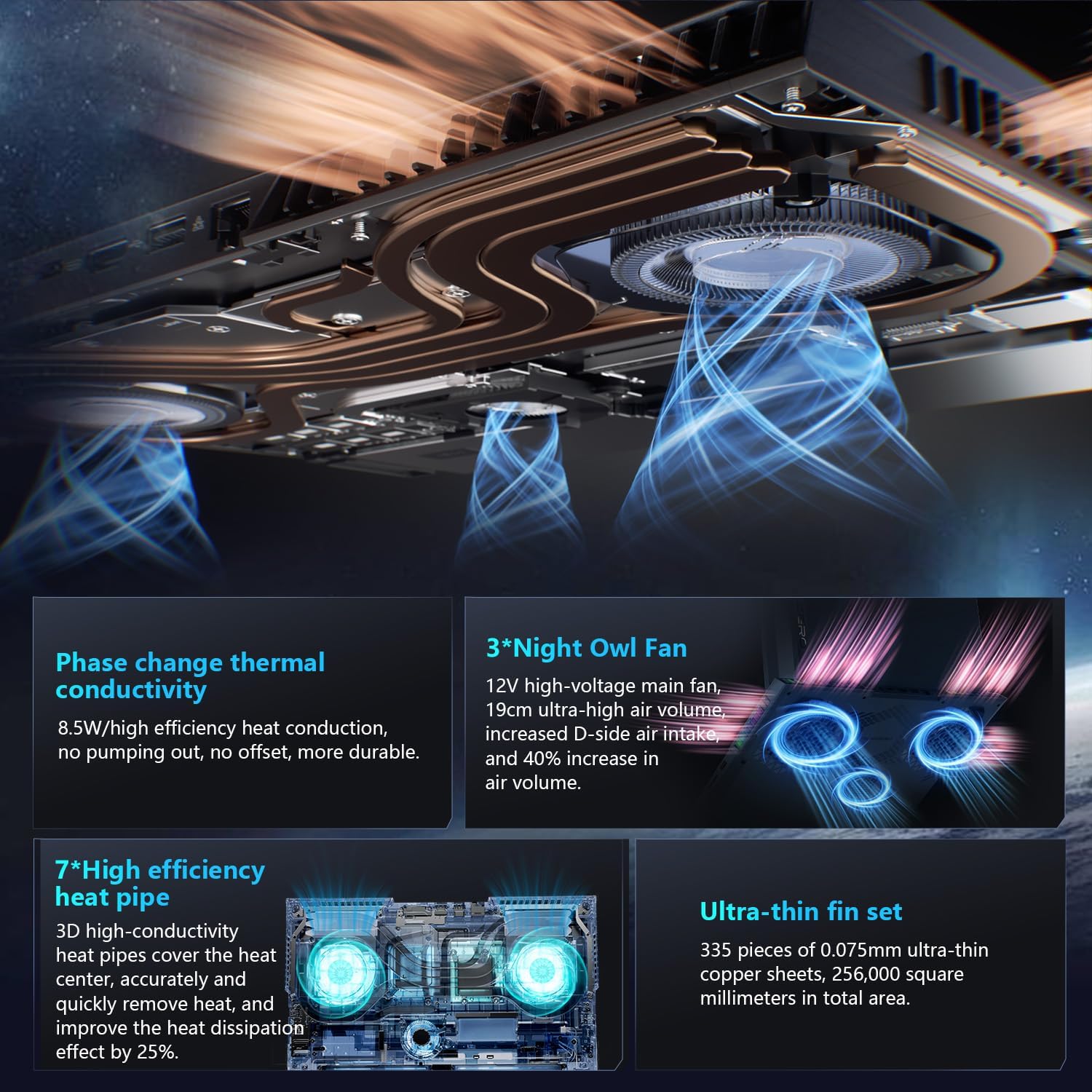
The advanced cooling system features 3 Night Owl fans, 7 high-efficiency heat pipes, and 338 ultra-thin copper fins to ensure optimal thermal management during intensive use, allowing for 270W super performance release.
AI Intelligent Control Center
The AI Intelligent Control Center software allows for comprehensive system management, including performance tuning, intelligent light adjustment, and personalized customization. This includes monitoring CPU/GPU temperatures and fan speeds.
- Performance Tuning: Adjust power settings for quiet, balanced, or turbo modes.
- Intelligent Light Adjustment: Customize keyboard, strip, and logo RGB lighting effects.
- Monitoraggio del sistema: View real-time CPU and GPU status.
Note: System mode switching in Control Center requires the device to be connected to a power source.
Manutenzione
Pulizia del tuo computer portatile
- Schermo: Utilizzare leggermente un panno morbido e privo di lanugine dampcon acqua o un detergente per schermi. Evitare prodotti chimici aggressivi.
- Tastiera e chassis: Utilizzare un panno morbido per pulire le superfici. Per rimuovere la polvere dalle fessure, utilizzare aria compressa.
- Vents: Pulire periodicamente le prese d'aria di raffreddamento con aria compressa per evitare l'accumulo di polvere, che può compromettere le prestazioni.
Cura della batteria
- Evitare di scaricare completamente la batteria frequentemente.
- Se non si utilizza il computer portatile per lunghi periodi, conservarlo in un luogo fresco e asciutto.
- Per una salute ottimale della batteria, evitare temperature estreme.
Aggiornamenti software
Regularly check for and install operating system updates (Windows Update) and driver updates (via Thunderobot's official website or the AI Intelligent Control Center) to ensure system stability and performance.
Risoluzione dei problemi
| Problema | Possibile causa | Soluzione |
|---|---|---|
| Il portatile non si accende. | Nessuna alimentazione, batteria scarica o problema hardware. |
|
| Lo schermo è vuoto o nero. | Impostazioni di visualizzazione, monitor esterno collegato o problema hardware. |
|
| Surriscaldamento durante l'uso. | Blocked vents, high performance settings, or dust buildup. |
|
| Problemi di connessione Wi-Fi. | Wi-Fi disattivato, problemi con il driver o con il router. |
|
For further assistance, please contact Thunderobot customer support.
Specifiche
| Caratteristica | Dettaglio |
|---|---|
| Nome del modello | Zero 18 Pro |
| Processore | Intel Core Ultra 9 275HX (24 Cores, 24 Threads, up to 5.40GHz) |
| Grafica | NVIDIA GeForce RTX 5070 Ti (8 GB GDDR6 Dedicated) |
| Memoria RAM | 32 GB DDR5 (4800 MHz) |
| Magazzinaggio | 2 TB PCIe M.2 SSD |
| Display | 18-inch QHD+ (2560x1600) 240Hz Bionic Hummingbird Eye-Care Display |
| Sistema operativo | Windows 11 Casa |
| Connettività | Wi-Fi 6E, Bluetooth, 3x USB-A, 2x USB-C (Thunderbolt 5), HDMI 2.1, RJ-45, Audio Port |
| Tastiera | Per-Key RGB Backlit, Numeric Keypad |
| Dimensioni (LxWxH) | 16.04 x 11.78 x 1.41 pollici |
| Peso dell'articolo | 15 libbre |
| Fonte di alimentazione | AC e batteria |
Garanzia e supporto
Every Thunderobot laptop includes a Garanzia di 12 mesi, offering expert support, thorough diagnostics, and genuine parts if a repair is needed. Additionally, a Garanzia di 90 giorni is provided on all warranty replacement parts, ensuring hassle-free repairs. Your complete satisfaction is our commitment.
For technical support, warranty claims, or service inquiries, please visit the official Thunderobot website or contact their customer service department. Keep your purchase receipt and serial number handy for faster service.