
Pixio PX248PROV2
Manuale utente del monitor da gioco Pixio PX248 PRO V2 da 24 pollici
Brand: Pixio | Model: PX248PROV2
Introduzione
This manual provides essential information for the safe and efficient use of your Pixio PX248 PRO V2 24-inch Gaming Monitor. Please read it thoroughly before operating the device and retain it for future reference. The Pixio PX248 PRO V2 features a 24-inch FHD 1080p Fast IPS panel, a 200Hz refresh rate, and a 1ms GTG response time, designed for a responsive and immersive visual experience.
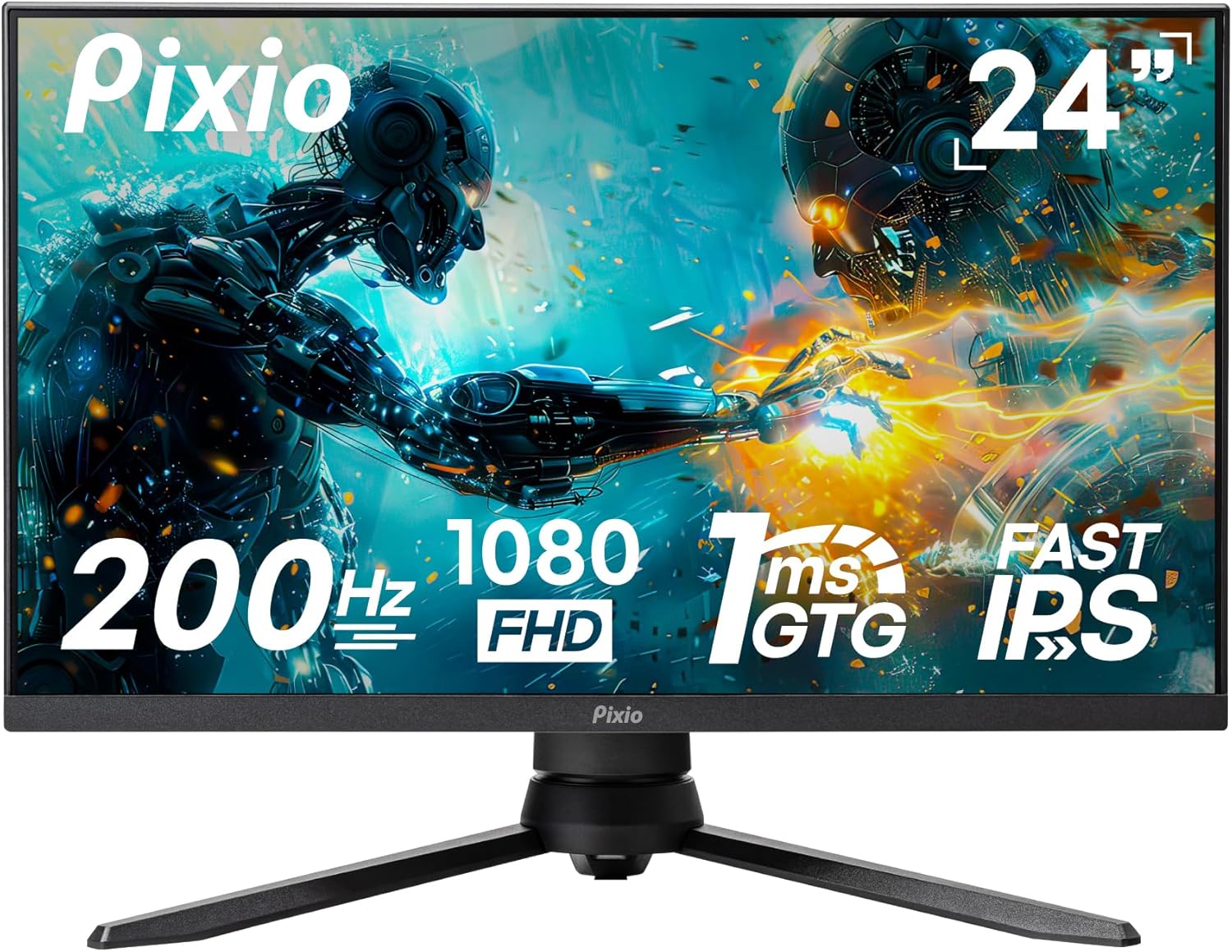
Immagine: Frontale view of the Pixio PX248 PRO V2 24-inch Gaming Monitor, highlighting its 200Hz refresh rate, 1080p FHD resolution, 1ms GTG response time, and Fast IPS panel technology.
Informazioni sulla sicurezza
- Assicurarsi che il monitor sia posizionato su una superficie stabile e piana per evitare cadute accidentali.
- Non ostruire le aperture di ventilazione. Un corretto flusso d'aria è essenziale per evitare il surriscaldamento.
- Utilizzare solo l'adattatore di alimentazione fornito con il monitor.
- Tenere il monitor lontano da acqua, umidità e luce solare diretta.
- Avoid placing heavy objects on the power cord or monitor cables.
- Scollegare il cavo di alimentazione dalla presa prima di pulire il monitor.
Contenuto della confezione
Verificare che tutti gli articoli siano presenti nel pacco:
- Pixio PX248 PRO V2 Monitor
- Supporto per monitor (base e collo)
- Adattatore di alimentazione
- Cavo DisplayPort
- Manuale dell'utente (questo documento)
Impostare
Monitorare l'Assemblea
Follow these steps to assemble the monitor stand or prepare for VESA mounting:
- Estrarre con cautela il monitor e i componenti del supporto dalla confezione.
- Fissare il collo del supporto al pannello del monitor. Assicurarsi che scatti saldamente in posizione o che sia fissato con le viti, se fornite.
- Fissare la base del supporto al collo del supporto. Serrare la vite o le viti a testa zigrinata dalla parte inferiore della base.
- For VESA mounting (100x100mm), remove the stand from the monitor panel. Attach your VESA-compatible mount to the four screw holes on the back of the monitor.

Image: Diagram illustrating the adjustable features of the monitor stand, including tilt, height adjustment, swivel, and pivot capabilities for ergonomic positioning.

Image: Technical drawing showing the dimensions of the Pixio PX248 PRO V2 monitor and the location of the 100x100mm VESA mount points on the rear panel.
Connessione ai dispositivi
Connect your computer or other devices to the monitor using the appropriate cables:
- DisplayPort (DP 1.2): For optimal performance, including 200Hz refresh rate and Adaptive Sync, use the DisplayPort cable.
- HDMI (HDMI 2.0): Connect devices using HDMI cables. The monitor has two HDMI 2.0 ports.
- Spinotto degli auricolari: Connect headphones or external speakers to this port for audio output.

Immagine: Primo piano view of the Pixio PX248 PRO V2 monitor's rear input panel, showing two HDMI 2.0 ports, one DisplayPort 1.2, an earphone jack, and the DC power input.
Collegamento di potenza
Collegare l'adattatore di alimentazione alla porta di ingresso CC del monitor, quindi collegare l'adattatore a una presa di corrente.
Operativo
Menu OSD (On-Screen Display)
The monitor features an intuitive OSD menu for adjusting various settings. Use the joystick or buttons located on the monitor (typically on the back or bottom right) to navigate and select options.
- Premere il joystick: Access OSD menu.
- Sposta il joystick su/giù: Navigare attraverso le opzioni del menu.
- Muovi il joystick a sinistra/destra: Adjust values or enter sub-menus.
- Press Joystick (again): Conferma la selezione.
Caratteristiche e impostazioni principali
- Frequenza di aggiornamento (200 Hz): The monitor supports a 200Hz refresh rate for smoother motion. Ensure your graphics card and connection type (DisplayPort recommended) support this setting. Adjust in your operating system's display settings.

Image: Visual comparison demonstrating the difference in motion clarity between 200Hz, 75Hz, and 60Hz refresh rates, highlighting the smoother experience at 200Hz.
- Tempo di risposta (1 ms GTG): The 1ms Gray-to-Gray (GTG) response time minimizes motion blur and ghosting. This setting is typically enabled by default or can be adjusted in the OSD menu under 'Overdrive' or 'Response Time' settings.
- Sincronizzazione adattiva: This technology synchronizes the monitor's refresh rate with your graphics card's frame rate, eliminating screen tearing and stuttering. Enable Adaptive Sync in the OSD menu and ensure it is also enabled in your graphics card's control panel.

Image: Side-by-side comparison showing the visual difference between Adaptive Sync ON and Adaptive Sync OFF, illustrating how Adaptive Sync eliminates screen tearing for smoother gameplay.
- HDR (alta gamma dinamica): HDR enhances contrast and color accuracy, providing a more vibrant and realistic image. Enable HDR in the OSD menu and in your operating system's display settings if your content supports it.

Image: A vibrant scene displayed on the Pixio PX248 PRO V2 monitor, demonstrating the enhanced contrast and color depth provided by HDR technology.
- Impostazioni colore: Il pannello Fast IPS offre un'ampia viewing angles and accurate colors. Adjust brightness, contrast, color temperature, and gamma settings via the OSD menu to suit your preference. The monitor supports 133.9% sRGB and 100% DCI-P3 color spaces.

Image: A colorful abstract image displayed on the Pixio PX248 PRO V2 monitor, illustrating the vivid and lifelike color reproduction of the Fast IPS panel.
- Bassa luce blu: This feature reduces blue light emissions to minimize eye strain during extended use. Activate or adjust the Low Blue Light setting in the OSD menu.

Image: A user wearing headphones, looking at the monitor with the 'Low Blue Light' feature enabled, indicating reduced eye strain for prolonged viewing.
- On-Screen Crosshair: For competitive gaming, an on-screen crosshair can be enabled via the OSD menu to assist with aiming.

Image: A first-person shooter game displayed on the monitor, with an on-screen crosshair overlay visible, demonstrating the aiming assistance feature.
Manutenzione
- Pulizia dello schermo: Pulire delicatamente lo schermo con un panno morbido e privo di lanugine. Per macchie ostinate, dampInumidire leggermente il panno con acqua o con un detergente per schermi senza ammoniaca e senza alcol. Non spruzzare il detergente direttamente sullo schermo.
- Pulizia del Casing: Utilizzare un panno morbido e asciutto per pulire il monitor casing. Evitare detergenti abrasivi.
- Magazzinaggio: Se si conserva il monitor per un periodo prolungato, riporlo nella confezione originale o in una custodia protettiva in un luogo fresco e asciutto.
Risoluzione dei problemi
- Nessun potere: Assicurarsi che l'adattatore di alimentazione sia collegato saldamente sia al monitor sia a una presa di corrente funzionante. Verificare che la spia di alimentazione sia accesa.
- Nessun segnale: Verify that the video cable (DisplayPort or HDMI) is correctly connected to both the monitor and your device. Ensure the correct input source is selected in the OSD menu.
- Schermo tremolante: Check the video cable connection. Try a different cable or port. Ensure your graphics card drivers are up to date. If Adaptive Sync is enabled, try disabling it temporarily.
- Image Distortion/Blurry: Adjust the resolution and refresh rate in your operating system's display settings to match the monitor's native resolution (1920x1080) and desired refresh rate (up to 200Hz).
- Nessun audio: Ensure speakers or headphones are properly connected to the earphone jack. Check the volume settings on both the monitor (OSD menu) and your connected device. Verify that the correct audio output device is selected in your operating system.
Specifiche
| Caratteristica | Specificazione |
|---|---|
| Marca | pixio |
| Numero di modello | PX248PROV2 |
| Dimensioni dello schermo | 24 pollici |
| Tipo di pannello | Quasi IPS |
| Risoluzione | Risoluzione Full HD 1080p (1920 x 1080) |
| Frequenza di aggiornamento | 200 Hz |
| Tempo di risposta | 1 ms di velocità massima |
| Proporzioni | 16:9 |
| Luminosità dell'immagine | 380 Candela |
| Connettività | 2x HDMI 2.0, 1x DisplayPort 1.2, Earphone Jack |
| Porte USB | 2 (Totale) |
| Voltage | 12 Volt |
| Dimensioni del prodotto | 11 x 21 x 19 pollici |
| Peso dell'articolo | 13.42 libbre |
| Compatibilità VESA | 100x100mm |
Garanzia e supporto
For warranty information and technical support, please refer to the official Pixio website or contact their customer service. You can also find additional resources and the original PDF user manual Qui.
Ask a question about this manual
Ask about setup, troubleshooting, compatibility, parts, safety, or missing instructions. Manuals+ will review the question and use this page’s manual context to help answer it.