
NEWFAST U352 AX1800
Manuale utente dell'adattatore USB WiFi 6 NEWFAST U352 AX1800
Model: U352 AX1800
1. Introduzione
This manual provides detailed instructions for the installation, operation, and maintenance of your NEWFAST U352 AX1800 USB WiFi 6 Adapter. Please read this manual thoroughly before using the product to ensure proper functionality and to maximize its performance. This adapter is designed to provide high-speed wireless connectivity for your desktop or laptop computer running Windows 10 or Windows 11.
2. Informazioni sulla sicurezza
- Tenere il dispositivo lontano da acqua, fuoco, umidità elevata o ambienti caldi.
- Non tentare di smontare, riparare o modificare il dispositivo.
- Utilizzare solo con porte USB compatibili (per prestazioni ottimali si consiglia USB 3.0).
- Assicurare una ventilazione adeguata attorno al dispositivo durante il funzionamento.
- Tenere fuori dalla portata dei bambini.
3. Contenuto della confezione
Verifica che tutti gli articoli siano presenti nel tuo pacco:
- 1x NEWFAST AX1800 USB WiFi 6 Adapter
- 1x Manuale utente
4. Prodotto finitoview
The NEWFAST U352 AX1800 USB WiFi 6 Adapter is designed to provide a fast and stable wireless connection for your computer. It features dual-band support, high-gain antennas, and advanced WiFi 6 technologies like MU-MIMO and OFDMA.

Figura 4.1: The NEWFAST U352 AX1800 USB WiFi 6 Adapter with its dual adjustable antennas.
Caratteristiche principali:
- Tecnologia WiFi 6 (802.11ax): Offers faster speeds, lower latency, and increased capacity compared to previous Wi-Fi standards.
- AX1800 Doppia Banda: Provides speeds up to 1201 Mbps on the 5GHz band and 574 Mbps on the 2.4GHz band.
- Interfaccia USB 3.0: Ensures high-speed data transfer, up to 10 times faster than USB 2.0, to fully utilize the adapter's wireless capabilities.
- MU-MIMO e OFDMA: Enhances network efficiency and reduces latency, especially in environments with multiple devices.
- Crittografia WPA3: Supports the latest security protocol for enhanced network protection.
- Adjustable High-Gain Antennas: Improves signal reception and transmission for a wider and more stable connection.
- Installazione senza driver: Automatic device recognition and configuration for Windows 10/11.

Figura 4.2: Illustration of WiFi 6 speeds (1201 Mbps on 5GHz, 600 Mbps on 2.4GHz) and USB 3.0 interface.
The adapter leverages WiFi 6 technology to deliver combined speeds of up to 1800 Mbps (1.8 Gbps). The USB 3.0 interface ensures that the data transfer between the adapter and your computer does not bottleneck the wireless speed.

Figura 4.3: Comparison of AX1800 WiFi 6 speed with AC1200 WiFi 5, highlighting OFDMA and MU-MIMO benefits.
With OFDMA and MU-MIMO technologies, the adapter efficiently handles multiple devices simultaneously, reducing network congestion and improving overall performance for activities like gaming, streaming, and video calls.
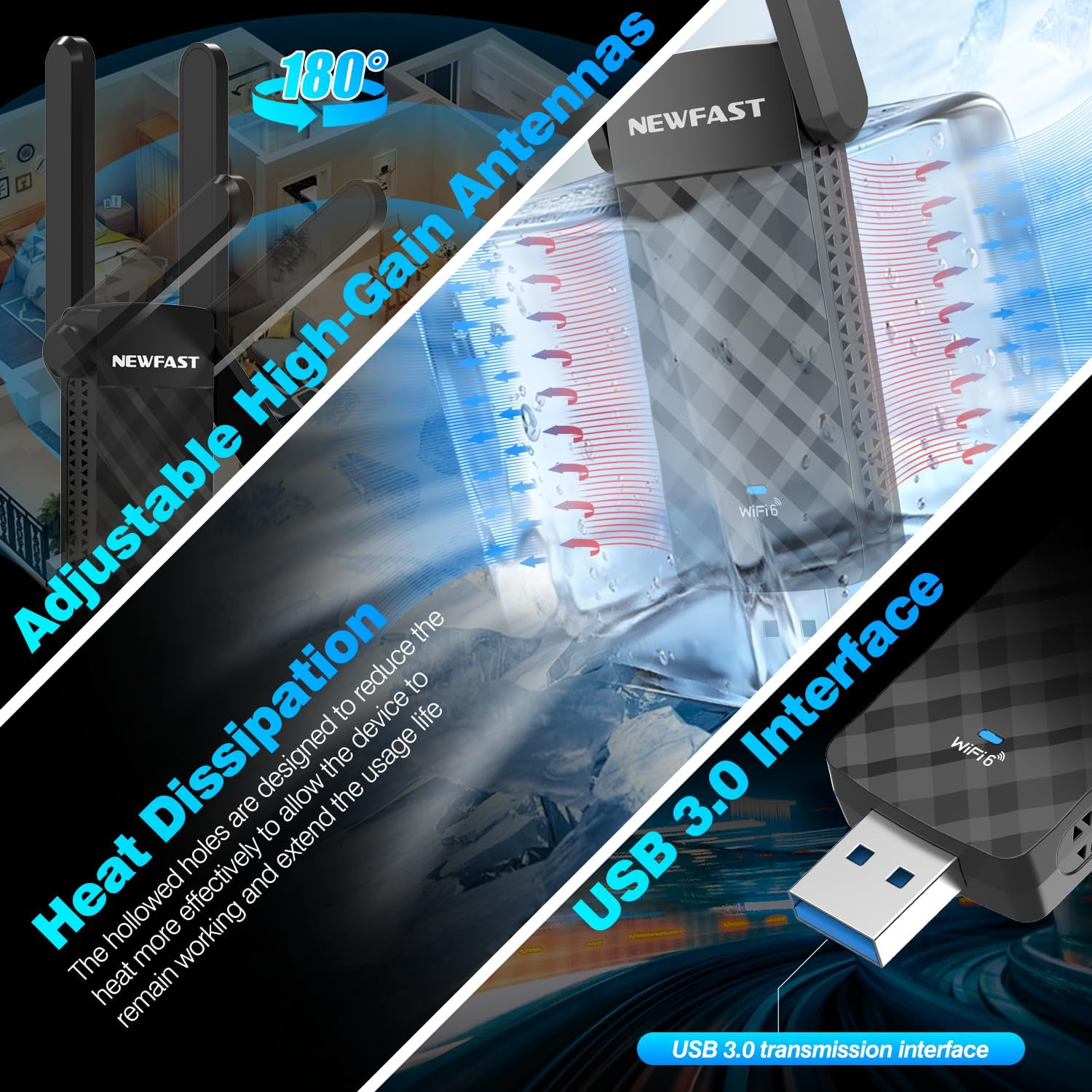
Figura 4.4: Details on the adjustable antennas for optimal signal, heat dissipation design, and the USB 3.0 interface.
The dual adjustable antennas allow for flexible positioning to optimize signal reception. The adapter's design also incorporates heat dissipation features to ensure stable and long-term operation.
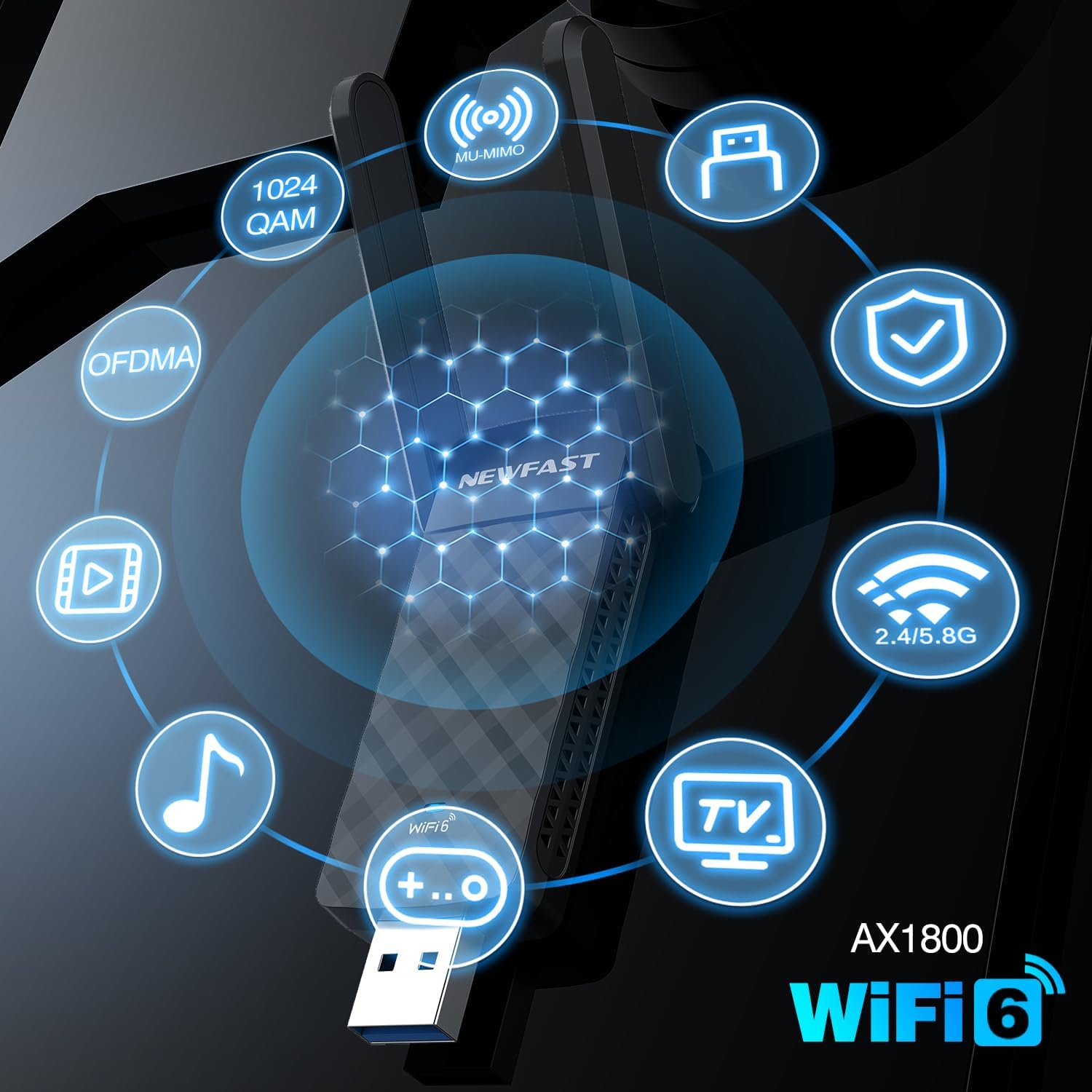
Figura 4.5: Visual representation of key AX1800 WiFi 6 features including 1024 QAM, OFDMA, MU-MIMO, WPA3, and dual-band support.
This image summarizes the advanced features of the AX1800 WiFi 6 adapter, including 1024-QAM for higher data rates, OFDMA and MU-MIMO for efficient multi-device communication, WPA3 for enhanced security, and support for both 2.4GHz and 5GHz bands.
5. Istruzioni per l'installazione
The NEWFAST U352 AX1800 USB WiFi 6 Adapter offers a simple, driver-free installation process for Windows 10 and Windows 11.
Requisiti di sistema:
- Operating System: Windows 10 (32/64-bit) or Windows 11 (64-bit)
- Available USB Port (USB 3.0 recommended)
Fasi di installazione:
- Collegare l'adattatore USB: Insert the NEWFAST USB WiFi 6 Adapter into an available USB port on your desktop or laptop computer. For optimal performance, use a USB 3.0 port.
- Installazione automatica del driver: Windows 10/11 will automatically detect the device and begin installing the necessary drivers. A notification may appear indicating the installation progress.
- Connessione Wi-Fi: Once the driver installation is complete (this may take a few moments), you can connect to your desired WiFi network through the standard Windows network settings.
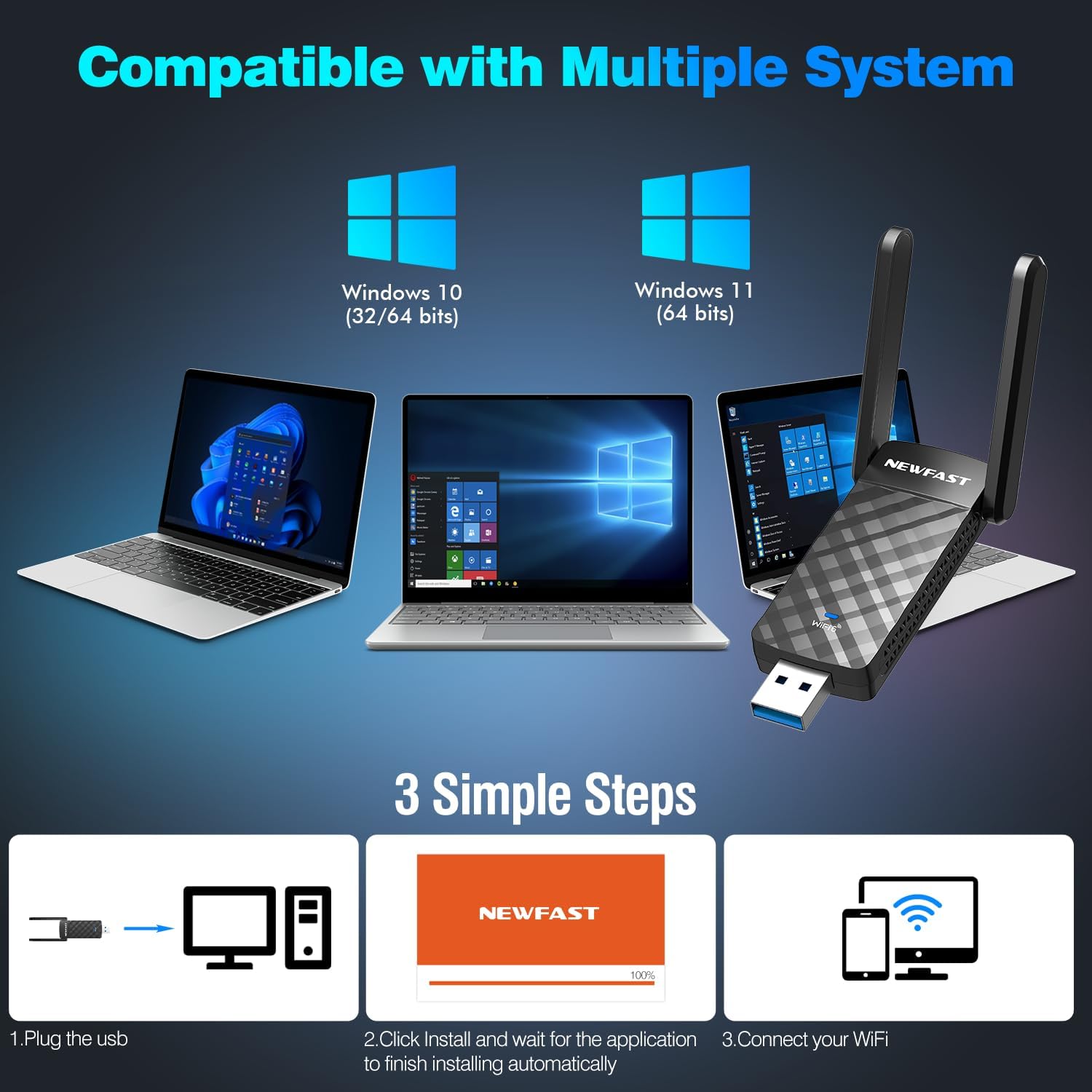
Figura 5.1: Visual guide to the three-step installation process: Plug in, install drivers automatically, and connect to WiFi.
This image illustrates the straightforward installation process: 1. Plug the USB adapter into your computer. 2. Allow the system to automatically install the drivers. 3. Connect to your WiFi network.
6. Istruzioni per l'uso
Connessione a una rete wireless:
- After successful driver installation, click on the WiFi icon in your Windows taskbar (usually in the bottom-right corner).
- Apparirà un elenco delle reti wireless disponibili. Seleziona la rete desiderata.
- Click "Connect". If the network is secured, you will be prompted to enter the network security key (password).
- Once connected, the WiFi icon will indicate a successful connection.
Soft AP Mode (WiFi Router Function):
The adapter supports Soft AP mode, allowing your computer to function as a wireless hotspot, sharing its internet connection with other devices like smartphones or tablets.
- Assicurati che il tuo computer abbia una connessione Internet attiva (ad esempio tramite Ethernet).
- Open Windows Settings > Network & Internet > Mobile hotspot.
- Attivare "Hotspot mobile".
- You can customize the network name (SSID) and password under "Edit".
- Other devices can now connect to this hotspot using the provided credentials.

Figura 6.1: Illustration showing the adapter's dual functionality: receiving WiFi (WiFi Card Function) and sending WiFi (WiFi Router Function via Soft AP Mode).
This image demonstrates how the adapter can both receive a WiFi signal to connect your computer to the internet and create a WiFi hotspot (Soft AP mode) to share your computer's internet connection with other wireless devices.
7. Manutenzione
- Pulizia: Per pulire l'adattatore, utilizzare un panno morbido e asciutto. Non utilizzare detergenti liquidi o spray.
- Magazzinaggio: Se non lo si utilizza per lunghi periodi, conservare l'adattatore in un luogo fresco e asciutto.
- Aggiornamenti del firmware: Controllare periodicamente il sito ufficiale NEWFAST website for any available firmware or driver updates to ensure optimal performance and security.
- Protezione fisica: Evitare di far cadere l'adattatore o di sottoporlo a forti urti.
8. Risoluzione Dei Problemi
Problemi comuni e soluzioni:
- No WiFi Networks Detected:
- Assicurarsi che l'adattatore sia collegato saldamente a una porta USB.
- Verify that WiFi is enabled in your computer's settings.
- Riavvia il computer.
- Check if the adapter's drivers are correctly installed in Device Manager.
- Velocità di connessione lenta:
- Assicurati di essere connesso a un router compatibile con WiFi 6.
- Try connecting to the 5GHz band if available, as it generally offers higher speeds.
- Avvicinati al router wireless per migliorare la potenza del segnale.
- Ensure the adapter is plugged into a USB 3.0 port.
- Verificare la presenza di interferenze da altri dispositivi elettronici.
- Disconnessioni frequenti:
- Update your router's firmware and the adapter's drivers.
- Adjust the position of the adapter's antennas for better signal.
- Ensure there are no physical obstructions between the adapter and the router.
- Prova un'altra porta USB.
- Errore di installazione del driver:
- Ensure your operating system is Windows 10 or Windows 11.
- Se interferisce, disattivare temporaneamente il software antivirus durante l'installazione.
- Prova un'altra porta USB.
- Manually download drivers from the NEWFAST support websito se l'installazione automatica fallisce.
9. Specifiche
| Caratteristica | Dettaglio |
|---|---|
| Modello | U352 AX1800 |
| standard wireless | IEEE 802.11ax (WiFi 6) |
| Velocità di trasferimento dati | Up to 1800 Mbps (1201 Mbps at 5GHz, 574 Mbps at 2.4GHz) |
| Bande di frequenza | 2.4 GHz, 5 GHz |
| Interfaccia | USB 3.0 (retrocompatibile con USB 2.0, USB 1.1) |
| Antenne | Dual High-Gain Adjustable Antennas |
| Sicurezza senza fili | WPA3, WPA2, WPA |
| Tecnologie Supportate | MU-MIMO, OFDMA, 1024-QAM |
| Sistemi operativi compatibili | Finestre 11, Windows 10 |
| Dimensioni del prodotto | 3.08 x 0.41 x 1.45 pollici |
| Peso dell'articolo | 1.6 once |
10. Garanzia e supporto
NEWFAST products are designed for reliability and performance. For warranty information and technical support, please refer to the warranty card included with your product or visit the official NEWFAST websito. Il nostro team di supporto è disponibile per assisterti in caso di domande o problemi.
Ufficiale Websito: Negozio NEWFAST su Amazon (Please check the product packaging or official website for direct support contact information.)
Ask a question about this manual
Ask about setup, troubleshooting, compatibility, parts, safety, or missing instructions. Manuals+ will review the question and use this page’s manual context to help answer it.