
1. Introduzione
This user manual provides detailed instructions for the installation, operation, and maintenance of your LAMTTO 10.25 Inch Wireless CarPlay Android Auto Display. Please read this manual thoroughly before using the product to ensure proper functionality and safety. Keep this manual for future reference.
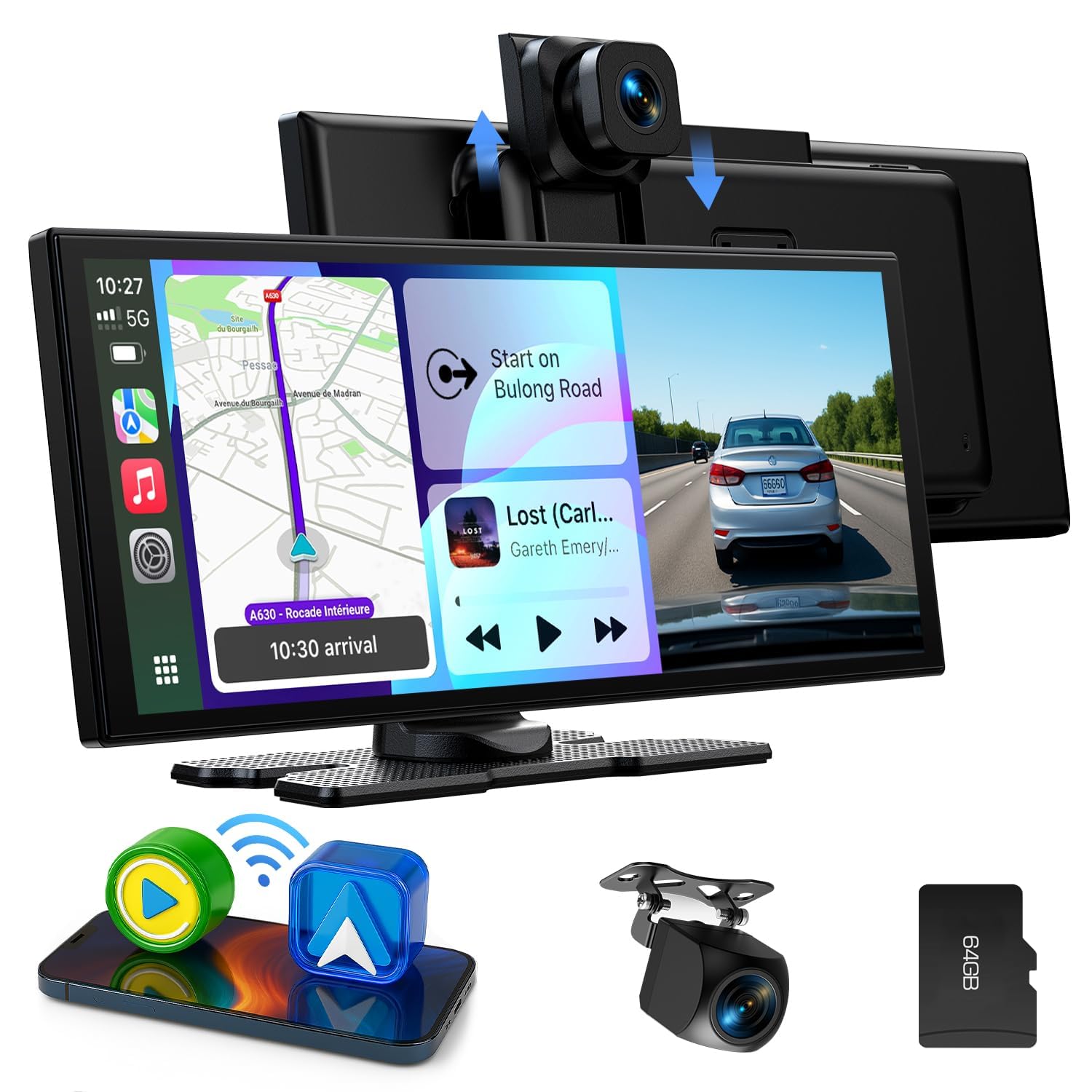
The LAMTTO 10.25 Inch Wireless CarPlay Android Auto Display.
2. Prodotto finitoview
Caratteristiche principali
- 10.25-inch In-Cell Touchscreen: Large, high-resolution IPS display for clear navigation and easy operation.
- CarPlay e Android Auto wireless: Integrazione perfetta con lo smartphone per navigazione, musica, chiamate e messaggi.
- Integrated Dashcam System: Features a 2.5K front camera and a 1080P rear camera for comprehensive recording.
- Supporto dell'assistente vocale: Control functions via Siri or Google Assistant for hands-free operation.
- AirPlay & Android Cast: Stream content from your smartphone to the display.
- Molteplici opzioni di uscita audio: Built-in speakers, Bluetooth connection to vehicle, FM transmission, and AUX cable.
- Fotocamera frontale regolabile: Vertical adjustment to suit various vehicle types.
- Design compatto: Professionista magrofile (26.3 x 10.4 cm) to avoid obstructing driving view.
- Ampia compatibilità con i veicoli: Suitable for cars, trucks, caravans, vans, trailers, and motorhomes (12-24V).

Sopraview of the display's key features.
Contenuto della confezione
Verificare che tutti gli articoli siano presenti nel pacco:
- 10.25 Inch CarPlay Display
- Telecamera posteriore 1080P
- Supporto adesivo
- Supporto a ventosa
- Cavo AUX
- Type-C Car Cigarette Lighter Power Cable
- Manuale d'uso
- Strumenti di assemblaggio
- Scheda 64GB TF
- Nastro adesivo 3M

Wiring diagram and contents of the package.
3. Configurazione e installazione
Opzioni di montaggio
The display offers two mounting options: a suction cup mount for the windshield and an adhesive mount for the dashboard. Choose the option that best suits your vehicle and provides optimal visibility without obstructing your view.
- Supporto a ventosa: Attach the suction cup to a clean, smooth area of your windshield. Ensure it is securely fastened.
- Supporto adesivo: Clean the dashboard surface thoroughly. Apply the 3M adhesive tape to the base of the mount and firmly press it onto the desired location on your dashboard. Allow sufficient time for the adhesive to bond before attaching the display.

Installation methods: suction cup mount and adhesive mount.
Collegamenti elettrici
- Collegamento elettrico: Connect the Type-C car cigarette lighter power cable to the display and plug the other end into your vehicle's 12V-24V cigarette lighter socket.
- Telecamera posteriore: Connect the rear camera cable to the designated port on the display. Ensure the red wire of the rear camera is connected to the positive pole of your vehicle's reverse light for automatic display when reversing.
- Cavo AUX (opzionale): If you prefer audio output through your vehicle's AUX input, connect the provided AUX cable from the display to your car's AUX port.
- Scheda SD: Insert the provided 64GB TF card into the SD card slot on the display for dashcam recording.
Accensione iniziale
Once all connections are made, start your vehicle. The display should power on automatically. Follow any on-screen prompts for initial setup, such as language selection.
4. Istruzioni per l'uso
4.1 Connessione CarPlay wireless
- On the display, tap the 'CarPlay' icon.
- Sul tuo iPhone, attiva Wi-Fi e Bluetooth.
- Cercare the display's Bluetooth name (e.g., 'T86 xxxx') in your iPhone's Bluetooth settings and connect.
- Confirm the connection on both devices. CarPlay will then launch on the display.

Steps for wireless CarPlay connection.
4.2 Connessione wireless Android Auto
- On the display, tap the 'Android Auto' icon.
- Sul tuo telefono Android, attiva Wi-Fi e Bluetooth.
- Cercare the display's Bluetooth name (e.g., 'T86 xxxx') in your phone's Bluetooth settings and connect.
- Confirm the connection on both devices. Android Auto will then launch on the display.

Steps for wireless Android Auto connection.
4.3 Dashcam Operation (Front & Rear Cameras)
The integrated dashcam system records continuously when the device is powered on. The front camera records in 2.5K resolution, and the rear camera records in 1080P.
- Registrazione in loop: Il sistema sovrascrive automaticamente il file foo più vecchiotage when the SD card is full. The included 64GB TF card provides amplo stoccaggio.
- Fotocamera frontale regolabile: The front camera can be adjusted vertically to optimize the recording angle for your vehicle.
- Display della fotocamera posteriore: When reversing, the display automatically switches to the rear camera view, providing parking assistance lines.

Dual camera recording functionality.

Front camera recording details.

Rear camera functionality for reversing assistance.
4.4 Opzioni di uscita audio
The display offers four methods for audio output:
- Altoparlanti incorporati: Audio is played directly through the display's internal speakers.
- Connessione Bluetooth: Connect the display to your vehicle's Bluetooth system for high-quality audio through your car's speakers. This is the recommended method.
- Trasmissione FM: Trasmetti l'audio alla radio FM della tua auto sintonizzando entrambi i dispositivi sulla stessa frequenza FM.
- Cavo AUX: Use the provided AUX cable to connect the display to your car's AUX input for a wired audio connection.

Available audio output options.
4.5 Mirroring dello schermo (AirPlay e Android Cast)
You can mirror your smartphone's screen to the display using AirPlay for iOS devices or Android Cast for Android devices.
AirPlay Connection (iOS only)
- On the display, tap the 'AirPlay' icon.
- Activate Wi-Fi on your iPhone. Cercare the display's Wi-Fi network name (e.g., 'AIRPLAY-XXXX') and enter the password to connect.
- Sul tuo iPhone, apri il Centro di controllo e tocca "Screen Mirroring".
- Select 'SmartScreen' to initiate screen mirroring.
- The connection is successful when your iPhone screen appears on the display.

Steps for AirPlay connection.
Android Cast Connection (Android only)
- On the display, tap the 'Android Cast' icon.
- Download the TcLink application from the App Store or by scanning the QR code provided on the display.
- Open TcLink on your phone and tap the 'Add' button.
- Go to your phone's Wi-Fi settings, activate Wi-Fi, and select the 'TcLink-XXX' network.
- Swipe down to open the Control Center (or quick settings) and tap 'Screen Cast' or 'Screen Mirroring'.
- The connection is successful when your Android phone screen appears on the display.

Steps for Android Cast connection. Download TcLink app from v.triplecam.cn/tclink
4.6 Assistente vocale
After connecting your smartphone via CarPlay or Android Auto, you can use your device's voice assistant (Siri or Google Assistant) for hands-free control of navigation, music, and calls. Activate the voice assistant through the display's interface or by using the voice command on your phone.
4.7 Visualizzazione a schermo diviso
La funzione schermo diviso consente di view and operate two applications simultaneously, such as navigation and music playback. This enhances convenience and safety while driving.

Split-screen display in action.
5. Manutenzione
- Pulizia: Utilizzare un panno morbido e asciutto per pulire lo schermo del display. Per le macchie ostinate, strofinare leggermenteampPulisci il panno con acqua o un detergente per schermi. Evita materiali abrasivi o sostanze chimiche aggressive.
- Temperatura: Evitare di esporre il dispositivo a temperature estreme, sia calde che fredde, poiché ciò potrebbe comprometterne le prestazioni e la durata.
- Gestione dei cavi: Ensure all cables are neatly routed and secured to prevent interference with driving controls and to minimize wear and tear.
- Scheda SD: Periodically format the SD card (e.g., monthly) to maintain optimal recording performance and prevent data corruption. Back up important footage prima della formattazione.
6. Risoluzione Dei Problemi
| Problema | Possibile causa | Soluzione |
|---|---|---|
| Il display non si accende. | Nessuna alimentazione, collegamento allentato, presa accendisigari difettosa. | Check power cable connection. Ensure cigarette lighter socket is functional. Try a different power source if available. |
| La connessione wireless CarPlay/Android Auto non riesce. | Bluetooth/Wi-Fi off on phone, incorrect pairing, phone incompatibility. | Ensure phone's Bluetooth and Wi-Fi are enabled. Re-pair the devices. Check phone compatibility (iOS 11+ / Android 11+; not compatible with some Huawei/Xiaomi models). Restart both phone and display. |
| Intermittent Bluetooth disconnection. | Interference, phone software issues, specific phone model incompatibility. | Move phone closer to the display. Ensure no other devices are interfering. Update phone's operating system. Some Samsung models (e.g., S23, S24) have reported compatibility issues; check for firmware updates for the display or contact support. |
| Dashcam not recording or rear camera not working. | SD card issue, loose camera connection, faulty camera. | Ensure SD card is inserted correctly and formatted. Check camera cable connections. Verify the red wire of the rear camera is connected to the reverse light's positive pole. Replace SD card if corrupted. |
| Screen adhesive mount detaches. | Improper installation, extreme temperatures, weak adhesive. | Ensure dashboard surface is clean and dry before applying. Allow sufficient curing time for the adhesive. Use stronger 3M adhesive if necessary. Consider using the suction cup mount as an alternative. |
| Screen difficult to see with polarized sunglasses. | Panel orientation. | This is a characteristic of some LCD panels. Adjust viewing angle or remove polarized sunglasses for better visibility. |
7. Specifiche
| Caratteristica | Specificazione |
|---|---|
| Marca | LAMETTO |
| Nome del modello | CarPlay 10.25" Display |
| Dimensioni dello schermo | 10.25 pollici |
| Tipo di visualizzazione | In-Cell Capacitive Touchscreen |
| Tecnologia di connettività | Wifi bluetooth |
| Risoluzione della fotocamera frontale | 2.5K |
| Risoluzione della telecamera posteriore | 1080P |
| Capacità di archiviazione della memoria | 64 GB (scheda TF inclusa) |
| Tipo di memoria flash compatibile | microSD |
| Sistema di navigazione satellitare supportato | GPS (via smartphone) |
| Tipo di servizio del veicolo | Car, Truck, Caravan, Van, Trailer, Motorhome |
| Potenza in ingresso | 12-24 V |
| Metodo di controllo | Tocco |
| Caratteristiche speciali | Lane Assistant, Touchscreen |
8. Garanzia e supporto
The LAMTTO 10.25 Inch Wireless CarPlay Android Auto Display comes with a Garanzia di 12 mesi from the date of purchase. Additionally, lifetime technical support is provided.
For any questions, issues, or technical assistance regarding installation, wiring, or operation, please contact LAMTTO customer service. Refer to the contact information provided with your product packaging or visit the official LAMTTO websito per i dettagli del supporto.