
Introduzione
This manual provides essential information for setting up, operating, and maintaining your NIMO 15.6" FHD Laptop Computer (Model NIMO N157). Please read this manual thoroughly before using your device to ensure optimal performance and longevity.
Cosa c'è nella scatola
- 1 x NIMO N157 Laptop
- 1 x Type-C 65W PD Fast Charger
- 1 x Manuale utente (questo documento)
- Windows 11 Home (preinstallato)
- 2 Years Warranty, 90 Days Return information
Guida all'installazione
1. Accensione iniziale e ricarica
Before first use, ensure your NIMO laptop is fully charged. Connect the provided Type-C 65W PD Fast Charger to the laptop's Type-C charging port and a power outlet. The charge LED indicator will illuminate. A full charge is recommended for optimal battery calibration.

Image: NIMO laptop connected to its Type-C 65W GaN II PD charger. This charger provides fast charging capabilities.
2. Configurazione del sistema operativo (Windows 11 Home)
Upon first power-on, the laptop will guide you through the Windows 11 Home setup process. Follow the on-screen instructions to configure language, region, network settings, and create a user account. An internet connection (Wi-Fi 6 supported) is recommended for the initial setup to download necessary updates.

Image: The NIMO laptop screen showing the Windows 11 desktop interface.
3. Configurazione del lettore di impronte digitali
For enhanced security and quick login, set up the integrated fingerprint reader. Navigate to Windows Settings > Accounts > Sign-in options and follow the prompts to register your fingerprint. This allows for secure one-touch login.

Immagine: un primo piano view of the fingerprint reader on the NIMO laptop, illustrating its use for secure login.
Istruzioni per l'uso
1. Keyboard and Backlight
The NIMO laptop features a full-size keyboard with a numeric keypad and a backlit function. To activate or adjust the keyboard backlight, use the dedicated function keys (Fn + Fx, refer to your keyboard layout for specific key). This feature allows for comfortable typing in low-light environments.
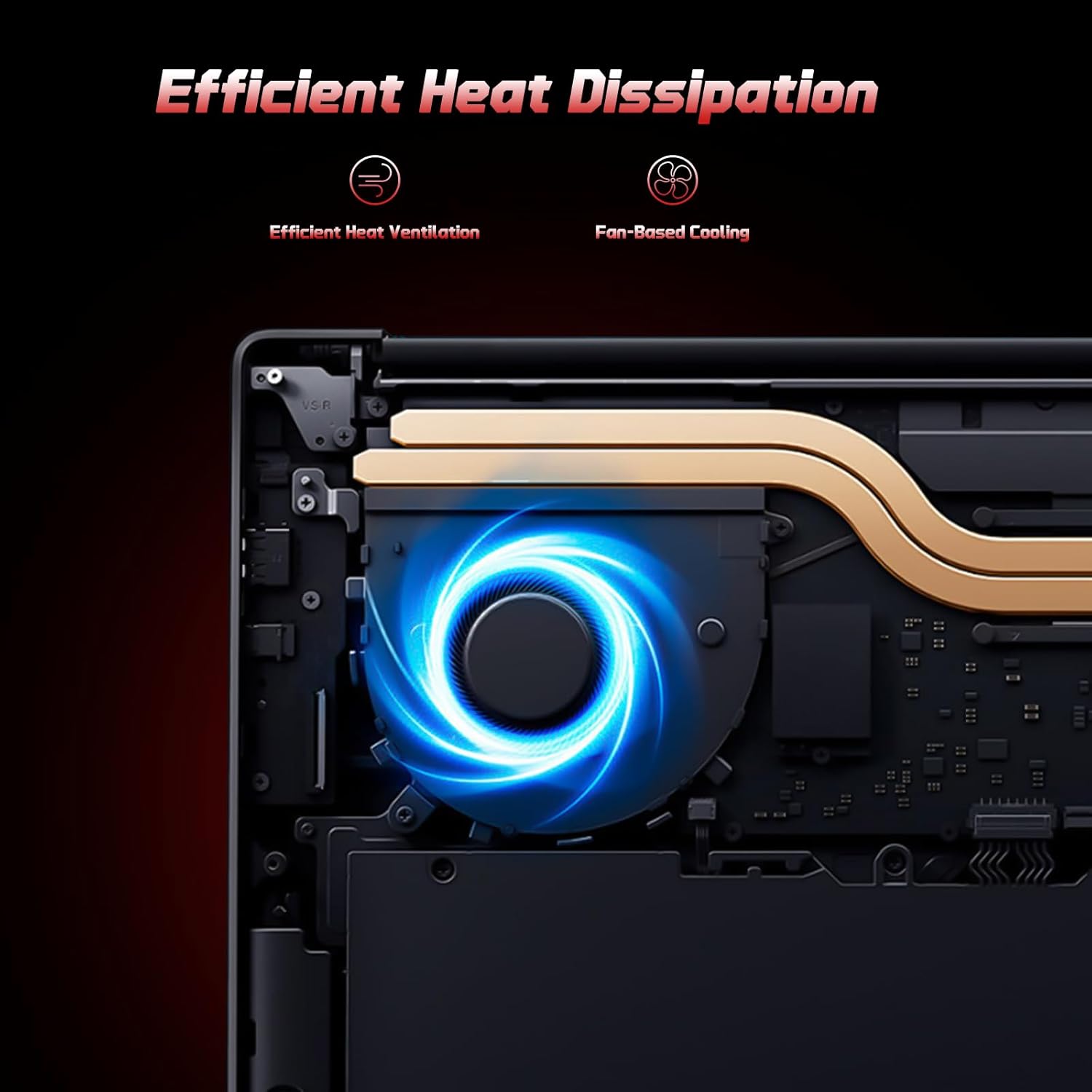
Image: A user typing on the NIMO laptop's backlit keyboard in a dim environment.
2. Collegamento di periferiche
The laptop is equipped with multiple ports for various peripherals:
- Porte USB: Collegare dispositivi USB come unità esterne, mouse o tastiere.
- Porta HDMI: Collegalo a un monitor esterno o a una TV per una visualizzazione estesa.
- Porte di tipo C: One port supports 65W PD fast charging, and another is a multifunction port for data transfer and display output.
- Slot per microSD: Insert a Micro SD card for expandable storage.
- Jack per cuffie: Collega cuffie o altoparlanti esterni.
- Slot per blocco Kensington: Per la sicurezza fisica.
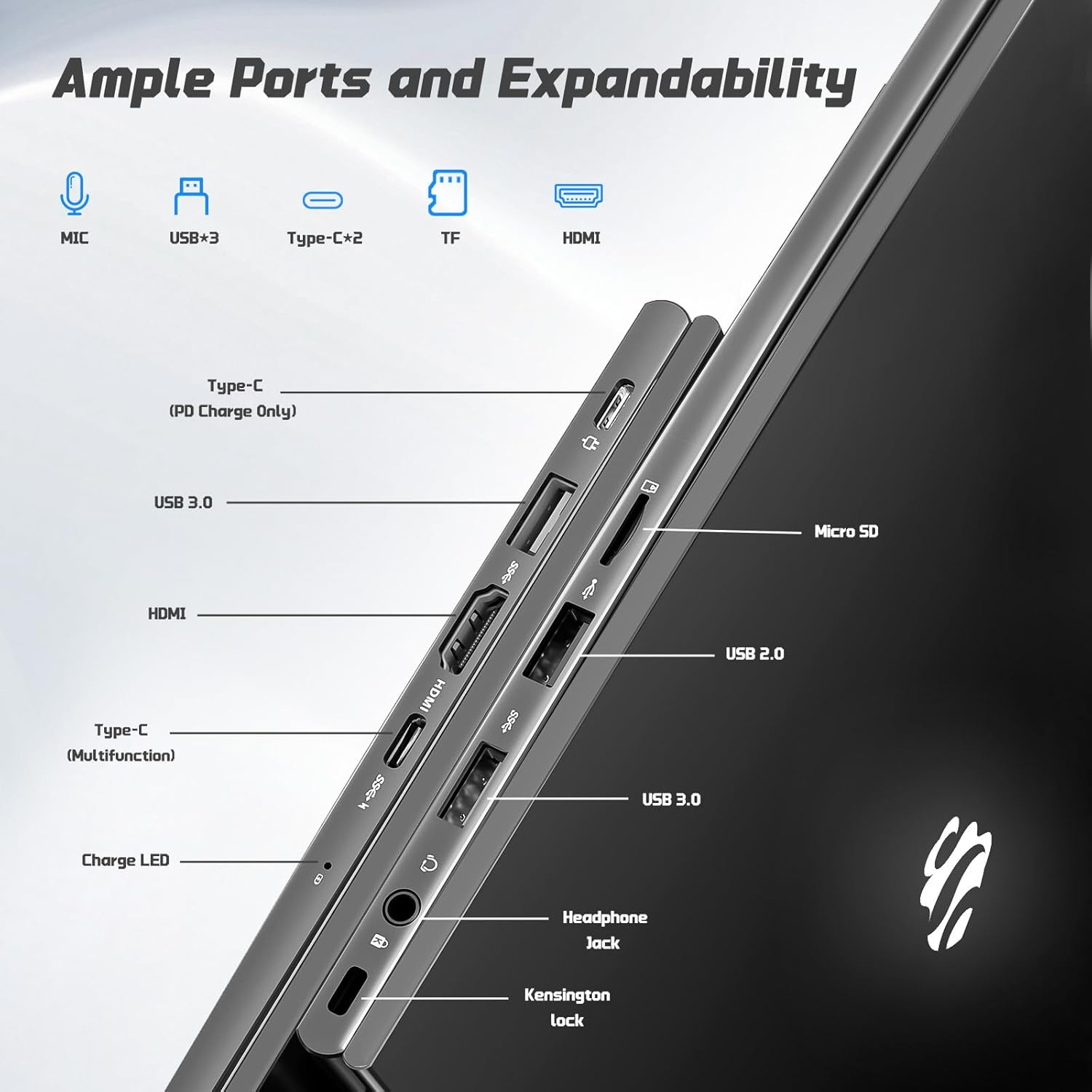
Immagine: Lato view of the NIMO laptop highlighting the available ports including USB, HDMI, Type-C, Micro SD, and headphone jack.
3. Webcam e privacy
Il 2MP integrato webcam is suitable for video calls and online meetings. For privacy, ensure the camera is covered or disabled when not in use, if a physical privacy shutter is present (refer to product images for confirmation).
Video: This video demonstrates the NIMO laptop's features, including the webcam and various ports. It shows the laptop being used for work, school, and play, highlighting the backlit keyboard and fingerprint unlock feature.
Video: This video showcases the NIMO laptop's versatility for different users, including students and professionals. It highlights the 15.6" FHD display, backlit keyboard, and multiple connectivity options.
Video: A comprehensive introduction to the NIMO 15.6" laptop, detailing its design, performance, and user experience for various tasks.
Video: This video emphasizes the efficiency and convenience of the NIMO laptop, showcasing its features that contribute to productivity and ease of use.
Video: This video highlights the NIMO 15.6" FHD laptop's suitability for students, home use, and work, demonstrating its performance in various daily scenarios.
Manutenzione
1. Pulizia del portatile
Per pulire lo schermo, utilizzare un panno morbido e privo di lanugine, specificamente progettato per l'elettronica. Per la tastiera e lo chassis, utilizzare un panno leggermenteamp cloth with mild cleaning solution can be used. Avoid excessive moisture and abrasive materials. Ensure the laptop is powered off before cleaning.
2. Cura della batteria
The NIMO laptop features a 53.58 Watt Hours Lithium Polymer battery. To prolong battery life, avoid fully discharging the battery frequently. It is recommended to keep the battery charge between 20% and 80% when possible. Store the laptop in a cool, dry place when not in use for extended periods.
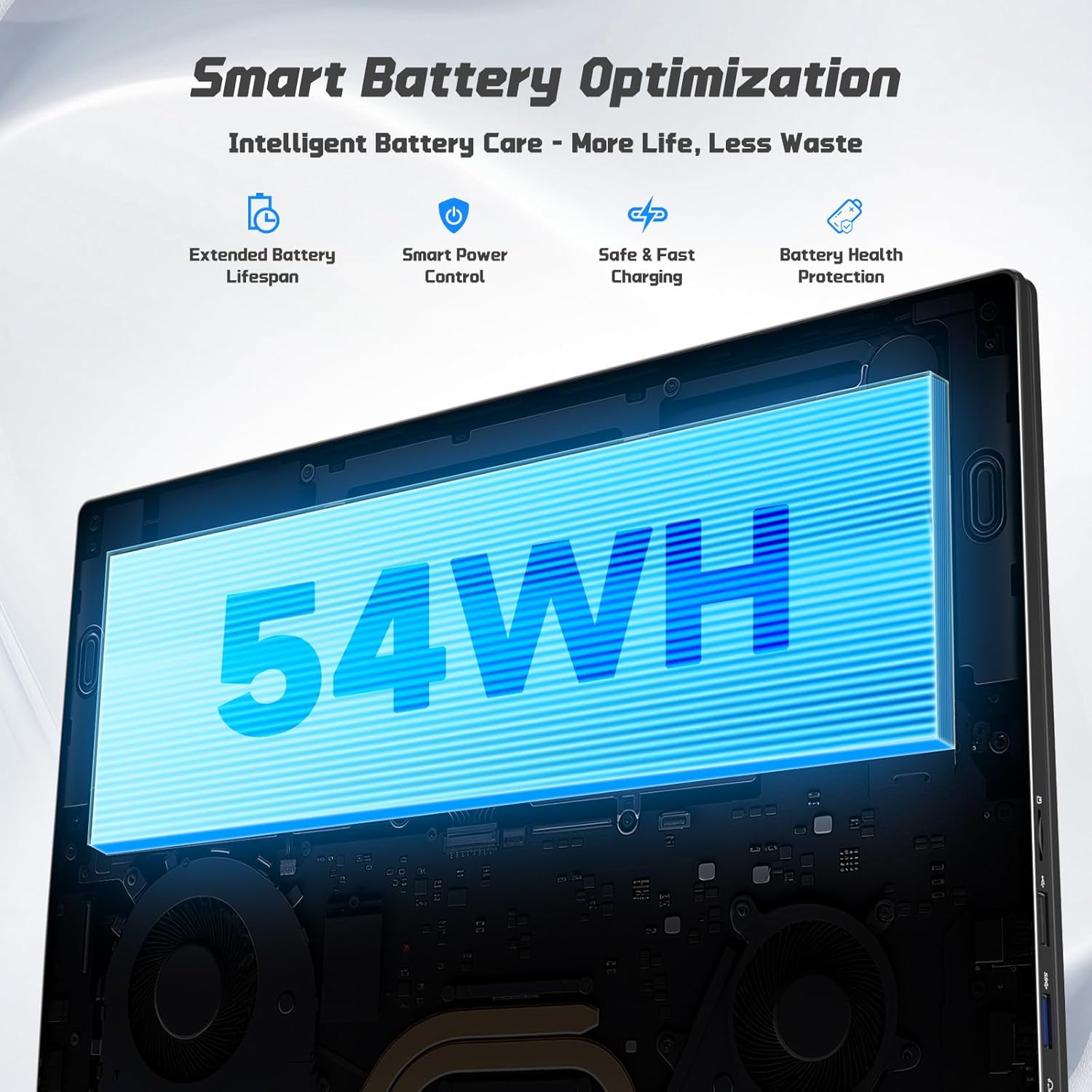
Image: Diagram illustrating the NIMO laptop's smart battery optimization features, including extended lifespan, smart power control, safe and fast charging, and battery health protection.
3. Aggiornamenti software
Regularly check for and install Windows updates to ensure your system has the latest security patches and performance improvements. Go to Settings > Windows Update to manage updates.
4. Dissipazione del calore
The laptop is designed with efficient heat ventilation and fan-based cooling. To prevent overheating, ensure that the ventilation openings are not blocked during use. Avoid placing the laptop on soft surfaces like beds or couches that can obstruct airflow.
Immagine: Un interno view of the NIMO laptop showing its efficient heat dissipation system with fan-based cooling.
Risoluzione dei problemi
1. Il computer portatile non si accende
- Assicurarsi che il caricabatterie sia collegato saldamente sia al laptop sia a una presa di corrente funzionante.
- Check the charge LED indicator. If it's not lit, try a different outlet or charger.
- Per eseguire un hard reset, tenere premuto il pulsante di accensione per 10-15 secondi.
2. Problemi dello schermo (nessuna visualizzazione, sfarfallio)
- Connect an external monitor via the HDMI port to check if the issue is with the laptop's display or graphics output.
- Riavviare il portatile.
- Ensure display drivers are up to date via Windows Update or NIMO's support websito.
3. Prestazioni lente
- Chiudere le applicazioni non necessarie in esecuzione in background.
- Controlla e installa eventuali aggiornamenti di Windows in sospeso.
- Ensure sufficient free space on the 128GB SSD. Consider expanding storage using the Micro SD slot or upgrading the SSD if needed.
- Esegui una scansione antivirus.
4. Problemi di connettività Wi-Fi o Bluetooth
- Ensure Wi-Fi and Bluetooth are enabled in Windows Settings.
- Riavvia il router/modem per problemi con il Wi-Fi.
- Update network drivers via Windows Update or NIMO's support websito.
Specifiche
| Caratteristica | Dettaglio |
|---|---|
| Marca | NIMO |
| Nome del modello | NIMO N157G |
| Dimensioni dello schermo | 15.6 pollici |
| Risoluzione dello schermo | 1920x1080 pixel (FHD) |
| Tipo di visualizzazione | IPS LCD, Anti-glare |
| Processore | Intel Pentium N150 (4-Core, up to 3.6 GHz) |
| Memoria RAM | 4 GB DDR4 (espandibile fino a 16 GB) |
| Magazzinaggio | 128 GB SSD (Expandable via Micro SD) |
| Sistema operativo | Windows 11 Casa |
| Grafica | Intel grafica integrata |
| Webcamma | Fotocamera frontale da 2 MP |
| Connettività | Wi-Fi 6, Bluetooth 5.3 |
| Porti | 2x USB 3.0, 1x USB 2.0, 2x Type-C (1x PD Charge Only, 1x Multifunction), 1x HDMI, 1x Micro SD Slot, 1x Headphone Jack, 1x Kensington Lock |
| Batteria | 53.58 Wh Lithium Polymer (Up to 12.75 hours life) |
| Caricabatterie | 65W Type-C PD Fast Charger |
| Caratteristiche speciali | Tastiera retroilluminata, lettore di impronte digitali, audio HD, tastierino numerico |
| Dimensioni | 14.07"L x 8.98"W x 0.76"S |
| Peso | 3.75 libbre |
Garanzia e supporto
Your NIMO laptop comes with a Garanzia di 2 anno from NIMO Direct Inc. Additionally, a 90-Day Hassle-Free Return Policy is provided. For any product-related questions, technical assistance, or warranty claims, please contact NIMO customer support.
Informazioni sui contatti:
- E-mail: servizio@nimopc.com
- Supporto online: Refer to the official NIMO websito per ulteriori risorse di supporto.
Please have your model number (NIMO N157) and purchase details ready when contacting support.