
1. Introduzione
Thank you for choosing the NIMO 17.3" IPS FHD Laptop. This manual provides essential information for setting up, operating, maintaining, and troubleshooting your device. Please read it carefully to ensure optimal performance and longevity of your laptop.
The NIMO N171 laptop features a 17.3-inch Full HD IPS display, powered by an Intel Core i3-1215U processor, 8GB of DDR4 RAM, and a 256GB PCIe SSD. It comes pre-installed with Windows 11 Home and includes a backlit keyboard with a fingerprint reader for enhanced security and convenience.

Image: NIMO 17.3 inch IPS FHD Laptop, showcasingrazie al suo ampio display e al design elegante.
2. Impostazione
2.1 Disimballaggio e ispezione iniziale
Rimuovere con cautela tutti i componenti dall'imballaggio. Assicurarsi che siano presenti i seguenti elementi:
- 1 x Nimo N171 Laptop
- 1 x Type-C 65W PD Fast Charger
- 1 x Manuale utente (questo documento)
- Windows 11 Home (preinstallato)
Ispezionare il portatile per verificare la presenza di eventuali danni fisici. In caso di danni, contattare immediatamente l'assistenza clienti.
2.2 Ricarica del laptop
Before first use, fully charge the laptop battery. Connect the provided 65W Type-C PD Fast Charger to the laptop's Type-C charging port and then to a power outlet. The charging indicator light will illuminate.

Image: The 65W Type-C PD Charger, illustrating its compact design and compatibility with various devices.
2.3 Accensione iniziale e configurazione di Windows
Press the power button located on the laptop. The laptop will boot up and guide you through the Windows 11 Home setup process. Follow the on-screen instructions to configure language, region, network, and user accounts.
3. Istruzioni per l'uso
3.1 Visualizzazione e immagini
The NIMO N171 features a 17.3-inch Full HD (1920x1080) IPS anti-glare display, offering wide viewing angles and vibrant colors. Adjust brightness using the function keys (Fn + Fx keys, refer to keyboard layout for specific keys).

Image: The 17.3-inch FHD IPS display, highlighting its immersive viewing experience with narrow bezels.
3.2 Tastiera e input
The laptop is equipped with a full-size backlit keyboard and a numeric keypad. The backlight can be toggled or adjusted using dedicated function keys. The touchpad supports multi-touch gestures for navigation.

Image: Close-up of the backlit keyboard and integrated fingerprint reader on the touchpad.
3.3 Lettore di impronte digitali
For secure and quick login, utilize the built-in fingerprint reader located on the touchpad. Configure your fingerprint in Windows Settings > Accounts > Sign-in options.
3.4 Webcam Privacy Shield
L'integrato webcam features a physical privacy shield. Slide the cover to the left to open the camera and to the right to close it, ensuring your privacy when the camera is not in use.
3.5 Porte di connettività
The laptop offers a variety of ports for connecting peripherals and external displays:
- USB 3.2 Gen1: Trasferimento dati ad alta velocità.
- Porta USB 2.0: Connettività USB standard.
- USB Tipo-C: For data transfer and charging (65W PD).
- Standard HDMI 1.4: Collegamento a monitor o TV esterni.
- Slot per scheda microSD: Espandi lo spazio di archiviazione o trasferisci files dalle schede di memoria.
- Jack audio: Collega cuffie o altoparlanti esterni.
- Slot per blocco Kensington: Per la sicurezza fisica.

Image: Diagram illustrating the various connectivity ports on the NIMO laptop.
3.6 Gestione della batteria
The laptop is equipped with a large capacity battery, providing up to 7 hours of usage. For optimal battery health, avoid frequently draining the battery completely and store the laptop in a cool, dry place.

Image: Visual representation of the laptop's battery capacity and typical usage scenarios.
4. Manutenzione
4.1 Pulizia
Utilizzare un panno morbido e privo di lanugine per pulire lo schermo e le superfici esterne. Per le macchie ostinate, dampInumidire leggermente il panno con acqua o un detergente per schermi. Evitare prodotti chimici aggressivi o materiali abrasivi.
4.2 Aggiornamenti software
Controlla e installa regolarmente gli aggiornamenti di Windows per assicurarti che il tuo sistema disponga delle patch di sicurezza più recenti e dei miglioramenti delle prestazioni. Puoi trovare gli aggiornamenti in Impostazioni di Windows > Windows Update.
4.3 Gestione dell'archiviazione
Periodicamente riview e gestisci il tuo spazio di archiviazione SSD da 256 GB. Elimina i dati non necessari files, disinstallare le applicazioni non utilizzate e prendere in considerazione l'archiviazione cloud per grandi fileper mantenere prestazioni ottimali del sistema.
5. Risoluzione Dei Problemi
This section addresses common issues you might encounter with your NIMO laptop.
- Il portatile non si accende: Ensure the charger is properly connected and the battery has sufficient charge. Try holding the power button for 10-15 seconds to perform a hard reset.
- Lo schermo è vuoto o tremolante: Restart the laptop. If connected to an external display, try disconnecting and reconnecting the HDMI cable.
- Problemi di connettività Wi-Fi o Bluetooth: Check if Wi-Fi/Bluetooth is enabled in Windows settings. Restart your router or the laptop. Update network drivers if necessary.
- Prestazioni lente: Chiudere le applicazioni non necessarie. Verificare la presenza di processi in background che consumano molte risorse (Task Manager). Assicurarsi di avere sufficiente spazio di archiviazione libero sull'SSD.
- La tastiera o il touchpad non rispondono: Riavvia il portatile. Assicurati che nessun dispositivo esterno interferisca.
Se riscontri problemi persistenti non trattati qui, consulta la sezione Garanzia e supporto per ricevere assistenza.
6. Specifiche
Detailed technical specifications for the NIMO N171 Laptop:
| Caratteristica | Specificazione |
|---|---|
| Marca | NIMO |
| Nome del modello | Nimo N171G |
| Dimensioni dello schermo | 17.3 pollici |
| Risoluzione dello schermo | 1920 x 1080 pixel (FHD) |
| Processore | Intel Core i3-1215U (6 core, fino a 4.4 GHz) |
| Memoria RAM | 8 GB DDR4 (3200 MHz) |
| Disco rigido | SSD PCIe da 256 GB |
| Coprocessore grafico | Grafica integrata (Intel) |
| Sistema operativo | Windows 11 Casa |
| Tipo senza fili | 802.11a/b/g/n/ac (Wi-Fi 6) |
| Bluetooth | Bluetooth 5.2 |
| Porte USB | 1x USB 2.0, 3x USB 3.0, 2x USB Type-C (1 for PD charging) |
| Porta HDMI | Uscita HDMI 2.1 |
| Webcamma | 2 MP posteriore Webcam Resolution (with privacy shield) |
| Caratteristiche speciali | Fingerprint Reader, Backlit Keyboard, HD Audio, Memory Card Slot, Numeric Keypad |
| Durata media della batteria | 5-7 ore |
| Peso dell'articolo | 4.6 libbre |
| Dimensioni del prodotto | 15.66 x 9.99 x 0.74 pollici |
7. Garanzia e supporto
NIMO is committed to providing high-quality products and customer satisfaction.
7.1 Garanzia del produttore
Your NIMO laptop is covered by a comprehensive Garanzia del produttore di 2 anno from Nimo Direct Inc. This warranty covers defects in materials and workmanship under normal use. Please retain your proof of purchase for warranty claims.

Image: Illustration of NIMO's 2-year support commitment.
7.2 90-Day Hassle-Free Returns
Nimo Direct Inc. offers a Politica di restituzione di 90 giorni. If you are not satisfied with your purchase, you may return the product within 90 days from the date of purchase. Please refer to the return policy details provided at the time of purchase or contact customer support.
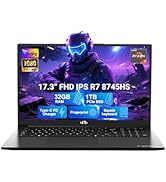
Image: Visual representation of the 90-day return policy.
7.3 Assistenza clienti
For any product-related questions, technical support, or warranty claims, please contact our professional customer service team:
- E-mail: servizio@nimopc.com
- Telefono: Refer to your product packaging or NIMO's official website for current phone support numbers.
- In linea: Visit the official NIMO websito per FAQ e risorse di supporto aggiuntive.
Our dedicated support team is available to assist you and resolve any issues promptly.

Image: Depiction of NIMO's professional customer assistance team.