
A4TECH KR-3330S
Manuale utente della tastiera e del mouse USB A4TECH KR-3330S
Model: KR-3330S
1. Introduzione
This manual provides instructions for the proper setup, operation, and maintenance of your A4TECH KR-3330S USB Keyboard and Mouse combo. This product is designed for general-purpose computing tasks, offering a reliable and ergonomic input solution for personal computers and laptops.
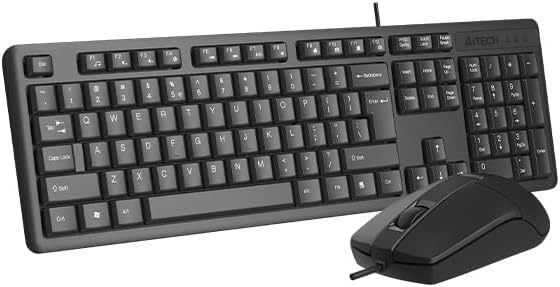
Image 1.1: The A4TECH KR-3330S USB Keyboard and Mouse combo. This image displays the full-size keyboard with a numeric keypad and the accompanying wired mouse, both in black.
2. Istruzioni per l'installazione
The A4TECH KR-3330S keyboard and mouse are designed for simple plug-and-play installation. No additional drivers are typically required for basic functionality.
- Disimballare i dispositivi: Estrarre con cautela la tastiera e il mouse dalla confezione.
- Collegare la tastiera: Individua una porta USB disponibile sul tuo computer (PC desktop o laptop). Inserisci saldamente il connettore USB della tastiera nella porta USB.
- Collega il mouse: Locate another available USB port on your computer. Insert the USB connector of the mouse firmly into the USB port.
- Riconoscimento del sistema: Il sistema operativo dovrebbe rilevare e installare automaticamente i driver necessari. Questo processo potrebbe richiedere alcuni istanti.
- Funzionalità di prova: Once installed, test the keyboard by typing in a text editor and test the mouse by moving the cursor and clicking.

Image 2.1: The A4TECH KR-3330S keyboard and mouse, showcasing their wired USB connectivity. Both devices are black and feature a standard layout.
3. Istruzioni per l'uso
3.1 Utilizzo della tastiera
- Digitazione standard: Utilizzare i tasti alfanumerici per l'inserimento del testo.
- Tasti funzione (F1-F12): Questi tasti svolgono diverse funzioni a seconda dell'applicazione o del sistema operativo.
- Tastiera numerica: The dedicated numeric keypad on the right provides efficient data entry. Ensure "Num Lock" is active.
- Tasti di scelta rapida: The keyboard features 10 hot keys for quick access to common functions. Refer to your operating system or application documentation for specific hot key assignments.
- Design ergonomico: The keyboard is designed for comfortable use during extended periods. Adjust your seating and desk height for optimal posture.
3.2 Utilizzo del mouse
- Movimento: Muovi il mouse su una superficie piana per controllare il cursore sullo schermo. Il sensore ottico garantisce un tracciamento preciso.
- Clic sinistro: Utilizzato per selezionare gli elementi, aprire files e attivazione delle funzioni.
- Clic destro: Apre i menu contestuali.
- Rotella di scorrimento: Scorrere verso l'alto o verso il basso i documenti e web pagine. La rotellina di scorrimento può anche funzionare come pulsante centrale.
- Clic silenzioso: The mouse features silent click buttons, reducing audible click noise during use.
- DPI: The mouse operates at 1200 DPI (Dots Per Inch), providing a balance of speed and precision for general use.
4. Manutenzione
Proper maintenance ensures the longevity and optimal performance of your A4TECH KR-3330S keyboard and mouse.
- Pulizia della tastiera:
- Scollegare la tastiera dal computer prima di pulirla.
- Utilizzare un panno morbido e privo di lanugine leggermente dampPulire i tasti e la superficie con acqua o una soluzione detergente delicata.
- Evitare di spruzzare liquidi direttamente sulla tastiera.
- Utilizzare aria compressa per rimuovere polvere e detriti dagli spazi tra i tasti.
- Pulizia del mouse:
- Scollegare il mouse dal computer prima di pulirlo.
- Wipe the surface of the mouse with a soft, lint-free cloth.
- Ensure the optical sensor on the underside of the mouse is clean and free of obstructions for accurate tracking.
- Magazzinaggio: When not in use for extended periods, store the devices in a clean, dry environment away from extreme temperatures.
5. Risoluzione Dei Problemi
If you encounter issues with your A4TECH KR-3330S keyboard and mouse, refer to the following common troubleshooting steps:
- Dispositivo non riconosciuto:
- Assicurarsi che i cavi USB siano collegati saldamente alle porte USB del computer.
- Prova a collegare i dispositivi a porte USB diverse del computer.
- Riavvia il computer.
- Prova i dispositivi su un altro computer per determinare se il problema riguarda i dispositivi stessi o le porte del computer.
- I tasti non rispondono / Il mouse non si muove:
- Check for any physical obstructions under the keys or around the mouse sensor.
- Assicurarsi che la tastiera e il mouse siano collegati correttamente alle porte USB.
- Riavvia il computer.
- For the mouse, ensure the optical sensor is clean and not obstructed.
- Funzionalità intermittente:
- Ensure USB connections are stable and not loose.
- Avoid using the devices on uneven or highly reflective surfaces (for the mouse).
6. Specifiche
| Caratteristica | Dettaglio |
|---|---|
| Marca | A4TECH (also listed as Generic) |
| Numero di modello | KR-3330S (also referred to as KK-3330) |
| Tecnologia di connettività | USB cablato |
| Colore | Nero |
| Descrizione della tastiera | Wired keyboard with soft touch keys, 10 hot keys, ergonomic design. |
| Rilevamento del movimento del mouse | Ottico |
| DPI del mouse | 1200 Dpi |
| Caratteristiche speciali | Ergonomic design, Silent Click Mouse |
| Dispositivi compatibili | Computer portatile, personal computer |
| Peso dell'articolo | 0.7 chilogrammi |
| Dimensioni del pacco | Dimensioni: 53.3 x 15.8 x 4.5 cm |
| Batterie richieste | NO |
| Paese di origine | Cina |
7. Garanzia e supporto
Per informazioni sulla garanzia e assistenza tecnica, consultare la documentazione fornita con l'acquisto o contattare direttamente il rivenditore/produttore. Conservare la prova d'acquisto per eventuali reclami in garanzia.
Ask a question about this manual
Ask about setup, troubleshooting, compatibility, parts, safety, or missing instructions. Manuals+ will review the question and use this page’s manual context to help answer it.