
1. Introduzione
This manual provides detailed instructions for the installation, operation, and maintenance of your Surakey Android 14 Car Stereo. This unit is designed for seamless integration into Jeep Grand Cherokee models manufactured between 2004 and 2007. It features a 10-inch touch screen, 4GB RAM, 64GB ROM, and supports advanced functionalities such as wireless CarPlay, Android Auto, GPS navigation, Bluetooth, and WiFi connectivity.
Si prega di leggere attentamente il presente manuale prima dell'installazione e dell'uso per garantire il corretto funzionamento ed evitare danni all'unità o al veicolo.

Image 1.1: Surakey Android 14 Car Stereo main unit.
2. Compatibilità del veicolo
Questa autoradio è progettata specificamente per:
- Jeep Grand Cherokee: 2004, 2005, 2006, 2007 models.
Please ensure your vehicle's dashboard configuration matches the installation requirements. Note: Model A will fit. Model B will not fit.
3. Contenuto della confezione
Il pacchetto include i seguenti articoli:
- 1 x Car Stereo Radio Unit
- Cablaggi necessari
- Modulo GPS
- Cavi USB
- Accessori per l'installazione
4. Specifiche tecniche
| Caratteristica | Specificazione |
|---|---|
| Sistema operativo | Androide 14 |
| Dimensioni dello schermo | 10 pollici |
| Risoluzione dello schermo | 1280x720 (HD IPS) |
| Memoria (RAM) | 4 GB |
| Memoria (ROM) | 64 GB |
| Potenza in uscita | 4x45W |
| Temperatura di lavoro | -20℃ a 75℃ |
| Connettività | Bluetooth, USB (Double interface), Wi-Fi |
| Navigazione | Built-in offline maps (requires internet to download data), supports online navigation apps |
| Banda radiofonica | Frequency Modulation (FM) / RDS |
| Uscita video | Supportato |
| Ingresso di inversione | CVBS (per telecamera di retromarcia) |
| Microfono esterno | Supportato |
| Schermo diviso | Supportato |
| Controllo del volante | Supportato |
| Formati audio | APE/FLAC/WAV/MP3/WMA and more |
| Formati video | MKV/RMVB/AVI/MP4/MDV and more |
| Formati immagine | PNG/JPEG/JPG/GIF/WBMP/BNP and more |
| Lingue | Cinese, inglese, francese, italiano, coreano, giapponese, arabo, spagnolo, portoghese, russo, turco, vietnamita, ebraico, polacco, tedesco |

Image 4.1: High-definition 10.1-inch IPS screen with 1280x720 resolution.
5. Guida all'installazione
Si raccomanda l'installazione da parte di un professionista. Assicurarsi che l'alimentazione del veicolo sia scollegata prima di iniziare l'installazione.
5.1. Controllo pre-installazione
- Verificare che tutto il contenuto della confezione sia presente.
- Confirm compatibility with your Jeep Grand Cherokee (2004-2007).
- Familiarize yourself with your vehicle's dashboard layout and existing stereo removal process.
5.2. Removing the Old Stereo
Carefully remove the trim panels and screws securing the factory radio. Disconnect all wiring harnesses and the antenna cable from the old unit.
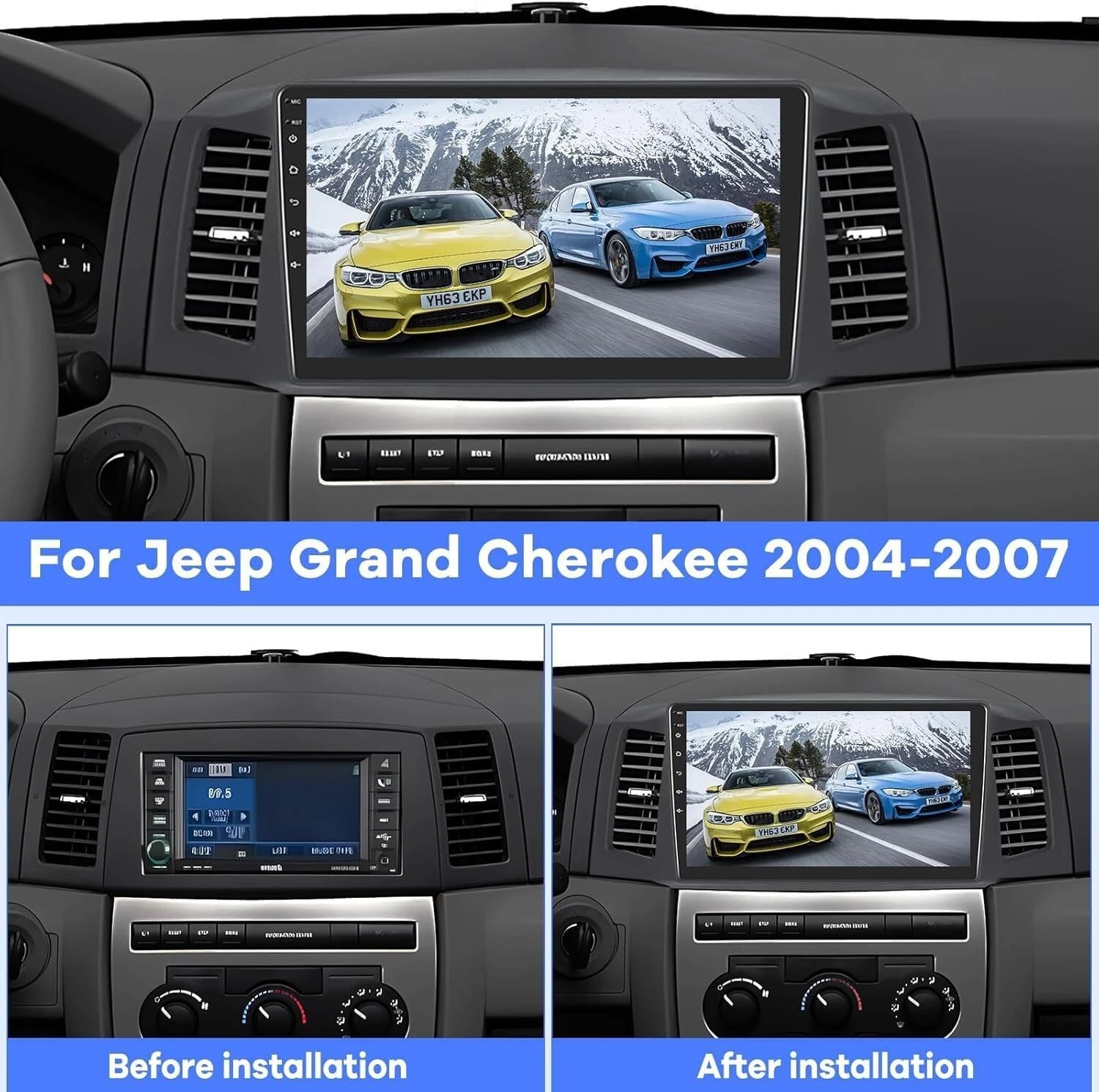
Image 5.1: Comparison of dashboard before and after installing the new car stereo.
5.3. Collegamenti elettrici
- Connect the provided wiring harness to the new car stereo and then to the vehicle's factory harness.
- Connect the GPS module to the designated port on the stereo and position the antenna for optimal signal reception.
- If installing a backup camera, connect its video input (CVBS) to the stereo's reversing input.
- Connect any external USB devices or microphones as needed.
5.4. Montaggio del nuovo stereo
Secure the new car stereo into the dashboard opening using the appropriate mounting brackets and screws. Reattach all trim panels.

Image 5.2: The car stereo unit seamlessly integrated into the vehicle's dashboard.
5.5. Initial Power-Up and Testing
Reconnect the vehicle's power. Turn on the stereo and perform initial tests:
- Check display functionality and touch response.
- Testare l'uscita audio da tutti gli altoparlanti.
- Verify radio reception.
- Test GPS signal acquisition.
- Testare la connettività Bluetooth con un dispositivo mobile.
- If installed, test the backup camera functionality by engaging reverse gear.
6. Istruzioni per l'uso
6.1. Navigazione di base
- Schermo tattile: The 10-inch touch screen allows for intuitive control of all functions.
- Schermata iniziale: Accedi a varie applicazioni e impostazioni dalla schermata iniziale personalizzabile.
- Controllo del volume: Regola il volume utilizzando i comandi sullo schermo o i pulsanti sul volante (se configurati).
6.2. CarPlay e Android Auto
The unit supports both wireless and wired CarPlay and Android Auto. This allows integration with your iOS or Android smartphone for navigation, music, calls, and messaging.
- Connessione wireless: Attiva il Bluetooth e il Wi-Fi sul tuo smartphone e connettiti all'autoradio. Segui le istruzioni sullo schermo per avviare CarPlay o Android Auto.
- Connessione cablata: Connect your smartphone to the stereo using a USB cable. The system will automatically detect and launch CarPlay or Android Auto.

Image 6.1: Display showing Wireless Apple CarPlay, Android Auto, and Mirror Link options.
6.3. Navigazione GPS
The stereo comes with built-in offline maps. For online navigation, connect to Wi-Fi and download your preferred navigation applications.
- Mappe offline: Use the pre-installed maps for navigation without an internet connection. Initial data download may require internet.
- Mappe online: Connect to Wi-Fi and download apps like Waze, Google Maps, Sygic, or HereWeGo from the app store.

Image 6.2: The unit's built-in GPS and WiFi capabilities, demonstrating online map usage and music streaming.
6.4. Connettività Bluetooth
Associa il tuo smartphone tramite Bluetooth per chiamate in vivavoce e streaming audio.
- Vai alle impostazioni Bluetooth sullo stereo e abilita il Bluetooth.
- Cercare the stereo on your smartphone and pair the devices.
- Una volta effettuata la connessione, è possibile effettuare/ricevere chiamate e riprodurre musica in modalità wireless.
6.5. Funzionalità schermo diviso
La funzione schermo diviso consente di eseguire due applicazioni contemporaneamente, ad esempio la navigazione e la riproduzione musicale.
- To activate, open an application, then long-press the recent apps button or follow the specific gesture/button combination for split-screen mode on Android 14.
- Seleziona una seconda applicazione da visualizzare accanto alla prima.
6.6. Collegamento specchio
Mirror Link allows you to display your smartphone's screen directly onto the car stereo's display via Wi-Fi.
- Access the Mirror Link application on the stereo.
- Follow the instructions to connect your iOS or Android smartphone.
6.7. Controllo del volante (SWC)
The unit supports steering wheel control, allowing you to manage audio and calls without taking your hands off the wheel.
- Access the Steering Wheel Control settings in the stereo's menu.
- Seguire le istruzioni sullo schermo per programmare ciascun pulsante sul volante sulla funzione desiderata (ad esempio, volume su/giù, salto traccia, risposta chiamata).
6.8. Supporto per telecamera di backup
Se è collegata una telecamera di backup compatibile, il display passerà automaticamente alla telecamera view quando il veicolo è in retromarcia.

Image 6.3: Visual representation of backup camera, Bluetooth, GPS navigation, and steering wheel control functionalities.
6.9. Video dimostrativo delle funzionalità
Video 6.1: A detailed demonstration of various features of the 4GB+64GB car stereo, including split-screen settings, speed unit switch, and memory clearing. This video is provided by the seller, Hodozzy Direct.
7. Manutenzione
- Pulizia dello schermo: Utilizzare un panno morbido e privo di lanugine per pulire delicatamente il touchscreen. Evitare detergenti abrasivi o solventi.
- Aggiornamenti software: Controlla periodicamente la disponibilità di aggiornamenti software per garantire prestazioni ottimali e l'accesso a nuove funzionalità. Gli aggiornamenti possono essere in genere eseguiti tramite Wi-Fi.
- Temperatura: Per evitare danni, utilizzare l'unità entro l'intervallo di temperatura di esercizio specificato (da -20℃ a 75℃).
8. Risoluzione Dei Problemi
8.1. Nessun potere
- Controllare tutti i collegamenti elettrici e i fusibili.
- Assicurarsi che l'accensione del veicolo sia accesa.
8.2. Nessun suono
- Verificare che il volume non sia disattivato o impostato su un livello troppo basso.
- Controllare i collegamenti degli altoparlanti.
- Assicurarsi che sia selezionata la sorgente audio corretta.
8.3. Problemi con il segnale GPS
- Assicurarsi che l'antenna GPS sia collegata correttamente e abbia una visuale libera view del cielo.
- Spostare il veicolo in un'area aperta, lontano da edifici alti o da vegetazione fitta.
8.4. Problemi di connettività Bluetooth
- Assicurati che il Bluetooth sia abilitato sia sullo stereo che sullo smartphone.
- Eliminare gli abbinamenti precedenti e provare ad associare nuovamente i dispositivi.
- Riavvia sia lo stereo che lo smartphone.
8.5. Il touch screen non risponde
- Perform a soft reset of the unit (refer to the device settings for reset options).
- Assicurarsi che lo schermo sia pulito e privo di detriti.
9. Informazioni sulla sicurezza
- Non utilizzare l'unità in modo da distrarti dalla guida. Dare sempre priorità alla sicurezza stradale.
- Evitare di esporre l'unità a temperature estreme, alla luce solare diretta per periodi prolungati o a umidità eccessiva.
- Non tentare di smontare o modificare l'unità. Ciò potrebbe invalidare la garanzia e causare danni.
- Assicurarsi che tutti i cavi siano adeguatamente isolati e fissati per evitare cortocircuiti o pericoli elettrici.


