
1. Introduzione
The LAMTTO Wireless Apple Carplay Screen is a portable car audio receiver designed to enhance your driving experience with smart connectivity. It supports wireless Apple CarPlay and Android Auto, offering features like GPS navigation, hands-free calling, music playback, and voice control. This manual will guide you through the installation, operation, and maintenance of your device.
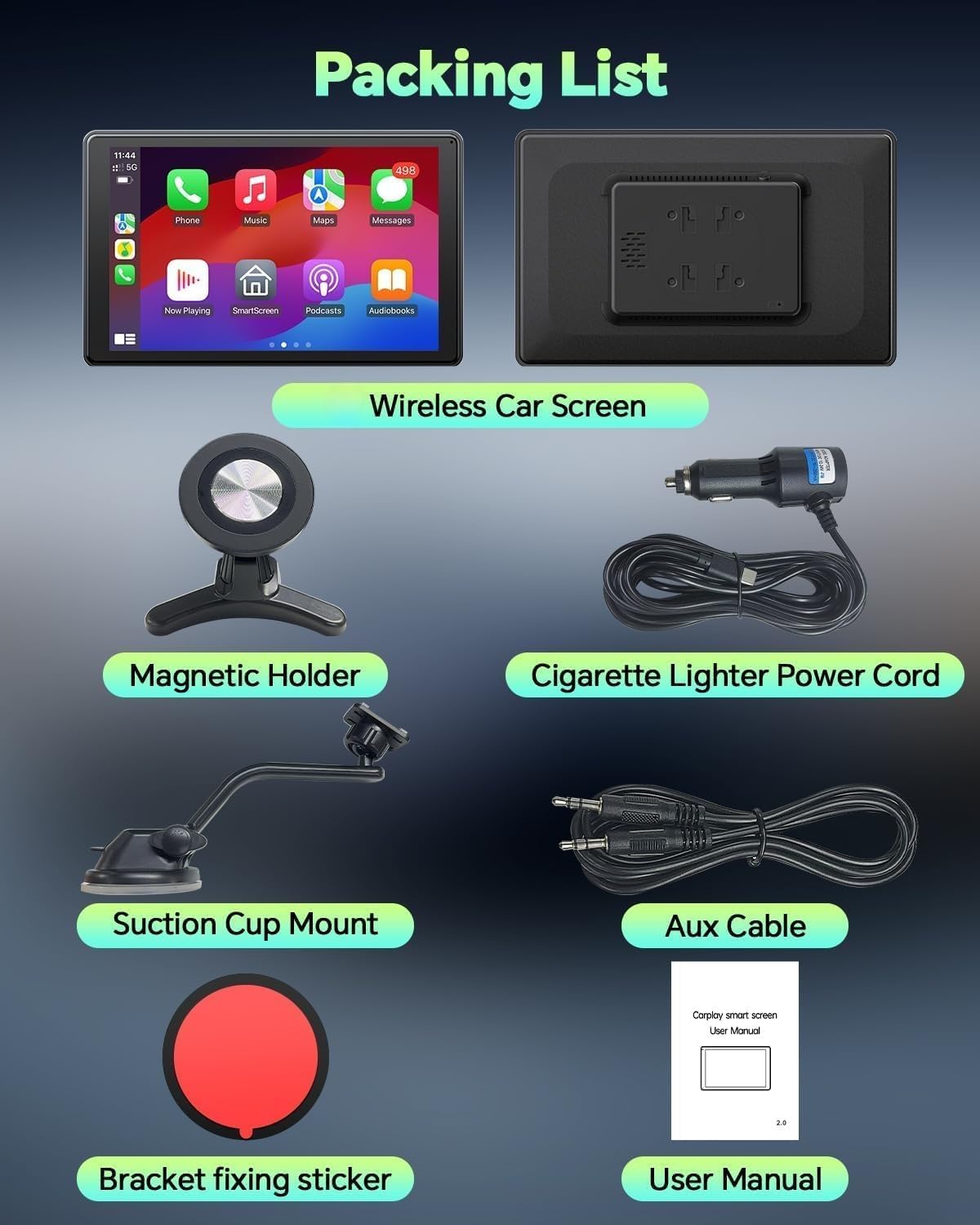
2. Contenuto della confezione
Verifica che tutti gli articoli siano presenti nel tuo pacco:
- 1 x Wireless Carplay Screen
- 1 x Supporto magnetico
- 1 x Supporto a ventosa
- 1 x Digital Cigarette Lighter (Power Cord)
- Cavo 1 x AUX
- 1 x adesivo di fissaggio della staffa
- 1 x Manuale utente

Video: This short video demonstrates the unboxing of the CarPlay screen, showing the various components included in the package.
3. Caratteristiche del prodotto
- Portrait/Landscape Screen Modes: Flexible screen orientation for optimal viewing of videos or navigation.
- Ultra-Strong Magnetic Vent Mount: Securely displays the screen without obstructing driving vision.
- Lifetime OTA Updates: Ensures the system remains current with the latest features and improvements.
- CarPlay/Android Auto wireless: Seamless connectivity via Bluetooth & Wi-Fi for navigation, calls, messages, and music.
- Universal Phone Mirroring: Supports wireless mirroring for most Apple and Android phones for entertainment.
- Enhanced Safety & Stability: Constructed from fire-resistant and heat-resistant materials with stable connections and improved sound quality.
- Controllo vocale: Compatible with Siri and Google Voice Assistants for hands-free operation.
- Molteplici modalità di uscita audio: Built-in speakers, AUX to car's audio, FM transmitter, and Bluetooth to car's audio.


4. Impostazione
4.1 Montaggio dello schermo
The LAMTTO Carplay screen offers versatile mounting options to suit your vehicle's interior and ensure optimal visibility without obstructing your view.
Magnetic Vent Mount Installation:
- Insert the bracket into the car air conditioning vent and hook the small hook at the bottom onto the vent baffle. Ensure the two feet of the magnetic bracket face downwards for secure installation.
- Gently place the screen on the magnetic bracket.
- Adjust the screen to a comfortable angle and tighten the lock ring of the swivel ball to secure it.

Video: A detailed demonstration of how to install the magnetic mount for the CarPlay screen in a car, including attaching the mount to the dashboard and securing the screen.
Installazione del supporto a ventosa:
- Fix the adhesive patch on the dashboard and leave it for 10 hours to ensure strong adhesion.
- Remove the protective film from the bottom of the suction cup holder.
- Place the suction cup on the previously placed patch. Press hard and depress the lock of the suction cup.
- Install the device, adjust the angle, and lock the screw.

4.2 Collegamento di alimentazione
Connect the provided digital cigarette lighter power cord to your vehicle's 12V power outlet and the Type-C port on the CarPlay screen. Ensure the car charger provides at least 5V/3A power to activate the screen.
4.3 Connessione wireless CarPlay/Android Auto
Connect your smartphone to the CarPlay screen via Bluetooth and Wi-Fi for seamless integration.
Per Apple CarPlay:
- Choose the Apple CarPlay option on the product screen.
- Attiva il Wi-Fi e il Bluetooth sul tuo iPhone.
- Find the Bluetooth signal name of the Carplay screen in your mobile phone's Bluetooth list, click it, and select 'Use Carplay'.
- Attendi qualche secondo affinché la connessione vada a buon fine.

Per Android Auto:
- Choose the Android Auto option on the product screen.
- Attiva il Wi-Fi e il Bluetooth sul tuo telefono Android.
- Trova il nome del segnale Bluetooth dello schermo dell'autoradio nell'elenco Bluetooth del tuo telefono cellulare e cliccaci sopra.
- Attendi qualche secondo affinché la connessione vada a buon fine.

Video: This video provides a step-by-step guide on how to install and connect the wireless CarPlay system in a vehicle.
4.4 Mirror Link Setup
The screen supports wireless mirroring for both iOS (AirPlay & Evelink) and Android (Super Link & Evelink).
For iOS (AirPlay & Evelink):
- According to your phone system, scan the QR code to download and install the 'Evelink' application.
- Open the 'Evelink' app on your iPhone. Add the device, select next to connect to Wi-Fi. Turn on the mirroring switch to add the device.
- Alternatively, use the phone to connect to this CarPlay screen's Bluetooth. Turn on the phone's Wi-Fi. Open the screen mirroring option and click SmartScreen.

For Android (Super Link & Evelink):
- According to your phone system, scan the QR code to download and install the 'Evelink' application.
- Open the 'Evelink' app on your Android Phone. Add the device, select next to connect to Wi-Fi. Turn on the mirroring switch to add the device.

4.5 Modalità di uscita audio
Il dispositivo offre diversi modi per trasmettere l'audio all'impianto audio della tua auto:
- Altoparlanti incorporati: The screen has integrated speakers for direct audio output.
- Bluetooth to Car's Audio: Connect the screen to your car's Bluetooth for stable and clear audio.
- AUX all'audio dell'auto: Use the provided AUX cable to connect to your car's auxiliary input.
- Trasmettitore FM: Transmit audio to your car's FM radio by selecting an unused FM frequency.
5. Istruzioni per l'uso
5.1 Orientamento dello schermo
The screen supports both portrait and landscape modes. You can switch between modes to optimize viewing for navigation (portrait) or media consumption (landscape).
5.2 Controllo vocale
Activate Siri or Google Voice Assistant on your phone to use voice commands for navigation, calls, messages, and music playback, allowing you to focus on driving.

5.3 Navigazione online
Utilize CarPlay or Android Auto to display real-time maps and plan routes directly on the screen.

5.4 Chiamate in vivavoce
Make and receive calls safely through the screen's interface, integrated with your smartphone's calling features.

5.5 Riproduzione di musica
Enjoy your favorite music from your smartphone through the CarPlay screen, with options for Bluetooth, AUX, or FM transmission.

5.6 Aggiornamenti OTA
The device supports Over-The-Air (OTA) online upgrades. You can get the latest software version as soon as it's released without complicated procedures, ensuring a better user experience.

6. Manutenzione
To ensure the longevity and optimal performance of your LAMTTO Wireless Apple Carplay Screen, follow these maintenance guidelines:
- Pulizia: Use a soft, dry, lint-free cloth to clean the screen. For stubborn smudges, lightly dampPulisci il panno con acqua o un detergente per schermi. Evita prodotti chimici aggressivi o materiali abrasivi.
- Temperatura: Avoid exposing the device to extreme temperatures, both hot and cold, for extended periods. While designed with heat-resistant materials, prolonged exposure can affect performance.
- Magazzinaggio: Se si conserva il dispositivo per un periodo prolungato, scollegarlo dall'alimentazione e conservarlo in un luogo fresco e asciutto, lontano dalla luce solare diretta.
- Gestione dei cavi: Assicurarsi che tutti i cavi siano disposti ordinatamente e non siano schiacciati o aggrovigliati per evitare danni.
7. Risoluzione Dei Problemi
If you encounter issues with your LAMTTO Wireless Apple Carplay Screen, refer to the following common troubleshooting steps:
| Problema | Soluzione |
|---|---|
| Screen does not power on. | Ensure the car charger is properly inserted and the vehicle's 12V outlet is functional. Verify the charger provides at least 5V/3A. Check the Type-C cable connection to the screen. |
| La connessione wireless CarPlay/Android Auto non riesce. | Ensure Bluetooth and Wi-Fi are enabled on your smartphone. Forget previous Bluetooth connections on both devices and try pairing again. Restart both the screen and your phone. |
| Scarsa qualità audio o nessun suono. | Check the selected audio output mode (Bluetooth, AUX, FM). If using Bluetooth, ensure it's properly paired. If using FM, try a different frequency. If using AUX, ensure the cable is fully inserted. Adjust volume on both the screen and your car stereo. |
| Il mirroring dello schermo non funziona. | Ensure the 'Evelink' app is installed and updated on your phone. Verify Wi-Fi is connected and the mirroring switch is enabled in the app. Check phone compatibility (Android 11+ or iOS 11+). |
| Lo schermo non risponde o è bloccato. | Perform a soft reset by disconnecting the power cable and reconnecting it after a few seconds. If the issue persists, check for available OTA updates. |
8. Specifiche
| Caratteristica | Dettaglio |
|---|---|
| Marca | LAMETTO |
| Nome del modello | LAMTTO Wireless Apple Carplay Screen |
| Numero di parte | RC18 |
| Risoluzione | Formato: 1080p |
| Dispositivi compatibili | Android phone (Android system updated to 11 or above), iPhone6S-iPhone16 Pro |
| Caratteristiche speciali | Landscape & Portrait Screen Modes, OTA Updates, Ultra-Strong Magnetic Vent Mount, Wireless Carplay & Android Auto |
| Tipo di connettore | Bluetooth, FM, Wi-Fi, Micro USB (for power) |
| Requisiti di potenza | 5V/3A (via Type-C car charger) |
| Tipo di controllore | Touchscreen control, Voice Control |
| Colore | Nero |
9. Garanzia e supporto
LAMTTO provides a 2-year warranty for this wireless adapter. We are committed to offering professional technical support and excellent customer service. If you have any questions about usage or require assistance, please feel free to contact us via Amazon. We aim to reply within 24 hours.
Additionally, we offer a 30-day Money-Back guarantee.