
1. Introduzione
This manual provides essential information for the installation, operation, and maintenance of your maxsun GeForce RTX 3050 6GB Graphics Card. Designed for optimal performance in gaming PCs, including mini and small form factor (SFF) systems, this graphics card leverages the NVIDIA Ampere architecture to deliver enhanced visual experiences. Please read this manual thoroughly before installation and use.

Image 1.1: maxsun GeForce RTX 3050 SLP Graphics Card.
2. Informazioni sulla sicurezza
- Scollegare sempre l'alimentazione dal computer prima di installare o rimuovere qualsiasi componente.
- Wear an anti-static wrist strap or frequently touch a grounded metal object to prevent electrostatic discharge (ESD) damage to the graphics card and other components.
- Maneggiare la scheda grafica tenendola per i bordi per evitare di toccare i componenti sensibili.
- Assicurare una corretta ventilazione all'interno del case del PC per evitare il surriscaldamento.
- Keep the graphics card away from moisture and extreme temperatures.
3. Contenuto della confezione
Verificare che tutti gli articoli siano presenti nel pacco:
- 1x maxsun GeForce RTX 3050 6GB Graphics Card
- 1x Standard Height I/O Bracket (pre-installed or separate)
- 1x Basso Profile I/O Bracket (for SFF systems)

Image 3.1: The maxsun GeForce RTX 3050 graphics card and its retail packaging.
4. Prodotto finitoview
The maxsun GeForce RTX 3050 is a compact graphics card designed for performance and compatibility with various PC builds, including small form factor cases. It features a single fan cooling solution and multiple display outputs.
4.1 Caratteristiche principali
- NVIDIA Ampere Architecture: Provides advanced graphics performance.
- NVIDIA DLSS: AI-powered rendering for increased frame rates with uncompromised image quality.
- Memoria GDDR6 da 6 GB: Memoria ad alta velocità per applicazioni e giochi impegnativi.
- Basso Profile Progetto: Compact dimensions (6.65 x 2.71 inches) suitable for Mini-ITX and SFF PC cases.
- PCI Express 4.0 x8 Interface: Ensures high bandwidth connectivity.
- Uscite di visualizzazione: Includes HDMI 2.1 and DisplayPort 1.4a, supporting up to 8K resolution and multi-monitor setups.
4.2 Card Layout and Ports

Immagine 4.1: In alto view of the graphics card, showing the single cooling fan.

Image 4.2: The standard and low-profile I/O brackets, illustrating the display output options (HDMI and DisplayPort).
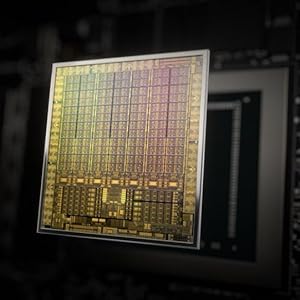
Image 4.3: Diagram illustrating the NVIDIA Ampere GPU architecture, which powers the RTX 3050.
5. Configurazione e installazione
Follow these steps to install your maxsun GeForce RTX 3050 graphics card into your computer system.
5.1 Preparazione del sistema
- Power down your computer completely and unplug the power cable from the wall outlet.
- Open your computer case. Refer to your computer's manual for specific instructions on how to open the case.
- Individua uno slot PCI Express x16 disponibile sulla scheda madre.
- Remove any existing graphics card or the metal slot cover from the PCI Express slot.
5.2 Installazione della scheda grafica
- If your PC case requires a low-profile bracket, carefully remove the pre-installed standard bracket from the graphics card and attach the included low-profile staffa.
- Align the graphics card with the PCI Express x16 slot.
- Gently but firmly press the card straight down into the slot until it is fully seated. You should hear a click as the retention clip engages.
- Secure the graphics card to the PC case with the screw(s) from the slot cover.

Image 5.1: Diagram showing the process of inserting a graphics card into a PCI Express slot within a computer case.
5.3 Collegamento dei display
- Collega il/i monitor alle uscite DisplayPort o HDMI della scheda grafica.
- Chiudere il case del computer e ricollegare il cavo di alimentazione.
- Accendi il computer.
6. Istruzioni per l'uso
6.1 Installazione del driver
After physical installation, you must install the appropriate drivers for your graphics card to function correctly and achieve optimal performance.
- Boot your computer. The operating system may detect new hardware and install a basic driver, or display a low-resolution image.
- Visita il sito ufficiale NVIDIA webposto (www.nvidia.com/drivers) to download the latest drivers for the GeForce RTX 3050.
- Seguire le istruzioni visualizzate sullo schermo per completare l'installazione del driver. Potrebbe essere necessario riavviare il sistema.

Image 6.1: Icon representing the download and installation of graphics drivers.
6.2 Configurazione multi-monitor
The maxsun RTX 3050 supports multiple displays. Once drivers are installed, you can configure your display settings through your operating system's display settings or the NVIDIA Control Panel.

Image 6.2: Illustration of a multi-monitor setup connected via DisplayPort and HDMI outputs.
7. Manutenzione
Una corretta manutenzione garantisce la longevità e le prestazioni della scheda grafica.
- Rimozione della polvere: Periodically clean dust from the fan and heatsink using compressed air. Ensure the fan is held stationary during cleaning to prevent damage.
- Monitoraggio della temperatura: Use monitoring software to keep track of your GPU temperatures, especially during heavy loads. Ensure temperatures remain within safe operating limits.
- Aggiornamenti driver: Aggiorna regolarmente i driver grafici NVIDIA websito per beneficiare di miglioramenti delle prestazioni e correzioni di bug.
8. Risoluzione Dei Problemi
Se riscontri problemi con la scheda grafica, fai riferimento ai seguenti passaggi comuni per la risoluzione dei problemi:
- Nessuna uscita di visualizzazione:
- Assicurarsi che il cavo del monitor sia collegato saldamente sia alla scheda grafica sia al monitor.
- Verificare che la scheda grafica sia completamente inserita nello slot PCI Express.
- Controlla che il monitor sia impostato sulla sorgente di input corretta.
- Se possibile, effettuare una prova con un cavo di visualizzazione o un monitor diverso.
- Problemi di installazione del driver:
- Uninstall any previous graphics drivers using a utility like Display Driver Uninstaller (DDU) in Safe Mode, then attempt a fresh installation of the latest NVIDIA drivers.
- Assicurati che il tuo sistema operativo sia aggiornato.
- Overheating/Loud Fan Noise:
- Clean dust from the graphics card fan and heatsink.
- Ensure adequate airflow within your PC case. Consider adding or improving case fans.
- Monitor GPU temperatures during load. If temperatures are consistently high, reduce graphics settings in games or applications.
- Instabilità/arresti anomali del sistema:
- Assicurati che l'unità di alimentazione (PSU) soddisfi i requisiti minimi di watttage requirements for your system, including the new graphics card.
- Check for any conflicts with other hardware components.
- Run system diagnostics to identify other potential hardware issues.
9. Specifiche
Detailed technical specifications for the maxsun GeForce RTX 3050 6GB Graphics Card:
| Caratteristica | Specificazione |
|---|---|
| Coprocessore grafico | Scheda grafica NVIDIA GeForce RTX 3050 |
| Dimensione RAM grafica | 6 GB GDDR6 |
| Interfaccia di memoria | 96 bit |
| Velocità di clock della memoria | 14000 MHz |
| GPU Core Clock | 1042 MHz |
| Aumenta la velocità di clock | 1470 MHz |
| Interfaccia di uscita video | 1x HDMI 2.1, 1x DisplayPort 1.4a |
| PCI-Espresso | PCI-E X8 4.0 |
| Dimensioni del prodotto | 6.65 x 2.71 x 0.04 pollici (16.9 x 6.9 cm) |
| Peso dell'articolo | 8.5 once |
| Produttore | MAXSUN |
| Numero di modello | La RTX 3050 |

Immagine 9.1: posteriore view of the product packaging, detailing key features and specifications.
10. Garanzia e supporto
10.1 Garanzia limitata
The maxsun GeForce RTX 3050 Graphics Card comes with a Garanzia limitata di 3 anni. This warranty covers defects in materials and workmanship under normal use. For specific terms and conditions, please refer to the warranty information provided with your product or contact maxsun customer support.
10.2 Assistenza clienti
For technical assistance, warranty claims, or general inquiries, please contact maxsun customer support through their official websito o le informazioni di contatto fornite nella documentazione del prodotto.