
1. Prodotto finitoview
This manual provides instructions for the Surakey Car Stereo Radio, designed for Mercedes Benz Sprinter models from 2006 to 2017. This unit features a 9-inch touch screen, runs on Android 13, and includes 2GB RAM and 32GB ROM. Key functionalities include wireless CarPlay and Android Auto, built-in GPS navigation, WiFi, Bluetooth connectivity, and support for steering wheel controls and a backup camera.
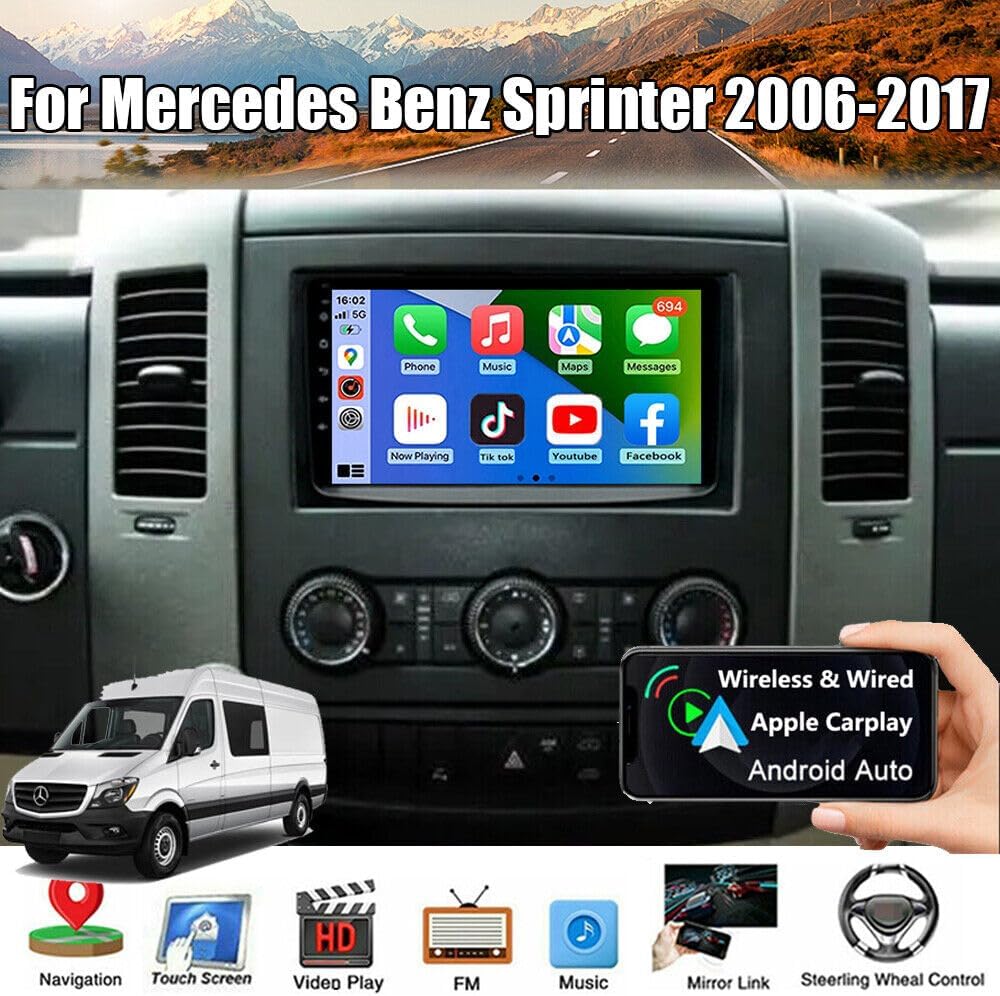
Image 1.1: The Surakey Car Stereo Radio installed in a Mercedes Benz Sprinter dashboard, showcasing il suo display da 9 pollici con varie icone delle applicazioni.
2. Configurazione e installazione
2.1 Controllo di compatibilità
Before installation, verify that your vehicle is a Mercedes Benz Sprinter manufactured between 2006 and 2017. It is crucial to compare your vehicle's dashboard and existing wiring with the product's specifications. If unsure, provide a complete image of the plugs on the back of your center console and the original head unit to the seller for confirmation of compatibility and any necessary additional wiring harnesses or adapters.

Image 2.1: A visual comparison showing the original car radio setup (top) versus the Surakey Car Stereo Radio installed (bottom) in a Mercedes Benz Sprinter dashboard.
2.2 Componenti inclusi
Il pacchetto in genere include i seguenti articoli:
- 9-inch Radio Stereo with Frame
- Cavo GPS
- 2 x Cavi USB
- Original Power Cable with Canbus Box
- RCA
- Cavo di ingresso della telecamera
- Cavo adattatore radio
- Manuale d'uso

Image 2.2: An illustration detailing the dimensions of the car stereo unit and a layout of all included cables and accessories, such as the power cable, RCA input/output, USB cables, GPS antenna, instruction manual, Canbus box, and radio adapter.
2.3 Collegamenti di cablaggio
Collegare i cavi in dotazione alle rispettive porte dell'autoradio e al cablaggio del veicolo. Assicurarsi che tutti i collegamenti siano ben saldi per evitare perdite di segnale o malfunzionamenti.
- Cavo di alimentazione: Connect the main power harness to the vehicle's power supply. The Canbus Box integrates with your vehicle's system for functions like steering wheel control.
- Cavo RCA: Per input/output audio/video esterno, come amplifiers or additional displays.
- Cavi USB: For connecting USB devices, including wired CarPlay/Android Auto, USB drives, or charging.
- Cavo GPS: Collegare l'antenna GPS e posizionarla in un luogo con una vista libera view del cielo per una ricezione ottimale del segnale.
- Cavo di ingresso della telecamera: For connecting a backup camera. Ensure proper wiring for reverse trigger functionality.
- Cavo adattatore radio: Connects to the vehicle's existing radio antenna.

Image 2.3: The rear panel of the car stereo unit, illustrating the various ports and connected wiring harnesses for power, audio, video, and data.
3. Istruzioni per l'uso
3.1 Accensione/spegnimento e interfaccia di base
Press the power button (usually located on the front panel or integrated into the volume knob) to turn the unit on or off. The 9-inch touch screen provides access to all functions. Navigate through menus by tapping icons and swiping.
3.2 CarPlay e Android Auto
This unit supports both wireless and wired CarPlay for iOS devices and Android Auto for Android smartphones. Connect your phone via a USB cable or wirelessly via Bluetooth and WiFi. Once connected, you can access your phone's navigation, music, calls, messages, and other compatible apps directly on the car stereo screen. Voice control is also supported.

Image 3.1: The car stereo display showing both CarPlay and Android Auto interfaces, demonstrating how phone applications like navigation and music are integrated.
3.3 Navigazione GPS
The unit has built-in GPS reception. You can use offline navigation by installing maps directly from the Play Store or by utilizing the included GPS module. For online navigation, connect the unit to a WiFi network, and use applications like Google Maps.
3.4 Connettività Bluetooth
Pair your smartphone via Bluetooth for hands-free calling and audio streaming. Access your phone's contact list and call history directly from the stereo after granting necessary permissions.
3.5 Connessione Wi-Fi
Connect the car stereo to a WiFi hotspot (e.g., from your smartphone) to access online features such as web browsing, app downloads from the Play Store, and online navigation services.
3.6 Mirror Link e schermo diviso
The Mirror Link function allows you to mirror your iOS or Android smartphone screen onto the car stereo display via WiFi. The split-screen feature enables you to view due applicazioni contemporaneamente, ad esempioample, navigazione da un lato e riproduzione musicale dall'altro.
3.7 Controllo del volante
If your vehicle supports it and the Canbus box is correctly installed, you can control essential functions like answering calls, changing music tracks, and adjusting volume directly from your steering wheel buttons.
4. Manutenzione
Per garantire la longevità e le prestazioni ottimali dell'autoradio, seguire queste linee guida per la manutenzione:
- Pulizia: Utilizzare un panno morbido e asciutto per pulire lo schermo e l'esterno. Per le macchie ostinate, strofinare leggermenteampPulisci il panno con acqua o un detergente per schermi. Evita materiali abrasivi o sostanze chimiche aggressive.
- Aggiornamenti software: Periodically check for and install software updates to ensure the system runs efficiently and has the latest features and security patches. Updates can usually be performed via a WiFi connection.
- Condizioni ambientali: Evitare di esporre l'unità a temperature estreme, alla luce solare diretta per periodi prolungati o a umidità eccessiva.
5. Risoluzione Dei Problemi
Se riscontri problemi con l'autoradio, fai riferimento ai seguenti passaggi comuni per la risoluzione dei problemi:
- Nessun potere:
- Controllare tutti i collegamenti dei cavi di alimentazione.
- Verificare che il fusibile dello stereo del veicolo sia intatto.
- Assicurarsi che l'accensione sia inserita.
- Nessun suono:
- Controllare i collegamenti dei cavi degli altoparlanti.
- Assicurarsi che il volume non sia disattivato o impostato su un livello troppo basso.
- Verificare le impostazioni di uscita audio nel menu di sistema.
- GPS non funzionante/impreciso:
- Assicurarsi che l'antenna GPS sia collegata correttamente e posizionata in modo chiaro view del cielo.
- Controllare le impostazioni GPS nel menu di sistema.
- If using online maps, verify WiFi connectivity.
- Problemi di connessione Bluetooth:
- Assicurati che il Bluetooth sia abilitato sia sullo stereo che sul telefono.
- Eliminare gli abbinamenti precedenti e provare ad associare nuovamente i dispositivi.
- Riavvia sia lo stereo che il telefono.
- Touchscreen che non risponde:
- Riavvia l'unità.
- Assicurarsi che lo schermo sia pulito e privo di detriti.
Se i problemi persistono dopo aver provato questi passaggi, contattare l'assistenza clienti per ulteriore assistenza.
6. Specifiche
| Caratteristica | Specificazione |
|---|---|
| Numero di modello | JIAQI-QA1732X-WYQ-2505 |
| Sistema operativo | Androide 13 |
| Memoria RAM | 2 GB |
| ROM (memoria interna) | 32 GB |
| Dimensioni dello schermo | 9 pollici |
| Risoluzione dello schermo | 1024x600 |
| Uscita stereo | 4x45W |
| Gamma di sintonizzazione FM | Frequenza 87.5-108 MHz |
| Connettività | Bluetooth, USB, Wi-Fi |
| Supported Navigation | GPS (Offline/Online) |
| Dimensioni del prodotto | Dimensioni: 37 x 23 x 14 cm |
| Peso dell'articolo | 1.55 kg |
7. Garanzia e supporto
For warranty information, technical support, or service inquiries, please refer to the documentation provided with your purchase or contact the seller directly. Warranty terms and conditions may vary.