
1. Introduzione
This manual provides detailed instructions for the installation, operation, and maintenance of your Fuers 8MP 8CH PoE NVR Home Security Camera System. This system includes an 8-channel Network Video Recorder (NVR) with a pre-installed 1TB Hard Disk Drive (HDD) and two wired 6MP PoE IP cameras designed for outdoor use, featuring person detection, full-color night vision, and two-way audio communication. Please read this manual thoroughly before using the product to ensure proper setup and functionality.
2. Contenuto della confezione
Verifica che tutti gli articoli elencati di seguito siano inclusi nel pacco. Se alcuni articoli risultano mancanti o danneggiati, contatta l'assistenza clienti.

Image: All components included in the Fuers 8MP 8CH PoE NVR Home Security Camera System package.
- 1 x 8CH PoE NVR
- 2 x PoE Cameras (6MP Dual Lens)
- 1 x 1TB HDD (Pre-installed)
- 2 adesivi di avvertenza
- 1 cavo HDMI da 1.5 m
- 2 x 18m Network Cables
- 1 alimentatore NVR
- Mouse 1 x USB
- 1 x telecomando
3. System Components and Connections
Familiarize yourself with the NVR and camera components and their respective connection points.

Immagine: dettagliata view of the NVR's rear panel connections and the PoE camera's features, including lenses, light sources, and power/network ports.
NVR Rear Panel:
- Interruttore On/Off: Powers the NVR on or off.
- Potenza in ingresso: Si collega all'alimentatore dell'NVR.
- Ingresso telecamera (porte PoE): Connects PoE cameras via Ethernet cables for both power and data.
- Network (LAN) Port: Connects the NVR to your router for internet access.
- Uscita audio (A-OUT): Per collegare altoparlanti esterni.
- Ingresso VGA: Connects to a monitor via VGA cable.
- HDMI Input (HD-port): Connects to a monitor or TV via HDMI cable.
- Porta USB: For connecting the USB mouse or external storage.
Telecamera PoE:
- Obiettivo HD da 3.6 mm: Provides high-definition video capture.
- 4+4 Dual Core Light Source / 4+4 LED Lights: Enables full-color and infrared night vision.
- Angolo di rotazione della staffa: Consente un posizionamento flessibile della telecamera.
- Interfaccia di alimentazione 12V: Optional power input if not using PoE.
- Porta di rete: Connects to the NVR's PoE port.
4. Guida all'installazione
Follow these steps to set up your Fuers PoE NVR security system.
4.1 Connessione NVR iniziale
- Collegare il mouse USB a una delle porte USB dell'NVR.
- Collegare un monitor all'NVR tramite la porta VGA o HDMI.
- Connect the NVR power supply to the power input port and plug it into an electrical outlet.
- Turn on the NVR using the On/Off switch. The system will boot up and display on the connected monitor.
Video: A step-by-step guide demonstrating how to connect the NVR, monitor, mouse, and power, and then connect the camera to the NVR's PoE port for initial setup and viewing.
4.2 Collegamento delle telecamere PoE
The PoE (Power over Ethernet) feature allows a single Ethernet cable to provide both power and video transmission to the cameras.
- Connect one end of the provided Ethernet cable to a PoE port on the NVR.
- Connect the other end of the Ethernet cable to the network port on your PoE camera.
- Repeat for all cameras. The cameras will automatically power on and connect to the NVR. Video feeds should appear on the monitor.

Image: Illustration of a single Ethernet cable connecting the PoE NVR to a camera, providing both power and data, highlighting the 'Plug & Play' aspect.
4.3 Network Connection and Remote Access
To access your security system remotely via mobile app or PC client, the NVR must be connected to your network.
- Connect an Ethernet cable from the NVR's LAN port to your internet router.
- Download the "xmeye pro" app from your mobile device's app store (iOS/Android) or the VMS Client for PC/Mac from the Fuers websito.
- Open the app/client and follow the on-screen instructions to add your device, typically by scanning a QR code displayed on the NVR's monitor or entering the device's serial number.
- Una volta connesso, puoi view live feeds, playback recordings, and manage settings remotely.

Image: A three-step visual guide showing how to connect the camera system, download the xmeye pro app, and enjoy live viewing on mobile devices or PC.
5. Istruzioni per l'uso
This section details the key features and how to operate your security system.
5.1 Dual-Lens and Dual Screen View
The cameras feature a dual-lens design, combining a fixed lens and a PTZ (Pan-Tilt-Zoom) lens. This allows for a wider field of view and the ability to focus on specific details simultaneously, displayed on a dual screen interface.

Image: A dual-lens camera showing how a bullet lens captures a wide area while a dome lens provides a detailed, rotatable view, enabling multi-screen monitoring.
Visione notturna a colori 5.2
The 6MP outdoor surveillance cameras are equipped with spotlights to enable full-color night vision. You can schedule the spotlights to activate during specific times or set them to motion-activated mode. Alternatively, the cameras can operate in infrared (IR) LED mode for discreet night monitoring.
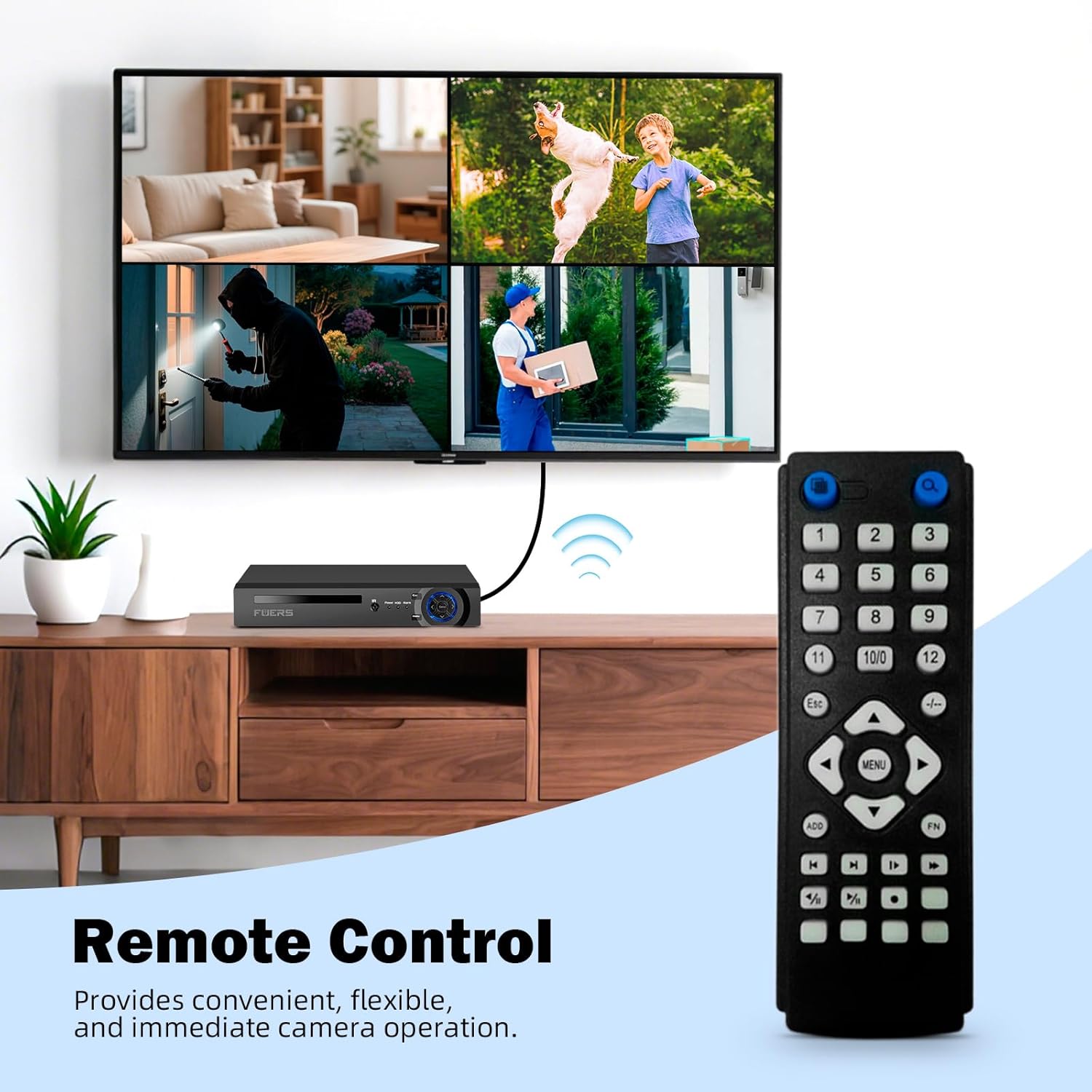
Immagine: Una divisione view demonstrating the difference between full-color night vision (with spotlights) and traditional infrared night vision (monochrome) from the camera.
5.3 Rilevamento intelligente delle persone
The PoE IP cameras feature smart person detection, which minimizes false alerts caused by non-human movements like animals or swaying branches. The system can identify human shapes, sending accurate notifications to your mobile app or PC client. You can customize sensitivity levels, detection areas, and recording schedules.

Image: A person walking towards a house, with an on-screen notification indicating 'Human' detected, demonstrating the smart person detection feature.
5.4 Comunicazione bidirezionale
Each 6MP camera includes a built-in speaker and microphone, enabling two-way audio communication. This allows you to speak with visitors or deter intruders directly through the xmeye pro app or client. Simply press the talk button within the application to activate the feature.
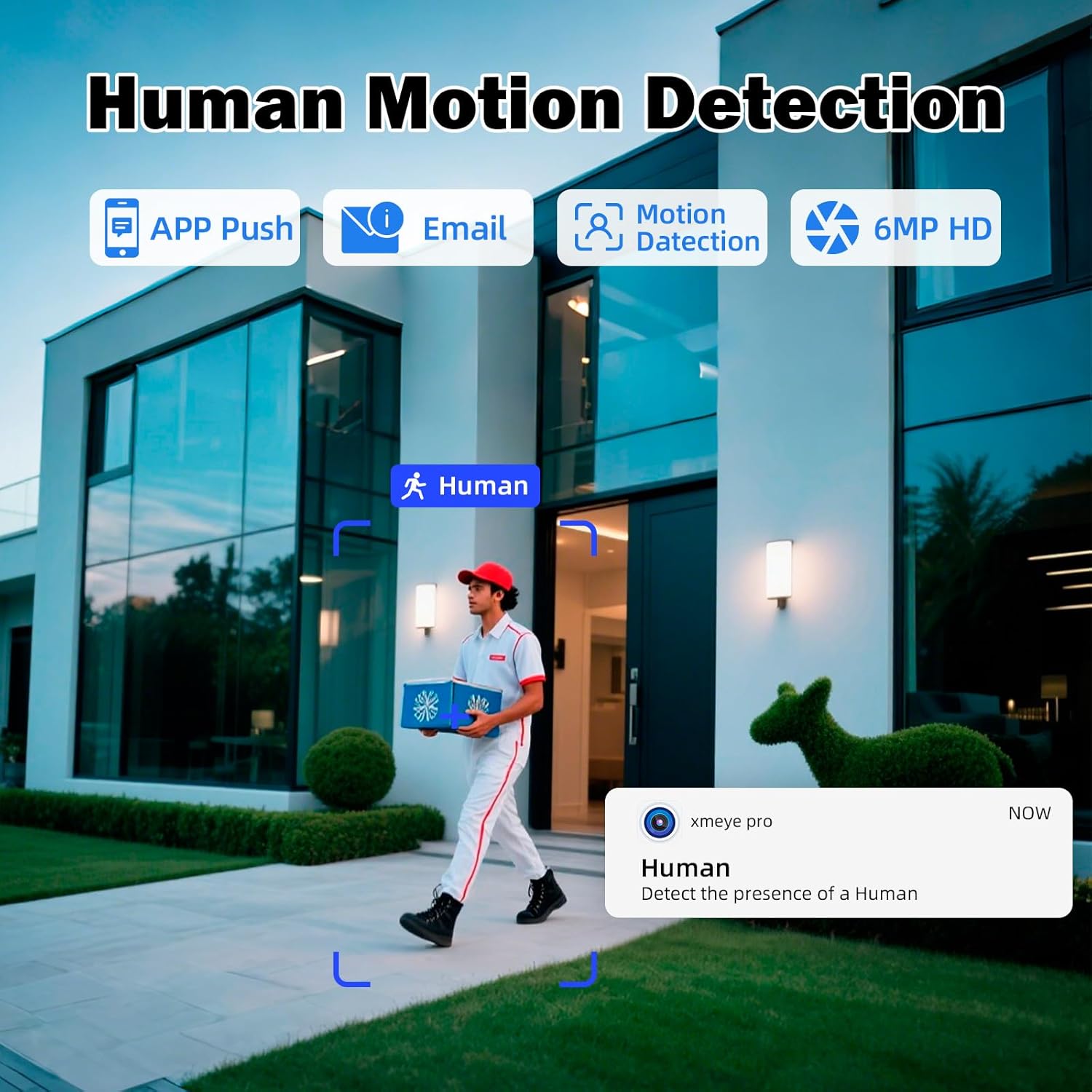
Image: A split image showing a person speaking into a camera and another person receiving the audio on a smartphone, illustrating the two-way talk feature.
5.5 telecomando
The system includes a remote control for convenient operation of the NVR and camera functions directly from your monitor interface. This provides an alternative to mouse control for navigating menus and managing settings.

Image: A security system setup with an NVR connected to a monitor displaying multiple camera feeds, alongside a remote control for convenient operation.
6. Manutenzione
Una manutenzione regolare garantisce prestazioni ottimali e longevità del tuo sistema di sicurezza.
- Pulizia: Pulire periodicamente le lenti della fotocamera con un panno morbido eamp cloth to remove dust and smudges. Ensure the NVR is free from dust buildup, especially around ventilation areas.
- Aggiornamenti del firmware: Check the Fuers official website regularly for firmware updates for your NVR and cameras. Keeping firmware updated can improve performance, add features, and enhance security.
- Stato del disco rigido: The 1TB HDD is crucial for recording. Monitor its health through the NVR's system settings. Consider backing up important footage periodicamente.
- Ispezione dei cavi: Inspect all cables (Ethernet, power) for wear and tear, especially outdoor cables, to prevent connection issues.
7. Risoluzione Dei Problemi
Questa sezione affronta i problemi più comuni che potresti incontrare.
| Problema | Possibile causa | Soluzione |
|---|---|---|
| Nessuna visualizzazione video sul monitor | Loose cable connections, NVR not powered on, incorrect input source on monitor. | Check HDMI/VGA cable connections. Ensure NVR is powered on. Select correct input source on your monitor. |
| Camera not showing video feed | Ethernet cable issue, camera not powered, NVR PoE port issue. | Check the Ethernet cable connection between the camera and NVR. Ensure the NVR's PoE port light is active. Try connecting the camera to a different PoE port. |
| Impossibile accedere al sistema da remoto | NVR non connesso alla rete, impostazioni dell'app errate, problemi con il firewall. | Ensure NVR is connected to your router via LAN cable. Verify network settings on NVR. Check app settings and ensure correct device ID/QR code is used. Consult your router's firewall settings if necessary. |
| Il rilevamento del movimento non funziona | Incorrect sensitivity settings, detection area not configured, camera obstruction. | Adjust motion detection sensitivity in NVR/app settings. Configure detection zones. Ensure camera view è libero da ostacoli. |
8. Specifiche
Key technical specifications for the Fuers 8MP 8CH PoE NVR Home Security Camera System.
| Caratteristica | Dettaglio |
|---|---|
| Numero di modello | N6708-7 |
| Canali NVR | PoE a 8 canali |
| Risoluzione della fotocamera | 6MP (MegaPixels) |
| Unità disco rigido (HDD) | 1 TB (terabyte) |
| Tecnologia di connettività | Ethernet, HDMI, VGA |
| Dimensioni del prodotto | 10.08 x 9.45 x 1.73 pollici |
| Peso dell'articolo | 8.62 libbre |
| Produttore | Fuers |
| Data prima disponibilità | 27 maggio 2025 |
9. Garanzia e supporto
For warranty information, technical support, or any product-related inquiries, please refer to the official Fuers websito o contattare direttamente il servizio clienti. Conservare la ricevuta d'acquisto per eventuali reclami in garanzia.