
1. Introduzione
This manual provides essential information for setting up, operating, and maintaining your NIMO 17.3 Gaming Laptop. Please read this manual thoroughly to ensure proper usage and to maximize the performance and longevity of your device. Keep this manual for future reference.

Immagine 1.1: anteriore view of the NIMO 17.3 Gaming Laptop. The laptop features a large display, a full-sized keyboard, and a sleek design.
2. Contenuto della confezione
Verificare che tutti gli articoli siano presenti nel pacco:
- 1 x NIMO 17.3 Gaming Laptop (Model Nimo N175)
- 1 x Type-C 100W PD Fast Charger
- 1 x Manuale utente (questo documento)
- Windows 11 Home Operating System (pre-installed)
3. Prodotto finitoview
3.1 Componenti e porte esterne
Familiarize yourself with the various ports and components of your NIMO laptop:
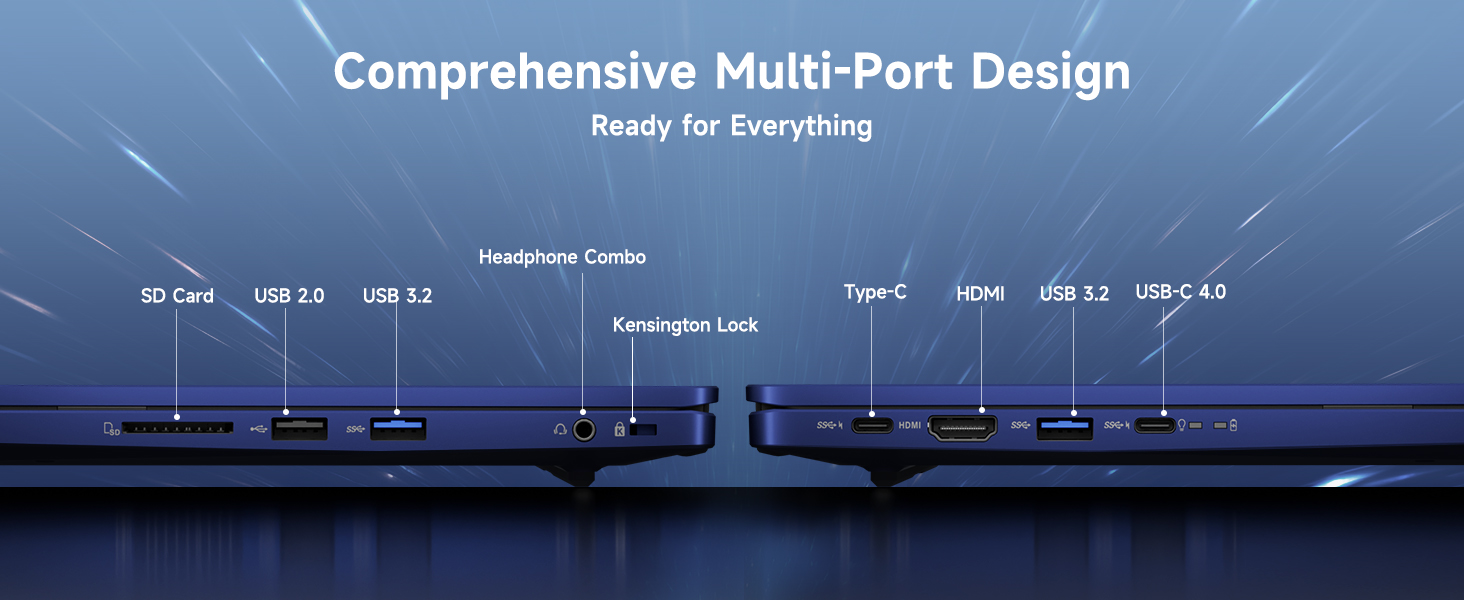
Immagine 3.1: Passoview of the comprehensive multi-port design on the NIMO laptop. Ports include SD Card reader, USB 2.0, USB 3.2, Headphone Combo jack, Kensington Lock slot, Type-C, HDMI, and USB-C 4.0.
- Lato sinistro: SD Card Reader, USB 2.0 Port, USB 3.2 Port, Headphone Combo Jack, Kensington Lock Slot.
- Lato destro: Type-C Port, HDMI Port, USB 3.2 Port, USB-C 4.0 Port.
- Top (Display): Integrato Webcam with Privacy Switch.
- Tastiera: Backlit Keyboard, Fingerprint Reader (integrated into power button or touchpad area).
4. Impostazione
4.1. Accensione iniziale
- Connect the 100W Type-C PD Fast Charger to the laptop's USB-C port and a power outlet.
- Apri il coperchio del portatile.
- Premere il pulsante di accensione per accendere il laptop.
- Seguire le istruzioni visualizzate sullo schermo per completare la configurazione iniziale di Windows 11, inclusa la lingua, la regione, la connessione di rete e la creazione dell'account utente.
4.2. Collegamento di periferiche
Use the available USB ports (USB 2.0, USB 3.2, USB-C 4.0) to connect external devices such as a mouse, keyboard, or external storage drives. The HDMI port allows connection to an external monitor or TV.
4.3. Connessione di rete
During initial setup, you will be prompted to connect to a Wi-Fi network. You can also manage network settings via Windows Settings > Network & Internet.
5. Istruzioni per l'uso
5.1. Gestione energetica
- Accensione/spegnimento: Premere il pulsante di accensione per accendere. Per spegnere, fare clic sul pulsante Start, quindi su Accensione > Spegnimento.
- Modalità risparmio: Chiudere il coperchio o fare clic sul pulsante Start, quindi su Alimentazione > Sospensione.
- Ricomincia: Fare clic sul pulsante Start, quindi su Arresta > Riavvia.
5.2. Utilizzo della tastiera e del touchpad
The laptop features a full-sized keyboard with a numeric keypad and a precision touchpad. The keyboard is backlit for use in low-light conditions. Adjust backlight settings via function keys (refer to your specific model's key layout).
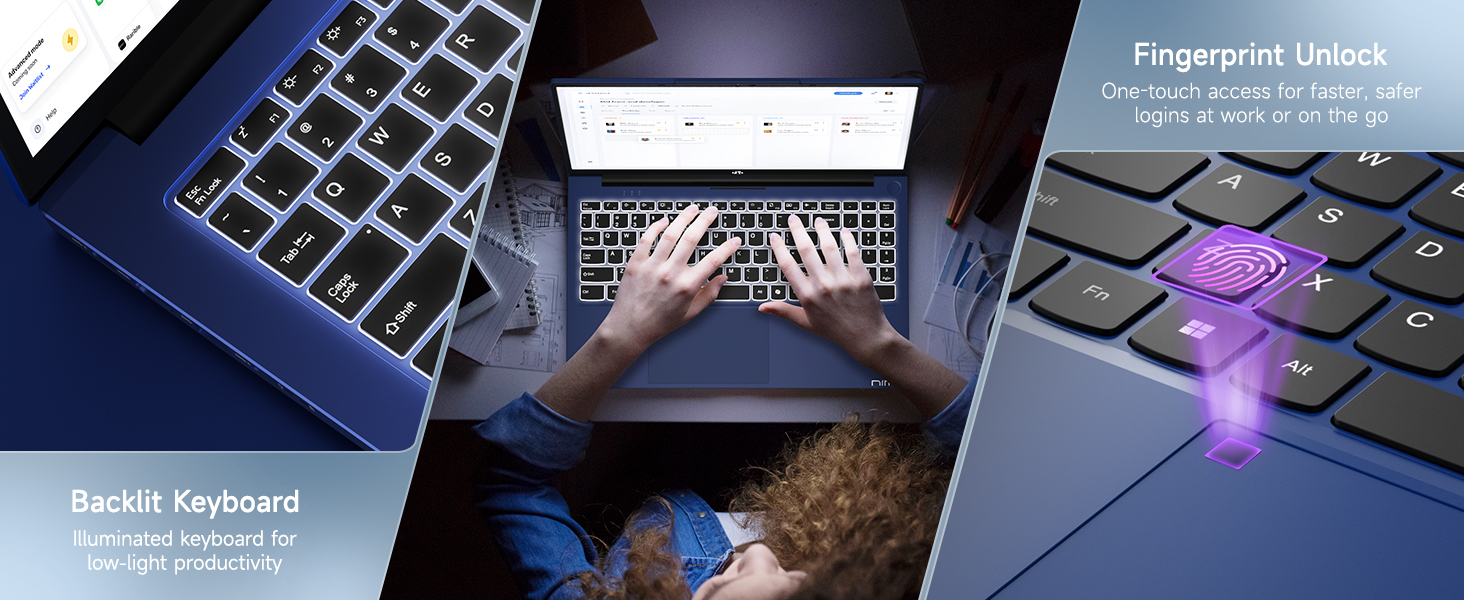
Image 5.1: The backlit keyboard illuminates for visibility in dim environments, and the fingerprint sensor provides quick, secure access.
5.3. Sblocco tramite impronta digitale
For enhanced security and quick access, configure the fingerprint reader:
- Vai su Impostazioni di Windows > Account > Opzioni di accesso.
- Under 'Windows Hello Fingerprint', click 'Set up' and follow the on-screen instructions to register your fingerprint.
5.4. WebInterruttore privacy cam
L'integrato webcam includes a physical privacy switch to ensure your privacy. Slide the switch to cover or uncover the camera lens as needed.
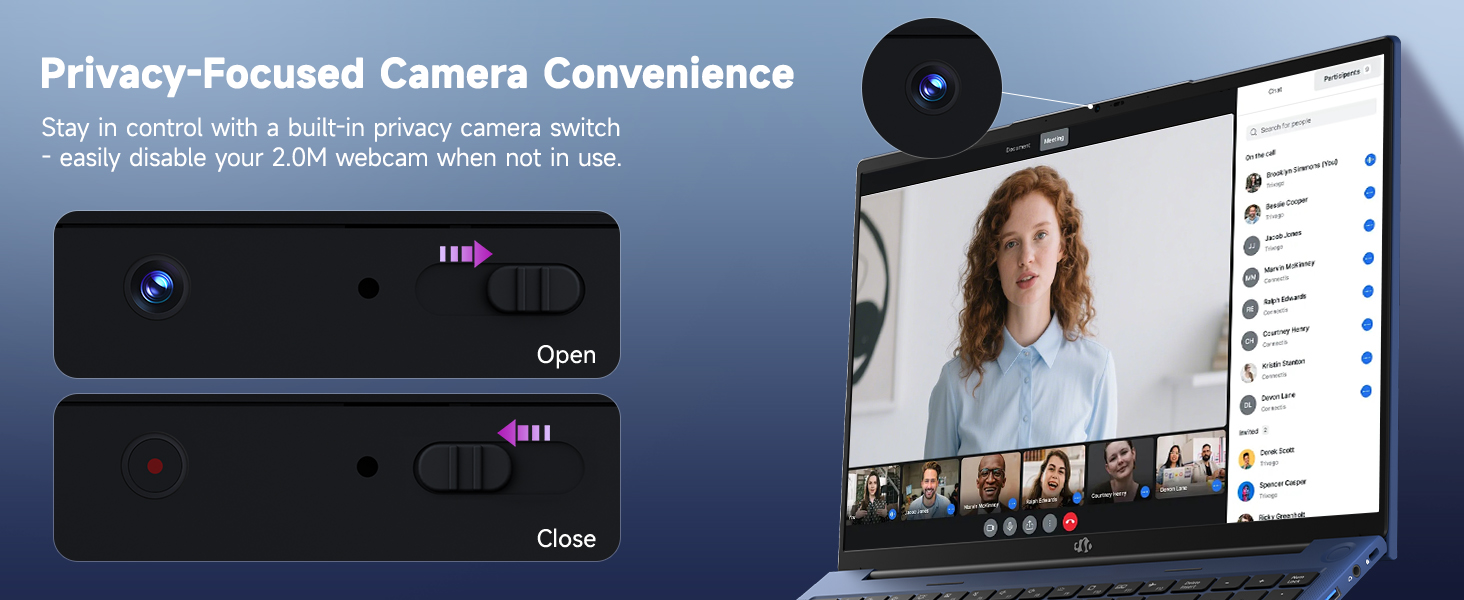
Immagine 5.2: Il webcam features a physical privacy switch, allowing users to disable the camera when not in use for enhanced security.
5.5. USB-C 4.0 Functionality
The USB-C 4.0 port offers versatile connectivity:
- Trasferimento dati: Supports high-speed data transfer with compatible devices.
- Display esterno: Connects to external monitors using a compatible USB-C to display adapter (not included).
- Erogazione di potenza (PD): Used for charging the laptop with the provided 100W PD charger.
- Supporto eGPU: Compatible with external GPU (eGPU) docks for enhanced graphics performance (eGPU dock not included).
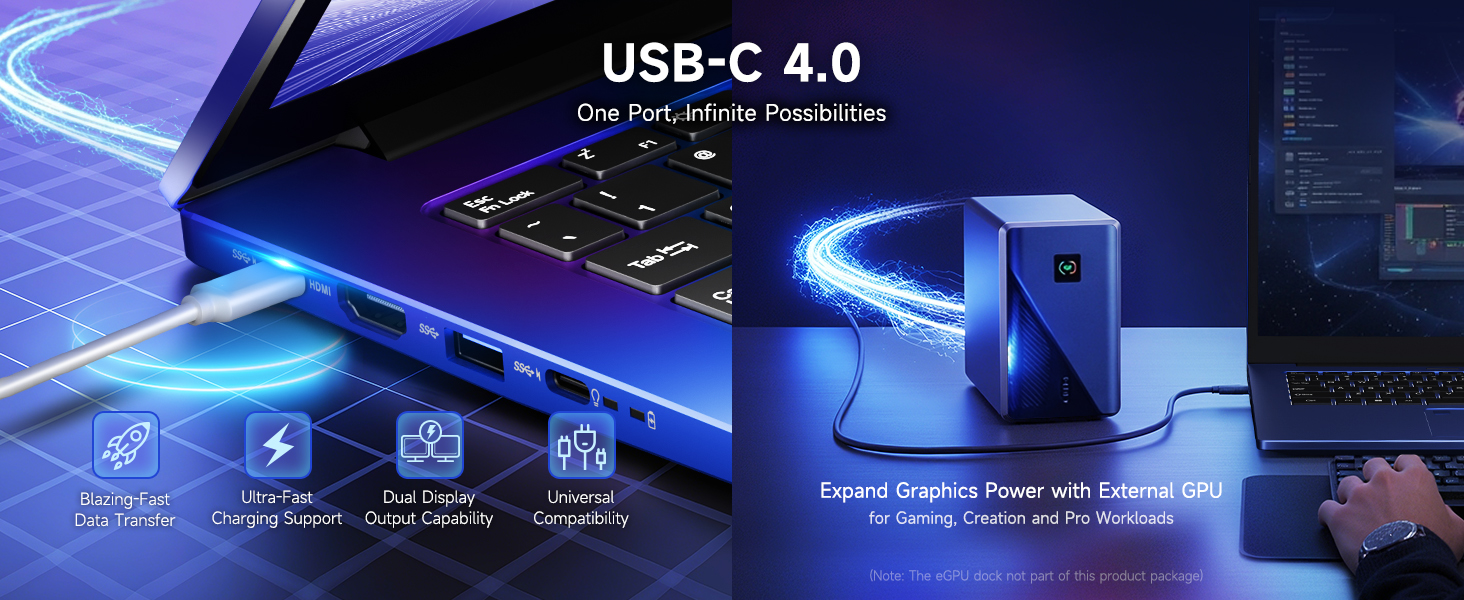
Image 5.3: The USB-C 4.0 port provides blazing-fast data transfer, external display output, charging support, and compatibility with external GPU docks.
6. Manutenzione
6.1. Pulizia
- Per pulire lo schermo e le superfici esterne, utilizzare un panno morbido e privo di lanugine.
- Per segni ostinati, leggermente dampInumidire il panno con acqua o con una soluzione detergente per schermi.
- Evitare prodotti chimici aggressivi, abrasivi o solventi.
- Utilizzare aria compressa per eliminare la polvere dai tasti della tastiera e dalle prese d'aria.
6.2. Cura della batteria
Per prolungare la durata della batteria:
- Evitare di scaricare completamente la batteria frequentemente.
- Quando non lo si utilizza per lunghi periodi, conservare il computer portatile in un luogo fresco e asciutto.
- Use the provided 100W PD charger for optimal charging.
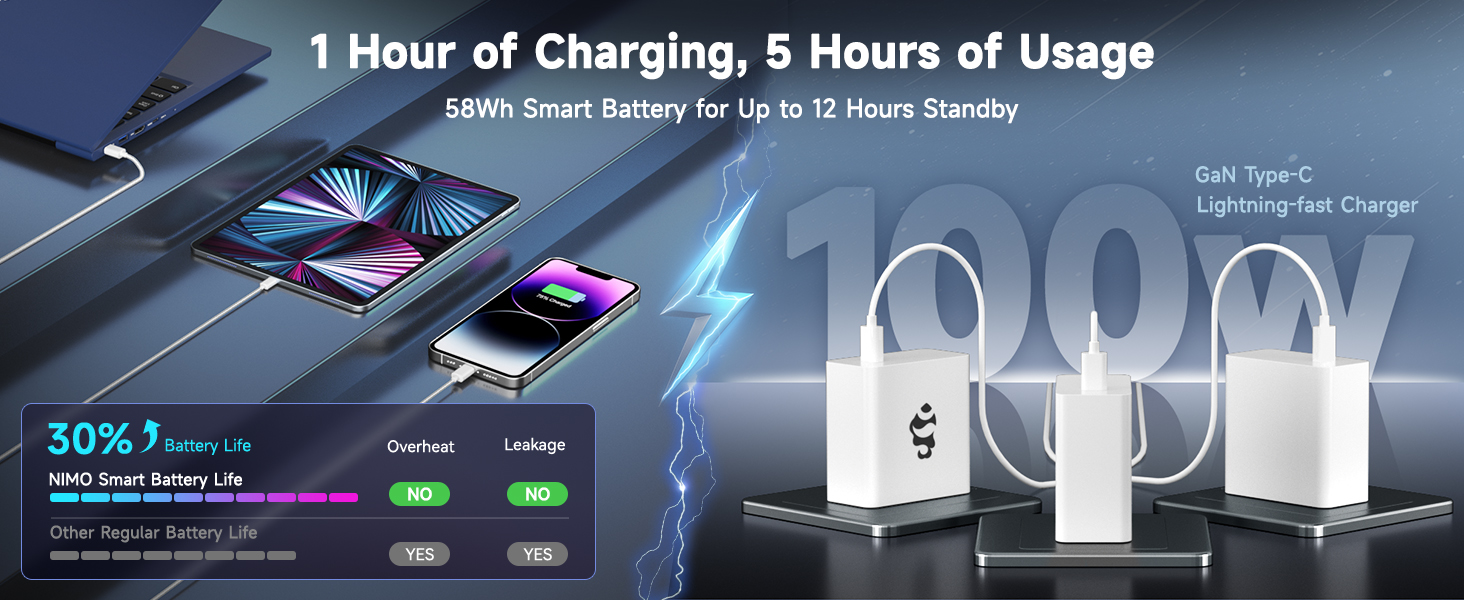
Image 6.1: The 100W GaN charger provides efficient power delivery, contributing to the laptop's smart battery optimization for extended usage.
6.3. Aggiornamenti software
Regularly check for and install Windows updates and driver updates to ensure optimal performance and security. Go to Windows Settings > Windows Update.
7. Risoluzione Dei Problemi
Questa sezione affronta i problemi più comuni che potresti incontrare.
- Il portatile non si accende: Ensure the charger is properly connected and the power outlet is functional. Try holding the power button for 15-20 seconds to perform a hard reset.
- Lo schermo è vuoto o tremolante: Restart the laptop. If connected to an external display, try disconnecting it. Check display settings in Windows.
- Problemi di connessione Wi-Fi: Ensure Wi-Fi is enabled in Windows settings. Restart your router and the laptop. Update network drivers if necessary.
- Prestazioni lente: Close unnecessary applications. Check for background processes in Task Manager. Ensure sufficient free space on the SSD. Run a system scan for malware.
- Lettore di impronte digitali non funzionante: Assicurati che il dito sia pulito e asciutto. Se il problema persiste, registra nuovamente l'impronta digitale nelle impostazioni di Windows.
Per problemi non trattati qui, fare riferimento alla sezione Garanzia e supporto per le informazioni di contatto.
8. Specifiche
| Caratteristica | Dettaglio |
|---|---|
| Nome del modello | Nimo N175 |
| Display | 17.3-inch Full HD (1920x1080) IPS |
| Processore | AMD Ryzen 9 8945HS (5.2 GHz Max Boost, 8 Cores) |
| Grafica | Scheda grafica AMD Radeon 780M |
| Memoria RAM | 16 GB DDR5 (4800 MHz) |
| Magazzinaggio | SSD da 1 TB |
| Sistema operativo | Windows 11 Casa |
| Connettività wireless | 802.11a/b/g/n/ac |
| Porti | 1x USB 2.0, 3x USB 3.0 (or 3.2), 1x USB-C 4.0, 1x HDMI, 1x SD Card Reader, 1x Headphone Combo, 1x Kensington Lock |
| Durata della batteria | Approximately 6 hours (up to 12 hours standby) |
| Caricabatterie | 100W Type-C PD Fast Charger |
| Dimensioni (LxWxH) | 14.07 x 8.98 x 0.76 pollici |
| Peso | 3.8 libbre |
| Caratteristiche speciali | Backlit Keyboard, Fingerprint Reader, HD Audio, Numeric Keypad, WebInterruttore privacy cam |
9. Informazioni su garanzia e supporto
NIMO is committed to providing reliable products and customer service.
9.1. Garanzia
Your NIMO laptop comes with a Garanzia di 2 anno from the date of purchase, covering manufacturing defects and hardware malfunctions under normal use conditions.
9.2. Politica di reso
A Politica di reso gratuita entro 90 giorni is provided, allowing returns for any reason within 90 days of purchase.
9.3. Assistenza clienti
For technical assistance, warranty claims, or any product-related inquiries, please contact our U.S.-based support team:
- E-mail: servizio@nimopc.com
- In linea: Visit the official NIMO websito per risorse di supporto e opzioni di contatto.

Image 9.1: NIMO offers 2-year support, 90-day free returns, and dedicated customer service to ensure user satisfaction.