
1. Introduzione
The AVerMedia Live Gamer Ultra S GC553PRO is an external high-performance video capture device designed for gamers and streamers. It enables high-quality pass-through and capture of video signals, supporting advanced features like Variable Refresh Rate (VRR) and native widescreen resolutions. This manual provides detailed instructions for setting up, operating, and maintaining your device to ensure optimal performance.

Image 1.1: AVerMedia Live Gamer Ultra S GC553PRO product box and the capture device.
2. Cosa c'è nella scatola
Si prega di verificare che tutti gli articoli siano presenti nel pacco:
- AVerMedia Live Gamer Ultra S GC553PRO Device
- Cavo da USB-A a USB-C
- Cavo HDMI

Image 2.1: The AVerMedia Live Gamer Ultra S GC553PRO device and included cables.
3. Specifiche
| Caratteristica | Dettaglio |
|---|---|
| Interfaccia | USB 3.2 Gen 1 Type-C (5 Gbps) |
| Ingresso e uscita (pass-through) | Uscita HDMI 2.0 |
| Risoluzioni pass-through massime | 4K60 HDR/VRR, 1440p144 HDR/VRR, 1080p240 HDR/VRR |
| Max Capture Resolutions | 4K60, 1440p144, 1080p240 / 1440p30 HDR, 1080p60 HDR |
| Risoluzione supportata | Risoluzione: 2160p, 1440p, 1080p, 1080i, 720p, 576p, 480p |
| Dimensioni (L x P x A) | 112.6 x 66.2 x 26 mm (4.43 x 2.6 x 1.02 pollici) |
| Peso | 99 g (3.49 once) |
| Colore | Bianco |
4. Requisiti di sistema
To ensure proper functionality, your system must meet the following minimum requirements:
Sistema operativo:
- Windows® 10 x64 / 11 x64 o successivo
- macOS 13/14 o successivo
- iPadOS 17 o successivo
Hardware (Desktop):
- Intel® Core™ i5-6XXX / AMD Ryzen™ 3 XXX o superiore
- NVIDIA® GTX 1060 / AMD RX 5700 o superiore
Hardware (Laptop):
- Intel® Core™ i7-7700HQ + NVIDIA® GTX 1050Ti or above
- Consigliati 8 GB di RAM (doppio canale)
Hardware (Apple):
- Apple M1 o Intel Core i3.6 quad-core da 7 GHz
- Apple M1 o Radeon Pro 555 con 2 GB di VRAM
- 16 GB di memoria DDR2400 a 4 MHz
5. Impostazione
5.1 connessione fisica
Follow these steps to connect your Live Gamer Ultra S GC553PRO:
- Connect your gaming console, PC, or mobile device to the HDMI IN port on the Live Gamer Ultra S using an HDMI cable.
- Collega il tuo monitor o TV al Uscita HDMI port on the Live Gamer Ultra S using an HDMI cable.
- Connect the Live Gamer Ultra S to your computer (laptop or desktop) using the provided USB-A to USB-C cable. Ensure you use a USB 3.2 Gen 1 Type-C port for optimal performance.

Image 5.1: Connection diagram for the Live Gamer Ultra S, illustrating HDMI IN from source, HDMI OUT to monitors, and USB-C OUT to PC/laptop/tablet.
5.2 Installazione del software
Upon connecting the device to your computer, you may be prompted to download the necessary software and drivers. It is recommended to install the AVerMedia Streaming Center for full functionality. Ensure all drivers are up to date for the best experience.

Image 5.2: Screenshot of the AVerMedia Streaming Center software interface.
For a visual guide on setup and software usage, refer to the official product video below:
Video 5.1: Official AVerMedia Live Gamer ULTRA S - GC553Pro overview e guida all'installazione.
6. Utilizzo del dispositivo
6.1 Acquisizione e streaming di base
Once connected and software is installed, open the AVerMedia Streaming Center or your preferred streaming software (e.g., OBS Studio). Select the Live Gamer Ultra S as your video source. You can then configure your streaming or recording settings.
6.2 Variable Refresh Rate (VRR) Pass-Through and Recording
The Live Gamer Ultra S supports VRR pass-through and recording, which helps eliminate screen tearing and stuttering for a smoother gaming experience. This feature is crucial for maintaining fluid visuals during high-frame-rate gameplay.
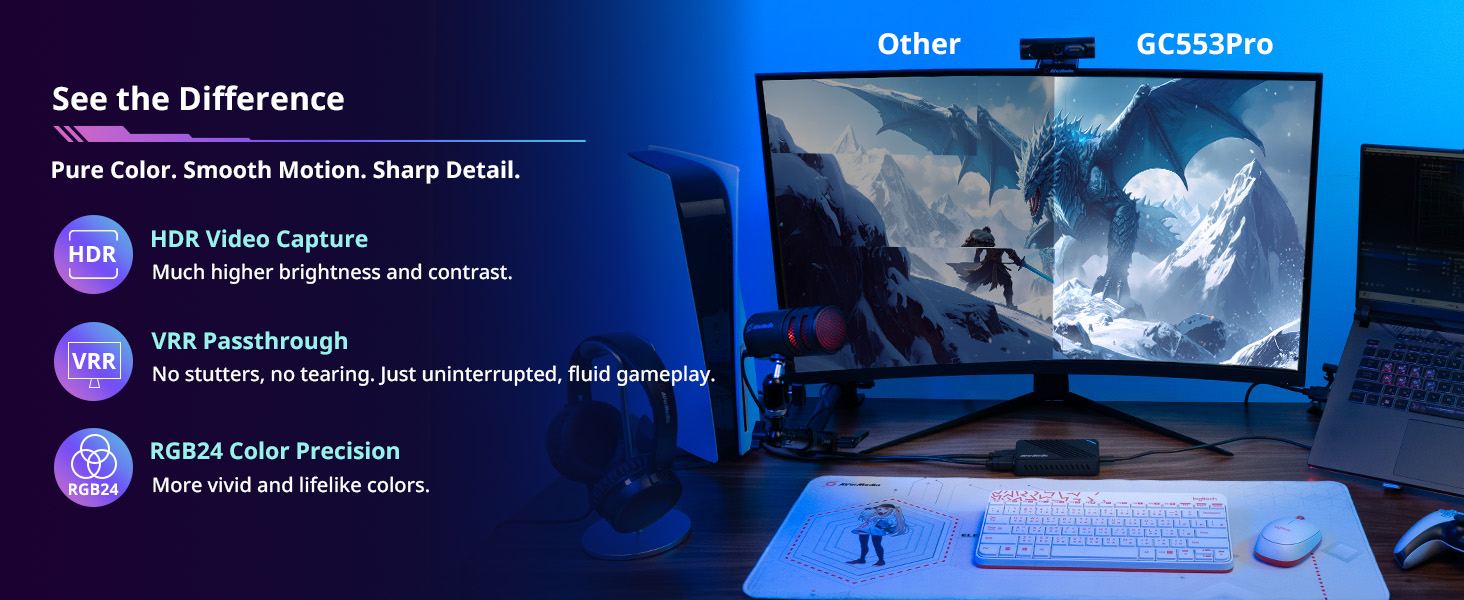
Image 6.1: Visual comparison of gameplay with VRR OFF and VRR ON, highlighting the elimination of screen tearing.
6.3 Native Widescreen Support
Enjoy an immersive experience with native widescreen resolution support (e.g., 3440x1440 and 2560x1080). The GC553PRO captures the full 21:9 experience without the need for stretching or black bars, providing a broader field of view for your streams and recordings.
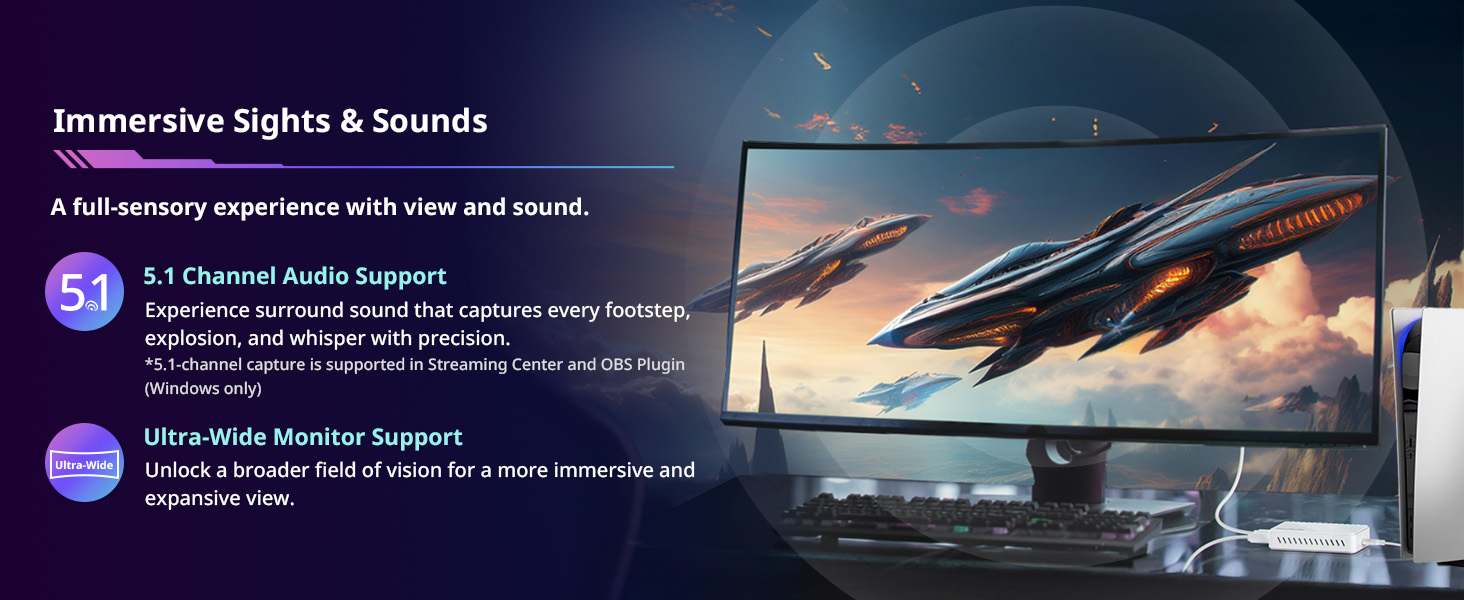
Image 6.2: Display showing ultrawide resolution support for immersive gaming and streaming.
6.4 Immersive 5.1 Surround Sound
Elevate your gaming and streaming with 5.1 surround sound support, offering multi-channel audio for high-quality recordings. This feature is available in AVerMedia Streaming Center and Streaming Center (OBS Plugin) on Windows.

Image 6.3: A gamer experiencing immersive 5.1 surround sound with the capture device.
6.5 True-to-Life Colors with RGB24
The Live Gamer Ultra S supports uncompressed RGB24, delivering vivid colors and precise details that enhance your audience's experience and bring your gameplay to life.
Image 6.4: Visual comparison demonstrating the difference between NON-RGB24 and RGB24 for true-to-life colors.
7. Manutenzione
To ensure the longevity and optimal performance of your AVerMedia Live Gamer Ultra S GC553PRO, follow these maintenance guidelines:
- Pulizia: Use a soft, dry cloth to clean the exterior of the device. Avoid using liquid cleaners or abrasive materials, as they may damage the surface.
- Magazzinaggio: Conservare il dispositivo in un luogo fresco e asciutto, lontano dalla luce solare diretta e da temperature estreme.
- Gestione: Maneggiare il dispositivo con cura per evitare danni fisici. Evitare di farlo cadere o di sottoporlo a forti urti.
8. Risoluzione Dei Problemi
8.1 Stato dell'indicatore LED
The LED indicator on your Live Gamer Ultra S provides important status information:
- Verde lampeggiante: Indicates that the device is not achieving its designed performance due to reduced bandwidth.
- Blu fisso: Indicates optimal performance and proper connection.
8.2 Reduced Bandwidth (Flashing Green LED)
If the LED is flashing green, try the following:
- Controlla la porta USB: Ensure the device is plugged into a USB 3.2 Gen 1 Type-C port on your computer. Older USB ports may not provide sufficient bandwidth.
- Utilizzare i cavi inclusi: Always use the USB and HDMI cables provided with the device, as they are designed to meet the required specifications for optimal performance.
- Prestazione del sistema: Verify that your computer meets the minimum system requirements. An older PC or one with insufficient processing power may limit the device's performance.
8.3 Screen Tearing in Recordings
The Live Gamer Ultra S is designed to minimize screen tearing through its VRR support. If you experience screen tearing in your recordings, ensure that VRR is enabled on your display and within the capture software settings. Using other capture cards or older models may result in screen tearing, as demonstrated in the video below:
Video 8.1: This video demonstrates screen tearing that can occur with other capture devices compared to the AVerMedia Live Gamer Ultra S.
9. Garanzia e supporto
9.1 Garanzia del prodotto
The AVerMedia Live Gamer Ultra S GC553PRO comes with a 3+1 year warrantySi prega di conservare la prova d'acquisto per eventuali reclami in garanzia.
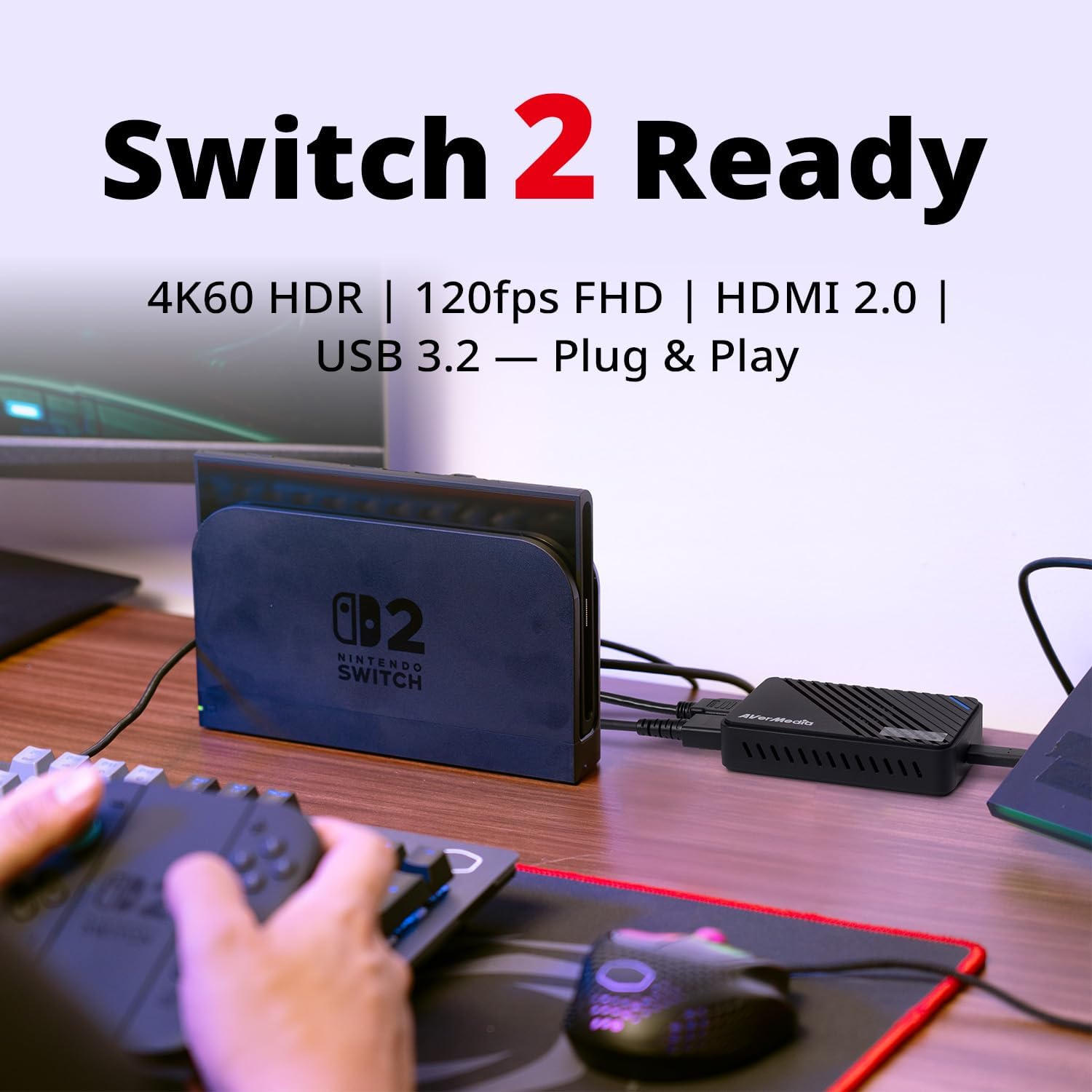
Image 9.1: Product features highlighting the 3+1 years warranty.
9.2 Supporto tecnico
For the latest information, FAQs, and technical support, please visit the official AVerMedia website. You can find detailed guides, software updates, and contact information for customer service.
Official AVerMedia Websito: www.avermedia.com