
NIMO Nimo N156
NIMO 15.6" FHD Business Laptop User Manual
Model: Nimo N156
Introduzione
This user manual provides comprehensive instructions for setting up, operating, maintaining, and troubleshooting your NIMO 15.6" FHD Business Laptop. Please read this manual carefully before using your device to ensure optimal performance and longevity. Keep this manual for future reference.
Cosa c'è nella scatola
Verificare che tutti gli articoli siano presenti nel pacco:
- 1 x Nimo N156 Laptop
- 1 x Type-C 100W PD Fast Charger
- 1 x Manuale utente (questo documento)
- Windows 11 Home (preinstallato)
- 2 Years Warranty, 90 Days Return information
Prodotto finitoview
Familiarize yourself with the key components of your NIMO laptop.

Figura 1: Davanti view of the NIMO 15.6 inch FHD Business Laptop, showcasing its full HD IPS display, Intel Core i5 processor, fingerprint reader, Type-C PD charger port, and backlit keyboard.

Figura 2: Close-up of the NIMO laptop's backlit full keyboard, highlighting the integrated webcam shield, fingerprint sensor, and numeric keypad for enhanced productivity and security.

Figura 3: Diagram illustrating the multiple ports on the NIMO laptop, including Micro SD slot, USB 2.0, USB 3.0, Headphone Jack, Kensington lock, Type-C (multifunction), Type-C (PD Charger Only), HDMI, and Charge LED.
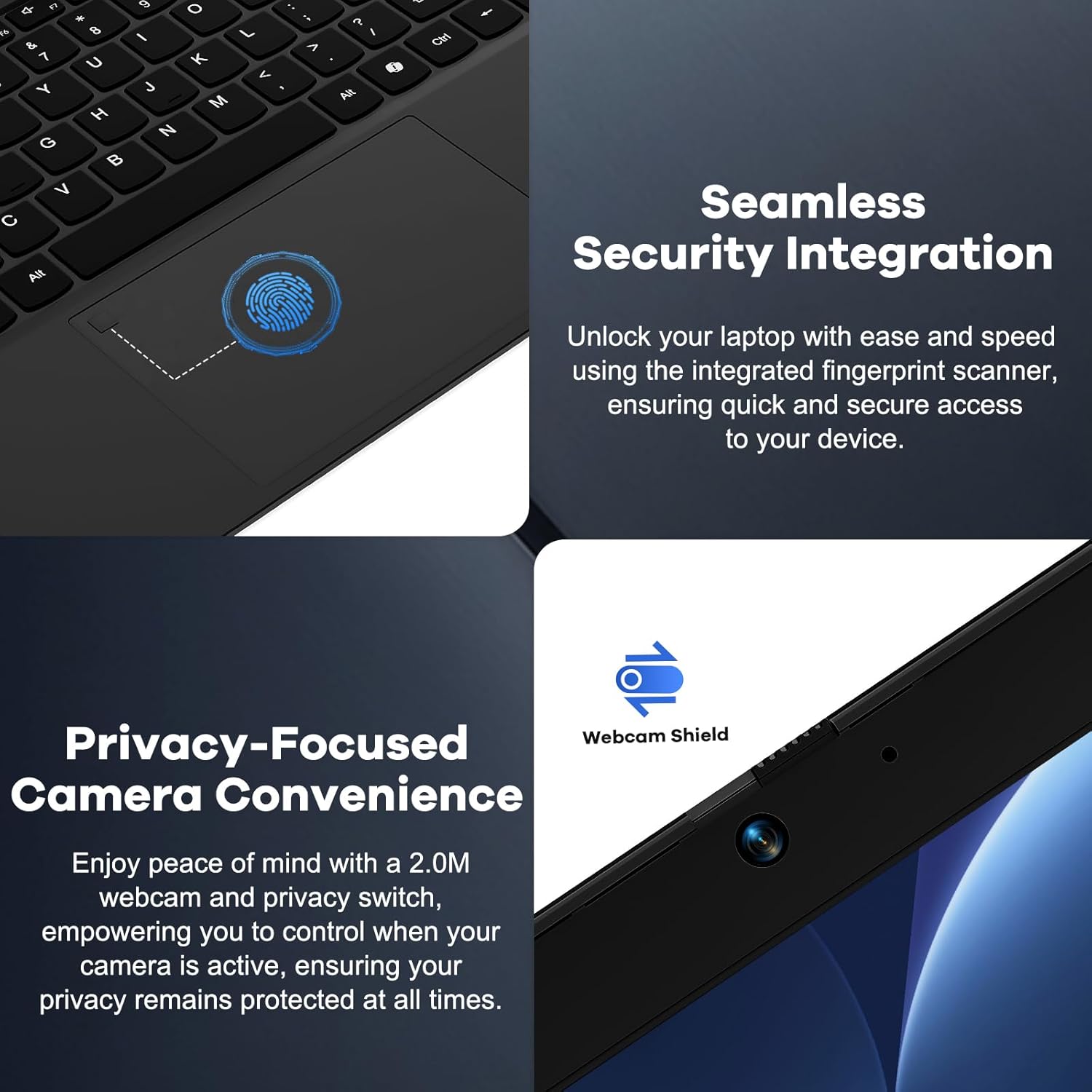
Figura 4: Details on the seamless security integration with the fingerprint sensor for quick login and the privacy-focused camera convenience with a built-in webcam shield.

Figura 5: The compact 100W GaN Type-C PD Fast Charger included with the NIMO laptop, capable of charging to 50% in 15 minutes and compatible with various devices.
Impostare
1. Accensione iniziale
- Disimballare: Estrarre con cautela il computer portatile e tutti gli accessori dalla confezione.
- Connetti alimentazione: Plug the 100W GaN Type-C PD Fast Charger into a power outlet and connect the USB-C cable to the laptop's Type-C charging port. The Charge LED will illuminate.
- Primo avvio: Open the laptop lid. The system may power on automatically or you may need to press the power button (located on the top right of the keyboard).
- Installazione di Windows: Segui le istruzioni visualizzate sullo schermo per completare la configurazione di Windows 11 Home. Questa procedura include la selezione della regione, della lingua, la connessione a una rete Wi-Fi e la creazione di un account utente.
2. Collegamento di periferiche
Your NIMO laptop offers various ports for connecting external devices:
- Dispositivi USB: Collegare unità flash USB, dischi rigidi esterni, mouse o tastiere alle porte USB 2.0 o USB 3.0.
- Display esterno: Utilizzare la porta HDMI per collegare un monitor o un proiettore esterno.
- Audio: Plug headphones or external speakers into the 3.5mm Headphone Jack.
- Schede di memoria: Inserire una scheda Micro SD nello slot Micro SD per ulteriore spazio di archiviazione.
Istruzioni per l'uso
1. Funzionamento di base
- Accensione/spegnimento: Press the power button to turn the laptop on. To shut down, click the Start button in Windows, then Power > Shut down.
- Modalità risparmio: Chiudere il coperchio o fare clic sul pulsante Start, quindi su Alimentazione > Sospensione per mettere il laptop in modalità sospensione.
- Fingerprint Login: Utilize the integrated fingerprint sensor for quick and secure login to Windows. Register your fingerprints through Windows Settings > Accounts > Sign-in options.
- Tastiera retroilluminata: The keyboard features backlighting for low-light conditions. Use the dedicated function key (Fn + F key combination, typically F3 or F4) to toggle or adjust the backlight brightness.
- WebPrivacy della camma: The laptop includes a physical webcam shield. Slide the switch next to the webcam to cover or uncover the camera lens for privacy.
2. Funzionalità di Windows 11
Your laptop comes with Windows 11 Home pre-installed. Explore its features for enhanced productivity and entertainment:
- Layout a scatto: Easily organize open windows on your screen.
- Widgets: Accedi a informazioni personalizzate in un attimo.
- Microsoft Store: Download and install applications.
- Sicurezza: Windows Defender provides built-in antivirus and firewall protection.
Manutenzione
- Pulizia: Utilizzare un panno morbido e privo di lanugine per pulire lo schermo e il telaio. Per le macchie ostinate, leggermente dampImmergere il panno in acqua o in una soluzione detergente per schermi. Evitare prodotti chimici aggressivi.
- Cura della batteria: To prolong battery life, avoid fully discharging the battery frequently. It is recommended to keep the battery charge between 20% and 80% when possible. Store the laptop in a cool, dry place if not used for extended periods.
- Aggiornamenti software: Regularly check for and install Windows updates and driver updates to ensure system stability and security. Go to Windows Settings > Windows Update.
- Gestione della memoria: Pulire periodicamente ciò che non è necessario files and applications to free up storage space and improve performance.
Risoluzione dei problemi
| Problema | Possibile causa | Soluzione |
|---|---|---|
| Il portatile non si accende. | Problema con la batteria scarica o con l'adattatore di alimentazione. | Assicurarsi che il caricabatterie sia collegato correttamente e che la presa di corrente funzioni. Lasciare caricare il laptop per almeno 30 minuti prima di riprovare ad accenderlo. |
| Il display è vuoto o tremolante. | Incorrect display settings or driver issue. | Try connecting an external monitor to check if the issue is with the laptop's display. Update graphics drivers. Restart the laptop. |
| Problemi di connessione Wi-Fi. | Incorrect network settings or driver issue. | Ensure Wi-Fi is enabled. Restart your router and laptop. Update Wi-Fi drivers. Forget and reconnect to the network. |
| La retroilluminazione della tastiera non funziona. | Backlight feature is off or driver issue. | Press the Fn + F key combination (e.g., F3 or F4) to toggle the backlight. Check keyboard settings in Windows. |
If the problem persists, please refer to the Warranty and Support section for assistance.
Specifiche
| Caratteristica | Dettaglio |
|---|---|
| Marca | NIMO |
| Nome del modello | Nimo N156 |
| Dimensioni dello schermo | 15.6 pollici |
| Risoluzione dello schermo | 1920 x 1080 pixel (FHD IPS) |
| Processore | Intel Core i5-12450H (8 core, fino a 4.4 GHz) |
| Memoria RAM | 8 GB DDR4 (Upgradable) |
| Disco rigido | 256 GB PCIe SSD (Upgradable) |
| Coprocessore grafico | Intel grafica integrata |
| Sistema operativo | Windows 11 Casa |
| Tipo senza fili | 802.11a/b/g/n/ac (WiFi 6) |
| Bluetooth | Modello BT5.2 |
| Porti | 1x USB 2.0, 3x USB 3.0, Type-C (PD Charger Only), Type-C (Multifunction), HDMI, Headphone Jack, Micro SD Slot |
| Adattatore di alimentazione | 100W GaN Type-C PD Fast Charger |
| Durata media della batteria | 5 Hours (54Wh Smart Battery for up to 9 Hours Standby) |
| Peso dell'articolo | 3.8 libbre |
| Dimensioni del prodotto | 14.07 x 8.98 x 0.76 pollici |
| Caratteristiche speciali | Backlit Keyboard, Fingerprint Reader, HD Audio, Memory Card Slot, Numeric Keypad, Webcam Shield |
Garanzia e supporto
NIMO stands behind the quality of its products. Your NIMO laptop comes with the following:
- Garanzia di 2 anni: A 2-Year Warranty from NIMO Direct Inc. covers manufacturing defects and hardware failures.
- Resi senza problemi entro 90 giorni: Per la tua tranquillità, puoi usufruire di una politica di reso di 90 giorni.
- 24/7 Dedicated Support: For any issues or inquiries, dedicated support is available to provide instant resolution.
For warranty claims or technical assistance, please contact NIMO customer support through the contact information provided on the official NIMO websito o la documentazione di acquisto.
Video: Un oltreview of the NIMO laptop, highlighting its features, performance, and the comprehensive 90-day return policy and 2-year warranty, demonstrating NIMO's commitment to customer satisfaction.
Ask a question about this manual
Ask about setup, troubleshooting, compatibility, parts, safety, or missing instructions. Manuals+ will review the question and use this page’s manual context to help answer it.