
Introduzione
The Joso Keyboard and Mouse Adapter (Model TNS-19077S) allows users to connect a standard USB keyboard and mouse to various gaming consoles, including Nintendo Switch (1st Gen & OLED), PlayStation 4 (PS4), PlayStation 3 (PS3), Xbox One, and Xbox Series X|S. This adapter provides a PC-like control experience for compatible games, particularly beneficial for First-Person Shooter (FPS) titles.
This device is designed for plug-and-play functionality, requiring no additional software or drivers for basic operation. It translates keyboard and mouse inputs into controller signals, enabling precise aiming and customizable control schemes.
Note importanti sulla compatibilità:
- For Nintendo Switch, an original controller is not required for authentication.
- For Xbox and PlayStation consoles (PS4, PS3, Xbox One, Xbox Series X|S), an original licensed controller is required for authentication and must be connected to the adapter.
- Questo adattatore è non compatibile with PlayStation 5 (PS5), Nintendo Switch 2, or PC.
- The keyboard cannot be used for typing messages on console systems.
- Supports wired and 2.4G wireless keyboards and mice. Bluetooth keyboards and mice are not supported.
Istruzioni di installazione
Follow these steps to connect your Joso Keyboard and Mouse Adapter to your gaming console.
Schema di collegamento generale

This diagram illustrates the connection points on the Joso adapter: one USB 2.0 port for the gaming console, one for the original controller, one for the keyboard, and one for the mouse. A Type-C auxiliary power port is also shown for unstable connections.
- Connect the Joso adapter to your gaming console's USB port.
- If using an Xbox or PlayStation console, connect your original licensed controller to the designated USB 2.0 port on the adapter.
- Connect your wired or 2.4G wireless keyboard to the designated USB 2.0 port on the adapter.
- Connect your wired or 2.4G wireless mouse to the designated USB 2.0 port on the adapter.
- Observe the indicator lights on the adapter. Successful connection is indicated by specific light patterns (refer to the 'Clear Indicator Lights' section below).
- If the keyboard and mouse connection is unstable, connect a Type-C cable (not included) to the auxiliary power port on the adapter for additional power.
Guida agli indicatori luminosi

This image displays the Joso adapter's ports and the meaning of its LED indicator lights:
- Luce arancione: Console Connection Indicator
- Luce rossa: Auxiliary Power Indicator
- Luce verde: Gamepad Connection Indicator
- Luce blu: Keyboard & Mouse Connection Indicator
- All Indicators Flash Once: Modalità di impostazione delle funzioni
Console-Specific Setup
Connessione Nintendo Switch

This diagram illustrates connecting the Joso adapter to a Nintendo Switch dock. First, ensure 'Pro Controller Wired Connection' is set to 'On' in Switch settings. Then, connect the adapter to the Switch dock, followed by the keyboard and mouse to the adapter. When orange and blue indicator lights are on, the connection is successful.
Video: Step-by-step guide on connecting the Joso Keyboard and Mouse Adapter to a Nintendo Switch console.
PlayStation 4 (PS4) Connection

This diagram illustrates connecting the Joso adapter to a PS4 console. Before connecting, go to PS4 Settings > Devices > Controllers > Communication Method and select 'Use USB cable'. Then, connect the adapter to the PS4, followed by the keyboard, mouse, and the official PS4 controller to the adapter. When orange, blue, and green indicator lights are on, the connection is successful.
Video: Step-by-step guide on connecting the Joso Keyboard and Mouse Adapter to a PlayStation 4 console.
Xbox Series X|S / Xbox One Connection

This diagram illustrates connecting the Joso adapter to an Xbox console. Connect the adapter to the Xbox, then connect the keyboard, mouse, and the official Xbox controller to the adapter. When orange, blue, and green indicator lights are on, the connection is successful.
Video: Step-by-step guide on connecting the Joso Keyboard and Mouse Adapter to an Xbox console.
Istruzioni per l'uso
The Joso Keyboard and Mouse Adapter translates your keyboard and mouse inputs into corresponding controller signals, allowing you to play games with a PC-style control scheme.
Key Mapping Overview
The adapter features a default key mapping that emulates standard controller functions. For example, WASD keys typically control movement (left joystick), and mouse movement controls camera (right joystick). Specific button actions are mapped to keyboard keys.
Nintendo Switch Key Value Diagram

This diagram illustrates the default key mappings for Nintendo Switch. For example, 'Space' maps to 'A', 'Shift' to 'L3', and mouse movement to 'Left Joystick' and 'Right Joystick'.
PlayStation 4 Key Value Diagram

This diagram illustrates the default key mappings for PlayStation 4. For example, 'Space' maps to 'X', 'Shift' to 'L3', and mouse movement to 'Left Joystick' and 'Right Joystick'.
PlayStation 3 Key Value Diagram

This diagram illustrates the default key mappings for PlayStation 3. For example, 'Space' maps to 'X', 'Shift' to 'L3', and mouse movement to 'Left Joystick' and 'Right Joystick'.
Xbox Series X|S Key Value Diagram

This diagram illustrates the default key mappings for Xbox Series X|S. For example, 'Space' maps to 'A', 'Shift' to 'L3', and mouse movement to 'Left Joystick' and 'Right Joystick'.
Xbox One Key Value Diagram
This diagram illustrates the default key mappings for Xbox One. For example, 'Space' maps to 'A', 'Shift' to 'L3', and mouse movement to 'Left Joystick' and 'Right Joystick'.
Note: The Joso Keyboard and Mouse Adapter does not support custom key mapping.
Adjustable Mouse Sensitivity
The adapter allows for adjustment of mouse sensitivity, which is crucial for FPS games. This feature simulates right joystick movement, providing faster and more accurate targeting compared to standard controller sticks. Look sensitivity and aim-down-sight speed can be fine-tuned within the game's settings or potentially through adapter-specific functions (refer to the product's quick start guide for any specific button combinations for sensitivity adjustment).
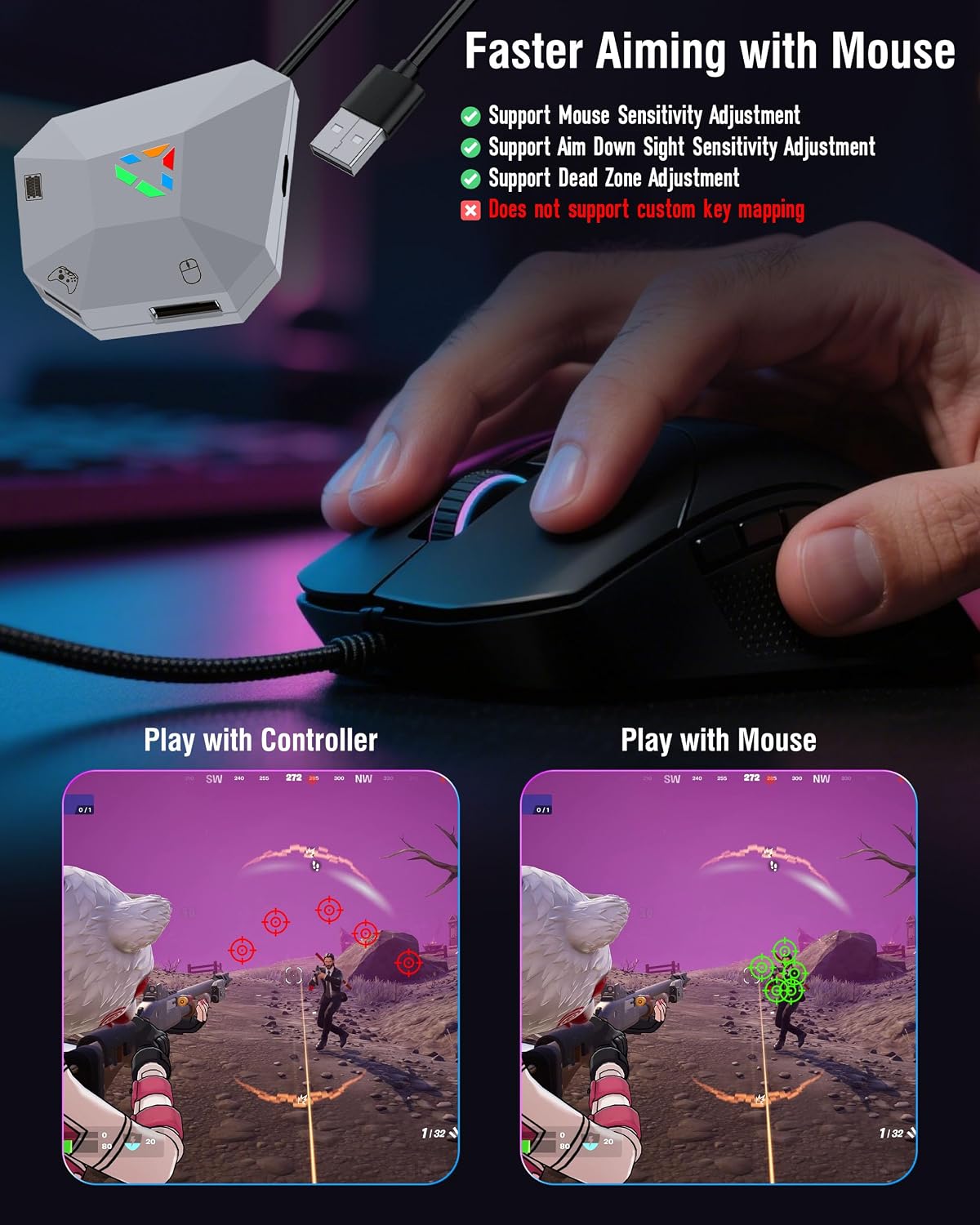
This image demonstrates the difference in aiming precision between a controller and a mouse, highlighting the advantage of using a mouse for targeting in games.
Manutenzione
To ensure the longevity and optimal performance of your Joso Keyboard and Mouse Adapter, follow these general maintenance guidelines:
- Mantenere l'adattatore pulito e privo di polvere. Utilizzare un panno morbido e asciutto per la pulizia.
- Evitare di esporre l'adattatore a temperature estreme, umidità o luce solare diretta.
- Non utilizzare prodotti chimici aggressivi o detergenti abrasivi sul dispositivo.
- Quando non lo si utilizza, conservare l'adattatore in un luogo sicuro per evitare danni fisici.
- Ensure cables are not bent sharply or tangled, which can cause internal damage.
Risoluzione dei problemi
If you encounter issues with your Joso Keyboard and Mouse Adapter, refer to the following common problems and solutions:
| Problema | Possibile causa/soluzione |
|---|---|
| Adapter not recognized by console or not functioning. |
|
| La tastiera o il mouse non rispondono. |
|
| Mouse movement feels jittery or imprecise. |
|
| Keyboard cannot be used for typing messages. | This is a limitation of the adapter; it is designed for game input translation, not system-level text input. |
| Adapter not compatible with PS5 or Switch 2. | The adapter is explicitly not compatible with PS5 or Switch 2. Please check product specifications for supported consoles. |
Specifiche
| Caratteristica | Dettaglio |
|---|---|
| Numero di modello | TNS-19077S |
| Marca | Gioso |
| Dispositivi compatibili | Nintendo Switch (1st Gen & OLED), PS4/PS3, Xbox Series X/S, Xbox One/X/S |
| Usi specifici per il prodotto | Video Game Console |
| Tipo di connettore | USB tipo A |
| Colore | Grigio chiaro |
| Numero di porte | 4 (3x USB 2.0 for peripherals/controller, 1x USB for console) |
| Potenza Tipo spina | Type C (Auxiliary Power) |
| Compatibilità con la casa intelligente | Not Smart Home Compatible |
| Fine | Opaco |
| Peso dell'articolo | 0.05 chilogrammi |
| Produttore | ShenZhen YuYanXin Electronic Technology Co., LTD |
Informazioni sulla garanzia
The product comes with a limited warranty. For specific details regarding the warranty period and coverage, please refer to the product packaging or contact Joso customer support directly. Proof of purchase may be required for warranty claims.
Assistenza clienti
For further assistance, technical support, or inquiries regarding the Joso Keyboard and Mouse Adapter, please contact Joso Direct Tech. You may also visit the official Joso store on Amazon for additional resources and product information: