
1. Introduzione
Thank you for choosing the EWEADN G3 Wired Gaming Mouse. This optical mouse is designed for both office tasks and intense gaming, offering precision, comfort, and customizable features. This manual provides essential information for setting up, operating, and maintaining your new mouse.
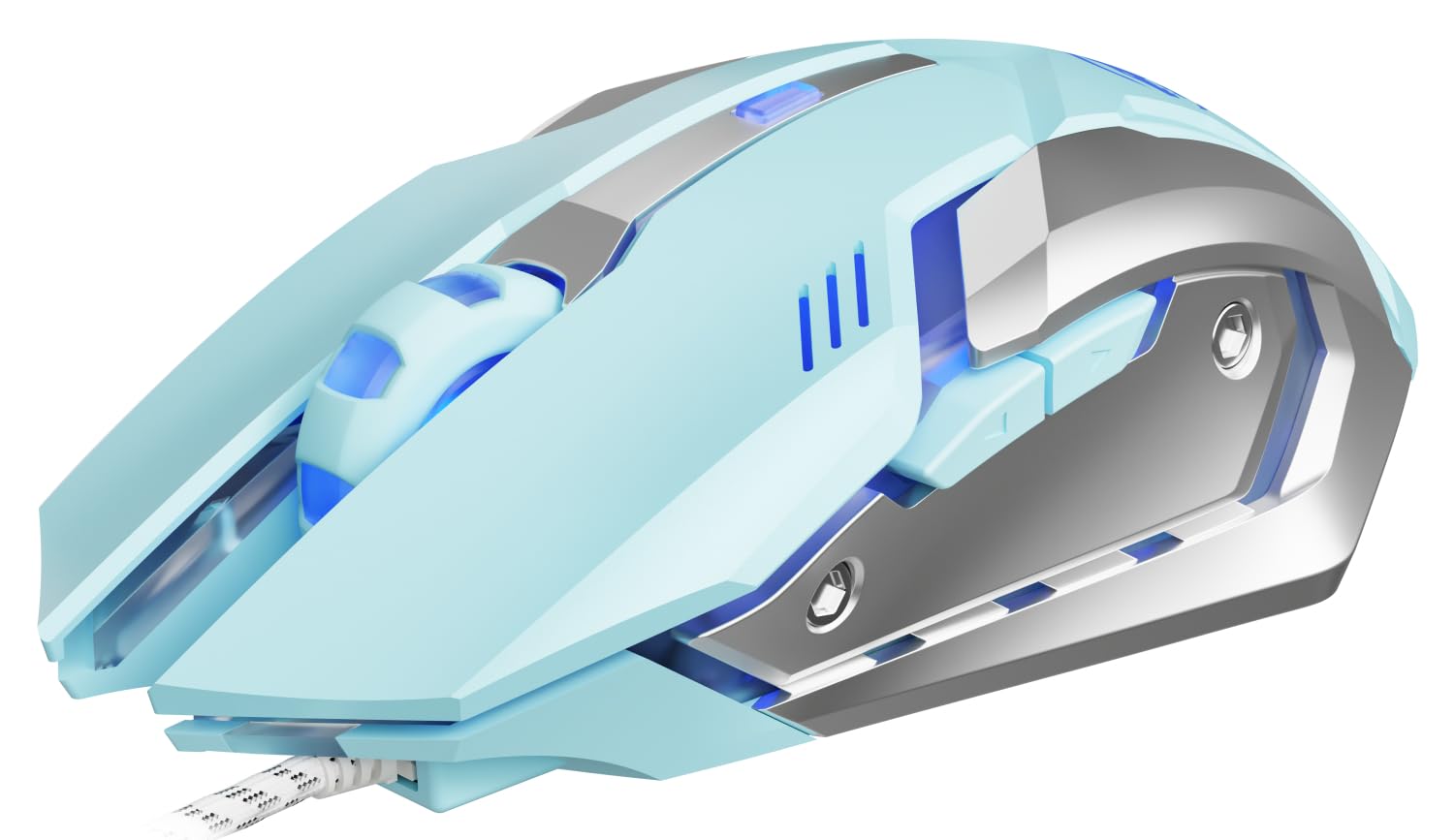
Image 1: EWEADN G3 Wired Gaming Mouse, showcasingrazie al suo design ergonomico e alla connessione cablata.
2. Caratteristiche principali
- Connettività Plug and Play: Instant connection via USB-A port with no drivers required. Features a tangle-resistant braided cable (1.8m/6ft).
- Four-Speed DPI Adjustment: Easily switch between 800/1200/1600/2400 DPI for dynamic tracking speed adjustments.
- 6 pulsanti programmabili: Customize macros, shortcuts, or game combos for enhanced control.
- Instant-A704E Optical Sensor: Provides precise tracking with 30 IPS speed, 6000 FPS frame rate, and 15G acceleration.
- Dynamic 4-Color Breathing Light: Features an automatic cycle of blue, pink, red, and purple lighting, with an option to turn off the lights.
- Design durevole: Engineered for 3 million clicks durability with a metal base.
- Comfort ergonomico: Progettato per una presa comoda durante l'uso prolungato.
3. Istruzioni per l'installazione
3.1 Collegamento del mouse
- Locate an available USB-A port on your computer (PC or Laptop).
- Plug the USB connector of the EWEADN G3 mouse into the USB-A port.
- The mouse is designed for plug-and-play functionality and should be recognized automatically by your operating system (Windows, Mac OS, Chrome OS, Linux). No additional drivers are typically required for basic functionality.
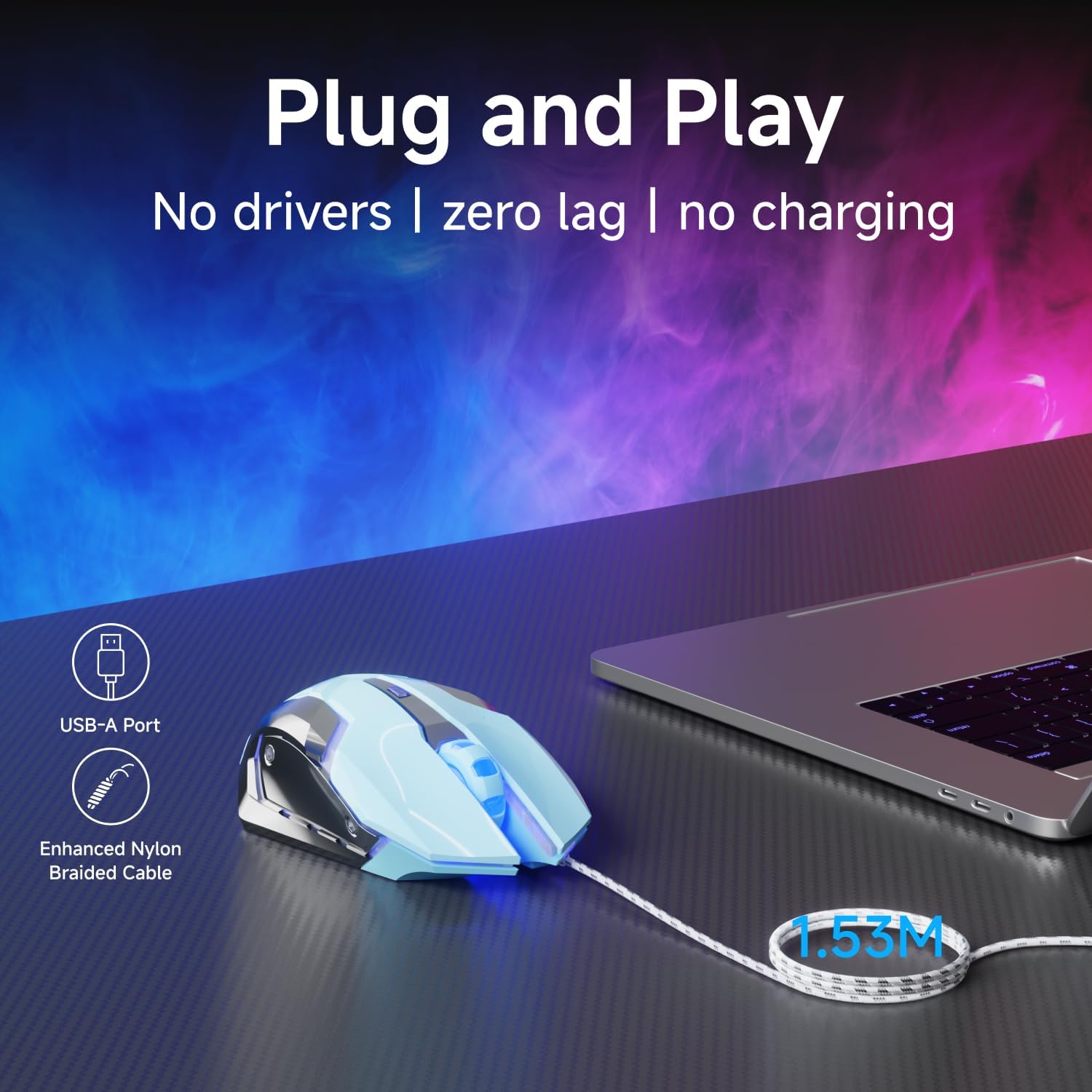
Image 2: The mouse connected via its USB-A port, illustrating the plug-and-play setup.

Image 3: The EWEADN G3 mouse is compatible with various operating systems including Windows, Mac OS, Chrome OS, and Linux.
3.2 Installazione del driver (facoltativa per personalizzazione avanzata)
For advanced customization of programmable buttons and DPI settings beyond the default, you may need to download specific software. Please refer to the manufacturer's website for the latest driver and software downloads.
Video 1: This video demonstrates the process of downloading and installing the mouse driver for advanced customization. (Source: Yiershi Store)
4. Istruzioni per l'uso
4.1 Regolazione DPI
The EWEADN G3 mouse features a dedicated DPI button to quickly adjust tracking sensitivity. Press the DPI button (located near the scroll wheel) to cycle through four preset DPI levels: 800, 1200, 1600, and 2400. This allows you to adapt the mouse speed to different tasks, from precise editing to fast-paced gaming.

Image 4: Illustration of the DPI button and the four adjustable DPI levels (800, 1200, 1600, 2400).
4.2 pulsanti programmabili
Your mouse is equipped with 6 buttons: Left Click, Right Click, Scroll Wheel (clickable), DPI Button, Forward Button, and Backward Button. The Forward and Backward buttons are typically located on the side of the mouse. These buttons can be programmed using the optional software to execute macros, shortcuts, or specific game commands, providing a personalized control experience.
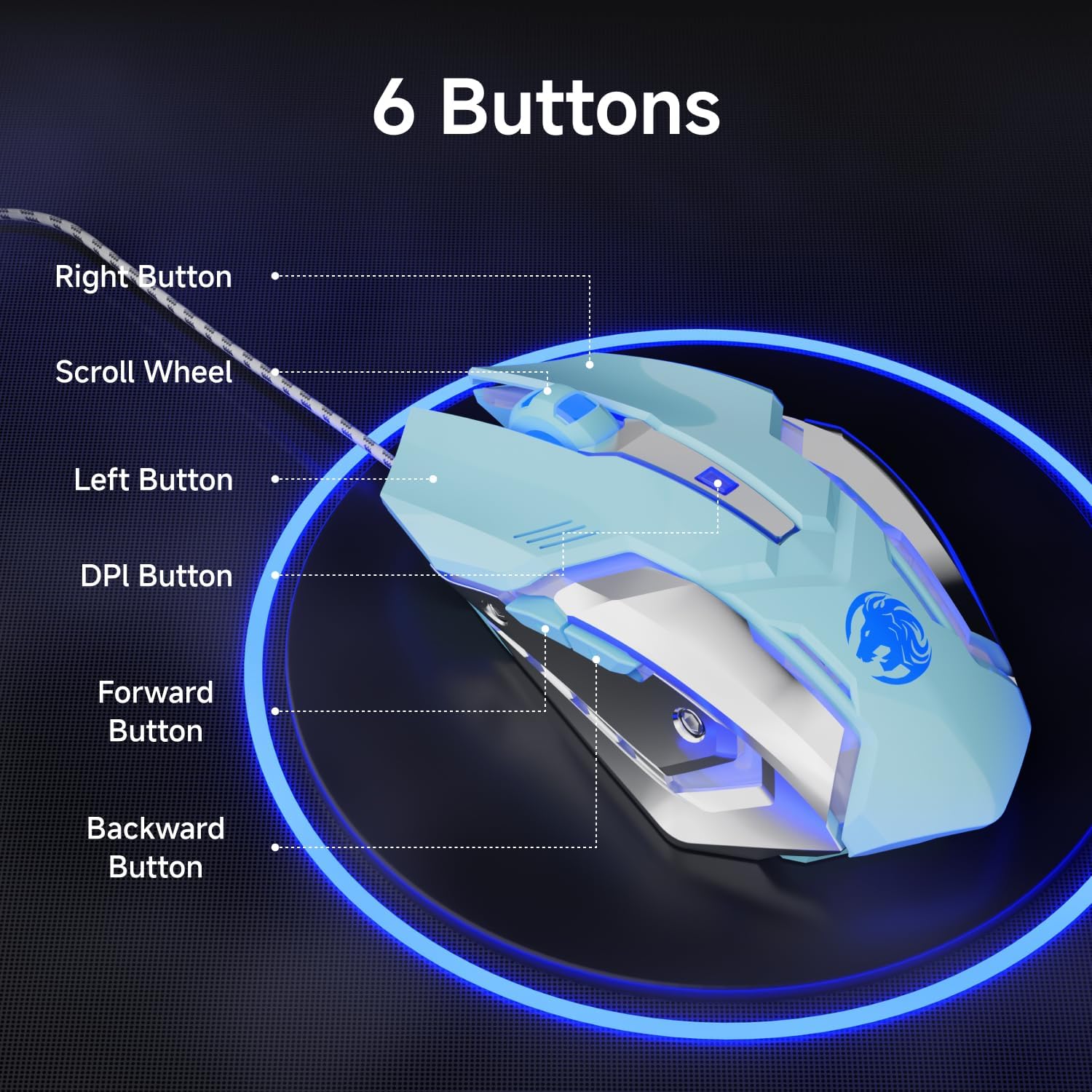
Image 5: Diagram showing the location of the 6 buttons on the EWEADN G3 mouse.
4.3 Illuminazione RGB dinamica
The EWEADN G3 mouse features a dynamic four-color breathing light effect, cycling through blue, pink, red, and purple. The lighting automatically breathes and switches. To turn off the lighting, refer to the optional software or specific button combinations if available (not specified in basic features).

Image 6: The mouse displaying its dynamic four-color breathing light in blue, pink, red, and purple.
4.4 Design ergonomico
The mouse is designed with an ergonomic shape to provide a comfortable grip, reducing strain during prolonged use. Its form factor is suitable for various hand sizes, ensuring a natural and relaxed posture.

Image 7: A hand comfortably gripping the EWEADN G3 mouse, highlighting its ergonomic design.
4.5 Funzione clic silenzioso
The EWEADN G3 mouse incorporates an upgraded mute button design, offering a quieter clicking experience compared to standard mice. This feature is beneficial in environments where noise reduction is desired.

Image 8: The mouse is shown with a visual representation of its silent click feature, indicating reduced noise.
5. Manutenzione
5.1 Pulizia
- Scollegare il mouse dal computer prima di pulirlo.
- Utilizzare leggermente un panno morbido e privo di lanugine dampPulire la superficie del mouse con acqua o una soluzione detergente delicata.
- Evitare l'uso di prodotti chimici aggressivi, detergenti abrasivi o umidità eccessiva, poiché potrebbero danneggiare il mouse.
- For the optical sensor, use a cotton swab to gently clean any dust or debris.
5.2 Conservazione
When not in use, store the mouse in a clean, dry environment away from direct sunlight and extreme temperatures. Avoid coiling the cable too tightly to prevent damage.
6. Risoluzione Dei Problemi
- Il mouse non risponde: Ensure the USB connector is securely plugged into a working USB-A port. Try plugging the mouse into a different USB port or another computer to rule out port or computer issues.
- Il movimento del cursore è irregolare o lento: Clean the optical sensor on the bottom of the mouse. Ensure you are using the mouse on a suitable surface (e.g., a mouse pad) and not on reflective or uneven surfaces. Adjust the DPI settings using the DPI button.
- Pulsanti non funzionanti: Check if the buttons are physically obstructed. If using custom software, ensure the button assignments are correct.
- L'illuminazione RGB non funziona: Verify the mouse is properly connected. If using custom software, check the lighting settings.
7. Specifiche
| Caratteristica | Dettaglio |
|---|---|
| Numero di modello | G3 |
| Tecnologia di connettività | Cablato (USB-A) |
| Impostazioni DPI | 800 / 1200 / 1600 / 2400 |
| Numero di pulsanti | 6 (Programmabile) |
| Rilevamento del movimento | Optical (Instant-A704E sensor) |
| Lunghezza del cavo | 1.8m / 6ft (Braided) |
| Illuminazione RGB | Dynamic 4-Color Breathing (Blue, Pink, Red, Purple) |
| Durata | 3 milioni di clic |
| Velocità di tracciamento | 30 IPS |
| Frequenza dei fotogrammi | 6000 fotogrammi al secondo |
| Accelerazione | 15G |
| Tasso di sondaggio | 125Hz (8 milliseconds) |
| Dimensioni del prodotto | 3.66 x 2.52 x 0.04 pollici |
| Peso dell'articolo | 6.4 once |
| Produttore | EWEAD |
8. Garanzia e supporto
For warranty information, technical support, or to download the latest drivers and software for your EWEADN G3 Wired Gaming Mouse, please visit the official EWEADN or SEUNKWANG product support websito. Le informazioni di contatto per il servizio clienti si trovano solitamente sulla confezione del prodotto o sui canali online ufficiali del marchio.