
Maxfree M4
Manuale utente del monitor portatile Maxfree Dual M4
Modello: M4
Introduzione
Thank you for choosing the Maxfree Dual Portable Monitor M4. This manual provides essential information for setting up, operating, and maintaining your new dual monitor system. Please read this manual thoroughly before use to ensure optimal performance and longevity of your device.
Prodotto finitoview
The Maxfree Dual Portable Monitor M4 is designed to expand your workspace with two 15.6-inch 1080P FHD IPS displays. Its folding design enhances portability, making it ideal for travel and various work environments.

Image: The Maxfree Dual Portable Monitor M4, featuring two 15.6-inch screens in an open, stacked configuration, ready for use.
Caratteristiche principali:
- Dual 15.6-inch 1080P FHD IPS Displays
- Plug & Play USB-C Connectivity
- Folding Design for Portability
- Matte Screen with Anti-glare, No Flicker, and Eye Care Functions
- Gamma di colori 100% sRGB
- Multiple Display Modes and 330° Rotation
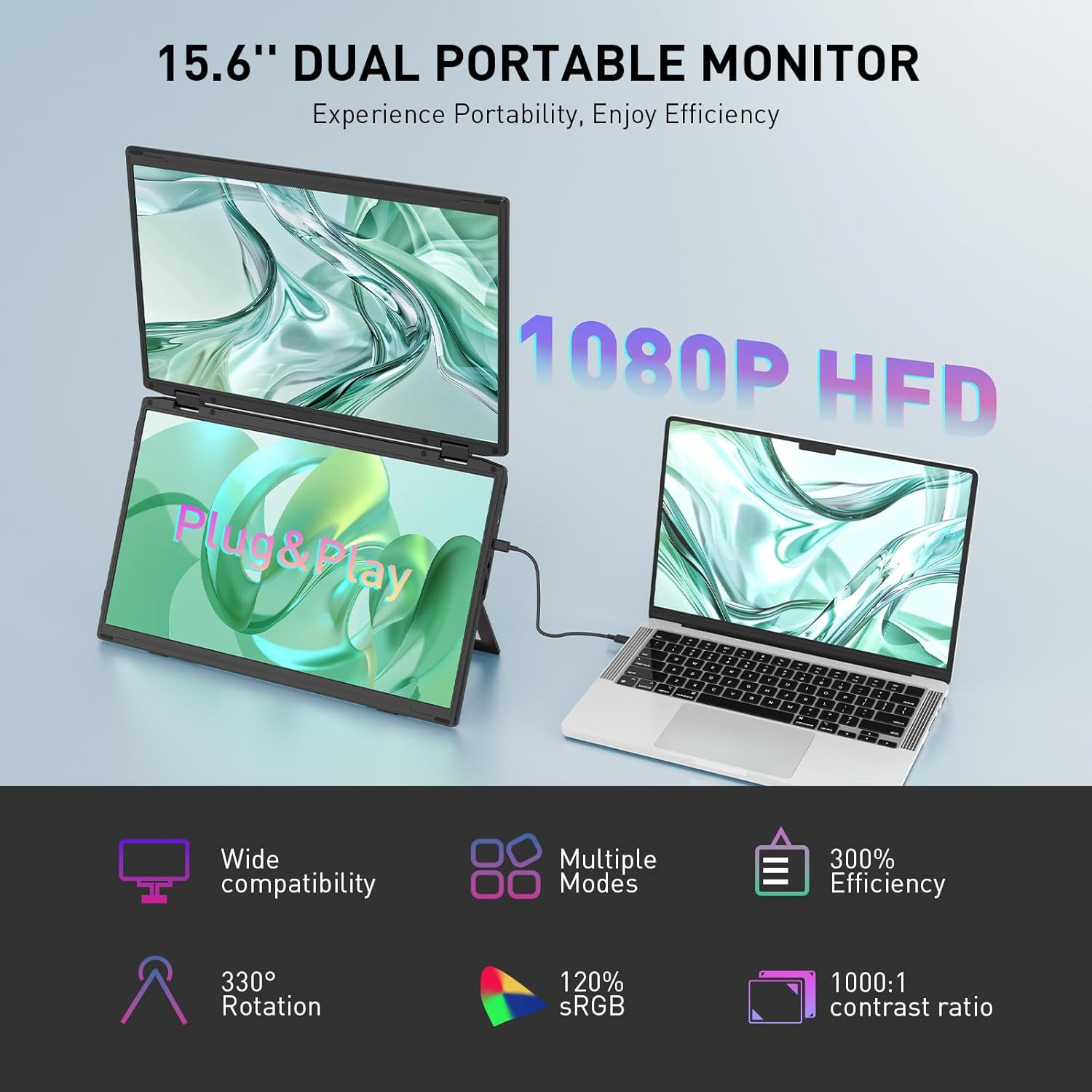
Image: The Maxfree Dual Portable Monitor M4 connected to a laptop, illustrating its plug-and-play functionality and various display modes.
Istruzioni di installazione
- Disimballare il monitor: Estrarre con cautela il monitor e tutti gli accessori dalla confezione.
- Posizionare il monitor: Posizionare il monitor su una superficie stabile e piana. Regolare il supporto integrato nella posizione desiderata. viewangolo di ing.
- Connect to Power (Recommended): For optimal performance, connect the monitor to a power source using the provided USB-C power adapter (if included) or a compatible USB-C port on your device that supports power delivery.
- Connetti al dispositivo:
- Connessione USB-C: Connect one end of the provided USB-C cable to the monitor's USB-C port and the other end to a full-featured USB-C port on your laptop or PC. This single cable can transmit video, audio, and power.
- HDMI + USB-A Connection (if applicable): If your device does not have a full-featured USB-C port, you may need to use an HDMI cable for video and a USB-A to USB-C cable for power and touch functionality (if supported by your model). Refer to your device's manual for specific port requirements.
- Accensione: Press the power button on the monitor. Your device should automatically detect and extend the display.
- Regola le impostazioni di visualizzazione: On your computer, navigate to Display Settings to configure the dual monitors (e.g., extend, duplicate, arrange displays).
Istruzioni per l'uso
Modalità di visualizzazione:
The Maxfree Dual Portable Monitor supports various display modes to enhance productivity:
- Modalità estesa: Expands your desktop across both screens, providing a larger workspace. This is ideal for multitasking.
- Modalità duplicata: Mirrors your primary display onto the portable monitors. Useful for presentations or sharing content.
- Disposizione verticale: The unique vertical stacking design minimizes scrolling and page switching, reducing eye and neck fatigue, especially for document review or coding.
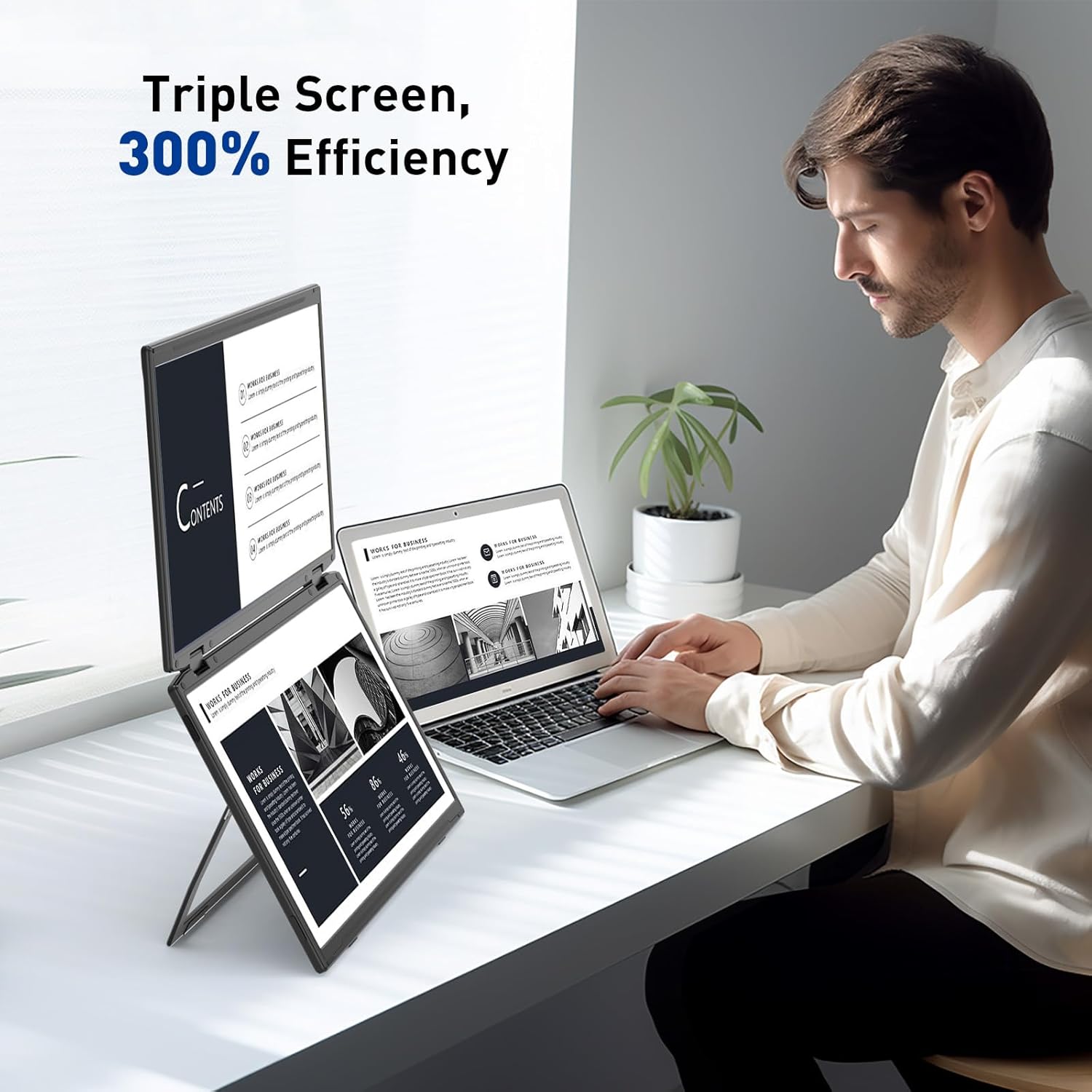
Image: A user demonstrating the Maxfree Dual Portable Monitor M4 in a vertical stacked setup, illustrating how it creates an efficient triple-screen workspace.
Menu OSD (On-Screen Display):
Use the buttons on the side of the monitor to access and navigate the OSD menu. This menu allows you to adjust settings such as:
- Luminosità e contrasto
- Color Settings (e.g., sRGB, color temperature)
- Selezione della sorgente di input
- Proporzioni
- Volume (if applicable)
Refer to the on-screen prompts for specific button functions (e.g., Menu, Up, Down, Exit).
Specifiche
| Caratteristica | Dettaglio |
|---|---|
| Dimensioni dello schermo | Doppio 15.6 pollici |
| Risoluzione | 1920 x 1080 (FHD 1080p) |
| Tipo di pannello | Informazione pubblica |
| Proporzioni | 16:9 |
| Superficie dello schermo | Opaco |
| Luminosità dell'immagine | 300 Candela |
| Gamma di colori | 100% sRGB |
| Connettività | USB-C (Full-featured), HDMI (if applicable) |
| Porte USB totali | 1 (USB-C for main connection) |
| Voltage | 5 Volt |
| Dimensioni del prodotto | 0.5 x 14 x 9 pollici |
| Peso dell'articolo | 3.5 libbre |
| Numero di modello | M4 |
Risoluzione dei problemi
- Nessuna visualizzazione:
- Assicurati che il cavo USB-C sia collegato saldamente sia al monitor sia al dispositivo.
- Verifica che la porta USB-C del tuo dispositivo supporti l'uscita video (modalità alternativa DisplayPort).
- Connect the monitor to an external power source if your device cannot provide sufficient power.
- Check your computer's display settings to ensure the external monitor is detected and enabled.
- Schermo tremolante:
- Assicurarsi che i collegamenti dei cavi siano saldi.
- Prova un altro cavo USB-C.
- Reduce the display resolution or refresh rate on your computer.
- Image Quality Issues (Blurry, Incorrect Colors):
- Adjust the brightness, contrast, and color settings via the OSD menu.
- Ensure your computer's display resolution matches the monitor's native resolution (1920x1080).
- Il monitor non si accende:
- Confirm the power cable is properly connected and the power outlet is functional.
- Premere con decisione il pulsante di accensione.
Manutenzione
- Pulizia dello schermo: Pulire delicatamente lo schermo con un panno morbido e privo di lanugine. Per macchie ostinate, strofinare leggermenteampImmergere il panno in acqua o in una soluzione detergente per schermi. Evitare prodotti chimici aggressivi o materiali abrasivi.
- Pulizia del Casing: Utilizzare un panno morbido e asciutto per pulire la superficie del monitor.asing.
- Magazzinaggio: When not in use, fold the monitor and store it in a cool, dry place, preferably in its original packaging or a protective case to prevent damage.
- Evitare condizioni estreme: Non esporre il monitor a temperature estreme, umidità o luce solare diretta.
Garanzia e supporto
For warranty information, technical support, or service inquiries, please refer to the warranty card included with your product or visit the official Maxfree websito.
Produttore: Shenzhen Baijiayoupu Technology CO., Ltd.
Ask a question about this manual
Ask about setup, troubleshooting, compatibility, parts, safety, or missing instructions. Manuals+ will review the question and use this page’s manual context to help answer it.