
Introduzione
This manual provides essential information for the setup, operation, maintenance, and troubleshooting of your Vibox I-525 Complete Gaming PC. Please read these instructions carefully before using your new system to ensure optimal performance and longevity.
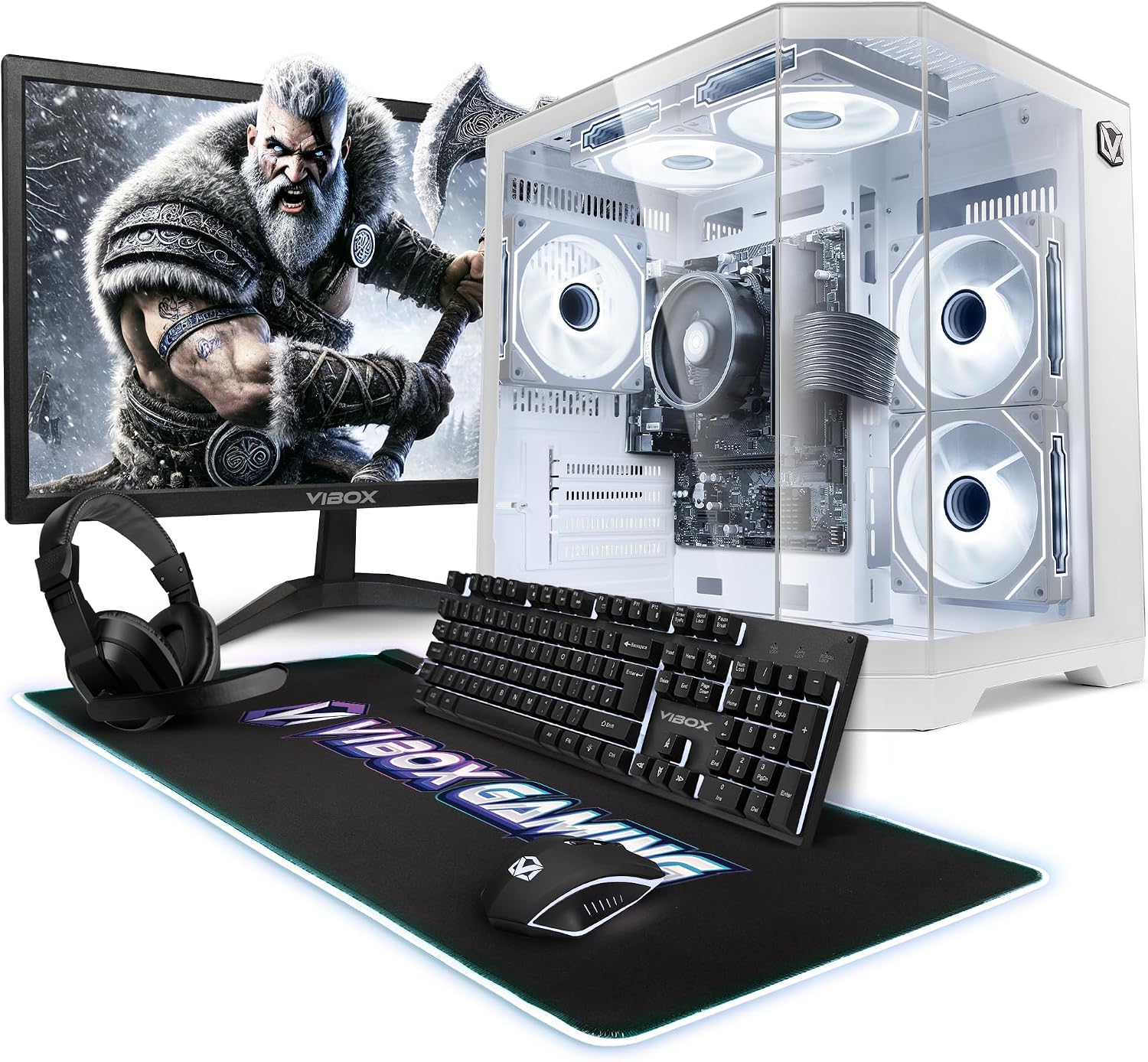
Image: The Vibox I-525 Complete Gaming PC setup, including the tower, 22-inch monitor, gaming keyboard, mouse, and headset.
Contenuto della confezione
Verificare che tutti gli articoli siano presenti nel pacco:
- Vibox I-525 PC Tower
- Monitor da 22 pollici
- Gaming Keyboard (AZERTY layout)
- Mouse da gioco
- Cuffia
- Tappetino per mouse LED
- USB Wi-Fi 6 AX900 and Bluetooth 5.4 Adapter
- Cavi di alimentazione)
- Cavo HDMI
Istruzioni di installazione
1. Disimballaggio e posizionamento
- Carefully remove all components from their packaging. Retain packaging for future transport or warranty claims.
- Place the PC tower on a stable, flat surface with adequate ventilation. Ensure no vents are obstructed.
- Position the 22-inch monitor on a desk at a comfortable viewaltezza.
2. Collegamento di periferiche
- Monitorare: Connect one end of the HDMI cable to the HDMI port on the PC tower and the other end to the HDMI input on the monitor. Connect the monitor's power cable to an electrical outlet.
- Tastiera e mouse: Connect the USB cables of the gaming keyboard and mouse to any available USB ports on the rear of the PC tower.
- Headset: Connect the headset's audio jack(s) to the corresponding audio ports on the PC tower (usually green for audio out, pink for microphone in). USB headsets connect to an available USB port.
- USB Wi-Fi/Bluetooth Adapter: Insert the provided USB Wi-Fi 6 AX900 and Bluetooth 5.4 adapter into an available USB port on the PC tower.
- Energia: Connect the PC tower's power cable to the power supply unit (PSU) input on the rear of the tower, then plug it into an electrical outlet.
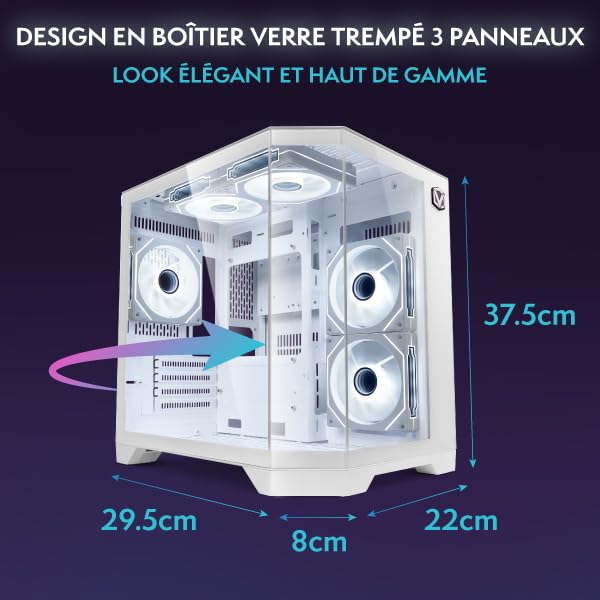
Immagine: Posteriore view of the Vibox I-525 PC tower, highlighting the various connectivity ports including USB, HDMI, and Ethernet.
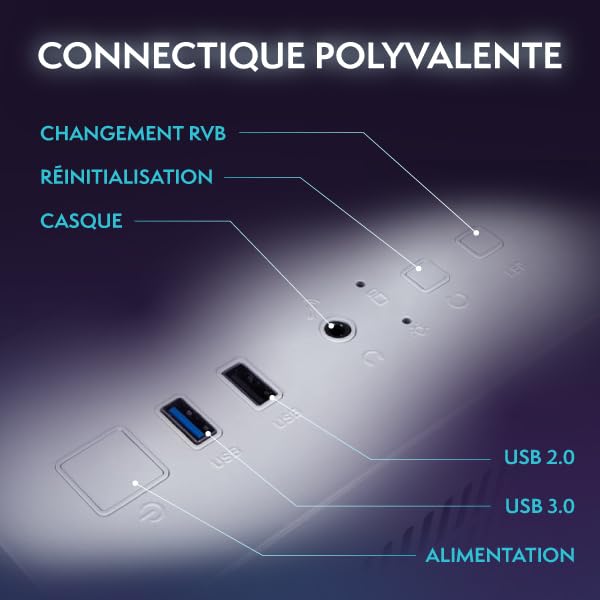
Image: A diagram showing common PC connectivity ports and their functions.
Istruzioni per l'uso
1. Accensione
- Assicurarsi che tutti i cavi siano collegati saldamente.
- Press the power button located on the front of the PC tower.
- Press the power button on the monitor. The system will boot into Windows 11 Home.
2. Configurazione iniziale di Windows 11
- Follow the on-screen prompts to complete the Windows 11 initial setup, including language, region, network connection, and user account creation.
- The USB Wi-Fi adapter should automatically be detected. If not, refer to the adapter's specific instructions or Windows device manager.
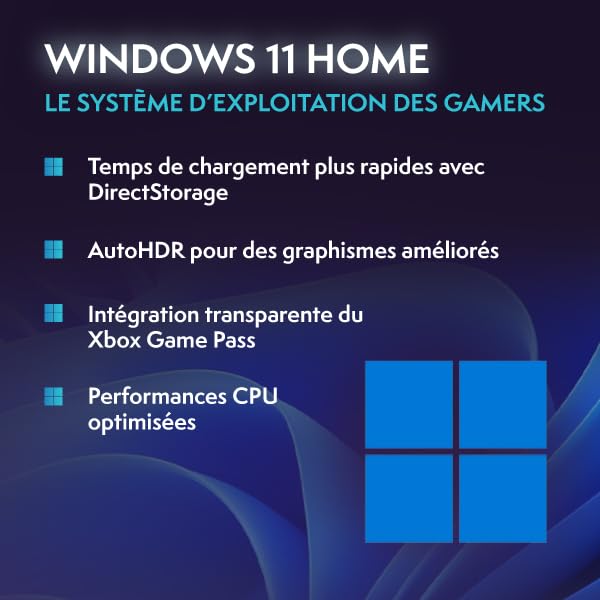
Image: The Windows 11 logo, representing the operating system pre-installed on the PC.
3. Utilizzo di base
- Gioco: This PC is designed for casual gaming and less demanding titles, utilizing the integrated Radeon Vega 8 graphics.
- Multitasking: The 16GB DDR4 RAM and AMD Ryzen 3 3200G processor support smooth multitasking for productivity and everyday tasks.
- Magazzinaggio: The 480GB SSD provides fast boot times and quick application loading.
Manutenzione
1. Pulizia
- Regularly clean the exterior of the PC tower and monitor with a soft, dry cloth.
- Use compressed air to clear dust from the PC's ventilation grilles and internal components (fans, heatsinks) every few months. Ensure the PC is powered off and unplugged before cleaning.
2. Aggiornamenti software
- Keep your Windows 11 operating system updated by regularly checking for updates in the Windows Settings.
- Ensure graphics drivers (AMD Radeon Vega 8) are kept up-to-date for optimal gaming performance.
Risoluzione dei problemi
Problemi comuni e soluzioni
- Nessuna visualizzazione sul monitor:
- Check if the monitor is powered on and the power cable is secure.
- Verify the HDMI cable is firmly connected to both the PC and the monitor.
- Ensure the monitor's input source is set to HDMI.
- Il PC non si accende:
- Check if the power cable is securely connected to the PC and the electrical outlet.
- Ensure the power switch on the PSU (at the back of the PC) is in the 'On' position.
- Nessuna connessione Internet (Wi-Fi):
- Ensure the USB Wi-Fi adapter is properly inserted into a USB port.
- Check Windows network settings to ensure Wi-Fi is enabled and you are connected to the correct network.
- Riavvia il router e il modem.
- Prestazioni lente:
- Chiudere le applicazioni in background non necessarie.
- Ensure Windows and drivers are up-to-date.
- Check available storage space on the 480GB SSD.
Specifiche
| Componente | Dettaglio |
|---|---|
| Numero di modello | I-525 |
| Sistema operativo | Windows 11 Casa |
| Processore (CPU) | AMD Ryzen 3 3200G (4 Cores, 3.6 GHz Base, up to 4.0 GHz Max Boost) |
| Grafica (GPU) | Integrated Radeon Vega 8 Graphics (2GB Shared Memory) |
| Memoria di sistema (RAM) | 16GB DDR4 (2400 MHz), Max 128GB |
| Magazzinaggio | SSD da 480 GB |
| Monitor | 22-inch LED, 1920x1080 Pixels Resolution, 16:9 Aspect Ratio |
| Connettività | Ethernet, HDMI, USB, Wi-Fi 6 AX900, Bluetooth 5.4 |
| Uscita video | 1x HDMI |
| Metodo di raffreddamento | Raffreddamento ad aria |
| Dimensioni (L x P x A) | Dimensioni: 35 x 28 x 38 cm |
| Peso | 16.59 kg |
| Potenza Tipo spina | Type C/EF (2-pin European/Hybrid FR-DE) |
Informazioni sulla garanzia
Your Vibox I-525 PC comes with a comprehensive warranty:
- Parti: 2 anni
- Lavoro: Tutta la vita
Please retain your proof of purchase for warranty claims. For detailed terms and conditions, refer to the official Vibox websito o contattare l'assistenza clienti.
Supporto
If you encounter any issues not covered in this manual or require further assistance, please contact Vibox customer support. You can typically find contact information on the official Vibox websito.