
Hagibis UC-1102AG
Hagibis Knob USB C Hub
Modello: UC-1102AG
Manuale di istruzioni
1. Introduzione
This manual provides detailed instructions for the setup, operation, and maintenance of your Hagibis Knob USB C Hub (Model UC-1102AG). Please read this manual thoroughly before using the device to ensure proper functionality and to prevent damage.
The Hagibis Knob USB C Hub is a multi-functional docking station designed to expand connectivity for your USB-C enabled devices. It features a unique integrated design with a volume knob, shortcut buttons, RGB lighting, and multiple ports for data transfer, audio, and card reading.
2. Contenuto della confezione
Verificare che tutti gli articoli siano presenti nel pacco:
- 1 x Hagibis USB-C Hub (Model UC-1102AG)
- 1 cavo dati USB-C
- 1 x Manuale utente
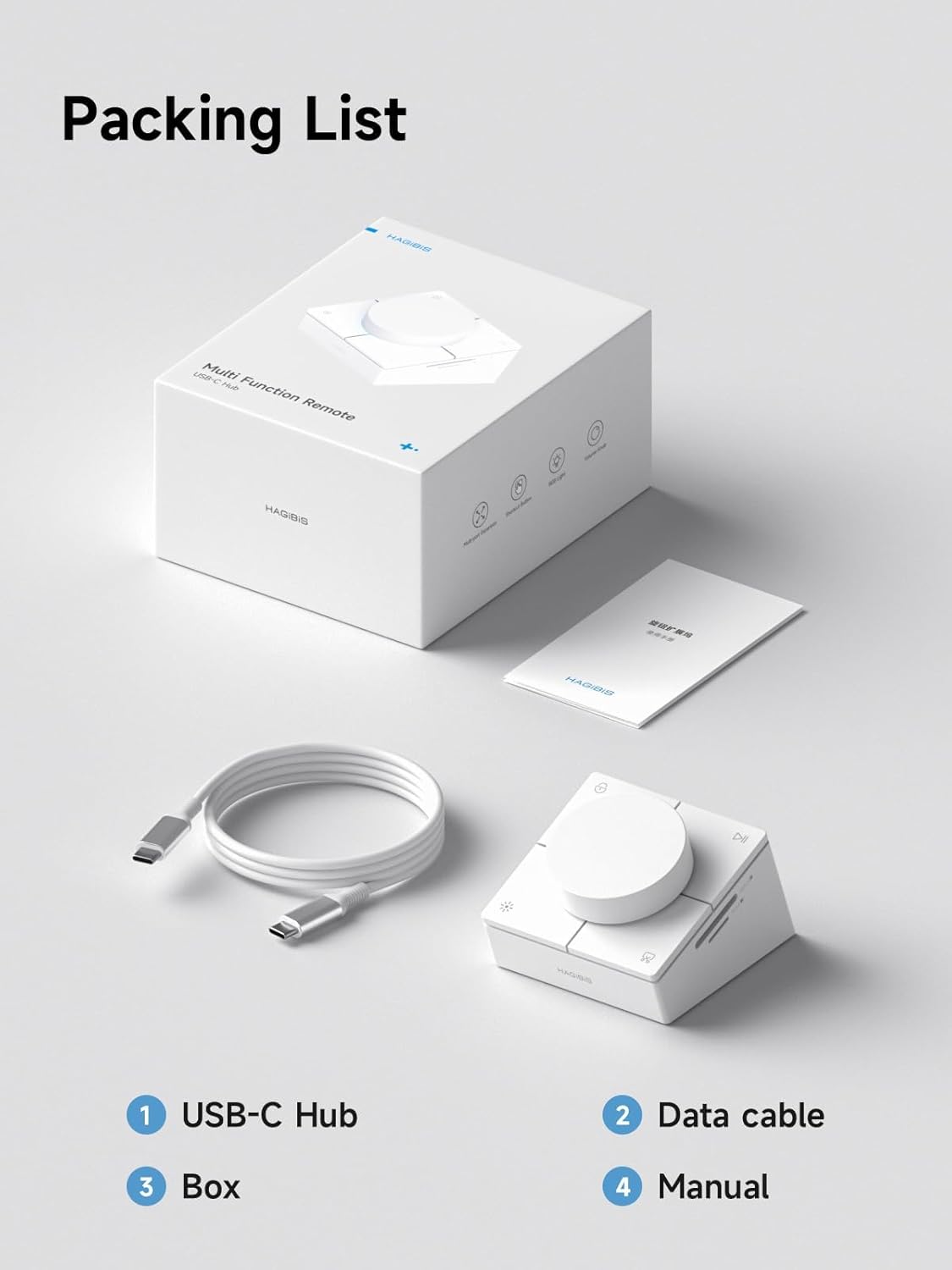
Image: Contents of the Hagibis USB C Hub package, including the hub, data cable, and manual.
3. Prodotto finitoview
The Hagibis Knob USB C Hub offers a variety of ports and controls for enhanced desktop functionality.
3.1. Disposizione delle porte
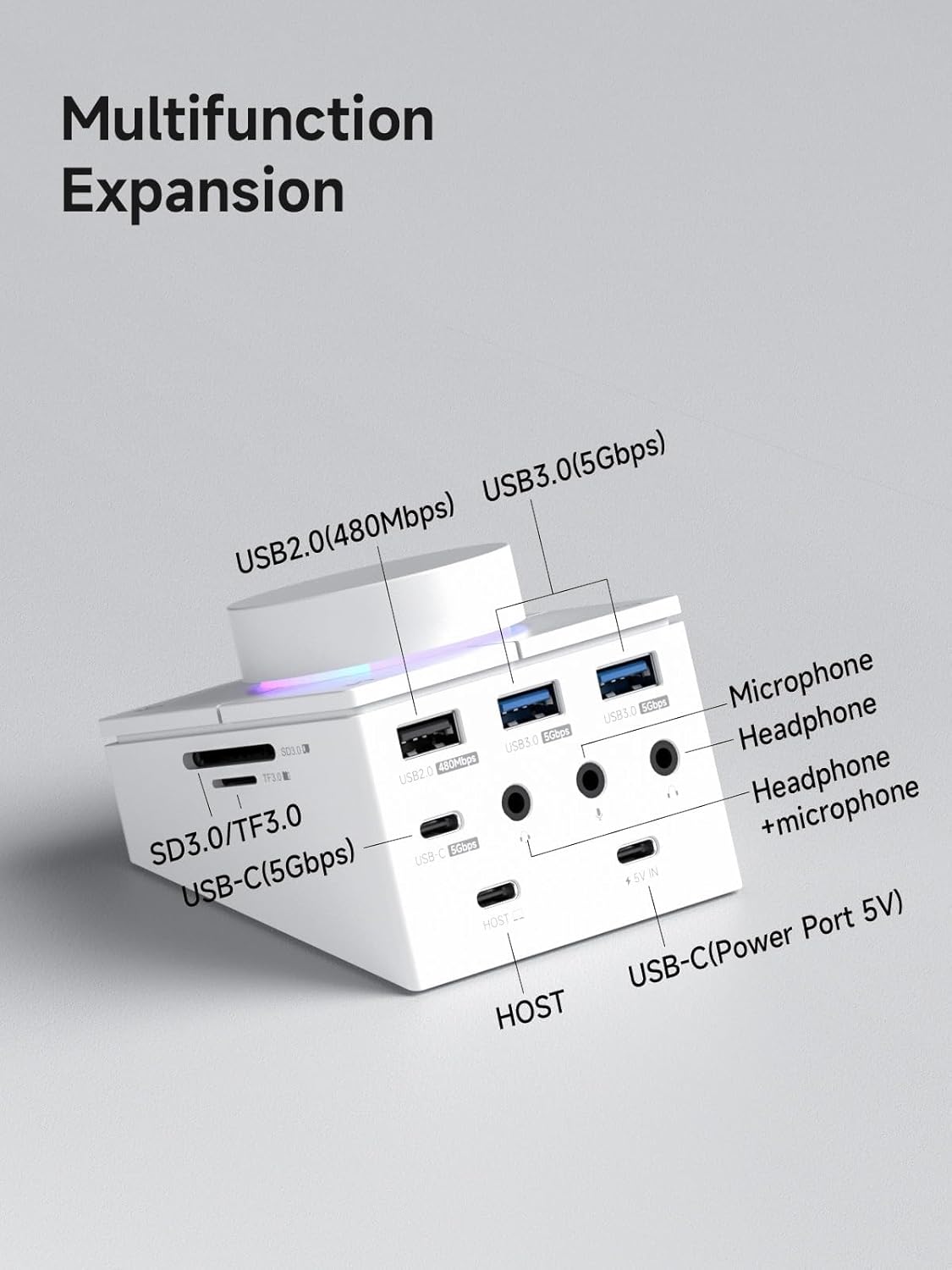
Image: Diagram showing the various ports on the Hagibis USB C Hub, including USB 2.0, USB 3.0, USB-C (5Gbps), SD/TF 3.0, 3.5mm audio jacks, and HOST/Power input.
- USB-C (5 Gbps): For high-speed data transfer.
- USB 3.0 (5 Gbps): Two ports for connecting peripherals like keyboards, mice, and external drives.
- USB 2.0 (480 Mbps): One port for connecting peripherals.
- SD 3.0 / TF 3.0 Card Slots: Supports simultaneous reading of SD and Micro SD cards.
- 3.5mm Audio Jacks: Dedicated ports for microphone, headphone, and a combined headset (headphone + microphone).
- HOST Port: Connects to your computer via the provided USB-C data cable.
- USB-C (Power Port 5V): For external power input if needed for high-power devices.
3.2. Pannello di controllo

Immagine: dall'alto verso il basso view of the Hagibis USB C Hub showing the central volume knob and four surrounding shortcut buttons.
- Manopola del volume: Rotates to adjust volume level. Press to mute/unmute audio.
- Lock Screen Key (Upper Left): blocca lo schermo.
- Play/Pause Key (Upper Right): Controlla la riproduzione multimediale.
- Light Switch Key (Lower Left): Toggles RGB lighting modes.
- Screenshot Key (Lower Right): Captures a screenshot of the system.
4. Istruzioni per l'installazione
Segui questi passaggi per configurare il tuo hub USB C Hagibis Knob:
- Connetti al dispositivo host: Use the provided USB-C data cable. Connect one end to the 'HOST' port on the Hagibis hub and the other end to a USB-C port on your computer (MacBook, iPad Pro, Laptop, etc.).
- Optional Power Connection: If you are connecting high-power devices (e.g., external hard drives) or experiencing unstable connections, connect a 5V power adapter (not included) to the 'USB-C (Power Port 5V)' on the hub.
- Installazione del driver: The hub is generally plug-and-play and does not require specific drivers for most operating systems (Windows, macOS). Your system should automatically recognize the device.
- Collega le periferiche: Once the hub is connected, you can plug in your USB devices, SD/TF cards, and audio devices into the respective ports.
Video: This video demonstrates the unboxing and initial connection of the Hagibis USB-C Hub, showcasing its various ports and how to connect it to a laptop. It also briefly illustrates the functionality of the volume knob and shortcut buttons.
5. Istruzioni per l'uso
5.1. Manopola del volume
- Regola il volume: Rotate the knob clockwise to increase volume and counter-clockwise to decrease volume.
- Disattiva/Attiva audio: Press the knob once to mute or unmute the audio output.

Image: A hand adjusting the volume knob on the Hagibis USB C Hub, with a screen showing the volume level changing.
5.2. Pulsanti di scelta rapida
The four shortcut buttons provide quick access to common functions:
- Lock Screen Key (Upper Left): Press to lock your computer screen.
- Play/Pause Key (Upper Right): Press to play or pause media playback.
- Light Switch Key (Lower Left): Press to cycle through different RGB lighting modes around the knob.
- Screenshot Key (Lower Right): Press to capture a screenshot.
Tabella di mappatura dei tasti di scelta rapida
| Funzione | Windows Action | Azione Mac |
|---|---|---|
| Press Lock Screen Key | Win+L | ⌘+L |
| Hold down Lock Screen Key | Win+Ctrl+Q | ⌘+Ctrl+Q |
| Press Screenshot Key | Win+Stamp | ⌘+F13 |
| Hold down Screenshot Key | Win+Ctrl+3 | ⌘+Ctrl+3 |

Image: A table detailing the default functions and corresponding keyboard shortcuts for the Lock Screen and Screenshot keys on both Windows and Mac operating systems.
5.3. Card Reader Operation
Insert your SD or Micro SD (TF) cards into the designated slots on the side of the hub. The hub supports simultaneous reading of both card types. Ensure cards are inserted correctly to avoid damage.

Image: A Micro SD card and an SD card being inserted into the dual card slots on the side of the Hagibis USB C Hub.
5.4. Porte USB
Connect your USB devices (e.g., flash drives, external hard drives, keyboards, mice) to the USB 2.0, USB 3.0, or USB-C data ports. The USB 3.0 and USB-C data ports support up to 5Gbps data transfer speeds.

Image: Various USB cables connected to the USB 3.0 and USB-C data ports on the Hagibis USB C Hub, illustrating high-speed data transmission.
5.5. Porte audio
Connect your audio devices to the 3.5mm jacks:
- Use the microphone jack for external microphones.
- Use the headphone jack for headphones.
- Use the combined headset jack for devices that integrate both headphone and microphone functions.

Image: A microphone and headphones connected to the 3.5mm audio ports on the Hagibis USB C Hub, demonstrating its audio connectivity options.
6. Specifiche
| Caratteristica | Dettaglio |
|---|---|
| Marca | Hagibis |
| Numero di modello | Modello UC-1102AG |
| Colore | White AG |
| Interfaccia Hardware | USB tipo C |
| Porte USB totali | 5 (1x USB-C 5Gbps, 2x USB 3.0 5Gbps, 1x USB 2.0 480Mbps, 1x USB-C Power 5V) |
| Numero di porte (totale) | 9 (including card readers and audio jacks) |
| Velocità di trasferimento dati | 5 Gigabits Per Second (USB 3.0, USB-C data) |
| Dispositivi compatibili | Card Readers, Gaming Consoles, Laptops, Tablets, USB Flash Drives |
| Sistema operativo | macOS (Minimum Required: Mac OS 10.12 Sierra) |
| Materiale di recinzione | Acrilonitrile Butadiene Stirene (ABS) |
| Dimensioni articolo (L x P x A) | 3.1"L x 2.9"W x 2.3"H (79 mm x 75 mm x 60 mm) |
| Peso dell'articolo | 14.8 once |

Image: Technical drawing showing the dimensions of the Hagibis USB C Hub and listing key product parameters like brand, name, color, and material.
7. Compatibilità
The Hagibis Knob USB C Hub is compatible with a wide range of devices featuring USB-C, USB 4, or Thunderbolt 3/4 ports, including but not limited to:
- MacBook Pro/Air
- Mac mini
- Studio Mac
- iPad Pro
- L'iMac
- Dell XPS13/15
- Lenovo Yoga 720/910/920/930
- Microsoft Surface Book 2/Surface Go/Surface Laptop 3
- Dell Latitude 13 7000/Latitude 13 E7370
- Other USB-C/USB 4/Thunderbolt 3/4 laptops, tablets, mobile phones, and Steam Deck.
8. Manutenzione
- Pulizia: Use a soft, dry cloth to clean the surface of the hub. Avoid using liquid cleaners or abrasive materials.
- Magazzinaggio: Conservare il dispositivo in un luogo fresco e asciutto, lontano dalla luce solare diretta e da temperature estreme.
- Gestione: Avoid dropping the device or subjecting it to strong impacts. Do not attempt to disassemble the hub.
- Assistenza portuale: Ensure ports are free of dust and debris before inserting cables or cards.
9. Risoluzione Dei Problemi
- Dispositivo non riconosciuto: Ensure the USB-C data cable is securely connected to both the hub's 'HOST' port and your computer's USB-C port. Try connecting to a different USB-C port on your computer. Restart your computer.
- Periferiche non funzionanti: If a connected USB device or card is not recognized, try reconnecting it. Ensure the hub is receiving adequate power, especially for high-power devices; connect an external 5V power adapter if necessary.
- Problemi audio: Check that your audio cables are fully inserted into the correct 3.5mm jacks. Verify audio output settings on your computer.
- Volume Knob or Shortcut Buttons Unresponsive: Ensure the hub is properly connected to your computer. Try disconnecting and reconnecting the hub.
- Connessione intermittente: Ensure all cables are securely connected. Avoid placing the hub near strong electromagnetic interference. If using high-power devices, ensure external power is supplied to the hub.
10. Informazioni sulla garanzia
The Hagibis Knob USB C Hub (Model UC-1102AG) comes with a Garanzia di 1 anno dalla data di acquisto. La presente garanzia copre difetti di fabbricazione e malfunzionamenti in condizioni di normale utilizzo. Non copre danni causati da uso improprio, incidenti, modifiche non autorizzate o installazione impropria.
Conservare la prova d'acquisto per eventuali richieste di garanzia.
11. Assistenza clienti
For further assistance or inquiries regarding your Hagibis Knob USB C Hub, please refer to the official Hagibis websito o contattare i canali di assistenza clienti. Le informazioni di contatto dettagliate sono in genere reperibili sulla confezione del prodotto o sul cartellino del produttore. websito.
Ask a question about this manual
Ask about setup, troubleshooting, compatibility, parts, safety, or missing instructions. Manuals+ will review the question and use this page’s manual context to help answer it.