
1. Introduzione
Thank you for choosing the RONGJI Android 13 Car Stereo. This manual provides essential information for the proper installation, operation, and maintenance of your new car stereo system. Please read this manual thoroughly before use to ensure optimal performance and safety.
This unit is designed specifically for Mazda CX-7 models manufactured between 2008 and 2015. It features an Android 13 operating system, a capacitive touch screen, built-in Car-Play and Android Auto, GPS navigation, Bluetooth, FM radio, and Wi-Fi connectivity.
2. Informazioni sulla sicurezza
- Always operate the vehicle safely. Distraction from the stereo system can lead to accidents.
- Non tentare di installare o riparare l'unità da soli se non si è qualificati. Rivolgersi a un installatore professionista.
- Assicurarsi che tutti i collegamenti elettrici siano sicuri e adeguatamente isolati per evitare cortocircuiti e danni.
- Mantieni il volume a un livello che ti consenta di sentire i rumori del traffico esterno.
- Evitare di esporre l'unità a temperature estreme, alla luce solare diretta per periodi prolungati o a umidità eccessiva.
3. Contenuto della confezione
Verifica che tutti gli articoli elencati di seguito siano inclusi nel pacco. Se alcuni articoli risultano mancanti o danneggiati, contatta l'assistenza clienti.

Image: Package contents for both 4 Core and 8 Core radio versions. The 4 Core package includes the main machine, plastic bezel, power plug, RCA cable, reversing camera cable, USB cable, microphone, and GPS antenna.
For the 4 Core radio (your model), the package typically includes:
- Macchina principale (unità principale)
- Lunetta in plastica
- Spina di alimentazione
- RCA
- Cavo della telecamera di retromarcia
- Cavo USB
- Microfono
- Antenna GPS
4. Configurazione e installazione
This unit is designed for a plug-and-play installation for Mazda CX-7 (2008-2015). However, professional installation is highly recommended to ensure correct wiring and functionality. Incorrect installation can damage the unit or your vehicle's electrical system.
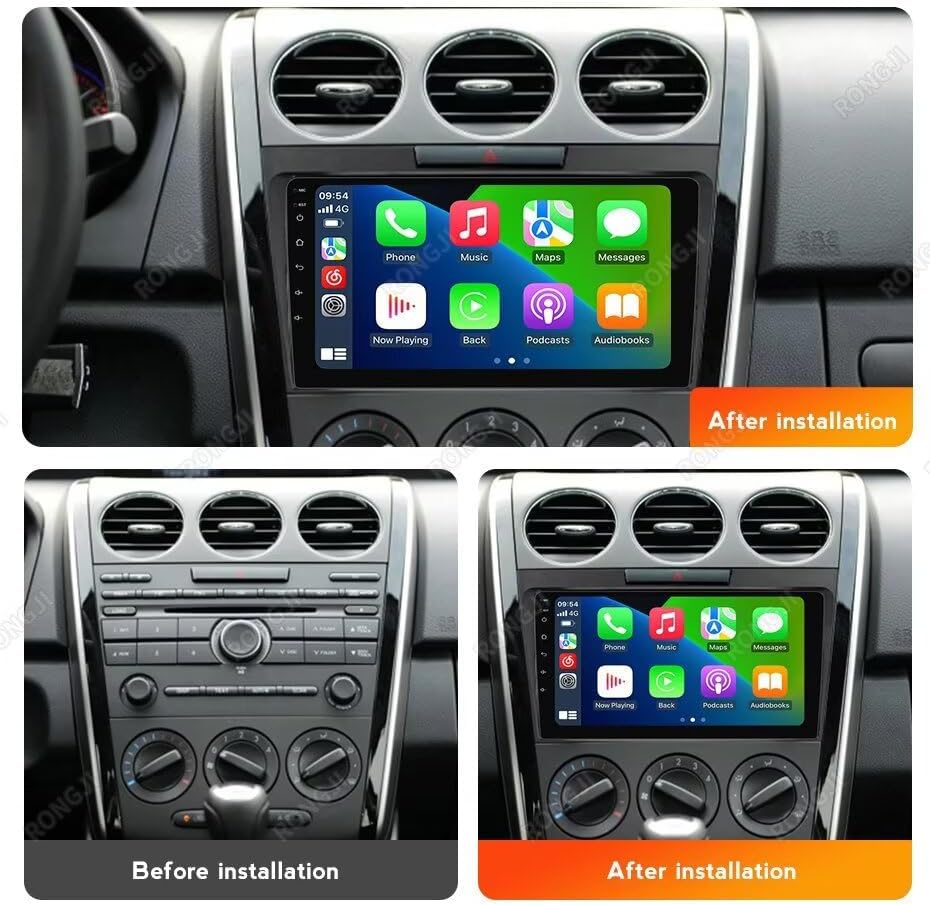
Image: Visual comparison showing the original Mazda CX-7 dashboard and the dashboard with the RONGJI Android stereo installed.
4.1 Controlli pre-installazione
- Confirm vehicle compatibility: This unit is for Mazda CX-7 2008-2015.
- Prima di iniziare l'installazione, scollegare la batteria del veicolo per evitare cortocircuiti.
- Assicurarsi che tutti gli strumenti necessari siano disponibili.
4.2 Passaggi di installazione (guida generale)
- Carefully remove the original factory radio and dashboard trim.
- Connect the power harness, RCA cables, USB cables, GPS antenna, and microphone to the new head unit.
- Connect the vehicle-specific harness to the car's wiring.
- Route the GPS antenna and microphone to suitable locations (e.g., dashboard, A-pillar).
- Test the unit's basic functions (power on, radio, touch screen) before fully reassembling the dashboard.
- Secure the new head unit into the dashboard opening and reattach the trim.
- Ricollegare la batteria del veicolo.
For detailed vehicle-specific instructions, consult a professional installer or an automotive service manual for your Mazda CX-7.
5. Istruzioni per l'uso
5.1 Funzionamento di base
- Accensione/spegnimento: In genere, l'unità si accende con l'accensione del veicolo. Per il controllo manuale, tenere premuto il pulsante di accensione (se disponibile).
- Controllo del volume: Regola il volume utilizzando i comandi sullo schermo o i comandi al volante.
- Schermo tattile: Navigate through menus and applications by tapping, swiping, and pinching on the capacitive touch screen.
5.2 Menu principale e interfaccia utente
The system offers 61 different user interfaces (UIs) to personalize your experience. You can select your preferred UI from the settings menu.

Immagine: Examples of the 61 different main menu user interfaces available for selection.
5.3 Car-Play e Android Auto
The unit supports both wireless and wired Car-Play and Android Auto, allowing seamless integration with your smartphone for navigation, music, calls, and other apps.

Image: Visual representation of the Car-Play and Android Auto interfaces on the stereo screen, highlighting wired and wireless connection options.
- Connessione: Connect your iPhone via USB or wirelessly for Car-Play. Connect your Android phone via USB or wirelessly for Android Auto.
- Caratteristiche: Access phone calls, messages, music, maps, and compatible third-party applications directly from the stereo display.
5.4 Funzione schermo diviso
Utilize the split-screen feature to display two applications simultaneously, such as navigation and music, or a web browser e radio FM.

Image: The top portion shows the split-screen function displaying a music player and a map application. The bottom portion illustrates the steering wheel control learning interface.
5.5 Controllo del volante (SWC)
The unit supports steering wheel controls, allowing you to manage audio functions (volume, track change) and answer calls without taking your hands off the wheel. This enhances driving safety.
- Impostare: Access the SWC settings in the system menu to program the buttons on your vehicle's steering wheel. Follow the on-screen instructions to assign functions.
Radio FM RDS 5.6
Enjoy stable FM radio reception with RDS (Radio Data System) support. The system allows for automatic and manual station searching.

Image: The top section displays the FM RDS radio interface with station frequency and presets. The bottom section shows the Bluetooth calling interface with a dial pad and contact options.
- Ricerca: Utilizzare i controlli sullo schermo per cercare le stazioni o sintonizzarsi manualmente su una frequenza specifica.
- Preselezioni: Salva le tue stazioni preferite per un accesso rapido.
5.7 Funzione Bluetooth
Collega il tuo telefono cellulare tramite Bluetooth per effettuare chiamate in vivavoce e riprodurre contenuti audio in streaming.
- Abbinamento: Enable Bluetooth on your phone and search for the car stereo. Select the stereo from your phone's device list and confirm pairing.
- Chiamate in vivavoce: Make and receive calls directly through the stereo. The unit has a built-in microphone and supports an external microphone for improved call quality.
- Musica Bluetooth: Trasmetti in streaming l'audio dal tuo telefono all'autoradio.
5.8 Navigazione GPS
The unit includes a built-in GPS module and an external GPS antenna for accurate navigation. You can use online or offline map applications.
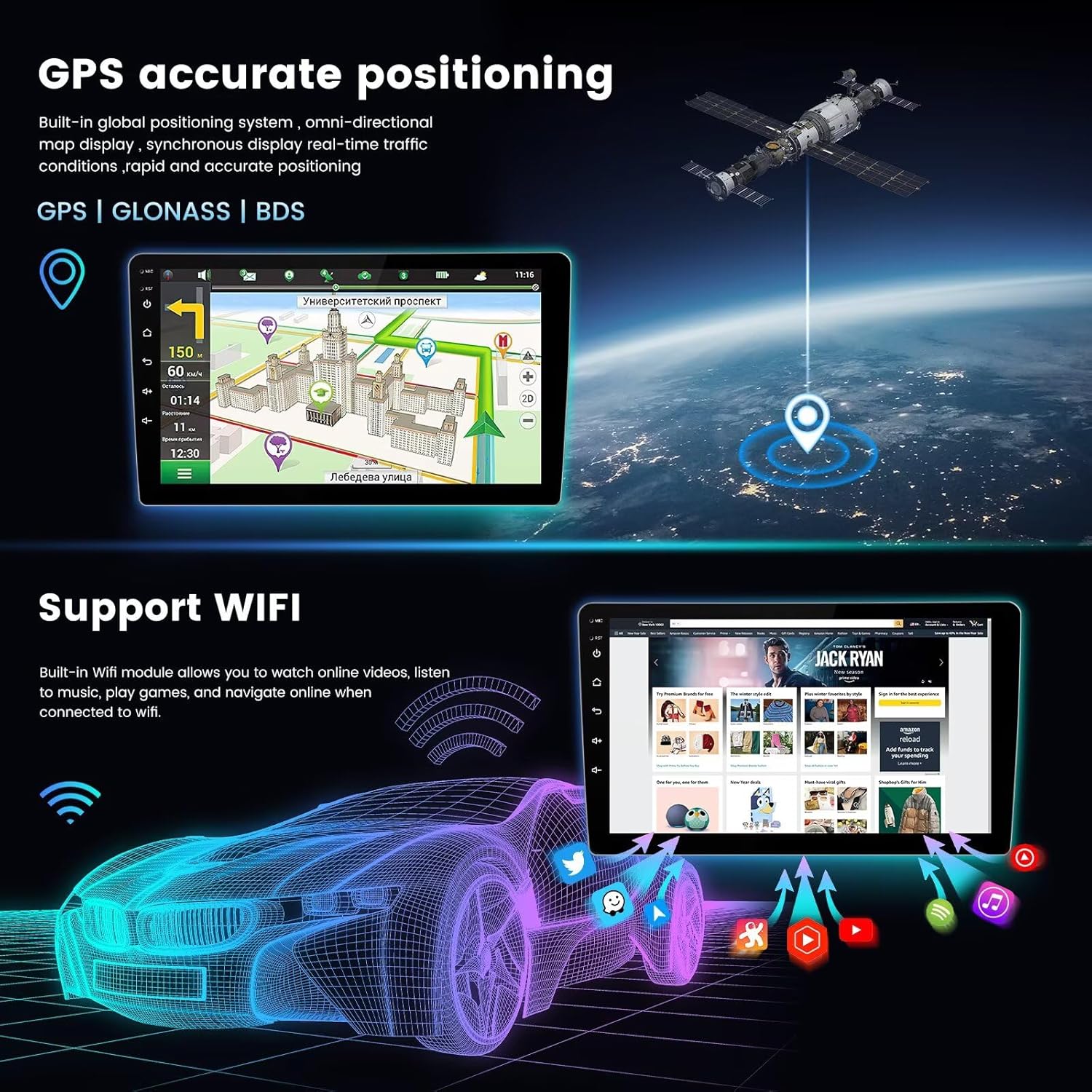
Image: The top section displays the GPS navigation interface with a map and route information. The bottom section illustrates the Wi-Fi connectivity feature with various app icons.
- Scarica la mappa: Connect to Wi-Fi to download maps for any region for offline use.
- Traffico in tempo reale: With an internet connection, receive real-time traffic updates.
5.9 Connettività Wi-Fi
The built-in Wi-Fi module allows you to connect to the internet via a Wi-Fi hotspot or your phone's tethering. This enables online navigation, app downloads, and media streaming.
- Connessione: Go to Wi-Fi settings, turn on Wi-Fi, and select your desired network. Enter the password if required.
- Applicazioni: Access online content, download apps from the app store, and update system software.
6. Manutenzione
- Pulizia dello schermo: Utilizzare un panno morbido e privo di lanugine per pulire delicatamente il touchscreen. Non utilizzare detergenti abrasivi o solventi.
- Aggiornamenti software: Controllare periodicamente la disponibilità di aggiornamenti software di sistema tramite la connessione Wi-Fi per garantire prestazioni ottimali e l'accesso a nuove funzionalità.
- Cura generale: Mantenere l'unità libera da polvere e detriti. Evitare di versare liquidi sull'unità.
7. Risoluzione Dei Problemi
| Problema | Possibile causa | Soluzione |
|---|---|---|
| L'unità non si accende. | Collegamento elettrico allentato, fusibile bruciato, problema alla batteria del veicolo. | Check power cables and fuse. Ensure vehicle battery is charged. Consult an installer. |
| Nessun suono. | Volume troppo basso, modalità muto attivata, problema con il cablaggio degli altoparlanti. | Aumenta il volume. Controlla se la modalità mute è attiva. Verifica i collegamenti degli altoparlanti. |
| Il touch screen non risponde. | Il sistema si blocca, sporco sullo schermo. | Riavviare l'unità. Pulire lo schermo. |
| Segnale GPS perso o impreciso. | Ostruzione dell'antenna GPS, antenna difettosa. | Assicurarsi che l'antenna GPS abbia una visuale libera view del cielo. Controllare il collegamento dell'antenna. |
| Problemi di connessione Bluetooth. | Dispositivo non associato, Bluetooth disattivato sul telefono/unità. | Assicurati che il Bluetooth sia abilitato su entrambi i dispositivi. Riassocia il dispositivo. |
If the problem persists after attempting these solutions, please contact RONGJI customer support.
8. Specifiche
- Nome modello: For Mazda CX-7 CX7 2008-2015
- Sistema operativo: Androide 13.0
- PROCESSORE: 4 Nucleo
- Memoria RAM: 2 GB
- ROM (memoria interna): 32 GB
- Dimensioni dello schermo: 9 pollici
- Tipo di visualizzazione: Schermo touch capacitivo IPS
- Risoluzione: 1080*600
- Connettività: Built-in 5G Wi-Fi, Bluetooth (BT), GPS
- Caratteristiche speciali: Built-in Wireless/Wired Car-Play, Built-in Wireless/Wired Android Auto, FM RDS Radio, Steering Wheel Control (SWC), AHD Camera Support, Split Screen Function, Multiple UI options (61 kinds).
- Produttore: Shenzhen Rongji Electronics Co., Ltd
9. Informazioni sulla garanzia
RONGJI products are manufactured to high-quality standards. This product is covered by a limited warranty against defects in materials and workmanship from the date of purchase. The warranty period and terms may vary by region. Please retain your proof of purchase for warranty claims.
The warranty does not cover damage caused by improper installation, misuse, accidents, unauthorized repairs, or normal wear and tear. For specific warranty details, please refer to the warranty card included with your product or contact RONGJI customer support.
10. Supporto
For technical assistance, troubleshooting, or any questions regarding your RONGJI Android 13 Car Stereo, please contact our customer support team.
- Supporto online: Visit the official RONGJI websito per FAQ, aggiornamenti software e informazioni di contatto.
- Supporto via e-mail: Per trovare l'indirizzo e-mail del servizio clienti, fare riferimento alla confezione del prodotto o alla scheda di garanzia.
- Installazione professionale: If you encounter complex installation issues, it is recommended to seek assistance from a certified automotive electronics installer.