
1. Prodotto finitoview
The DIERYA Falcon M1 is a high-performance wireless gaming mouse designed for precision and versatility. It features multiple connectivity options, customizable settings, and an ergonomic design for extended use.

Figura 1.1: Sopraview of the DIERYA Falcon M1 Wireless Gaming Mouse, illustrating its honeycomb design, 2.4GHz/Bluetooth 5.2/USB-C connectivity, 200-24000 DPI range, 125-1000Hz polling rate, 1000mAh battery, 6 programmable buttons, customizable RGB strip, dedicated software support, 20 million click durability, and ultra-light 90-gram weight.

Figura 1.2: The Falcon M1 mouse from a side view, highlighting its performance specifications including a maximum tracking speed of 300 IPS, a DPI range of 200-24000, a polling rate of 125-1000Hz, and 35G acceleration.
2. Contenuto della confezione
Si prega di verificare che tutti gli articoli elencati di seguito siano inclusi nel pacchetto:
- DIERYA Falcon M1 Wireless Gaming Mouse
- Cavo USB-C
- Manuale di istruzioni
3. Impostazione
3.1. Ricarica del mouse
Before initial use, fully charge the mouse. Connect the provided USB-C cable to the mouse's charging port and the other end to a USB power source (e.g., computer USB port, USB wall adapter). A full charge typically takes approximately 1 hour.
3.2. Collegamento del mouse
The Falcon M1 supports three connection modes: 2.4GHz Wireless, Bluetooth 5.2, and USB-C Wired.
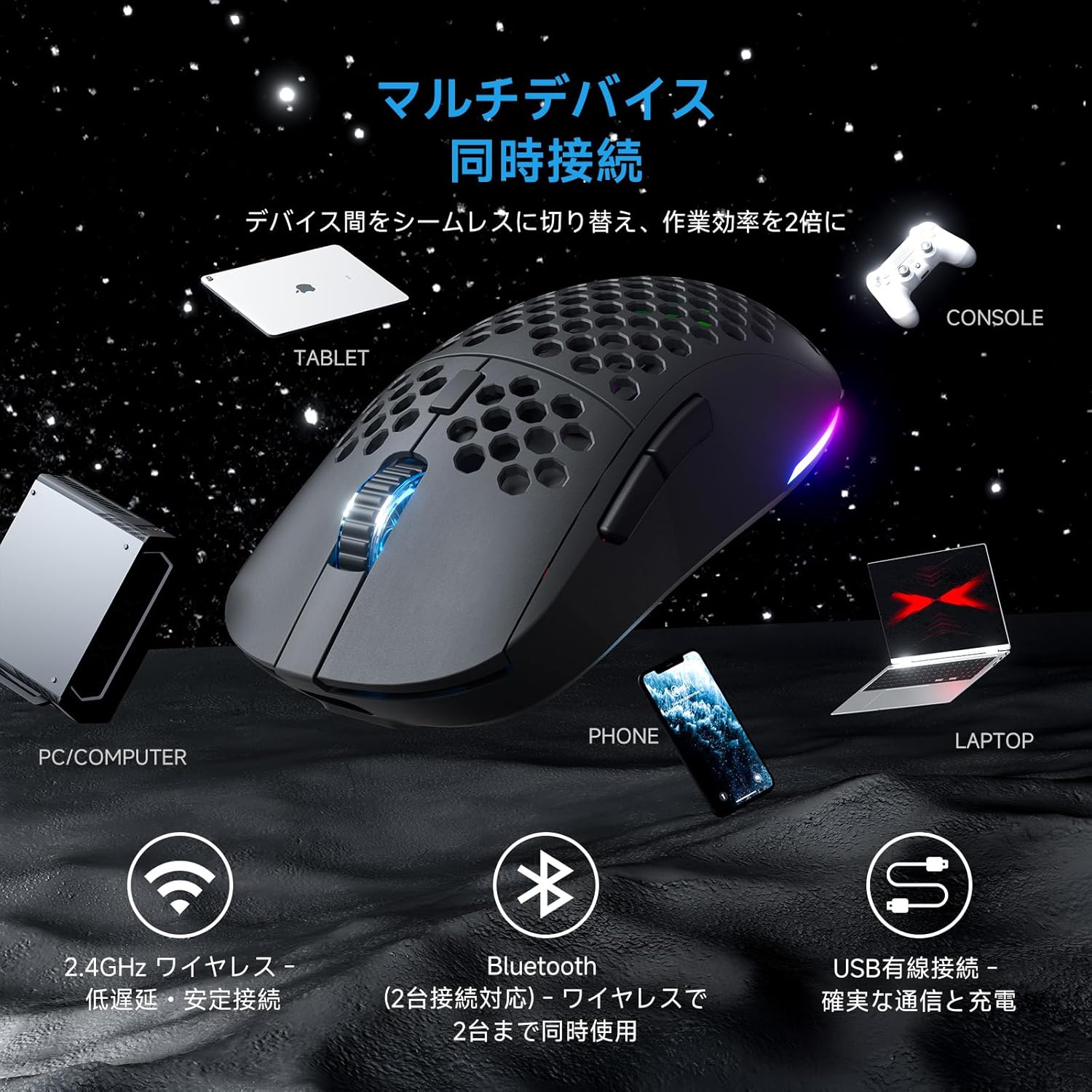
Figura 3.1: The Falcon M1 mouse demonstrating multi-device simultaneous connection capabilities, including PC/Computer, Tablet, Phone, Laptop, and Console via 2.4GHz wireless, Bluetooth 5.2, and USB wired connections.
3.2.1. Connessione wireless a 2.4 GHz
- Locate the USB 2.4GHz receiver (dongle) inside the mouse's bottom compartment.
- Collega il ricevitore USB a una porta USB disponibile sul tuo computer.
- Accendi il mouse utilizzando l'interruttore di alimentazione nella parte inferiore. Il mouse si collegherà automaticamente al ricevitore.
- The LED indicator on the mouse will show the connection status.
3.2.2. Connessione Bluetooth 5.2
- Turn on the mouse and switch to Bluetooth mode using the mode switch on the bottom.
- Sul tuo dispositivo (PC, laptop, tablet, telefono), attiva il Bluetooth e cerca nuovi dispositivi.
- Select "DIERYA Falcon M1" from the list of available devices to pair.
- The mouse supports simultaneous connection to two Bluetooth devices. Use the bottom button to switch between saved profiles.
3.2.3. Connessione cablata USB-C
- Connect the provided USB-C cable to the mouse and the other end to your computer's USB port.
- Il mouse passerà automaticamente alla modalità cablata e inizierà a caricarsi.
4. Istruzioni per l'uso
4.1. Regolazione DPI
The Falcon M1 offers a wide DPI range from 200 to 24,000, adjustable in 1-unit increments. It comes with 6 preset DPI levels (400/800/1600/3200/4800/6400). You can cycle through these presets using the dedicated DPI button on the mouse. The current DPI setting is indicated by the color of the wheel LED and RGB strip (White/Yellow/Light Blue/Blue/Green/Red).
4.2. Personalizzazione dei pulsanti
The mouse features 6 programmable buttons. To customize button functions, assign macros, or fine-tune settings, download and install the dedicated driver software from the official DIERYA website. The software is compatible with Windows systems.

Figura 4.1: Screenshot of the DIERYA Falcon M1 customization software, showing options for key functions, DPI adjustment, USB report rate, and various lighting effects. Note: This software is primarily for Windows systems.
4.3. Controllo dell'illuminazione RGB
The Falcon M1 features customizable RGB lighting with 13 preset effects (e.g., breathing, flicker, flow, starlight) and 16.8 million color options. Lighting effects can be adjusted through the dedicated driver software.

Figura 4.2: The Falcon M1 mouse showcasing its customizable RGB full-color lighting, with options for 13 preset light effects and 16.7 million colors, allowing for personalized lighting modes.
4.4. Gestione energetica
The mouse is equipped with a 1000mAh battery, offering up to 180 hours of use in ECO mode (RGB lighting off) and 48 hours with full RGB lighting. It features automatic sleep functions to conserve power:
- Sonno leggero: Activates after 1 minute of inactivity.
- Sonno profondo: Activates after 5 minutes of inactivity.
The sleep activation times can be configured via the dedicated software.

Figura 4.3: Illustration of the Falcon M1's smart power management, showing a 1000mAh battery providing up to 180 hours in ECO mode (RGB off) and 45 hours with RGB on. It also details light sleep (1 min inactivity) and deep sleep (5 min inactivity) features.
5. Manutenzione
5.1. Pulizia
Per mantenere prestazioni e aspetto ottimali, pulisci regolarmente il mouse:
- Utilizzare un panno morbido e asciutto per pulire la superficie del mouse.
- Per sporco ostinato, leggermente dampPulisci il panno con acqua o una soluzione detergente delicata. Evita prodotti chimici aggressivi.
- Use compressed air to clear dust from the honeycomb structure and sensor area.
5.2. Conservazione
Quando non lo si utilizza per lunghi periodi, conservare il mouse in un luogo fresco e asciutto, lontano dalla luce solare diretta e da temperature estreme. Assicurarsi che il mouse sia spento per preservare la durata della batteria.
6. Risoluzione Dei Problemi
If you encounter issues with your DIERYA Falcon M1 mouse, please refer to the following common solutions:
- Il mouse non risponde: Ensure the mouse is charged and turned on. Check the connection mode (2.4GHz, Bluetooth, or wired) and ensure it matches your device's connection. For 2.4GHz, ensure the USB receiver is properly plugged in. For Bluetooth, re-pair the device.
- DPI non cambia: Press the DPI button to cycle through presets. If using custom DPI settings, ensure the driver software is installed and configured correctly.
- L'illuminazione RGB non funziona: Check if RGB lighting is enabled in the driver software. Ensure the mouse has sufficient battery charge, as RGB consumes power.
- Ritardi o disconnessioni: For wireless connections, ensure there are no strong interferences (e.g., other wireless devices, large metal objects) between the mouse and the receiver/device. Try moving closer to the receiver or switching to a wired connection.
For further assistance, please visit the official DIERYA support websito.
7. Specifiche
Detailed technical specifications for the DIERYA Falcon M1 Wireless Gaming Mouse:

Figura 7.1: The Falcon M1 mouse with its dimensions (125mm length, 63mm width, 41mm height) and illustrations of compatible grip styles: Palm Grip, Finger Tip Grip, and Claw Grip. Optimized for medium to large hands (approx. 17cm or larger).

Figura 7.2: Avvicinamento view of the Falcon M1 mouse, highlighting its breathable honeycomb structure for comfort, sure-grip matte texture, and ultra-smooth PTFE feet for effortless gliding.
| Caratteristica | Specificazione |
|---|---|
| Marca | DIERIA |
| Modello | M1 |
| Colore | Nero |
| Connettività | Wireless a 2.4 GHz, Bluetooth 5.2, USB-C cablato |
| Rilevamento del movimento | Ottico |
| Gamma DPI | 200 - 24,000 DPI (adjustable in 1-unit increments) |
| Preimpostazioni DPI | 400, 800, 1600, 3200, 4800, 6400 |
| Tasso di sondaggio | Frequenza |
| Pulsanti | 6 (Programmabile) |
| Interruttori | Huano (20 million click durability) |
| Peso | Circa 90 g |
| Dimensioni | Dimensioni: 125 x 63 x 41 mm |
| Capacità della batteria | 1000mAh |
| Durata della batteria | Up to 180 hours (ECO mode), 48 hours (Full RGB) |
| Tempo di ricarica | Circa 1 ora (USB-C) |
| Sistema operativo compatibile | Windows 10, Windows 11, macOS, Linux |
| Orientamento della mano | Destro |
| Materiale esterno | Plastica |
8. Garanzia e supporto
8.1. Informazioni sulla garanzia
The DIERYA Falcon M1 Wireless Gaming Mouse comes with a Garanzia di 1 anno against manufacturing defects from the date of purchase. Please retain your proof of purchase for warranty claims. This warranty does not cover damage caused by misuse, accidents, unauthorized modifications, or normal wear and tear.
8.2. Assistenza clienti
For technical support, warranty claims, or additional product information, please visit the official DIERYA websito o contattare il servizio clienti. Fare riferimento alla confezione o al sito ufficiale websito per i dettagli di contatto più aggiornati.